Question

Acumatica Mobile App - Minimize the Steps to Add Line Items in the GRID

  • December 11, 2025
  • 7 replies
  • 53 views

Forum|alt.badge.img

Hi Everyone, 

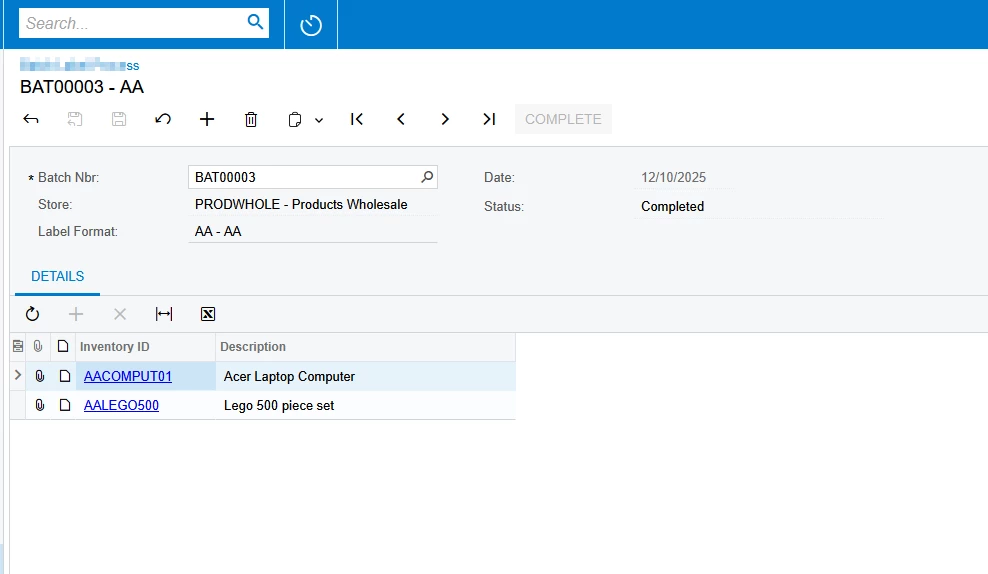
We have a requirement involving a Form and Grid in the Mobile Application. Currently, adding a single line item requires about six steps (as listed below). If a user needs to add more than 20 lines, it results in a large number of clicks and becomes inefficient.

Is there a way to streamline this process or reduce the number of clicks required to add multiple lines?

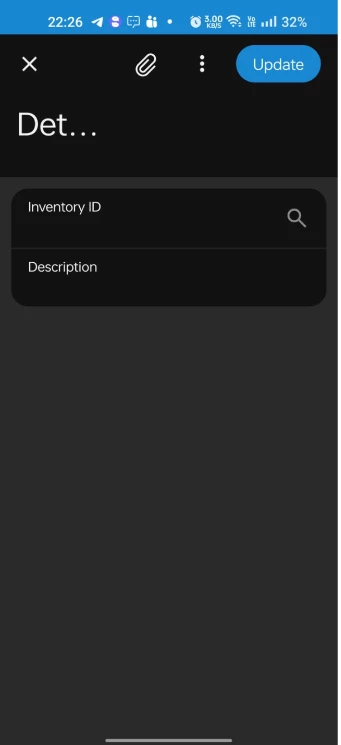
  1. Click on the Details Tab
  2. Click on the (+) button
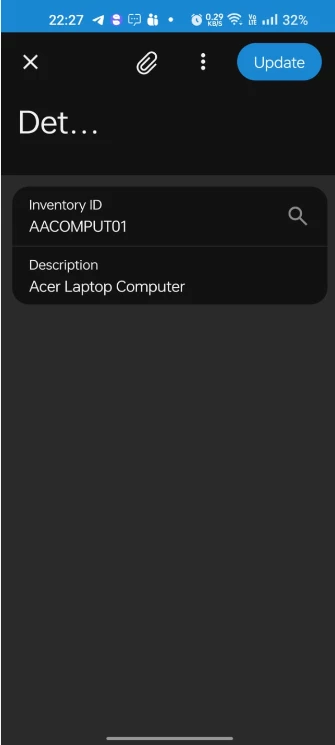
  3. Click on the Inventory ID selector 
  4. Select the Inventory ID
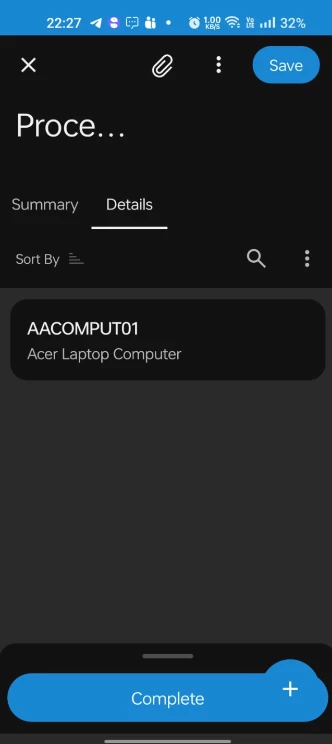
  5. Click on the Update button

Web Screen:
 

Mobile:
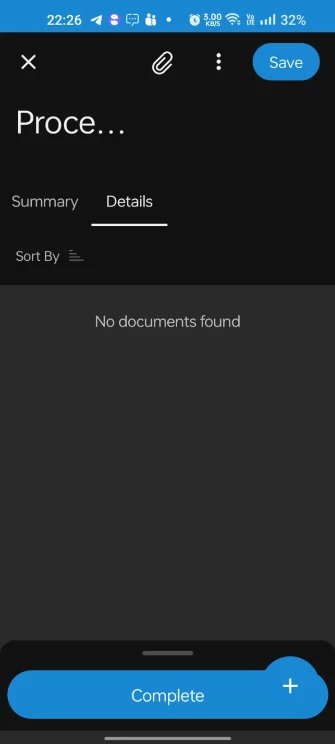
 

Click on Details tab and click on +


Select the Inventory ID


Click on Update


Added Item to GRID


7 replies

Forum|alt.badge.img+1
  • Jr Varsity II
  • December 12, 2025

HI ​@nsmith51 ,

We can make Use of Barcode Scanning for Inventory,

Mobile app supports native barcode scanning.

If your scenario allows barcodes:

Tap Scan

Scan item → line is auto-created

Repeat scanning for each line

1 scan = 1 added line

Hope above helps!!


Forum|alt.badge.img
  • Author
  • Jr Varsity III
  • December 15, 2025

Can you please provide the example for this? ​@Rakshanda 


Forum|alt.badge.img
  • Author
  • Jr Varsity III
  • December 15, 2025

@Rakshanda  Here is my source code. Can you please let me know what changes I need to make?


add screen MA211000 {
add container "NBBLCHeaderView" {
add field "BatchNbr" {
selectorDisplayFormat = Key
pickerType = Searchable
}
add field "Store" {
forceIsDisabled = True
}
add field "LabelFormat" {
pickerType = Attached
}
add field "Date" {
forceIsDisabled = True
}
add field "Status" {
forceIsDisabled = True
}
add layout "DetailsTab" {
displayName = "Details"
layout = "DataTab"
add containerLink "Details"
}
add layout "FooterLayout" {
displayName = "FooterLayout"
layout = "FooterSticky"
add layout "Line1" {
displayName = "Line1"
layout = "Inline"
add recordActionLink "CompleteBatch"
}
}
add recordAction "Save" {
behavior = Save
}
add recordAction "Cancel" {
behavior = Cancel
}
add recordAction "Delete" {
behavior = Delete
}
add recordAction "Insert" {
behavior = Create
}
add recordAction "CompleteBatch" {
behavior = Record
}
add containerAction "Insert" {
icon = "system://Plus"
behavior = Create
}
attachments {
}
}
add container "Details" {
add field "InventoryID" {
special = BarCodeScan
}
add field "Description"
add containerAction "Insert" {
icon = "system://Plus"
behavior = Create
}
add selectionAction "Delete" {
icon = "system://Trash"
behavior = Delete
}
add recordAction "Delete" {
icon = "system://Trash"
behavior = Delete
after = Close
}
attachments {
}
}
}


Forum|alt.badge.img+1
  • Jr Varsity II
  • December 15, 2025

Hi ​@nsmith51 ,


If we take the Scan and Issue screen in standard Acumatica as an example:

When this screen is used in the web application, users need to enter the details manually. However, when the same screen is used in the mobile app, it provides the ability to scan barcodes directly, making the process faster and more efficient.


Forum|alt.badge.img
  • Author
  • Jr Varsity III
  • December 15, 2025

@Rakshanda  Do you know how to add this at code level?


Forum|alt.badge.img+1
  • Jr Varsity II
  • December 15, 2025

Hi ​@nsmith51 ,

you can use special =BarCodeScan property to the field for which you want to provide barcode functionality

as in below field name is scan for which barcode behaviour is applied


Forum|alt.badge.img
  • Author
  • Jr Varsity III
  • December 15, 2025

If you can see my code, I already added this.