



Is there an “out of the box” user role I can allocate to a user to give then access to be able to create Work Calendars? My user can do this, but I am a System Administrator. At this point I don’t want to create multiple bespoke user roles until we understand Acumatica more and what we require.
Solved
Work Calendar Creation
Best answer by Laura03
Hello,
“Out of the box”, only Support and Admin roles have Access Rights to Work Calendars.
You could select one of the standard roles listed below, such as Financial Manager or another management role, and change the Access Rights for the Role of your choosing to Insert level or higher.
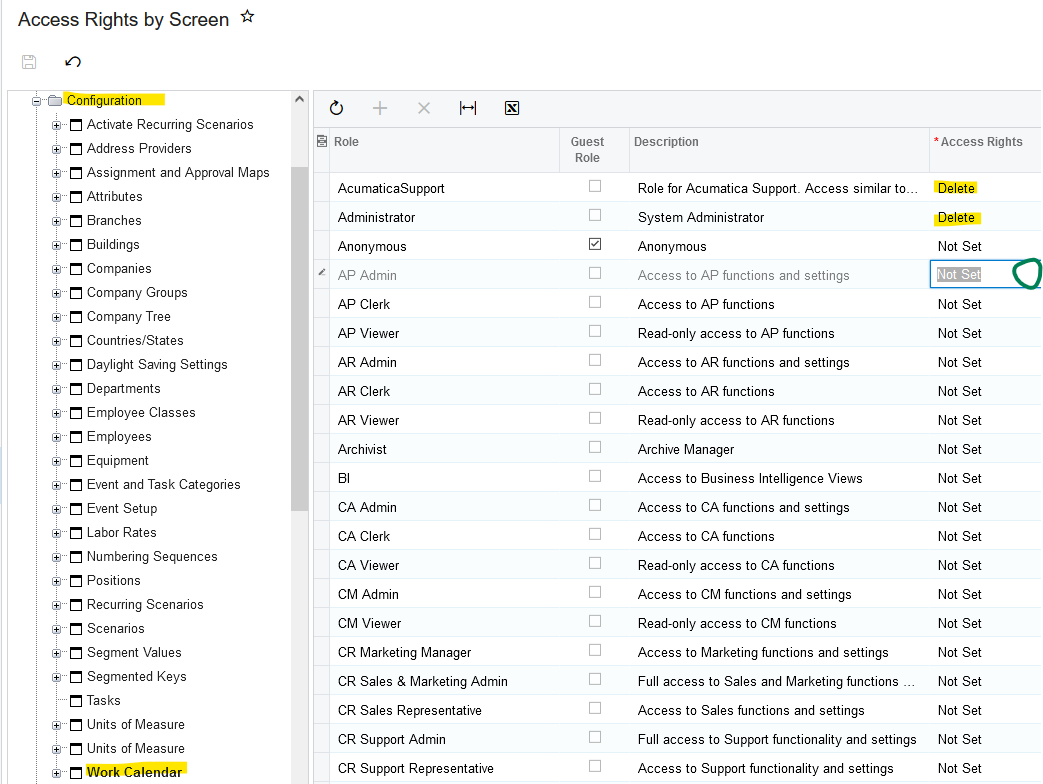
Best practice is to leave standard roles intact and begin with a copy. I suggest the following steps:
- Copy the standard role of your choice in Access Rights by Role screen (see below).
- Change the new Role created in step 1, in Access Rights by Role, to add at least Insert rights to Configuration → Work Calendar screen.
- Assign the new Role to the user who is responsible for Work Calendars.
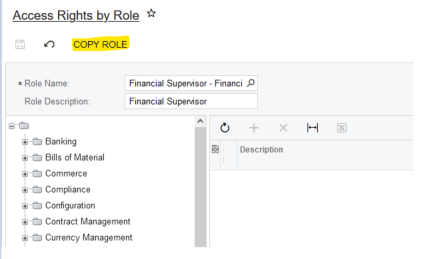
Note: I am using a new tenant for testing (not a Demo or Training tenant), in version 2023 R2 Build 23.206.0006 .
Laura






Login to the community
No account yet? Create an account
Social Login
Login with your Acumatica accountEnter your E-mail address. We'll send you an e-mail with instructions to reset your password.