Stock de-allocating from the sales order when multiple moves have been put into stock (25R2)

  • September 18, 2026
  • 10 replies
  • 104 views

Hello, 

From what I can see this is a common bug in 25R2; what we were wondering was what the most time efficient solution was for this bug. Currently, If it is stuck or unallocating, we clear the production and redo everything. We are an on-prem company so we do have direct db access: does anyone have a quicker way for us to fix this? Is there a scripting way we can do it?

10 replies

Steve Milner
Varsity III
Forum|alt.badge.img+4
  • Varsity III
  • September 18, 2026

@FHubsch check your build first. There's a known 25R2 defect where the final Move on a production order linked to an SO line doesn't allocate the receipt to that line. It comes with the new manufacturing release process, and it's reported fixed in build 25.201.0213. Thread with the support case numbers is here:

https://community.acumatica.com/manufacturing-89/manufacturing-new-release-process-glitches-33765

If you're below that build, the update is the real fix. Anything else is cleanup you'll keep repeating. If you're already on it or later and still see this with multiple moves, log a case and reference that thread, because that would be a different defect.

For orders that are already stuck, you don't need to clear the production. The cleanup people have used is on the sales order line: clear Mark for Production, remove the line details, retype the quantity, then check the allocations. It does drop the link between the SO line and the production order, so try it on one order in a test tenant first.

https://community.acumatica.com/manufacturing-89/item-not-allocating-after-both-production-order-and-move-transaction-completed-25143

I'd stay out of SQL for this one. The allocation isn't a flag on the SO line. It's a chain of inventory plan records tying the SO demand to the production supply and then to the receipt, and the availability quantities are built from those plans. A script that patches one table leaves the rest disagreeing, and that's harder to unwind than the original problem.


  • Author
  • Freshman I
  • September 21, 2026

Hmm I was worried about that… Our build is on 25.201.0213. There isn’t anything that's needed once that upgrade takes place, correct? Nothing additional I need to do to resolve the issue?


Forum|alt.badge.img+3

​@FHubsch 


Yes, the system needs to be upgraded to the 25R2 minor build 25.201.0213.

After completing the upgrade or if your are already in that above build, follow the steps below to enable and test the new release process.
 

Before making this change in Production, enable the New Release Process in the test tenant. Once you enabled it you can disable again.
 

Step 1: Check Existing Production Transactions

Before enabling the new release process, make sure there are no open or balanced Production Transactions in the system.

Review the following transaction types:

  • Move
  • Material
  • Labor

Any open or balanced transactions should be completed or deleted before enabling the new process.

Step 2: Enable the New Release Process

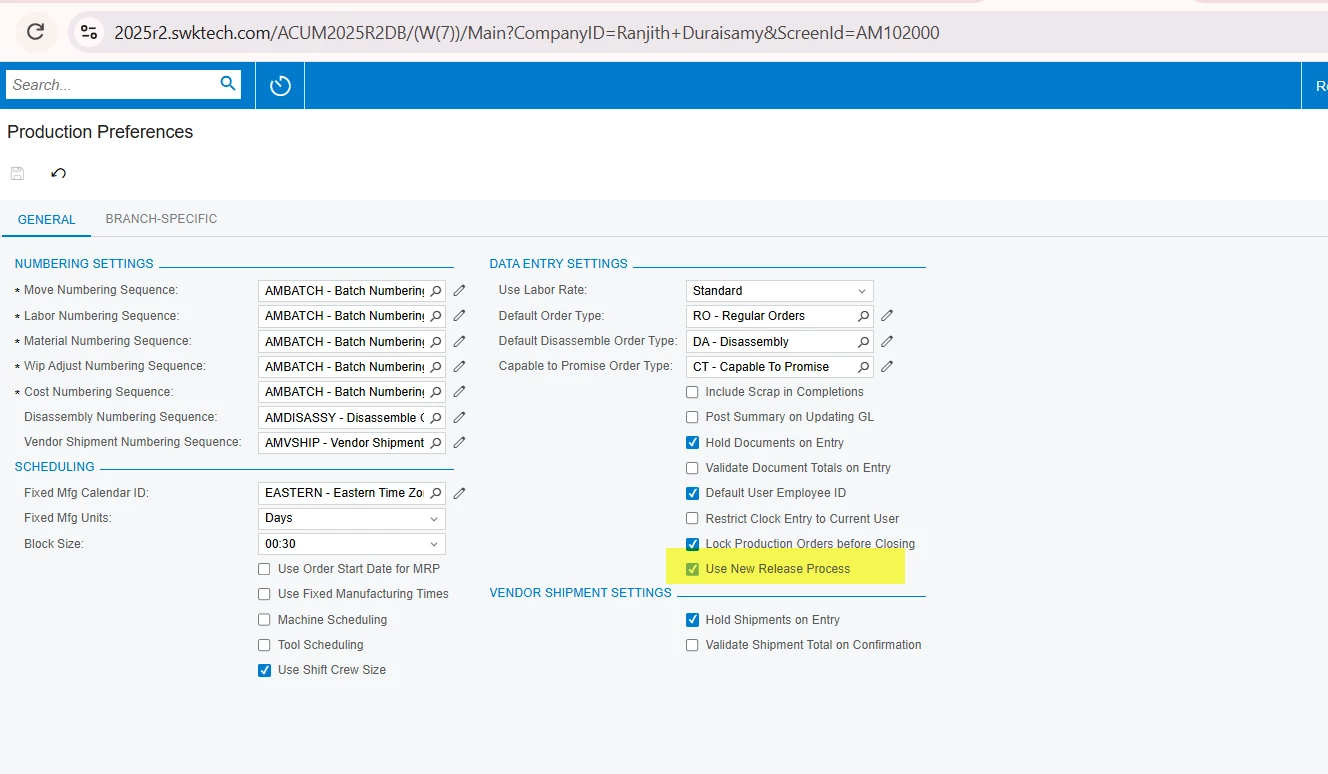
  1. Go to Production Order Preferences.
  2. Locate the new New Release Process checkbox.


  3. Enable this option.
  4. Save the changes
  5. Once you enabled you cant disable it again.
     

Step 3: Define the Production Transaction Numbering Sequence

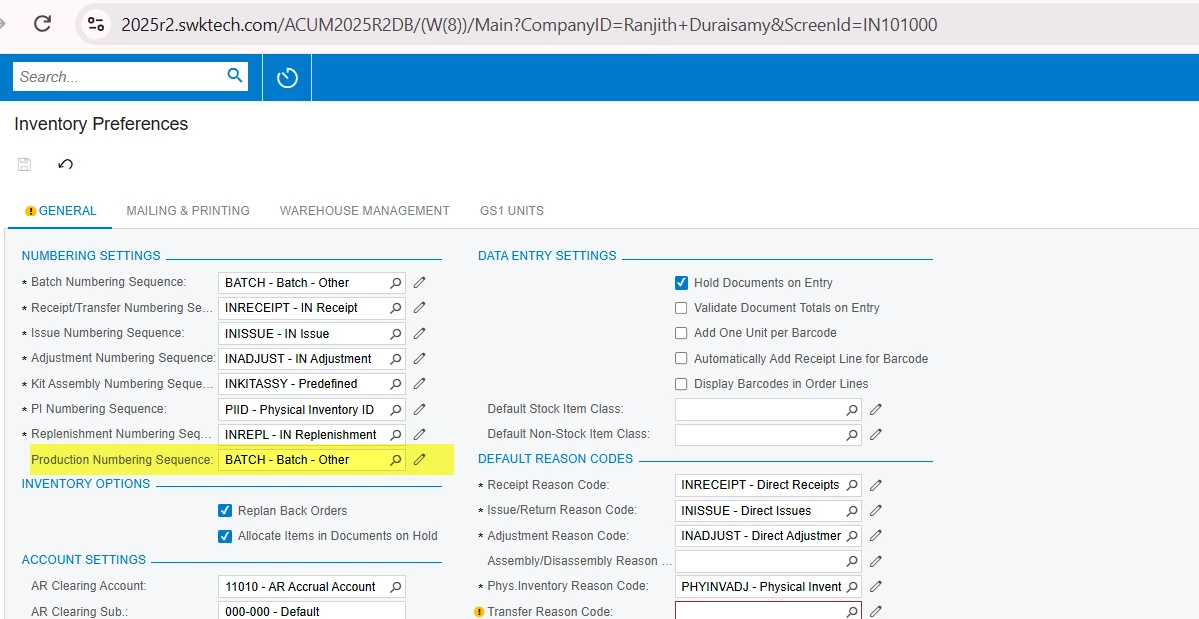
  1. Go to Inventory Preferences.
  2. Locate the numbering sequence settings for Production Transactions.


  3. Define the appropriate numbering sequence.
  4. Save the changes.

Step 4: Test in the Test Tenant First


Perform testing of the following:

  • Material transactions
  • Material release process
  • Production transactions
  • Any existing manufacturing workflows that are affected by the release process

Step 5: Review the Material Release Process

There are some changes to the Material Release Process with the new release process in 25R2.

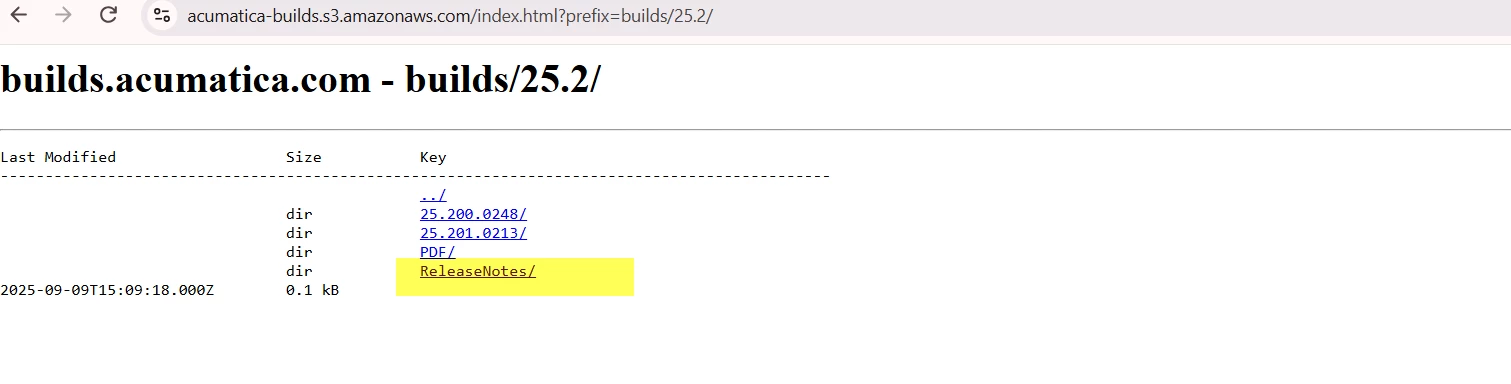
Please review the Acumatica 25R2 Release Notes for the complete list of changes and validate the affected scenarios during testing.

https://acumatica-builds.s3.amazonaws.com/index.html?prefix=builds/25.2/
 

Step 6: Production Deployment

Once testing is completed successfully in the test tenant:

  1. Confirm that there are no open or balanced Move, Material, or Labor transactions in Production.
  2. Enable the New Release Process in Production.
  3. Configure the Production Transaction numbering sequence in Inventory Preferences.
  4. Perform a controlled test of the Material and Production Transaction processes.
  5. Monitor the system closely after enabling the new process.

Steve Milner
Varsity III
Forum|alt.badge.img+4
  • Varsity III
  • September 21, 2026

@FHubsch if you're already on 25.201.0213 and it's still happening, the update isn't your fix. That's the log-a-case branch. Give support a repro with the multiple moves, and reference the case numbers in the thread I linked so they can tie it to the earlier defect.

Before you change anything, look at the New Release Process checkbox on your production preferences and note whether it's on today. The defect in that thread was reported by sites that had it on. Turning it on isn't a repair for allocation, and it's one-way. The system warns you when you save it: the selection is irreversible and you can't return to the legacy process. So don't enable it in production to chase this. A test tenant off a snapshot is the place to try it.

I don't know of anything in the update that repairs orders already stuck. Those still need the cleanup on the SO line.


  • Author
  • Freshman I
  • September 25, 2026

​@FHubsch 


Yes, the system needs to be upgraded to the 25R2 minor build 25.201.0213.

After completing the upgrade or if your are already in that above build, follow the steps below to enable and test the new release process.
 

Before making this change in Production, enable the New Release Process in the test tenant. Once you enabled it you can disable again.
 

Step 1: Check Existing Production Transactions

Before enabling the new release process, make sure there are no open or balanced Production Transactions in the system.

Review the following transaction types:

  • Move
  • Material
  • Labor

Any open or balanced transactions should be completed or deleted before enabling the new process.

Step 2: Enable the New Release Process

  1. Go to Production Order Preferences.
  2. Locate the new New Release Process checkbox.


  3. Enable this option.
  4. Save the changes
  5. Once you enabled you cant disable it again.
     

Step 3: Define the Production Transaction Numbering Sequence

  1. Go to Inventory Preferences.
  2. Locate the numbering sequence settings for Production Transactions.


  3. Define the appropriate numbering sequence.
  4. Save the changes.

Step 4: Test in the Test Tenant First


Perform testing of the following:

  • Material transactions
  • Material release process
  • Production transactions
  • Any existing manufacturing workflows that are affected by the release process

Step 5: Review the Material Release Process

There are some changes to the Material Release Process with the new release process in 25R2.

Please review the Acumatica 25R2 Release Notes for the complete list of changes and validate the affected scenarios during testing.

https://acumatica-builds.s3.amazonaws.com/index.html?prefix=builds/25.2/
 

Step 6: Production Deployment

Once testing is completed successfully in the test tenant:

  1. Confirm that there are no open or balanced Move, Material, or Labor transactions in Production.
  2. Enable the New Release Process in Production.
  3. Configure the Production Transaction numbering sequence in Inventory Preferences.
  4. Perform a controlled test of the Material and Production Transaction processes.
  5. Monitor the system closely after enabling the new process.

Hello, 

We keep getting stuck at step number three… the error reads: ‘Error: Updating  'IN Setup' record raised at least one error. Please review the errors.’ any ideas on how that is resolved?


Steve Milner
Varsity III
Forum|alt.badge.img+4
  • Varsity III
  • September 28, 2026

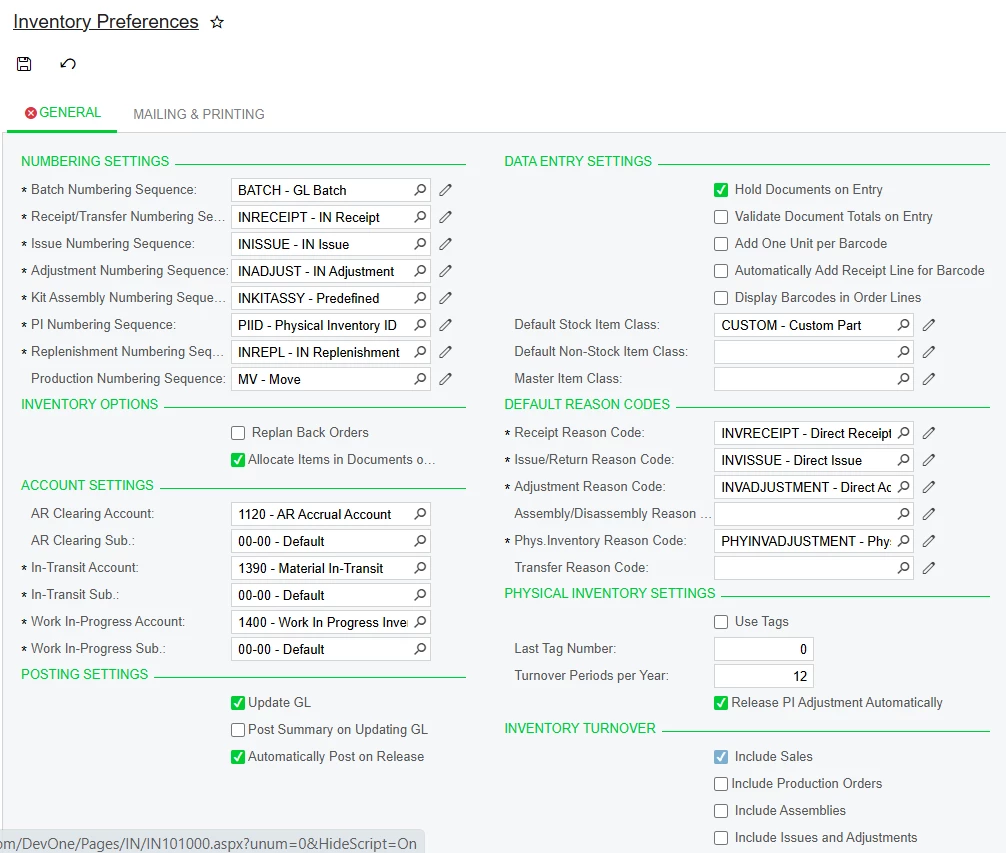
@FHubsch that message is a wrapper, and it never names the field. Saving Inventory Preferences writes the whole preferences record. So the thing blocking you is usually a different field on the General tab that's already in error, not the Production Numbering Sequence you just picked. Look down the General tab for a field marked in red and hover over it to see the real message.

The save checks I'd look at first: Turnover Periods Per Year has to be a number that divides evenly into 12 (1, 2, 3, 4, 6 or 12), and the in-transit account and subaccount under Account Settings are required when you run multiple warehouses. The default reason codes are required too.

The Production Numbering Sequence field only has one rule: it has to point at a sequence that exists. If you don't have one for production transactions yet, create it on Numbering Sequences first, then pick it here.

Don't leave this step half done. That field only appears once New Release Process has been saved on, so it's already on in that tenant. With it on and the sequence blank, releasing a production transaction stops with a setup error pointing back to Inventory Preferences.


Forum|alt.badge.img+3

​@FHubsch 

Can you please share the screenshot your numbering sequence of the Production transaction and Inventory preference screen?


  • Author
  • Freshman I
  • September 28, 2026

This is what our settings looking like. When I inspect the error it says: ‘Branch can’t be empty’ this is confusing as we do not have a branch set up and didn’t think we needed to. 


Forum|alt.badge.img+3

​@FHubsch  Can also, share exact error message and Trace belongs to that Message.


  • Author
  • Freshman I
  • September 28, 2026

The exact error message was ‘Branch can’t be empty’. Is there something I should specifically looking for in the trace? All I really saw were the same messages I was getting from the UI.