


Hello Experts, I am unbale to figure out how to view the total number of production order with ageing category. I Tried creating GI but still facing problem how to group .Please let me know where am i missing .


So my output result should look like:-

Hello Experts, I am unbale to figure out how to view the total number of production order with ageing category. I Tried creating GI but still facing problem how to group .Please let me know where am i missing .
So my output result should look like:-



Hi
In Generic Inquiry, aggregation and grouping must be configured separately. Using =Count([AMProdItem.ProdOrdID]) in the Data Field formula will not work correctly for grouped results.
Here is the correct approach:
In the Results Grid tab:
Keep your Aging Category calculated field as it is (do not apply any aggregate function to it).
Add AMProdItem.ProdOrdID as a normal field (do not use a formula).
In the Aggregate Function column for ProdOrdID, select COUNT.
Do not write =Count() in the Data Field.
In the Grouping tab:
Add the Aging Category field (your calculated field) to the grouping list.
Do not add ProdOrdID to the Grouping tab.
This setup tells the system to:
Group records by Aging Category.
Count the number of ProdOrdID values inside each group.
After this, your GI will show one row per Aging Category with the total number of production orders in each bucket.
If you still get unexpected results, check that:
Aging Category is marked as Visible.
There are no other fields in the Results Grid without an aggregate function (unless they are also included in the Grouping tab).
Please let me know if any problem occurs.
Hi
In Generic Inquiry, aggregation and grouping must be configured separately. Using =Count([AMProdItem.ProdOrdID]) in the Data Field formula will not work correctly for grouped results.
Here is the correct approach:
In the Results Grid tab:
Keep your Aging Category calculated field as it is (do not apply any aggregate function to it).
Add AMProdItem.ProdOrdID as a normal field (do not use a formula).
In the Aggregate Function column for ProdOrdID, select COUNT.
Do not write =Count() in the Data Field.
In the Grouping tab:
Add the Aging Category field (your calculated field) to the grouping list.
Do not add ProdOrdID to the Grouping tab.
This setup tells the system to:
Group records by Aging Category.
Count the number of ProdOrdID values inside each group.
After this, your GI will show one row per Aging Category with the total number of production orders in each bucket.
If you still get unexpected results, check that:
Aging Category is marked as Visible.
There are no other fields in the Results Grid without an aggregate function (unless they are also included in the Grouping tab).
Please let me know if any problem occurs.
Hi
Hi
In Generic Inquiry, aggregation and grouping must be configured separately. Using =Count([AMProdItem.ProdOrdID]) in the Data Field formula will not work correctly for grouped results.
Here is the correct approach:
In the Results Grid tab:
Keep your Aging Category calculated field as it is (do not apply any aggregate function to it).
Add AMProdItem.ProdOrdID as a normal field (do not use a formula).
In the Aggregate Function column for ProdOrdID, select COUNT.
Do not write =Count() in the Data Field.
In the Grouping tab:
Add the Aging Category field (your calculated field) to the grouping list.
Do not add ProdOrdID to the Grouping tab.
This setup tells the system to:
Group records by Aging Category.
Count the number of ProdOrdID values inside each group.
After this, your GI will show one row per Aging Category with the total number of production orders in each bucket.
If you still get unexpected results, check that:
Aging Category is marked as Visible.
There are no other fields in the Results Grid without an aggregate function (unless they are also included in the Grouping tab).
Please let me know if any problem occurs.
Hi
For this Scenario i think we can try two ways
Option 1 – Recreate Aging Category as a non-aggregated calculated field
Make sure:
The Aging Category formula does not contain any aggregate functions.
Aggregate Function column for Aging Category is empty.
It is added as a normal calculated field in Results Grid.
Then:
Add AMProdItem.ProdOrdID
Set Aggregate Function = COUNT
Add Aging Category in the Grouping tab
If it still does not appear in the Grouping tab, delete and recreate the calculated field.
Option 2 – Use DateDiff directly in Grouping instead of Aging Category
Instead of grouping by the text category (0–30 Days, 31–60 Days, etc.), you can:
Add a calculated numeric field:
=DateDiff('d',[AMProdItem.StartDate],Today())
Add this numeric field to the Grouping tab.
Then create multiple COUNT columns using conditional formulas like:
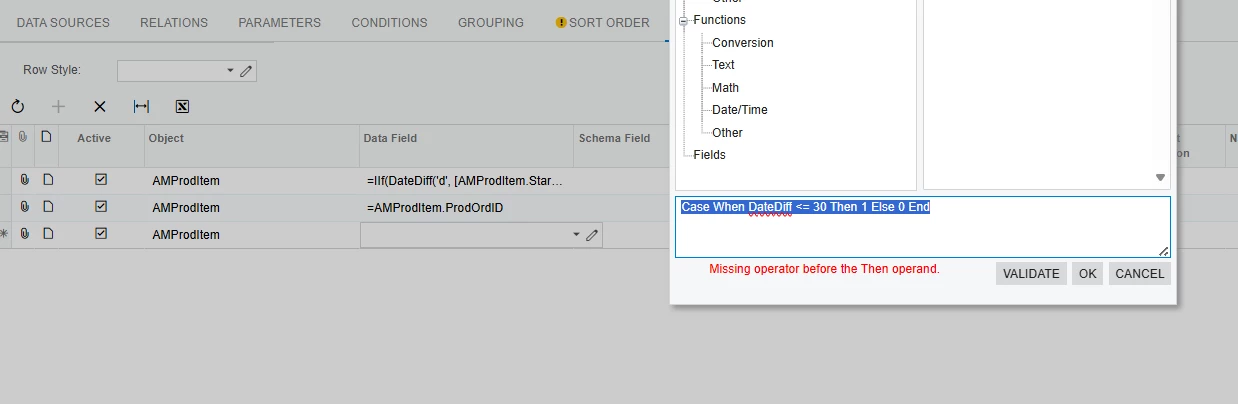
Case When DateDiff <= 30 Then 1 Else 0 End
Aggregate Function = SUM
Case When DateDiff Between 31 And 60 Then 1 Else 0 End
Aggregate Function = SUM
This gives you separate columns for each aging bucket instead of rows.
I hope this works..!!
Hi
In Generic Inquiry, aggregation and grouping must be configured separately. Using =Count([AMProdItem.ProdOrdID]) in the Data Field formula will not work correctly for grouped results.
Here is the correct approach:
In the Results Grid tab:
Keep your Aging Category calculated field as it is (do not apply any aggregate function to it).
Add AMProdItem.ProdOrdID as a normal field (do not use a formula).
In the Aggregate Function column for ProdOrdID, select COUNT.
Do not write =Count() in the Data Field.
In the Grouping tab:
Add the Aging Category field (your calculated field) to the grouping list.
Do not add ProdOrdID to the Grouping tab.
This setup tells the system to:
Group records by Aging Category.
Count the number of ProdOrdID values inside each group.
After this, your GI will show one row per Aging Category with the total number of production orders in each bucket.
If you still get unexpected results, check that:
Aging Category is marked as Visible.
There are no other fields in the Results Grid without an aggregate function (unless they are also included in the Grouping tab).
Please let me know if any problem occurs.
Hi
For this Scenario i think we can try two ways
Option 1 – Recreate Aging Category as a non-aggregated calculated field
Make sure:
The Aging Category formula does not contain any aggregate functions.
Aggregate Function column for Aging Category is empty.
It is added as a normal calculated field in Results Grid.
Then:
Add AMProdItem.ProdOrdID
Set Aggregate Function = COUNT
Add Aging Category in the Grouping tab
If it still does not appear in the Grouping tab, delete and recreate the calculated field.
Option 2 – Use DateDiff directly in Grouping instead of Aging Category
Instead of grouping by the text category (0–30 Days, 31–60 Days, etc.), you can:
Add a calculated numeric field:
=DateDiff('d',[AMProdItem.StartDate],Today())
Add this numeric field to the Grouping tab.
Then create multiple COUNT columns using conditional formulas like:
Case When DateDiff <= 30 Then 1 Else 0 End
Aggregate Function = SUM
Case When DateDiff Between 31 And 60 Then 1 Else 0 End
Aggregate Function = SUM
This gives you separate columns for each aging bucket instead of rows.
I hope this works..!!
Hi
Hi
In Generic Inquiry, aggregation and grouping must be configured separately. Using =Count([AMProdItem.ProdOrdID]) in the Data Field formula will not work correctly for grouped results.
Here is the correct approach:
In the Results Grid tab:
Keep your Aging Category calculated field as it is (do not apply any aggregate function to it).
Add AMProdItem.ProdOrdID as a normal field (do not use a formula).
In the Aggregate Function column for ProdOrdID, select COUNT.
Do not write =Count() in the Data Field.
In the Grouping tab:
Add the Aging Category field (your calculated field) to the grouping list.
Do not add ProdOrdID to the Grouping tab.
This setup tells the system to:
Group records by Aging Category.
Count the number of ProdOrdID values inside each group.
After this, your GI will show one row per Aging Category with the total number of production orders in each bucket.
If you still get unexpected results, check that:
Aging Category is marked as Visible.
There are no other fields in the Results Grid without an aggregate function (unless they are also included in the Grouping tab).
Please let me know if any problem occurs.
Hi
For this Scenario i think we can try two ways
Option 1 – Recreate Aging Category as a non-aggregated calculated field
Make sure:
The Aging Category formula does not contain any aggregate functions.
Aggregate Function column for Aging Category is empty.
It is added as a normal calculated field in Results Grid.
Then:
Add AMProdItem.ProdOrdID
Set Aggregate Function = COUNT
Add Aging Category in the Grouping tab
If it still does not appear in the Grouping tab, delete and recreate the calculated field.
Option 2 – Use DateDiff directly in Grouping instead of Aging Category
Instead of grouping by the text category (0–30 Days, 31–60 Days, etc.), you can:
Add a calculated numeric field:
=DateDiff('d',[AMProdItem.StartDate],Today())
Add this numeric field to the Grouping tab.
Then create multiple COUNT columns using conditional formulas like:
Case When DateDiff <= 30 Then 1 Else 0 End
Aggregate Function = SUM
Case When DateDiff Between 31 And 60 Then 1 Else 0 End
Aggregate Function = SUM
This gives you separate columns for each aging bucket instead of rows.
I hope this works..!!
Hi
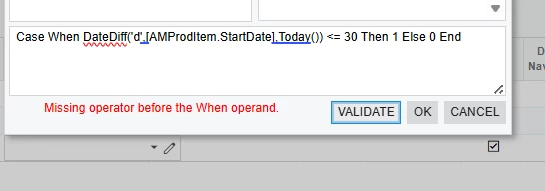
Case When DateDiff('d',[AMProdItem.StartDate],Today()) <= 30 Then 1 Else 0 End
Please Try the above formula instead and let me know that working or not.
Hi
In Generic Inquiry, aggregation and grouping must be configured separately. Using =Count([AMProdItem.ProdOrdID]) in the Data Field formula will not work correctly for grouped results.
Here is the correct approach:
In the Results Grid tab:
Keep your Aging Category calculated field as it is (do not apply any aggregate function to it).
Add AMProdItem.ProdOrdID as a normal field (do not use a formula).
In the Aggregate Function column for ProdOrdID, select COUNT.
Do not write =Count() in the Data Field.
In the Grouping tab:
Add the Aging Category field (your calculated field) to the grouping list.
Do not add ProdOrdID to the Grouping tab.
This setup tells the system to:
Group records by Aging Category.
Count the number of ProdOrdID values inside each group.
After this, your GI will show one row per Aging Category with the total number of production orders in each bucket.
If you still get unexpected results, check that:
Aging Category is marked as Visible.
There are no other fields in the Results Grid without an aggregate function (unless they are also included in the Grouping tab).
Please let me know if any problem occurs.
Hi
For this Scenario i think we can try two ways
Option 1 – Recreate Aging Category as a non-aggregated calculated field
Make sure:
The Aging Category formula does not contain any aggregate functions.
Aggregate Function column for Aging Category is empty.
It is added as a normal calculated field in Results Grid.
Then:
Add AMProdItem.ProdOrdID
Set Aggregate Function = COUNT
Add Aging Category in the Grouping tab
If it still does not appear in the Grouping tab, delete and recreate the calculated field.
Option 2 – Use DateDiff directly in Grouping instead of Aging Category
Instead of grouping by the text category (0–30 Days, 31–60 Days, etc.), you can:
Add a calculated numeric field:
=DateDiff('d',[AMProdItem.StartDate],Today())
Add this numeric field to the Grouping tab.
Then create multiple COUNT columns using conditional formulas like:
Case When DateDiff <= 30 Then 1 Else 0 End
Aggregate Function = SUM
Case When DateDiff Between 31 And 60 Then 1 Else 0 End
Aggregate Function = SUM
This gives you separate columns for each aging bucket instead of rows.
I hope this works..!!
Hi
Case When DateDiff('d',[AMProdItem.StartDate],Today()) <= 30 Then 1 Else 0 End
Please Try the above formula instead and let me know that working or not.
No its showing missing operator error message.
Hi
In Generic Inquiry, aggregation and grouping must be configured separately. Using =Count([AMProdItem.ProdOrdID]) in the Data Field formula will not work correctly for grouped results.
Here is the correct approach:
In the Results Grid tab:
Keep your Aging Category calculated field as it is (do not apply any aggregate function to it).
Add AMProdItem.ProdOrdID as a normal field (do not use a formula).
In the Aggregate Function column for ProdOrdID, select COUNT.
Do not write =Count() in the Data Field.
In the Grouping tab:
Add the Aging Category field (your calculated field) to the grouping list.
Do not add ProdOrdID to the Grouping tab.
This setup tells the system to:
Group records by Aging Category.
Count the number of ProdOrdID values inside each group.
After this, your GI will show one row per Aging Category with the total number of production orders in each bucket.
If you still get unexpected results, check that:
Aging Category is marked as Visible.
There are no other fields in the Results Grid without an aggregate function (unless they are also included in the Grouping tab).
Please let me know if any problem occurs.
Hi
For this Scenario i think we can try two ways
Option 1 – Recreate Aging Category as a non-aggregated calculated field
Make sure:
The Aging Category formula does not contain any aggregate functions.
Aggregate Function column for Aging Category is empty.
It is added as a normal calculated field in Results Grid.
Then:
Add AMProdItem.ProdOrdID
Set Aggregate Function = COUNT
Add Aging Category in the Grouping tab
If it still does not appear in the Grouping tab, delete and recreate the calculated field.
Option 2 – Use DateDiff directly in Grouping instead of Aging Category
Instead of grouping by the text category (0–30 Days, 31–60 Days, etc.), you can:
Add a calculated numeric field:
=DateDiff('d',[AMProdItem.StartDate],Today())
Add this numeric field to the Grouping tab.
Then create multiple COUNT columns using conditional formulas like:
Case When DateDiff <= 30 Then 1 Else 0 End
Aggregate Function = SUM
Case When DateDiff Between 31 And 60 Then 1 Else 0 End
Aggregate Function = SUM
This gives you separate columns for each aging bucket instead of rows.
I hope this works..!!
Hi
Case When DateDiff('d',[AMProdItem.StartDate],Today()) <= 30 Then 1 Else 0 End
Please Try the above formula instead and let me know that working or not.
No its showing missing operator error message.
=IIf(DateDiff('d',[AMProdItem.StartDate], Today()) <= 30, 1, 0)
Try for this once and please let me know.
Hi
In Generic Inquiry, aggregation and grouping must be configured separately. Using =Count([AMProdItem.ProdOrdID]) in the Data Field formula will not work correctly for grouped results.
Here is the correct approach:
In the Results Grid tab:
Keep your Aging Category calculated field as it is (do not apply any aggregate function to it).
Add AMProdItem.ProdOrdID as a normal field (do not use a formula).
In the Aggregate Function column for ProdOrdID, select COUNT.
Do not write =Count() in the Data Field.
In the Grouping tab:
Add the Aging Category field (your calculated field) to the grouping list.
Do not add ProdOrdID to the Grouping tab.
This setup tells the system to:
Group records by Aging Category.
Count the number of ProdOrdID values inside each group.
After this, your GI will show one row per Aging Category with the total number of production orders in each bucket.
If you still get unexpected results, check that:
Aging Category is marked as Visible.
There are no other fields in the Results Grid without an aggregate function (unless they are also included in the Grouping tab).
Please let me know if any problem occurs.
Hi
For this Scenario i think we can try two ways
Option 1 – Recreate Aging Category as a non-aggregated calculated field
Make sure:
The Aging Category formula does not contain any aggregate functions.
Aggregate Function column for Aging Category is empty.
It is added as a normal calculated field in Results Grid.
Then:
Add AMProdItem.ProdOrdID
Set Aggregate Function = COUNT
Add Aging Category in the Grouping tab
If it still does not appear in the Grouping tab, delete and recreate the calculated field.
Option 2 – Use DateDiff directly in Grouping instead of Aging Category
Instead of grouping by the text category (0–30 Days, 31–60 Days, etc.), you can:
Add a calculated numeric field:
=DateDiff('d',[AMProdItem.StartDate],Today())
Add this numeric field to the Grouping tab.
Then create multiple COUNT columns using conditional formulas like:
Case When DateDiff <= 30 Then 1 Else 0 End
Aggregate Function = SUM
Case When DateDiff Between 31 And 60 Then 1 Else 0 End
Aggregate Function = SUM
This gives you separate columns for each aging bucket instead of rows.
I hope this works..!!
Hi
Case When DateDiff('d',[AMProdItem.StartDate],Today()) <= 30 Then 1 Else 0 End
Please Try the above formula instead and let me know that working or not.
No its showing missing operator error message.
=IIf(DateDiff('d',[AMProdItem.StartDate], Today()) <= 30, 1, 0)
Try for this once and please let me know.
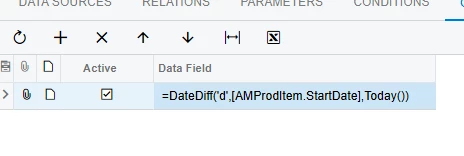
Getting the result like this After using this formula and grouped it by this condition

Hi
In Generic Inquiry, aggregation and grouping must be configured separately. Using =Count([AMProdItem.ProdOrdID]) in the Data Field formula will not work correctly for grouped results.
Here is the correct approach:
In the Results Grid tab:
Keep your Aging Category calculated field as it is (do not apply any aggregate function to it).
Add AMProdItem.ProdOrdID as a normal field (do not use a formula).
In the Aggregate Function column for ProdOrdID, select COUNT.
Do not write =Count() in the Data Field.
In the Grouping tab:
Add the Aging Category field (your calculated field) to the grouping list.
Do not add ProdOrdID to the Grouping tab.
This setup tells the system to:
Group records by Aging Category.
Count the number of ProdOrdID values inside each group.
After this, your GI will show one row per Aging Category with the total number of production orders in each bucket.
If you still get unexpected results, check that:
Aging Category is marked as Visible.
There are no other fields in the Results Grid without an aggregate function (unless they are also included in the Grouping tab).
Please let me know if any problem occurs.
Hi
For this Scenario i think we can try two ways
Option 1 – Recreate Aging Category as a non-aggregated calculated field
Make sure:
The Aging Category formula does not contain any aggregate functions.
Aggregate Function column for Aging Category is empty.
It is added as a normal calculated field in Results Grid.
Then:
Add AMProdItem.ProdOrdID
Set Aggregate Function = COUNT
Add Aging Category in the Grouping tab
If it still does not appear in the Grouping tab, delete and recreate the calculated field.
Option 2 – Use DateDiff directly in Grouping instead of Aging Category
Instead of grouping by the text category (0–30 Days, 31–60 Days, etc.), you can:
Add a calculated numeric field:
=DateDiff('d',[AMProdItem.StartDate],Today())
Add this numeric field to the Grouping tab.
Then create multiple COUNT columns using conditional formulas like:
Case When DateDiff <= 30 Then 1 Else 0 End
Aggregate Function = SUM
Case When DateDiff Between 31 And 60 Then 1 Else 0 End
Aggregate Function = SUM
This gives you separate columns for each aging bucket instead of rows.
I hope this works..!!
Hi
Case When DateDiff('d',[AMProdItem.StartDate],Today()) <= 30 Then 1 Else 0 End
Please Try the above formula instead and let me know that working or not.
No its showing missing operator error message.
=IIf(DateDiff('d',[AMProdItem.StartDate], Today()) <= 30, 1, 0)
Try for this once and please let me know.
Getting the result like this After using this formula and grouped it by this condition
Is That works for you?
Hi
In Generic Inquiry, aggregation and grouping must be configured separately. Using =Count([AMProdItem.ProdOrdID]) in the Data Field formula will not work correctly for grouped results.
Here is the correct approach:
In the Results Grid tab:
Keep your Aging Category calculated field as it is (do not apply any aggregate function to it).
Add AMProdItem.ProdOrdID as a normal field (do not use a formula).
In the Aggregate Function column for ProdOrdID, select COUNT.
Do not write =Count() in the Data Field.
In the Grouping tab:
Add the Aging Category field (your calculated field) to the grouping list.
Do not add ProdOrdID to the Grouping tab.
This setup tells the system to:
Group records by Aging Category.
Count the number of ProdOrdID values inside each group.
After this, your GI will show one row per Aging Category with the total number of production orders in each bucket.
If you still get unexpected results, check that:
Aging Category is marked as Visible.
There are no other fields in the Results Grid without an aggregate function (unless they are also included in the Grouping tab).
Please let me know if any problem occurs.
Hi
For this Scenario i think we can try two ways
Option 1 – Recreate Aging Category as a non-aggregated calculated field
Make sure:
The Aging Category formula does not contain any aggregate functions.
Aggregate Function column for Aging Category is empty.
It is added as a normal calculated field in Results Grid.
Then:
Add AMProdItem.ProdOrdID
Set Aggregate Function = COUNT
Add Aging Category in the Grouping tab
If it still does not appear in the Grouping tab, delete and recreate the calculated field.
Option 2 – Use DateDiff directly in Grouping instead of Aging Category
Instead of grouping by the text category (0–30 Days, 31–60 Days, etc.), you can:
Add a calculated numeric field:
=DateDiff('d',[AMProdItem.StartDate],Today())
Add this numeric field to the Grouping tab.
Then create multiple COUNT columns using conditional formulas like:
Case When DateDiff <= 30 Then 1 Else 0 End
Aggregate Function = SUM
Case When DateDiff Between 31 And 60 Then 1 Else 0 End
Aggregate Function = SUM
This gives you separate columns for each aging bucket instead of rows.
I hope this works..!!
Hi
Case When DateDiff('d',[AMProdItem.StartDate],Today()) <= 30 Then 1 Else 0 End
Please Try the above formula instead and let me know that working or not.
No its showing missing operator error message.
=IIf(DateDiff('d',[AMProdItem.StartDate], Today()) <= 30, 1, 0)
Try for this once and please let me know.
Getting the result like this After using this formula and grouped it by this condition
Is That works for you?
No, actual count is not correct
Hi
In Generic Inquiry, aggregation and grouping must be configured separately. Using =Count([AMProdItem.ProdOrdID]) in the Data Field formula will not work correctly for grouped results.
Here is the correct approach:
In the Results Grid tab:
Keep your Aging Category calculated field as it is (do not apply any aggregate function to it).
Add AMProdItem.ProdOrdID as a normal field (do not use a formula).
In the Aggregate Function column for ProdOrdID, select COUNT.
Do not write =Count() in the Data Field.
In the Grouping tab:
Add the Aging Category field (your calculated field) to the grouping list.
Do not add ProdOrdID to the Grouping tab.
This setup tells the system to:
Group records by Aging Category.
Count the number of ProdOrdID values inside each group.
After this, your GI will show one row per Aging Category with the total number of production orders in each bucket.
If you still get unexpected results, check that:
Aging Category is marked as Visible.
There are no other fields in the Results Grid without an aggregate function (unless they are also included in the Grouping tab).
Please let me know if any problem occurs.
Hi
For this Scenario i think we can try two ways
Option 1 – Recreate Aging Category as a non-aggregated calculated field
Make sure:
The Aging Category formula does not contain any aggregate functions.
Aggregate Function column for Aging Category is empty.
It is added as a normal calculated field in Results Grid.
Then:
Add AMProdItem.ProdOrdID
Set Aggregate Function = COUNT
Add Aging Category in the Grouping tab
If it still does not appear in the Grouping tab, delete and recreate the calculated field.
Option 2 – Use DateDiff directly in Grouping instead of Aging Category
Instead of grouping by the text category (0–30 Days, 31–60 Days, etc.), you can:
Add a calculated numeric field:
=DateDiff('d',[AMProdItem.StartDate],Today())
Add this numeric field to the Grouping tab.
Then create multiple COUNT columns using conditional formulas like:
Case When DateDiff <= 30 Then 1 Else 0 End
Aggregate Function = SUM
Case When DateDiff Between 31 And 60 Then 1 Else 0 End
Aggregate Function = SUM
This gives you separate columns for each aging bucket instead of rows.
I hope this works..!!
Hi
Case When DateDiff('d',[AMProdItem.StartDate],Today()) <= 30 Then 1 Else 0 End
Please Try the above formula instead and let me know that working or not.
No its showing missing operator error message.
=IIf(DateDiff('d',[AMProdItem.StartDate], Today()) <= 30, 1, 0)
Try for this once and please let me know.
Getting the result like this After using this formula and grouped it by this condition
Is That works for you?
No, actual count is not correct
The issue with incorrect counts is usually caused by grouping on the aging formula itself or by duplicate records created due to table joins.
Below is the correct and stable way to build the GI for Production Order Aging with accurate counts.
Step 1 – Create Aging Category field
In the Results Grid tab, create a calculated field for Aging Category using nested IIf logic:
=IIf(DateDiff('d',[AMProdItem.StartDate], Today()) <= 30, '0-30 Days',
IIf(DateDiff('d',[AMProdItem.StartDate], Today()) <= 60, '31-60 Days',
'Above 60 Days'))
Do not assign any Aggregate Function to this field.
Step 2 – Add Production Order field
Add AMProdItem.ProdOrdID as a normal field.
In the Aggregate Function column, select COUNT.
Do not use =Count() in the formula.
Step 3 – Configure Grouping
Go to the Grouping tab.
Add only the Aging Category field.
Do not add ProdOrdID to the Grouping tab.
Step 4 – Verify no extra fields
Make sure there are no other non-aggregated fields in the Results Grid unless they are also included in the Grouping tab.
If counts are still incorrect, check for duplicate records caused by joins. In that case:
• Review the Relations tab to ensure you are not creating multiple rows per ProdOrdID.
• Use COUNT DISTINCT on ProdOrdID if available in your version.
This setup will correctly group Production Orders by Aging Category and show the total number of orders in each bucket.
Hi
In Generic Inquiry, aggregation and grouping must be configured separately. Using =Count([AMProdItem.ProdOrdID]) in the Data Field formula will not work correctly for grouped results.
Here is the correct approach:
In the Results Grid tab:
Keep your Aging Category calculated field as it is (do not apply any aggregate function to it).
Add AMProdItem.ProdOrdID as a normal field (do not use a formula).
In the Aggregate Function column for ProdOrdID, select COUNT.
Do not write =Count() in the Data Field.
In the Grouping tab:
Add the Aging Category field (your calculated field) to the grouping list.
Do not add ProdOrdID to the Grouping tab.
This setup tells the system to:
Group records by Aging Category.
Count the number of ProdOrdID values inside each group.
After this, your GI will show one row per Aging Category with the total number of production orders in each bucket.
If you still get unexpected results, check that:
Aging Category is marked as Visible.
There are no other fields in the Results Grid without an aggregate function (unless they are also included in the Grouping tab).
Please let me know if any problem occurs.
Hi
For this Scenario i think we can try two ways
Option 1 – Recreate Aging Category as a non-aggregated calculated field
Make sure:
The Aging Category formula does not contain any aggregate functions.
Aggregate Function column for Aging Category is empty.
It is added as a normal calculated field in Results Grid.
Then:
Add AMProdItem.ProdOrdID
Set Aggregate Function = COUNT
Add Aging Category in the Grouping tab
If it still does not appear in the Grouping tab, delete and recreate the calculated field.
Option 2 – Use DateDiff directly in Grouping instead of Aging Category
Instead of grouping by the text category (0–30 Days, 31–60 Days, etc.), you can:
Add a calculated numeric field:
=DateDiff('d',[AMProdItem.StartDate],Today())
Add this numeric field to the Grouping tab.
Then create multiple COUNT columns using conditional formulas like:
Case When DateDiff <= 30 Then 1 Else 0 End
Aggregate Function = SUM
Case When DateDiff Between 31 And 60 Then 1 Else 0 End
Aggregate Function = SUM
This gives you separate columns for each aging bucket instead of rows.
I hope this works..!!
Hi
Case When DateDiff('d',[AMProdItem.StartDate],Today()) <= 30 Then 1 Else 0 End
Please Try the above formula instead and let me know that working or not.
No its showing missing operator error message.
=IIf(DateDiff('d',[AMProdItem.StartDate], Today()) <= 30, 1, 0)
Try for this once and please let me know.
Getting the result like this After using this formula and grouped it by this condition
Is That works for you?
No, actual count is not correct
The issue with incorrect counts is usually caused by grouping on the aging formula itself or by duplicate records created due to table joins.
Below is the correct and stable way to build the GI for Production Order Aging with accurate counts.
Step 1 – Create Aging Category field
In the Results Grid tab, create a calculated field for Aging Category using nested IIf logic:
=IIf(DateDiff('d',[AMProdItem.StartDate], Today()) <= 30, '0-30 Days',
IIf(DateDiff('d',[AMProdItem.StartDate], Today()) <= 60, '31-60 Days',
'Above 60 Days'))
Do not assign any Aggregate Function to this field.
Step 2 – Add Production Order field
Add AMProdItem.ProdOrdID as a normal field.
In the Aggregate Function column, select COUNT.
Do not use =Count() in the formula.
Step 3 – Configure Grouping
Go to the Grouping tab.
Add only the Aging Category field.
Do not add ProdOrdID to the Grouping tab.
Step 4 – Verify no extra fields
Make sure there are no other non-aggregated fields in the Results Grid unless they are also included in the Grouping tab.
If counts are still incorrect, check for duplicate records caused by joins. In that case:
• Review the Relations tab to ensure you are not creating multiple rows per ProdOrdID.
• Use COUNT DISTINCT on ProdOrdID if available in your version.
This setup will correctly group Production Orders by Aging Category and show the total number of orders in each bucket.
I have used the same steps as given, but the problem is the aging category is not shown in data fields of grouping tab

Hi
In Generic Inquiry, aggregation and grouping must be configured separately. Using =Count([AMProdItem.ProdOrdID]) in the Data Field formula will not work correctly for grouped results.
Here is the correct approach:
In the Results Grid tab:
Keep your Aging Category calculated field as it is (do not apply any aggregate function to it).
Add AMProdItem.ProdOrdID as a normal field (do not use a formula).
In the Aggregate Function column for ProdOrdID, select COUNT.
Do not write =Count() in the Data Field.
In the Grouping tab:
Add the Aging Category field (your calculated field) to the grouping list.
Do not add ProdOrdID to the Grouping tab.
This setup tells the system to:
Group records by Aging Category.
Count the number of ProdOrdID values inside each group.
After this, your GI will show one row per Aging Category with the total number of production orders in each bucket.
If you still get unexpected results, check that:
Aging Category is marked as Visible.
There are no other fields in the Results Grid without an aggregate function (unless they are also included in the Grouping tab).
Please let me know if any problem occurs.
Hi
For this Scenario i think we can try two ways
Option 1 – Recreate Aging Category as a non-aggregated calculated field
Make sure:
The Aging Category formula does not contain any aggregate functions.
Aggregate Function column for Aging Category is empty.
It is added as a normal calculated field in Results Grid.
Then:
Add AMProdItem.ProdOrdID
Set Aggregate Function = COUNT
Add Aging Category in the Grouping tab
If it still does not appear in the Grouping tab, delete and recreate the calculated field.
Option 2 – Use DateDiff directly in Grouping instead of Aging Category
Instead of grouping by the text category (0–30 Days, 31–60 Days, etc.), you can:
Add a calculated numeric field:
=DateDiff('d',[AMProdItem.StartDate],Today())
Add this numeric field to the Grouping tab.
Then create multiple COUNT columns using conditional formulas like:
Case When DateDiff <= 30 Then 1 Else 0 End
Aggregate Function = SUM
Case When DateDiff Between 31 And 60 Then 1 Else 0 End
Aggregate Function = SUM
This gives you separate columns for each aging bucket instead of rows.
I hope this works..!!
Hi
Case When DateDiff('d',[AMProdItem.StartDate],Today()) <= 30 Then 1 Else 0 End
Please Try the above formula instead and let me know that working or not.
No its showing missing operator error message.
=IIf(DateDiff('d',[AMProdItem.StartDate], Today()) <= 30, 1, 0)
Try for this once and please let me know.
Getting the result like this After using this formula and grouped it by this condition
Is That works for you?
No, actual count is not correct
The issue with incorrect counts is usually caused by grouping on the aging formula itself or by duplicate records created due to table joins.
Below is the correct and stable way to build the GI for Production Order Aging with accurate counts.
Step 1 – Create Aging Category field
In the Results Grid tab, create a calculated field for Aging Category using nested IIf logic:
=IIf(DateDiff('d',[AMProdItem.StartDate], Today()) <= 30, '0-30 Days',
IIf(DateDiff('d',[AMProdItem.StartDate], Today()) <= 60, '31-60 Days',
'Above 60 Days'))
Do not assign any Aggregate Function to this field.
Step 2 – Add Production Order field
Add AMProdItem.ProdOrdID as a normal field.
In the Aggregate Function column, select COUNT.
Do not use =Count() in the formula.
Step 3 – Configure Grouping
Go to the Grouping tab.
Add only the Aging Category field.
Do not add ProdOrdID to the Grouping tab.
Step 4 – Verify no extra fields
Make sure there are no other non-aggregated fields in the Results Grid unless they are also included in the Grouping tab.
If counts are still incorrect, check for duplicate records caused by joins. In that case:
• Review the Relations tab to ensure you are not creating multiple rows per ProdOrdID.
• Use COUNT DISTINCT on ProdOrdID if available in your version.
This setup will correctly group Production Orders by Aging Category and show the total number of orders in each bucket.
I have used the same steps as given, but the problem is the aging category is not shown in data fields of grouping tab
If Aging Category is not appearing in the Grouping tab in 25R2, it’s usually because the column was created incorrectly.
Please check:
• Schema Field must be unchecked
• Aggregate Function must be blank
• Visible must be checked
• Save the GI and reopen it
If it still doesn’t appear, delete the calculated column and recreate it fresh (sometimes GI caches the old definition).
Hi
In Generic Inquiry, aggregation and grouping must be configured separately. Using =Count([AMProdItem.ProdOrdID]) in the Data Field formula will not work correctly for grouped results.
Here is the correct approach:
In the Results Grid tab:
Keep your Aging Category calculated field as it is (do not apply any aggregate function to it).
Add AMProdItem.ProdOrdID as a normal field (do not use a formula).
In the Aggregate Function column for ProdOrdID, select COUNT.
Do not write =Count() in the Data Field.
In the Grouping tab:
Add the Aging Category field (your calculated field) to the grouping list.
Do not add ProdOrdID to the Grouping tab.
This setup tells the system to:
Group records by Aging Category.
Count the number of ProdOrdID values inside each group.
After this, your GI will show one row per Aging Category with the total number of production orders in each bucket.
If you still get unexpected results, check that:
Aging Category is marked as Visible.
There are no other fields in the Results Grid without an aggregate function (unless they are also included in the Grouping tab).
Please let me know if any problem occurs.
Hi
For this Scenario i think we can try two ways
Option 1 – Recreate Aging Category as a non-aggregated calculated field
Make sure:
The Aging Category formula does not contain any aggregate functions.
Aggregate Function column for Aging Category is empty.
It is added as a normal calculated field in Results Grid.
Then:
Add AMProdItem.ProdOrdID
Set Aggregate Function = COUNT
Add Aging Category in the Grouping tab
If it still does not appear in the Grouping tab, delete and recreate the calculated field.
Option 2 – Use DateDiff directly in Grouping instead of Aging Category
Instead of grouping by the text category (0–30 Days, 31–60 Days, etc.), you can:
Add a calculated numeric field:
=DateDiff('d',[AMProdItem.StartDate],Today())
Add this numeric field to the Grouping tab.
Then create multiple COUNT columns using conditional formulas like:
Case When DateDiff <= 30 Then 1 Else 0 End
Aggregate Function = SUM
Case When DateDiff Between 31 And 60 Then 1 Else 0 End
Aggregate Function = SUM
This gives you separate columns for each aging bucket instead of rows.
I hope this works..!!
Hi
Case When DateDiff('d',[AMProdItem.StartDate],Today()) <= 30 Then 1 Else 0 End
Please Try the above formula instead and let me know that working or not.
No its showing missing operator error message.
=IIf(DateDiff('d',[AMProdItem.StartDate], Today()) <= 30, 1, 0)
Try for this once and please let me know.
Getting the result like this After using this formula and grouped it by this condition
Is That works for you?
No, actual count is not correct
The issue with incorrect counts is usually caused by grouping on the aging formula itself or by duplicate records created due to table joins.
Below is the correct and stable way to build the GI for Production Order Aging with accurate counts.
Step 1 – Create Aging Category field
In the Results Grid tab, create a calculated field for Aging Category using nested IIf logic:
=IIf(DateDiff('d',[AMProdItem.StartDate], Today()) <= 30, '0-30 Days',
IIf(DateDiff('d',[AMProdItem.StartDate], Today()) <= 60, '31-60 Days',
'Above 60 Days'))
Do not assign any Aggregate Function to this field.
Step 2 – Add Production Order field
Add AMProdItem.ProdOrdID as a normal field.
In the Aggregate Function column, select COUNT.
Do not use =Count() in the formula.
Step 3 – Configure Grouping
Go to the Grouping tab.
Add only the Aging Category field.
Do not add ProdOrdID to the Grouping tab.
Step 4 – Verify no extra fields
Make sure there are no other non-aggregated fields in the Results Grid unless they are also included in the Grouping tab.
If counts are still incorrect, check for duplicate records caused by joins. In that case:
• Review the Relations tab to ensure you are not creating multiple rows per ProdOrdID.
• Use COUNT DISTINCT on ProdOrdID if available in your version.
This setup will correctly group Production Orders by Aging Category and show the total number of orders in each bucket.
I have used the same steps as given, but the problem is the aging category is not shown in data fields of grouping tab
If Aging Category is not appearing in the Grouping tab in 25R2, it’s usually because the column was created incorrectly.
Please check:
• Schema Field must be unchecked
• Aggregate Function must be blank
• Visible must be checked
• Save the GI and reopen it
If it still doesn’t appear, delete the calculated column and recreate it fresh (sometimes GI caches the old definition).
Hi
Have you got the solution?
Hi
In Generic Inquiry, aggregation and grouping must be configured separately. Using =Count([AMProdItem.ProdOrdID]) in the Data Field formula will not work correctly for grouped results.
Here is the correct approach:
In the Results Grid tab:
Keep your Aging Category calculated field as it is (do not apply any aggregate function to it).
Add AMProdItem.ProdOrdID as a normal field (do not use a formula).
In the Aggregate Function column for ProdOrdID, select COUNT.
Do not write =Count() in the Data Field.
In the Grouping tab:
Add the Aging Category field (your calculated field) to the grouping list.
Do not add ProdOrdID to the Grouping tab.
This setup tells the system to:
Group records by Aging Category.
Count the number of ProdOrdID values inside each group.
After this, your GI will show one row per Aging Category with the total number of production orders in each bucket.
If you still get unexpected results, check that:
Aging Category is marked as Visible.
There are no other fields in the Results Grid without an aggregate function (unless they are also included in the Grouping tab).
Please let me know if any problem occurs.
Hi
For this Scenario i think we can try two ways
Option 1 – Recreate Aging Category as a non-aggregated calculated field
Make sure:
The Aging Category formula does not contain any aggregate functions.
Aggregate Function column for Aging Category is empty.
It is added as a normal calculated field in Results Grid.
Then:
Add AMProdItem.ProdOrdID
Set Aggregate Function = COUNT
Add Aging Category in the Grouping tab
If it still does not appear in the Grouping tab, delete and recreate the calculated field.
Option 2 – Use DateDiff directly in Grouping instead of Aging Category
Instead of grouping by the text category (0–30 Days, 31–60 Days, etc.), you can:
Add a calculated numeric field:
=DateDiff('d',[AMProdItem.StartDate],Today())
Add this numeric field to the Grouping tab.
Then create multiple COUNT columns using conditional formulas like:
Case When DateDiff <= 30 Then 1 Else 0 End
Aggregate Function = SUM
Case When DateDiff Between 31 And 60 Then 1 Else 0 End
Aggregate Function = SUM
This gives you separate columns for each aging bucket instead of rows.
I hope this works..!!
Hi
Case When DateDiff('d',[AMProdItem.StartDate],Today()) <= 30 Then 1 Else 0 End
Please Try the above formula instead and let me know that working or not.
No its showing missing operator error message.
=IIf(DateDiff('d',[AMProdItem.StartDate], Today()) <= 30, 1, 0)
Try for this once and please let me know.
Getting the result like this After using this formula and grouped it by this condition
Is That works for you?
No, actual count is not correct
The issue with incorrect counts is usually caused by grouping on the aging formula itself or by duplicate records created due to table joins.
Below is the correct and stable way to build the GI for Production Order Aging with accurate counts.
Step 1 – Create Aging Category field
In the Results Grid tab, create a calculated field for Aging Category using nested IIf logic:
=IIf(DateDiff('d',[AMProdItem.StartDate], Today()) <= 30, '0-30 Days',
IIf(DateDiff('d',[AMProdItem.StartDate], Today()) <= 60, '31-60 Days',
'Above 60 Days'))
Do not assign any Aggregate Function to this field.
Step 2 – Add Production Order field
Add AMProdItem.ProdOrdID as a normal field.
In the Aggregate Function column, select COUNT.
Do not use =Count() in the formula.
Step 3 – Configure Grouping
Go to the Grouping tab.
Add only the Aging Category field.
Do not add ProdOrdID to the Grouping tab.
Step 4 – Verify no extra fields
Make sure there are no other non-aggregated fields in the Results Grid unless they are also included in the Grouping tab.
If counts are still incorrect, check for duplicate records caused by joins. In that case:
• Review the Relations tab to ensure you are not creating multiple rows per ProdOrdID.
• Use COUNT DISTINCT on ProdOrdID if available in your version.
This setup will correctly group Production Orders by Aging Category and show the total number of orders in each bucket.
I have used the same steps as given, but the problem is the aging category is not shown in data fields of grouping tab
If Aging Category is not appearing in the Grouping tab in 25R2, it’s usually because the column was created incorrectly.
Please check:
• Schema Field must be unchecked
• Aggregate Function must be blank
• Visible must be checked
• Save the GI and reopen it
If it still doesn’t appear, delete the calculated column and recreate it fresh (sometimes GI caches the old definition).
Hi
Have you got the solution?
Hi
In Generic Inquiry, aggregation and grouping must be configured separately. Using =Count([AMProdItem.ProdOrdID]) in the Data Field formula will not work correctly for grouped results.
Here is the correct approach:
In the Results Grid tab:
Keep your Aging Category calculated field as it is (do not apply any aggregate function to it).
Add AMProdItem.ProdOrdID as a normal field (do not use a formula).
In the Aggregate Function column for ProdOrdID, select COUNT.
Do not write =Count() in the Data Field.
In the Grouping tab:
Add the Aging Category field (your calculated field) to the grouping list.
Do not add ProdOrdID to the Grouping tab.
This setup tells the system to:
Group records by Aging Category.
Count the number of ProdOrdID values inside each group.
After this, your GI will show one row per Aging Category with the total number of production orders in each bucket.
If you still get unexpected results, check that:
Aging Category is marked as Visible.
There are no other fields in the Results Grid without an aggregate function (unless they are also included in the Grouping tab).
Please let me know if any problem occurs.
Hi
For this Scenario i think we can try two ways
Option 1 – Recreate Aging Category as a non-aggregated calculated field
Make sure:
The Aging Category formula does not contain any aggregate functions.
Aggregate Function column for Aging Category is empty.
It is added as a normal calculated field in Results Grid.
Then:
Add AMProdItem.ProdOrdID
Set Aggregate Function = COUNT
Add Aging Category in the Grouping tab
If it still does not appear in the Grouping tab, delete and recreate the calculated field.
Option 2 – Use DateDiff directly in Grouping instead of Aging Category
Instead of grouping by the text category (0–30 Days, 31–60 Days, etc.), you can:
Add a calculated numeric field:
=DateDiff('d',[AMProdItem.StartDate],Today())
Add this numeric field to the Grouping tab.
Then create multiple COUNT columns using conditional formulas like:
Case When DateDiff <= 30 Then 1 Else 0 End
Aggregate Function = SUM
Case When DateDiff Between 31 And 60 Then 1 Else 0 End
Aggregate Function = SUM
This gives you separate columns for each aging bucket instead of rows.
I hope this works..!!
Hi
Case When DateDiff('d',[AMProdItem.StartDate],Today()) <= 30 Then 1 Else 0 End
Please Try the above formula instead and let me know that working or not.
No its showing missing operator error message.
=IIf(DateDiff('d',[AMProdItem.StartDate], Today()) <= 30, 1, 0)
Try for this once and please let me know.
Getting the result like this After using this formula and grouped it by this condition
Is That works for you?
No, actual count is not correct
The issue with incorrect counts is usually caused by grouping on the aging formula itself or by duplicate records created due to table joins.
Below is the correct and stable way to build the GI for Production Order Aging with accurate counts.
Step 1 – Create Aging Category field
In the Results Grid tab, create a calculated field for Aging Category using nested IIf logic:
=IIf(DateDiff('d',[AMProdItem.StartDate], Today()) <= 30, '0-30 Days',
IIf(DateDiff('d',[AMProdItem.StartDate], Today()) <= 60, '31-60 Days',
'Above 60 Days'))
Do not assign any Aggregate Function to this field.
Step 2 – Add Production Order field
Add AMProdItem.ProdOrdID as a normal field.
In the Aggregate Function column, select COUNT.
Do not use =Count() in the formula.
Step 3 – Configure Grouping
Go to the Grouping tab.
Add only the Aging Category field.
Do not add ProdOrdID to the Grouping tab.
Step 4 – Verify no extra fields
Make sure there are no other non-aggregated fields in the Results Grid unless they are also included in the Grouping tab.
If counts are still incorrect, check for duplicate records caused by joins. In that case:
• Review the Relations tab to ensure you are not creating multiple rows per ProdOrdID.
• Use COUNT DISTINCT on ProdOrdID if available in your version.
This setup will correctly group Production Orders by Aging Category and show the total number of orders in each bucket.
I have used the same steps as given, but the problem is the aging category is not shown in data fields of grouping tab
If Aging Category is not appearing in the Grouping tab in 25R2, it’s usually because the column was created incorrectly.
Please check:
• Schema Field must be unchecked
• Aggregate Function must be blank
• Visible must be checked
• Save the GI and reopen it
If it still doesn’t appear, delete the calculated column and recreate it fresh (sometimes GI caches the old definition).
Hi
Have you got the solution?
Enter your E-mail address. We'll send you an e-mail with instructions to reset your password.
Sorry, we're still checking this file's contents to make sure it's safe to download. Please try again in a few minutes.
OKSorry, our virus scanner detected that this file isn't safe to download.
OK