Question

Engineering Workbench & Visual BOM issue - showing wrong revision

  • March 14, 2025
  • 4 replies
  • 89 views

Hi everyone 

Just wondering if anyone else is experiencing this issue in Engineering Workbench and Visual BOM. 

In BOM, the Subassembly Item BOM is set to Revision B.

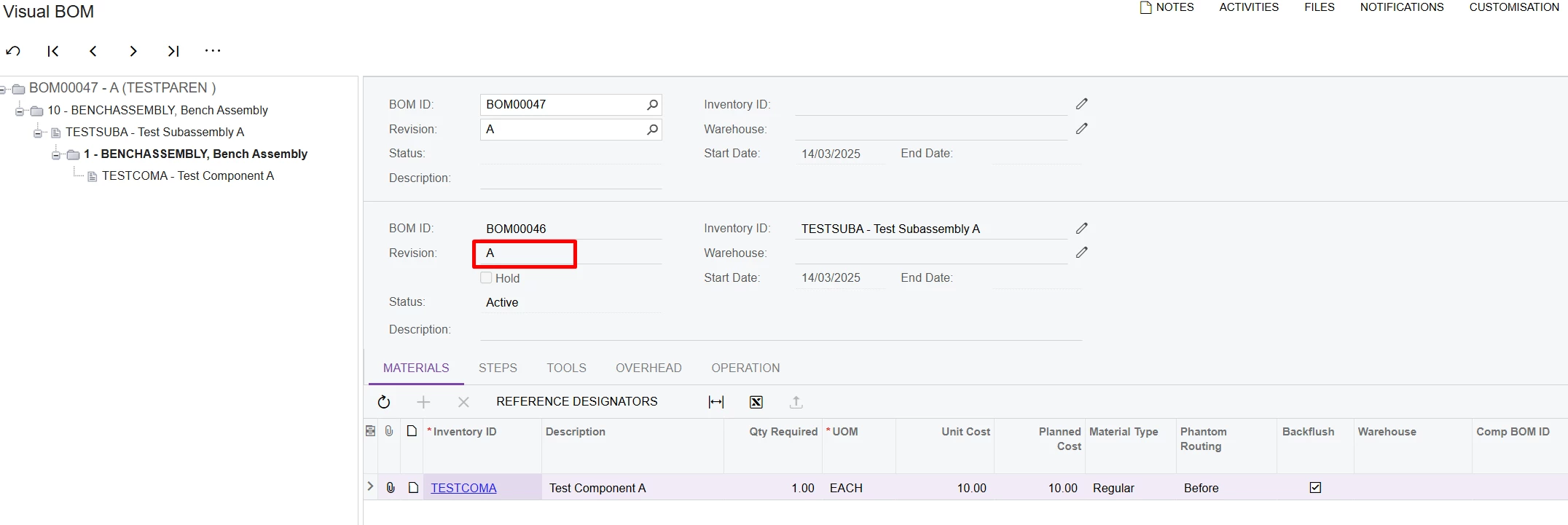
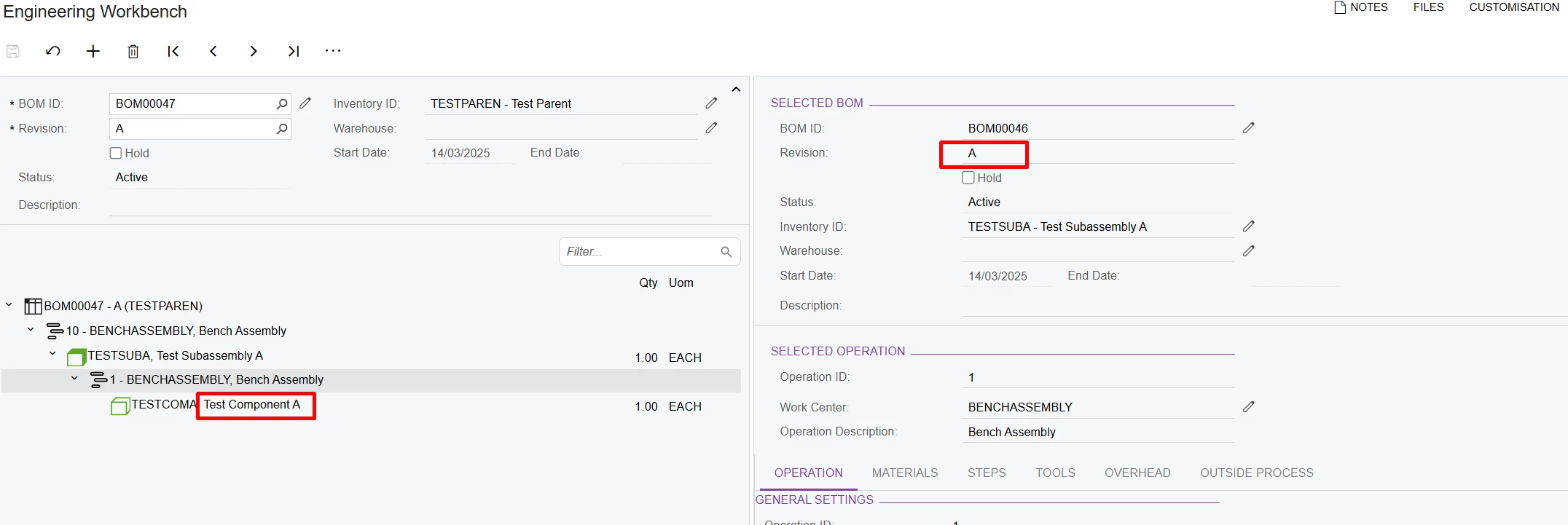
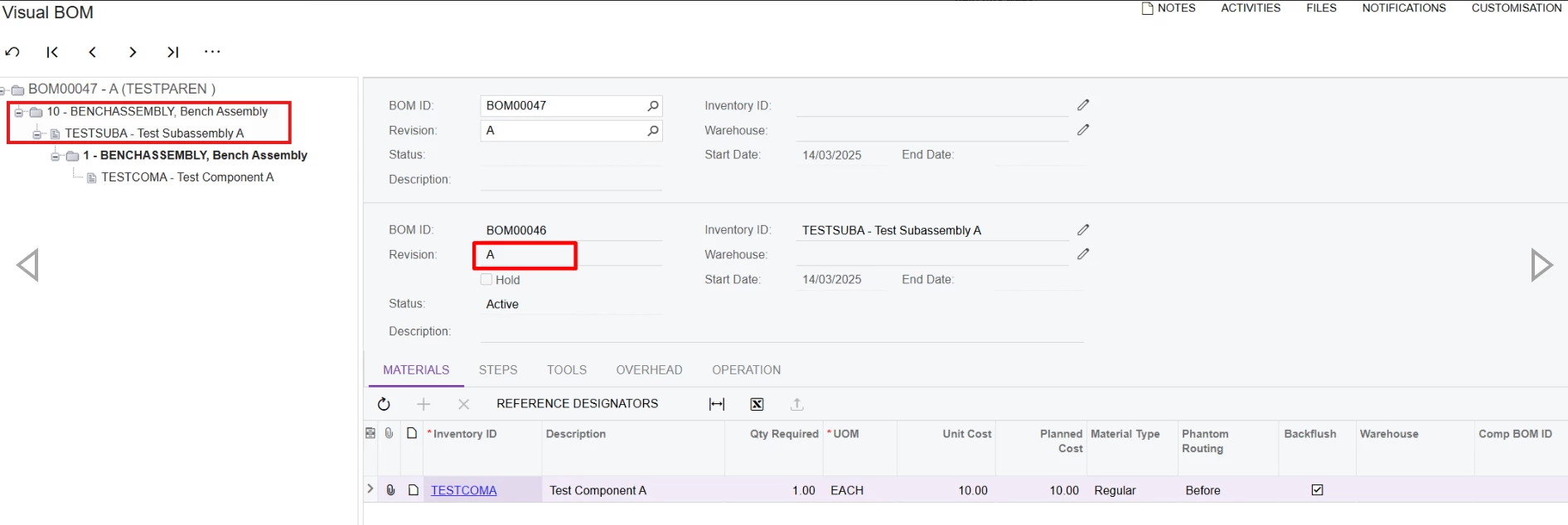
But in Visual BOM and Engineering Workbench, it pulls in BOM Revision A. 
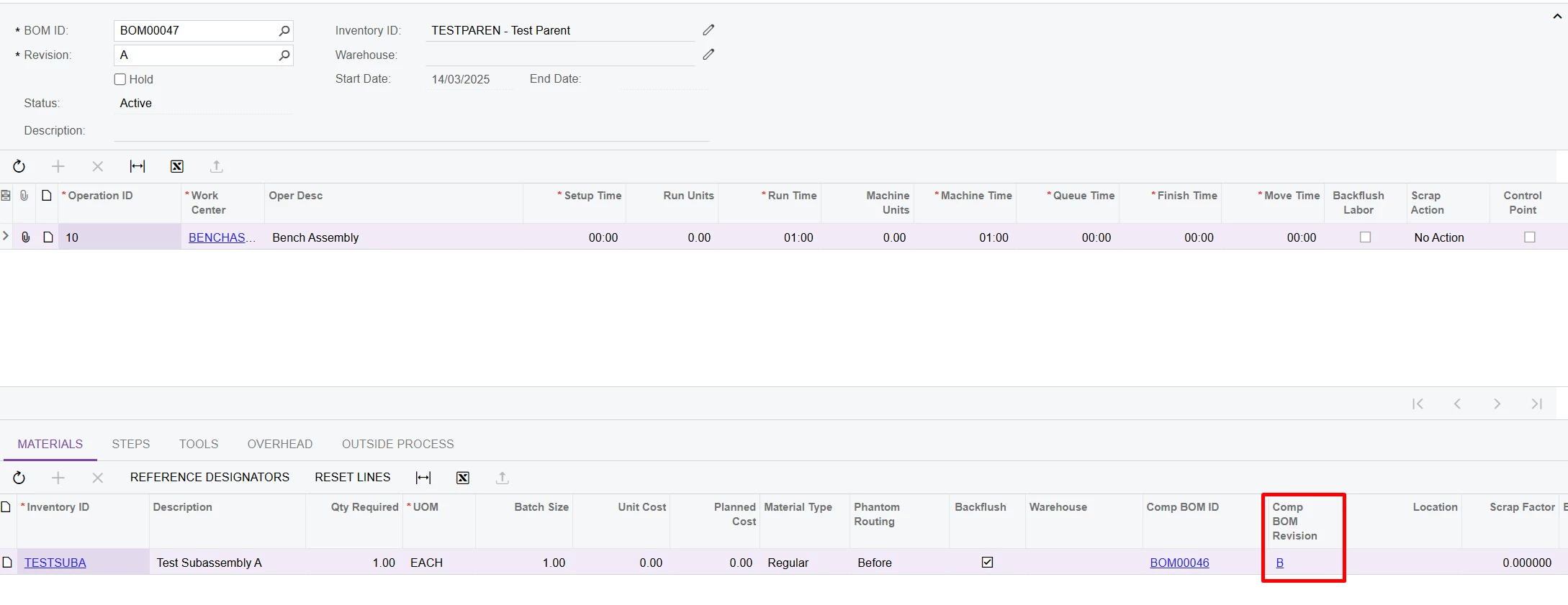
Is this intended behaviour of these two screens? Revision A is not the default BOM for the subassembly. 

Thanks for your input. 

4 replies

Forum|alt.badge.img+8
  • Captain II
  • March 14, 2025

@snzhang 


If you go into the main BOM, does the material show you comp revision id as A or B?


Forum|alt.badge.img+2

@snzhang I'm encountering the same behavior. While the Comp BOM revision might work in the production order, the Visual BOM system may pick the oldest active BOM revision. You should create a support ticket and consult with Acumatica support about the behavior.


Chris Hackett
Community Manager
Forum|alt.badge.img
  • Acumatica Community Manager
  • June 17, 2025

Hi ​@snzhang were you able to find a solution? Thank you!


CherryStreet
Jr Varsity I
Forum|alt.badge.img
  • Jr Varsity I
  • June 19, 2025


Yes, this is the intended behavior — but it’s not intuitive.
When using Visual BOM and Engineering Workbench, Acumatica does not always honor the BOM revision specified on the subassembly line of the parent BOM. Instead, it often defaults to the most recently effective or earliest created revision, depending on context and caching.


🔍 What's Actually Happening?

When you open:

Engineering Workbench or Visual BOM

Acumatica tries to dynamically display subassembly data — but:

  • It may default to Revision A if:
    • Revision A is still "Active" in the system
    • You haven’t explicitly “exploded” the subassembly line with the correct revision
    • The subassembly has no effective date logic forcing Revision B to show

Even though:

  • The main BOM screen (BOM Maintenance) correctly stores and displays Revision B for that subassembly,
  • The Visual BOM will sometimes load the “default” revision, which often ends up being the first active one (i.e., Revision A).
 

🔧 How to Control It (Workarounds & Checks)

1. In BOM Maintenance:

  • Confirm that the subassembly line has Revision B explicitly selected.
  • If set correctly here, the actual production order will use Revision B (✅ this is what matters for costing and execution).

2. 🛠 In Engineering Workbench:

  • Use the “Explode BOM” button to refresh the visual structure.
  • Manually expand and ensure the correct revision is shown.
  • If it reverts to A, it's pulling from cached or default revision logic.

3. 🚫 Why It's Confusing:

  • Visual BOM and Engineering Workbench are designed more for engineering review than exact replication of planned or released BOMs.
  • They don’t always honor revision logic like effective date, expiration, or default per item-site.
  • This can cause false assumptions during BOM review.
 

🧠 Pro Tip 💡

💡 For Engineers: Trust the BOM Maintenance screen and Production Orders to follow the actual revision selected.
💡 For QA Teams: Use BOM Revision Audit Reports to ensure what’s used in production matches engineering intent.


🪄 Alternative Method

To force Visual BOM and Engineering Workbench to show the correct revision:

  1. Temporarily inactivate Revision A (if not used in production)
  2. Or, set Revision B as the Default via:

BOM → BOM Revisions → Set as Default Revision

But note: changing the default affects other areas, so do this cautiously in test environments.


Final Takeaway

What you're seeing is expected behavior, but it's understandably confusing:

  • ✅ It does not affect actual production orders (those use the specified subassembly revision)
  • ❌ It can mislead engineers or planners reviewing multi-level BOMs