Answer

BOM Mass Change to remove an item

  • August 3, 2023
  • 4 replies
  • 426 views

claudematherne24
Varsity I
Forum|alt.badge.img

Hey everyone, 

I know we can use the Mass Change function to swap one item for another across multiple BOMs.  Is it possible to use function to just remove an item without swapping out another one.

Best answer by MichaelShirk

It’s not possible to do this with the Mass Change functionality, but it’s a fairly simple process to accomplish this with an Import and Export scenario. We do this all the time.

If you need more details I’d be happy to help, but this is the basic process.
  1. Create an Export scenario to export BOMs and when exporting, set a “Source Restriction” filter on the export scenario to only export the material lines that need to be removed.
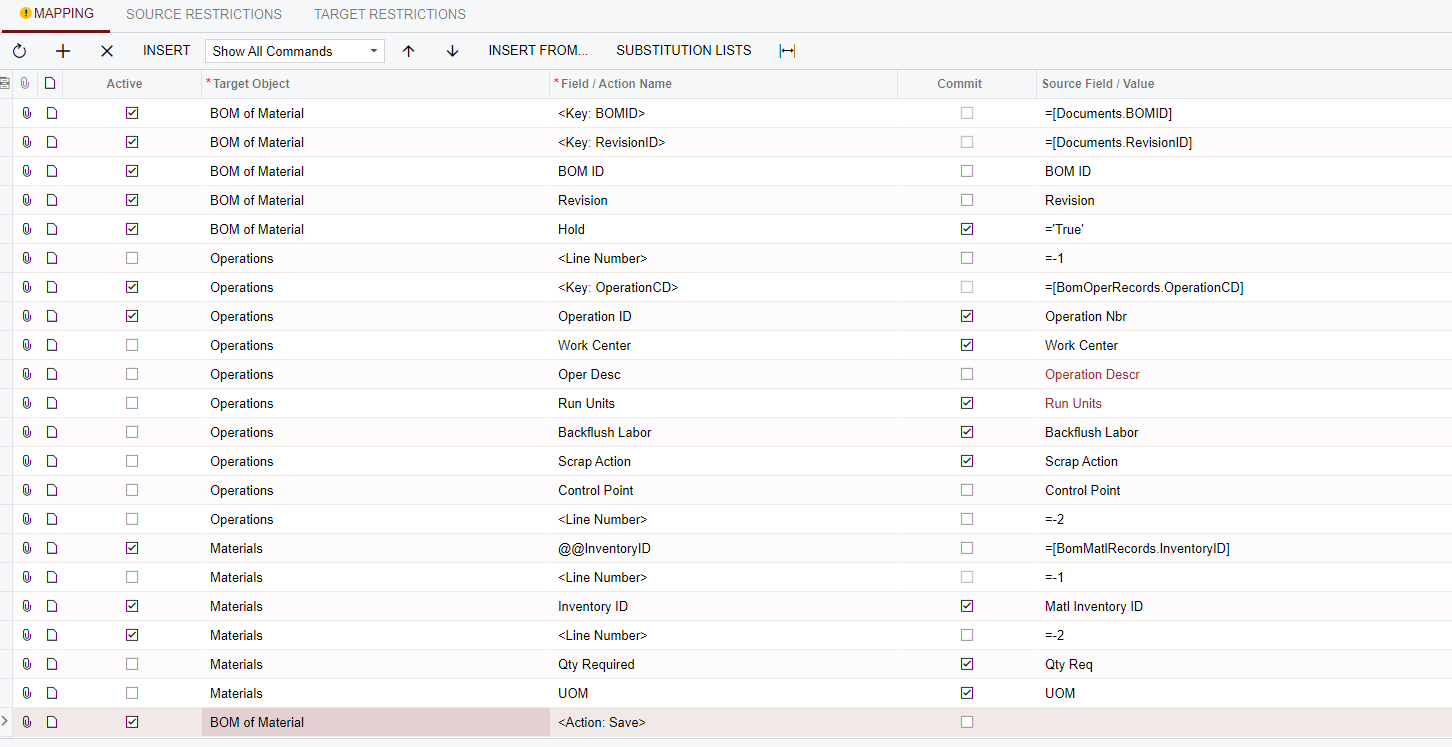
  2. Create an Import scenario that uses the data from the export to target those material lines that need to be deleted. Use the <Line Number>  =-2 action to delete the targeted lines. See the below screen shot from the import scenario for reference.
  3. Import Scenario Mapping

    A few things to note.
    I also use the scenario to add BOM materials, so ignore the lines that are unchecked in the ‘Active’ column. 
    I don’t have a line that takes the BOMs off hold, after making the change. This seems to be an Acumatica bug and I couldn’t figure out how to make that work, so I just use the mass update functionality on the BOM GI to take them off hold after making changes.

4 replies

MichaelShirk
Captain II
Forum|alt.badge.img+5
  • Captain II
  • Answer
  • August 3, 2023

It’s not possible to do this with the Mass Change functionality, but it’s a fairly simple process to accomplish this with an Import and Export scenario. We do this all the time.

If you need more details I’d be happy to help, but this is the basic process.

  1. Create an Export scenario to export BOMs and when exporting, set a “Source Restriction” filter on the export scenario to only export the material lines that need to be removed.
  2. Create an Import scenario that uses the data from the export to target those material lines that need to be deleted. Use the <Line Number>  =-2 action to delete the targeted lines. See the below screen shot from the import scenario for reference.
  3. Import Scenario Mapping

    A few things to note.
    I also use the scenario to add BOM materials, so ignore the lines that are unchecked in the ‘Active’ column. 
    I don’t have a line that takes the BOMs off hold, after making the change. This seems to be an Acumatica bug and I couldn’t figure out how to make that work, so I just use the mass update functionality on the BOM GI to take them off hold after making changes.


claudematherne24
Varsity I
Forum|alt.badge.img

Thanks.  I wonder if anyone has put this in as a future improvement.  Seems like a function that would be beneficial.


angierowley75
Acumatica Moderator
Forum|alt.badge.img+3
  • Acumatica Moderator
  • August 3, 2023

This request has not been captured yet as a Community Idea - I agree it would be good to have it created if you can make the time and provide you Use Case.


Forum|alt.badge.img
  • Jr Varsity II
  • November 11, 2024

We went in a different direction to accomplish this task.  We created a non-stock item that was DO NOT USE ITEM XYZ!!! and used the Mass Change process to replace the no-longer-needed XYZ stock item with the new non-stock item.  An easy process that resulted in every affected BoM including a clear reminder to assemblers that item XYZ is no longer used on that BoM.