Question

Is it possible to change error message in a screen in acumatica ?

  • November 3, 2025
  • 5 replies
  • 76 views

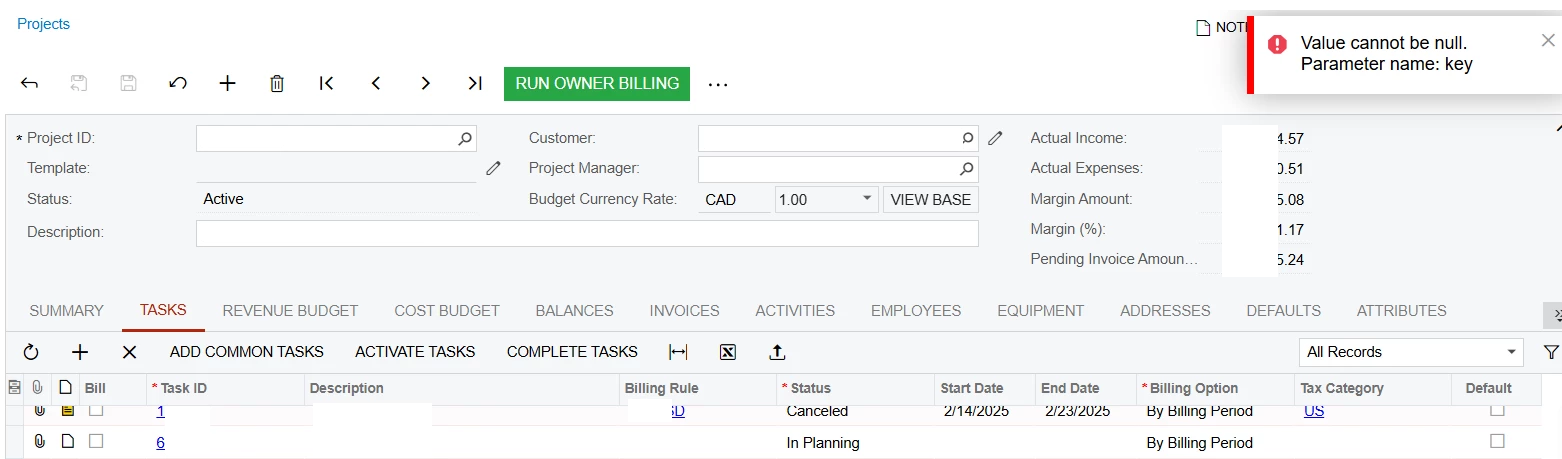
Right now  the error message reads as ‘Value cannot be null. Parameter name: key‘.

Instead of this can I rename the error message to read as ‘Billing Rule is missing’ 


Is this possible through point and click or through customization or all error messages are standard and cannot be changed ?


When I change the project task status as ‘active’ and give the billing rule , i do not get the error.


5 replies

DipakNilkanth
Pro III
Forum|alt.badge.img+13

Hi ​@SaravanaR,

I believe these are generic validation messages generated by the Acumatica framework to indicate that an operation failed due to missing or invalid data.

If you need to display a specific validation message (e.g., “Billing Rule should not be empty”), you’ll need to implement a custom validation in the corresponding RowPersisting or FieldVerifying event. This customization should check the Billing Rule field value and throw a targeted exception (e.g., PXSetPropertyException) with the desired message when the condition is not met.

Hope, it helps!


Forum|alt.badge.img
  • Varsity II
  • November 14, 2025

Review the below post and linked blog, but I believe the previous response is correct and that this approach does not work for the generic validation messages, only screen specific ones:

Is there a way to edit/change existing warning messages when not on-prem?


TharakaFernando29
Acumatica Employee

Hi ​@SaravanaR,

I believe these are generic validation messages generated by the Acumatica framework to indicate that an operation failed due to missing or invalid data.

If you need to display a specific validation message (e.g., “Billing Rule should not be empty”), you’ll need to implement a custom validation in the corresponding RowPersisting or FieldVerifying event. This customization should check the Billing Rule field value and throw a targeted exception (e.g., PXSetPropertyException) with the desired message when the condition is not met.

Hope, it helps!

Your suggestion is correct ​@DipakNilkanth .

On an additional note ​@SaravanaR , always try your best to stick to the proper operational workflow when filling-out the Projects (PM301000) screen fields (or even on any other screen), because certain generic error alerts such as this may be triggered due to data not being entered in the proper flow.


  • Freshman I
  • November 20, 2025

Hi ​@SaravanaR 


I attempted to replicate the scenario in my local environment. I created two separate project tasks one with status “Active” and another with status “In Planning” and left the Billing Rule field blank for both. In my case, the tasks were saved successfully without any errors.

Do you have any customizations applied to the Project screen that could be triggering this validation?


Laura03
Captain II
Forum|alt.badge.img+19
  • Captain II
  • November 20, 2025

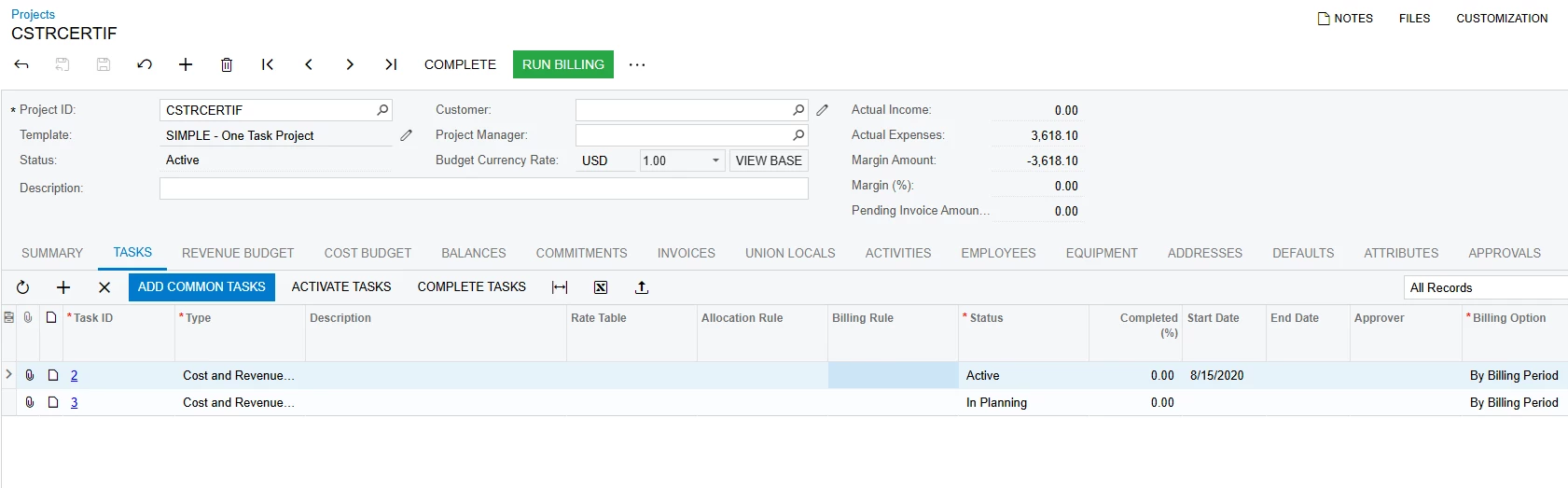
Possibly, ​@SaravanaR is seeing the error when clicking Run Billing, before some Tasks have been activated and/or Billing Rule has not yet been selected.

I don’t know if the original project show above has no template or if it might be masked/hidden.  Project Templates could be a solution.

Consider adding Billing Rules to Common Tasks and Project Templates, and using Common Tasks/Project Templates when creating new projects, so that every Project Task has a Billing Rule from the beginning. We can configure unlimited # of Project Templates to accommodate many different kinds of projects with different tasks and Billing Rules. Using Project


Good luck!