Answer

How to override the field name?

  • October 8, 2024
  • 9 replies
  • 275 views

Forum|alt.badge.img

Hello all,

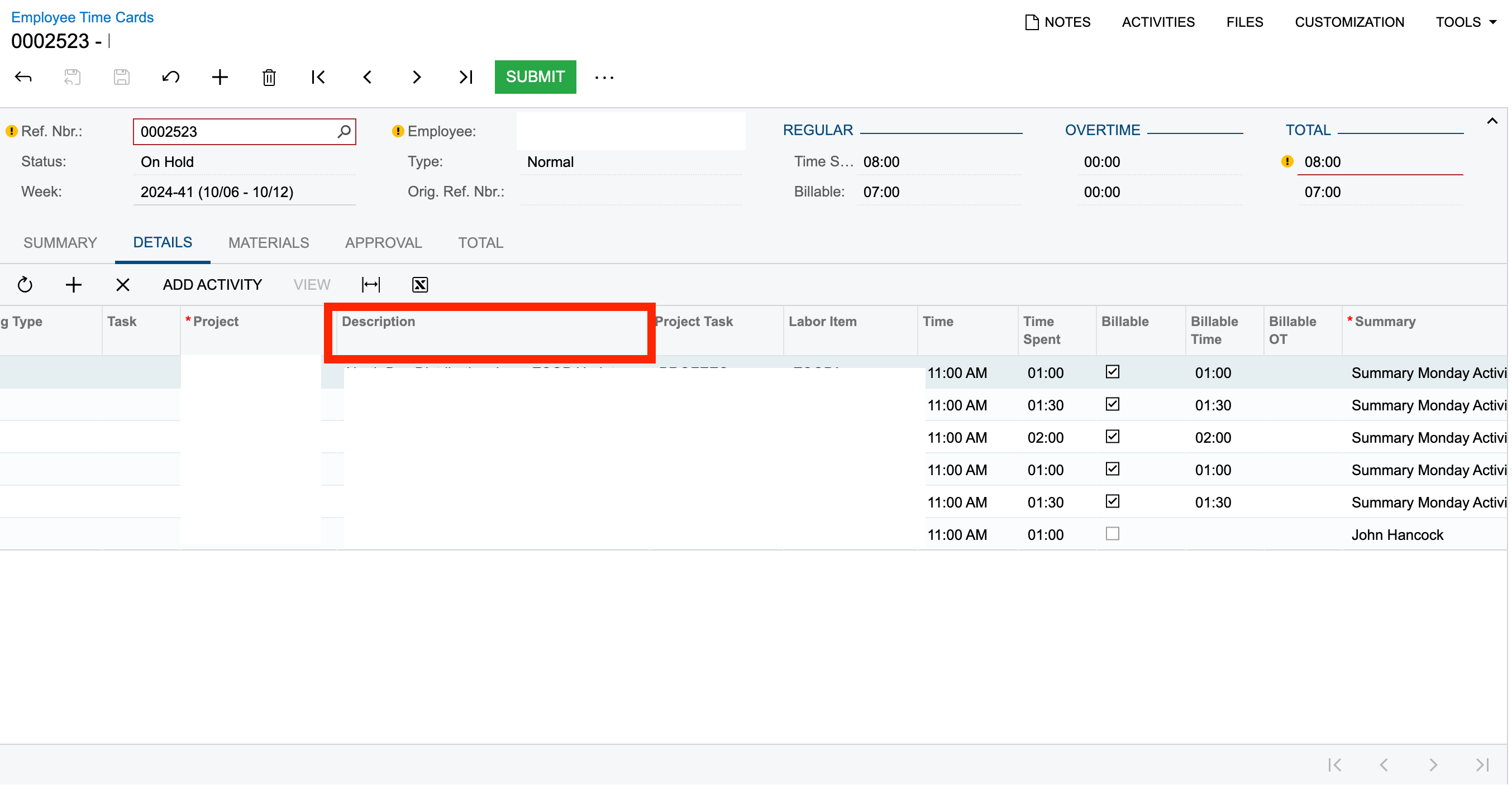
I am looking to change the display name from “Description” to “Project Description”.

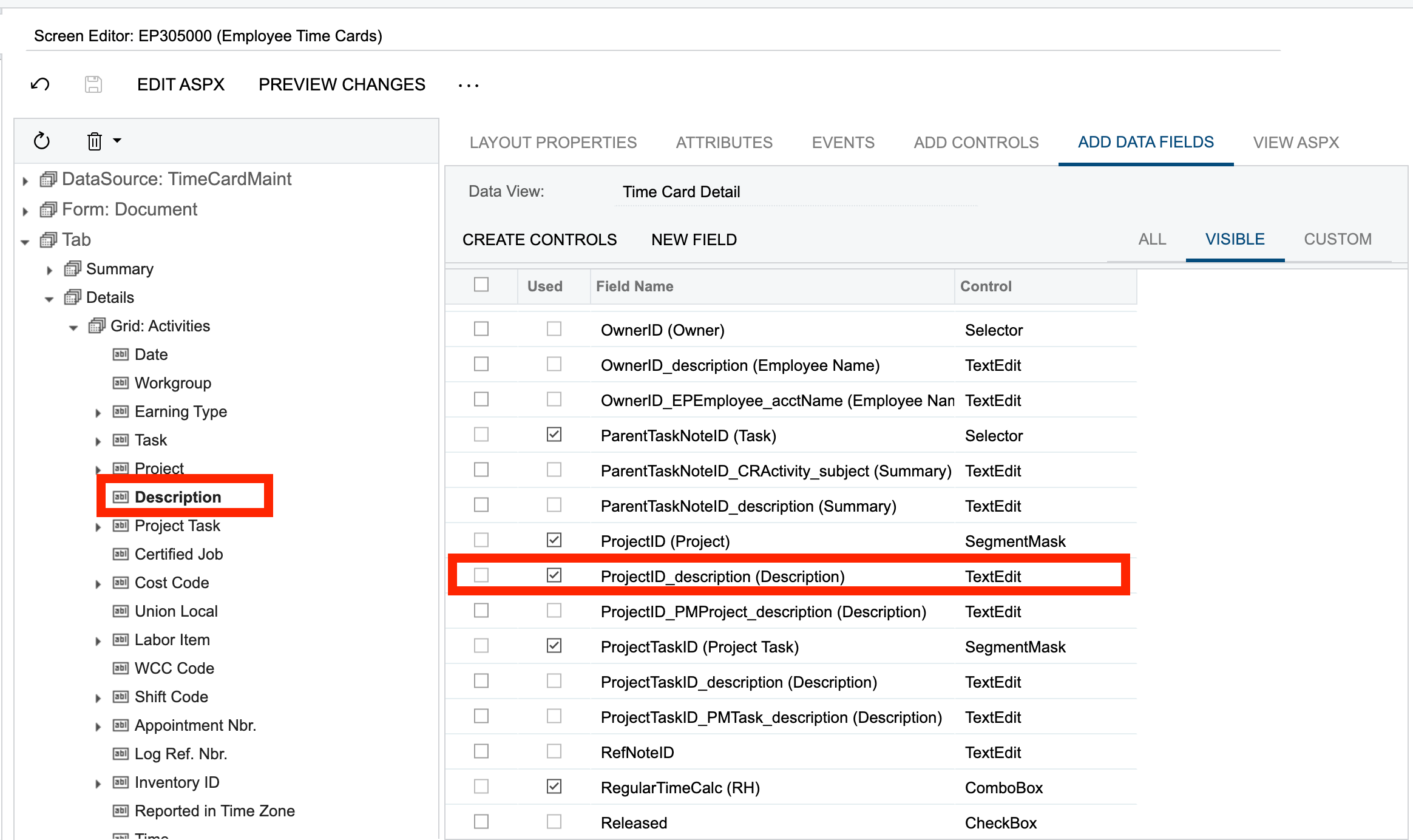
added from here:


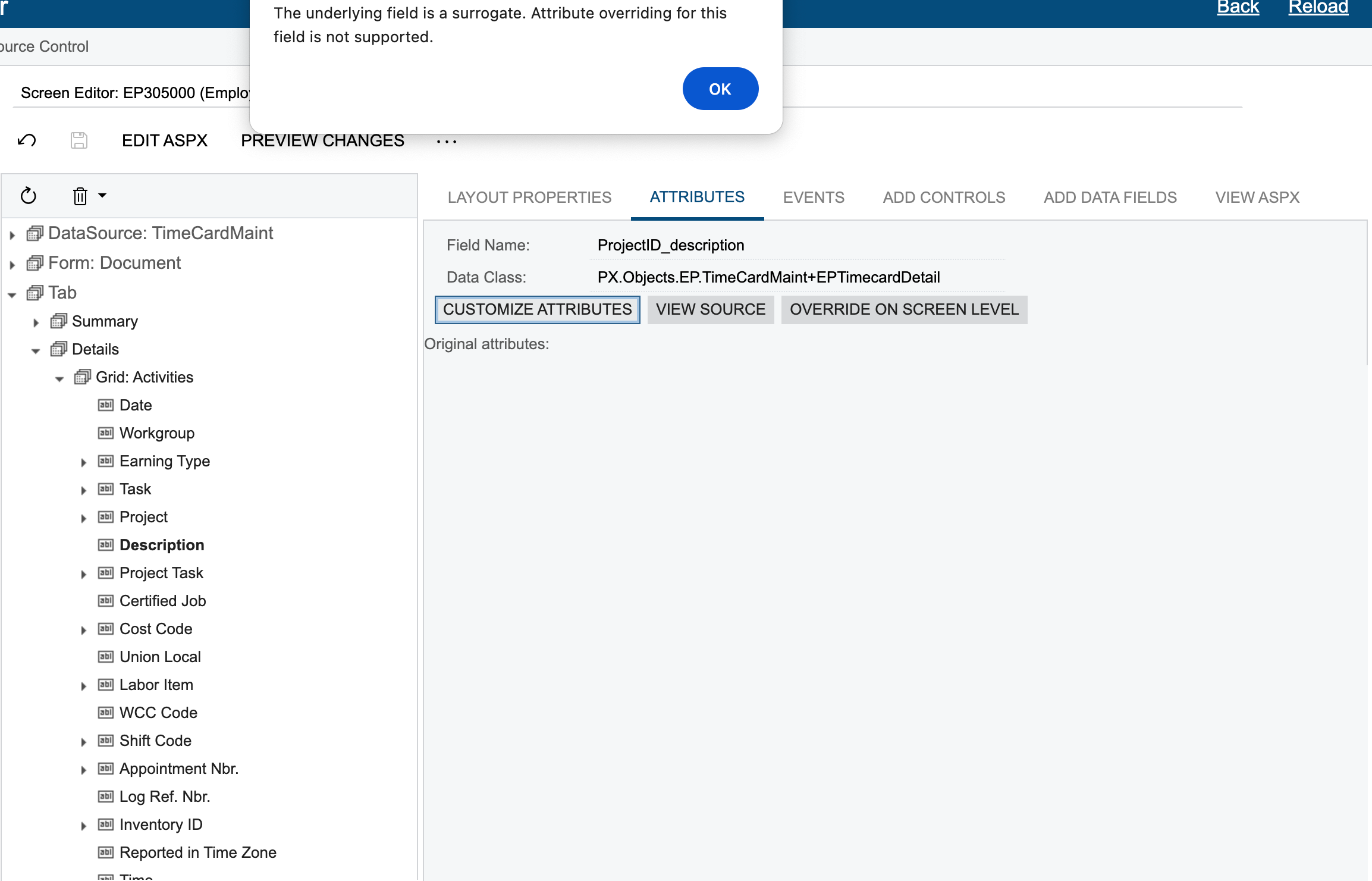
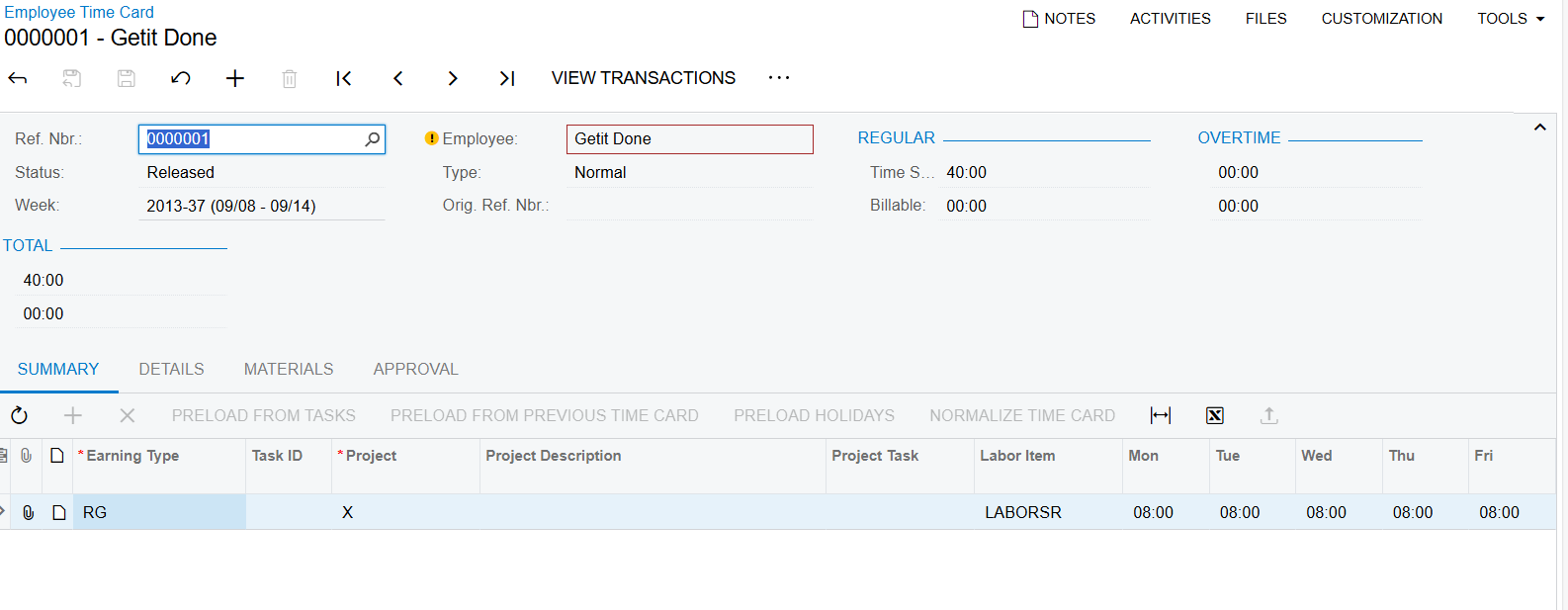
But unable to do so. When I try to select the Customization attributes button it shows the below:

How can I modify the name of this field?

Thanks.

Best answer by darylbowman

@aiwan is correct; you could do this with a code customization. Personally, I’d do it in CacheAttached:

using PX.Data;
using PX.Data.BQL;
using PX.Data.BQL.Fluent;
using PX.Objects.PM;

namespace PX.Objects.EP
{
public class TimeCardMaint_Extension : PXGraphExtension<PX.Objects.EP.TimeCardMaint>
{
#region Event Handlers

[PXMergeAttributes(Method = MergeMethod.Append)]
[PXCustomizeBaseAttribute(typeof(PXUIFieldAttribute),
nameof(PXUIFieldAttribute.DisplayName),
"Project Description")]
protected virtual void _(Events.CacheAttached<PMProject.description> e) { }

#endregion
}
}


9 replies

jinin
Pro I
Forum|alt.badge.img+11
  • Pro I
  • October 8, 2024

Hi @Harry ,

We can use the workflow to change the display name of the field
 

Steps to Update the Display Name Using Workflow:

Navigate to the Workflow Editor:

Go to Customization → Workflow.
Select the screen where the time card details grid appears (likely in the EP301000 or similar screen ID for employee timecards).

Locate the Grid and Field:

In the Workflow Editor, look for the Employee Time Card Details grid (usually linked to the EPTimeCardDetail DAC).
Find the Description field within the grid configuration.

Change Display Name via Workflow:

In the Workflow Editor, select the field properties for the "Description" field (the field that displays a label).
Look for the option to change the Display Name or Caption for that field.
Update the display name to your desired label (e.g., "Project Description").

Save and Publish the Changes:

Once the changes are made, save the workflow and publish it.


DipakNilkanth
Pro III
Forum|alt.badge.img+13

Hi @Harry,

For your requirement, you can use Acumatica’s Low Code- No Code functionality.

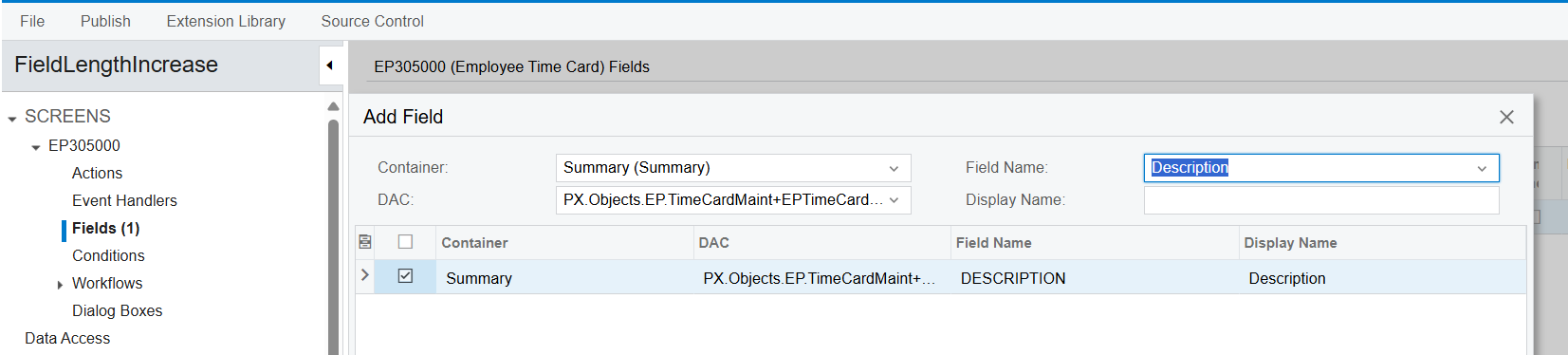
  • You need to navigate to the customization editor, and Add the Employee Time Cards screen to the Screens section.
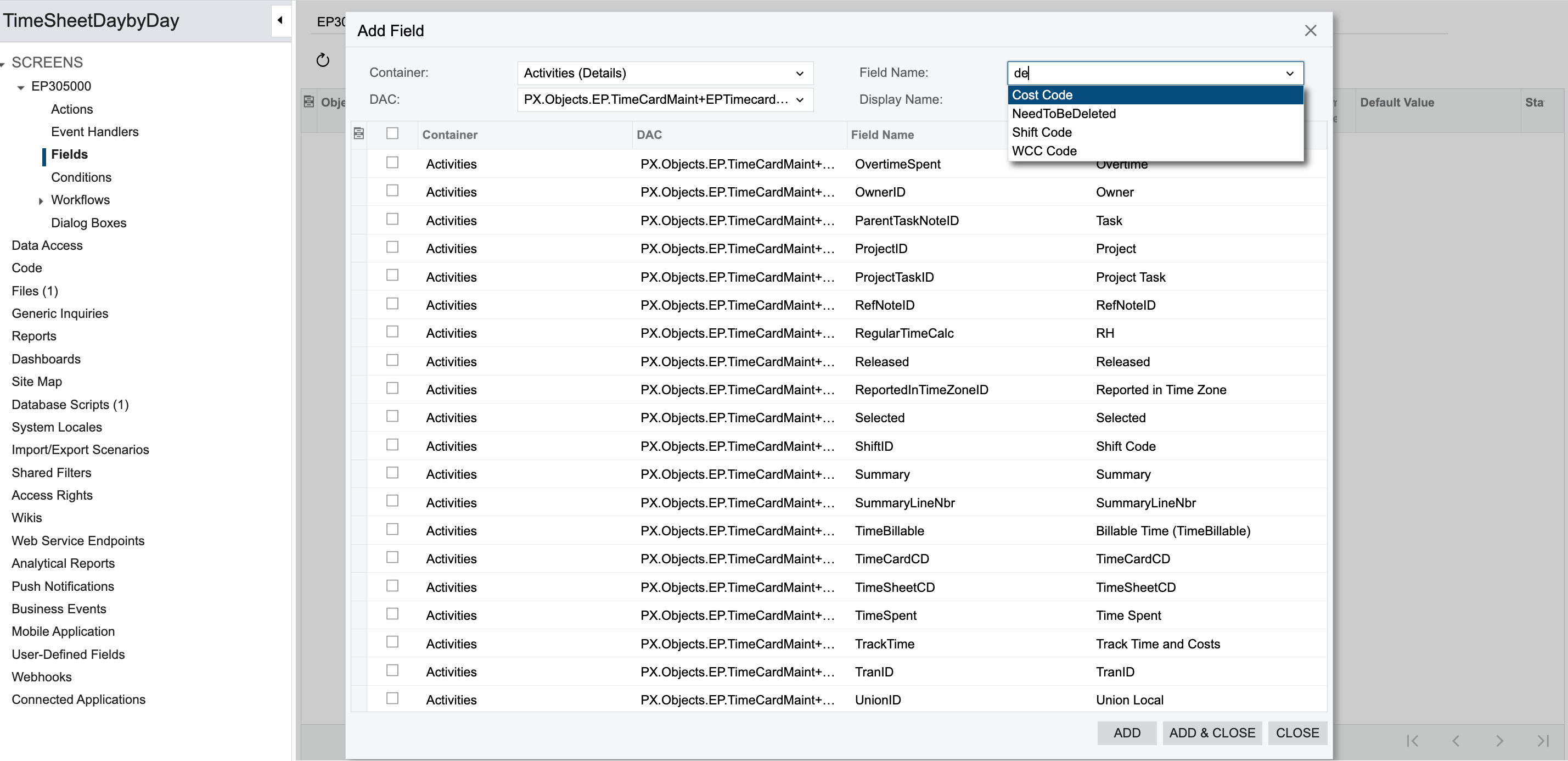
  • Extend the Screens section and click on the Fields section. Add the fields name by selecting correct fields to be renamed.
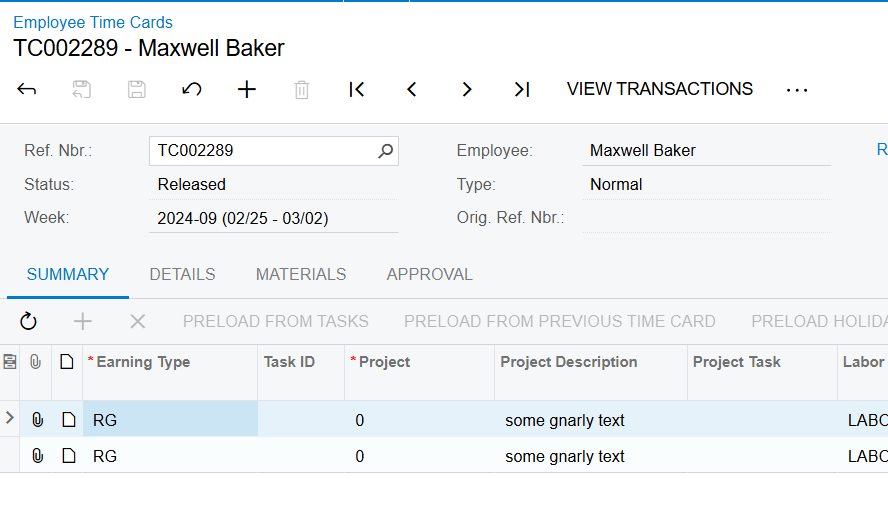
  • After adding and closing popup you will get below screen as per screenshot, there is an option as Display Name, where you can Change the display name.
  • Change Name as per you requirement and publish the customization.


Change Display Name


Hope, it helps!


Forum|alt.badge.img
  • Author
  • Semi-Pro II
  • October 8, 2024

Hi @Harry ,

We can use the workflow to change the display name of the field
 

Steps to Update the Display Name Using Workflow:

Navigate to the Workflow Editor:

Go to Customization → Workflow.
Select the screen where the time card details grid appears (likely in the EP301000 or similar screen ID for employee timecards).

Locate the Grid and Field:

In the Workflow Editor, look for the Employee Time Card Details grid (usually linked to the EPTimeCardDetail DAC).
Find the Description field within the grid configuration.

Change Display Name via Workflow:

In the Workflow Editor, select the field properties for the "Description" field (the field that displays a label).
Look for the option to change the Display Name or Caption for that field.
Update the display name to your desired label (e.g., "Project Description").

Save and Publish the Changes:

Once the changes are made, save the workflow and publish it.
 

Hey @jinin ,

where can I find the Grid? as you mentioned in the first step as you suggested.


Forum|alt.badge.img+8
  • Captain II
  • October 8, 2024

HI @Harry 


You could use a RowSelected handler like so:

protected virtual void _(Events.RowSelected<YourDAC> e)
{
YourDAC row = e.Row;
if(row == null) return;

PXUIFieldAttribute.SetDisplayName<YourDAC.yourField>(e.Cache, "Your Display Name");
}


Hope this helps!

Aleks


jinin
Pro I
Forum|alt.badge.img+11
  • Pro I
  • October 8, 2024

Hi @Harry ,

Please choose the container as Summary and select the field as Description. Click on the Add and Close button. Next, update the description and save it. Finally, publish the package.


Forum|alt.badge.img
  • Author
  • Semi-Pro II
  • October 8, 2024

Hi @Harry ,

Please choose the container as Summary and select the field as Description. Click on the Add and Close button. Next, update the description and save it. Finally, publish the package.


Hello @jinin , thank you for the clarity but I am looking to modify the name under Details tab 😅. I added/enabled the Project description field using the project editor since by default it is not there.


DipakNilkanth
Pro III
Forum|alt.badge.img+13

 Hi @Harry,

Little bit confusion, I am understanding Project Description field from Summary Tab.
However, The ProjectID_Description field is not directly related to the EPTimeCardDetail table/DAC. This is a dynamic field that pulls the project description from the Projects screen when a Project ID is selected. Since it is not inherently linked to the EPTimeCardDetail table, we are unable to rename this field.


Forum|alt.badge.img
  • Author
  • Semi-Pro II
  • October 8, 2024

Hi @Harry,

For your requirement, you can use Acumatica’s Low Code- No Code functionality.

  • You need to navigate to the customization editor, and Add the Employee Time Cards screen to the Screens section.
  • Extend the Screens section and click on the Fields section. Add the fields name by selecting correct fields to be renamed.
  • After adding and closing popup you will get below screen as per screenshot, there is an option as Display Name, where you can Change the display name.
  • Change Name as per you requirement and publish the customization.


Change Display Name


Hope, it helps!

Hi @Harry, Which version are you using?

I am using Acumatica 24 R1, and able to find the project description. 

its 23R2.


darylbowman
Captain II
Forum|alt.badge.img+15
  • Answer
  • October 8, 2024

@aiwan is correct; you could do this with a code customization. Personally, I’d do it in CacheAttached:

using PX.Data;
using PX.Data.BQL;
using PX.Data.BQL.Fluent;
using PX.Objects.PM;

namespace PX.Objects.EP
{
public class TimeCardMaint_Extension : PXGraphExtension<PX.Objects.EP.TimeCardMaint>
{
#region Event Handlers

[PXMergeAttributes(Method = MergeMethod.Append)]
[PXCustomizeBaseAttribute(typeof(PXUIFieldAttribute),
nameof(PXUIFieldAttribute.DisplayName),
"Project Description")]
protected virtual void _(Events.CacheAttached<PMProject.description> e) { }

#endregion
}
}