Answer

How can I enable the description field editable irrespective of the statuses?

  • July 29, 2025
  • 6 replies
  • 104 views

Forum|alt.badge.img

hello all,

Can anyone guide me on how can I make the header level description field on AP301000 screen to remain as editable for all the statuses?


Thanks.

Best answer by svwk05

Hi ​@Harry 

You can make the header-level Description field editable for all statuses by overriding its Enabled state in the RowSelected event of a graph extension.

Try using the sample code below:

protected virtual void APInvoice_RowSelected(PXCache sender, PXRowSelectedEventArgs e, PXRowSelected baseMethod)
{
baseMethod.Invoke(sender, e);
var row = e.Row as APInvoice;
if (row == null) return;

PXUIFieldAttribute.SetEnabled<APInvoice.docDesc>(sender, row, true);
}


6 replies

Forum|alt.badge.img+1
  • Semi-Pro III
  • Answer
  • July 29, 2025

Hi ​@Harry 

You can make the header-level Description field editable for all statuses by overriding its Enabled state in the RowSelected event of a graph extension.

Try using the sample code below:

protected virtual void APInvoice_RowSelected(PXCache sender, PXRowSelectedEventArgs e, PXRowSelected baseMethod)
{
baseMethod.Invoke(sender, e);
var row = e.Row as APInvoice;
if (row == null) return;

PXUIFieldAttribute.SetEnabled<APInvoice.docDesc>(sender, row, true);
}


Forum|alt.badge.img
  • Author
  • Semi-Pro II
  • July 29, 2025

Hi ​@Harry 

You can make the header-level Description field editable for all statuses by overriding its Enabled state in the RowSelected event of a graph extension.

Try using the sample code below:

protected virtual void APInvoice_RowSelected(PXCache sender, PXRowSelectedEventArgs e, PXRowSelected baseMethod)
{
baseMethod.Invoke(sender, e);
var row = e.Row as APInvoice;
if (row == null) return;

PXUIFieldAttribute.SetEnabled<APInvoice.docDesc>(sender, row, true);
}


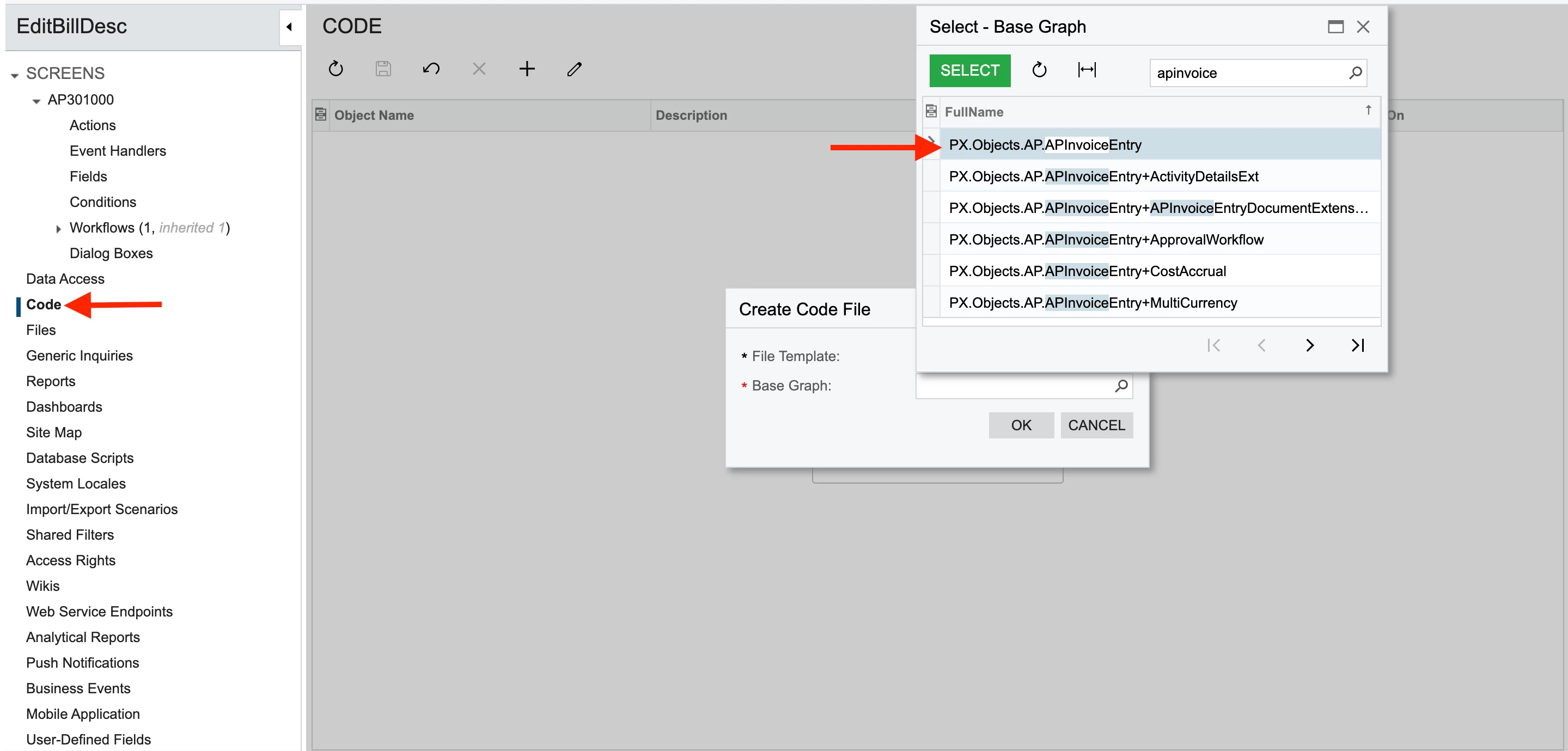
Hey ​@Saikrishna V , thanks for your quick response. So shall I add as below as the first step?


Forum|alt.badge.img+1
  • Semi-Pro III
  • July 29, 2025

Yes correct ​@HarryAPInvoiceEntry


Forum|alt.badge.img
  • Author
  • Semi-Pro II
  • July 29, 2025

Yes correct ​@HarryAPInvoiceEntry

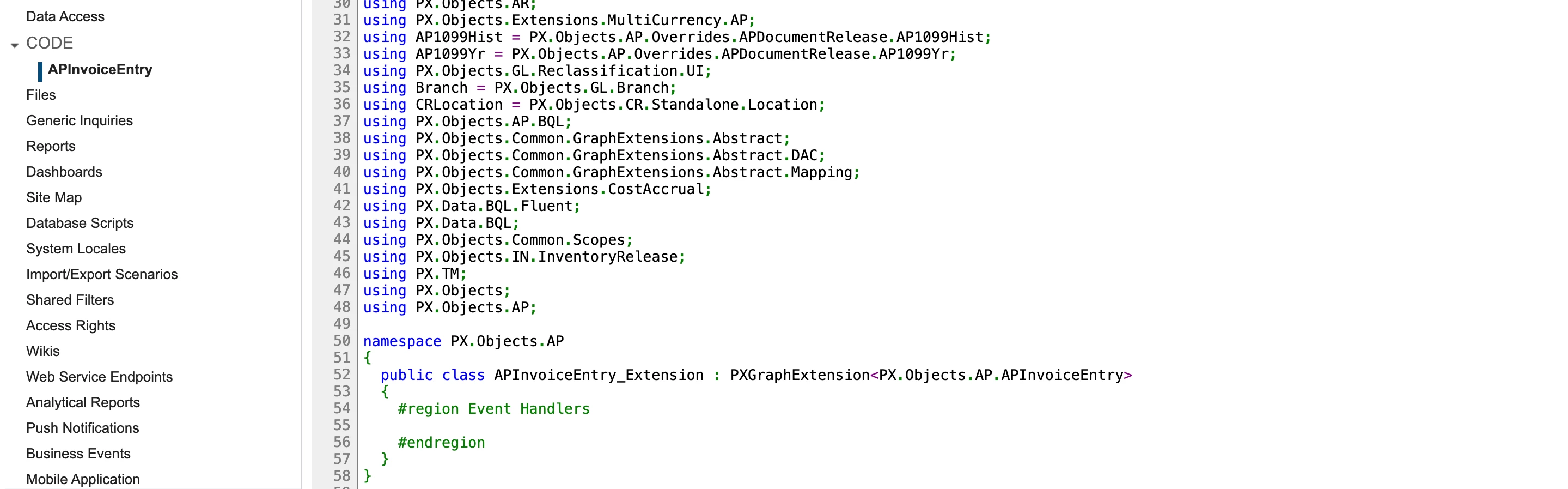
And it shows the below code:


Forum|alt.badge.img+1
  • Semi-Pro III
  • July 29, 2025

Yes, please add that piece of code inside the appropriate region, then publish the customization package and verify the behaviour.


Forum|alt.badge.img+1
  • Semi-Pro I
  • August 20, 2025

I know this is marked as solved, but some fields (especially system default fields) can be enabled without code using the Workflow editor.  Open (add) the screen to a customization package (in the screens section), expand that screen and click workflows.  Click Add Workflow, and choose the base you want to copy from (most only have one, things like Sales Orders do have multiple base workflows).  Select each stage within the workflow, and then add the field to the grid on the right.

It was a little counter-intuitive when I first started working with it, as you have to add the field and not do anything else.  If there is a field that you want to disable in a workflow stage, you add it and then check the “Disabled” checkbox.