Solved

Billing grouping / invoice summarization

  • May 14, 2026
  • 9 replies
  • 52 views

Forum|alt.badge.img

I would like to tag each appointment or service order line with a code 001 through 011. This will determine which lines to group on the invoice with a total for those lines and a custom description. Eg. Material, Labor, Misc. These would be the only lines appearing on the invoice with a grand total.

Best answer by lauraj46

HI ​@lewisad ,

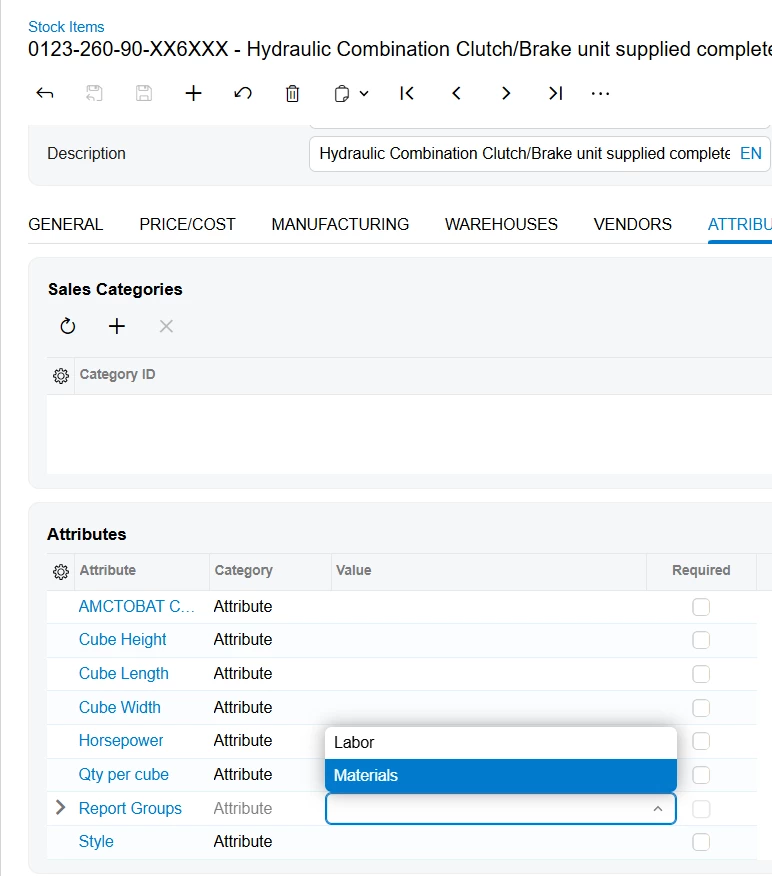
The first step is to create an attribute.  Then add the attribute to each item class on the Item Classes screen.  Assign a value to the attribute on each stock item.  

On your report design, refresh the InventoryItem table on the Build Schema dialog and then the new attribute should be available to use.

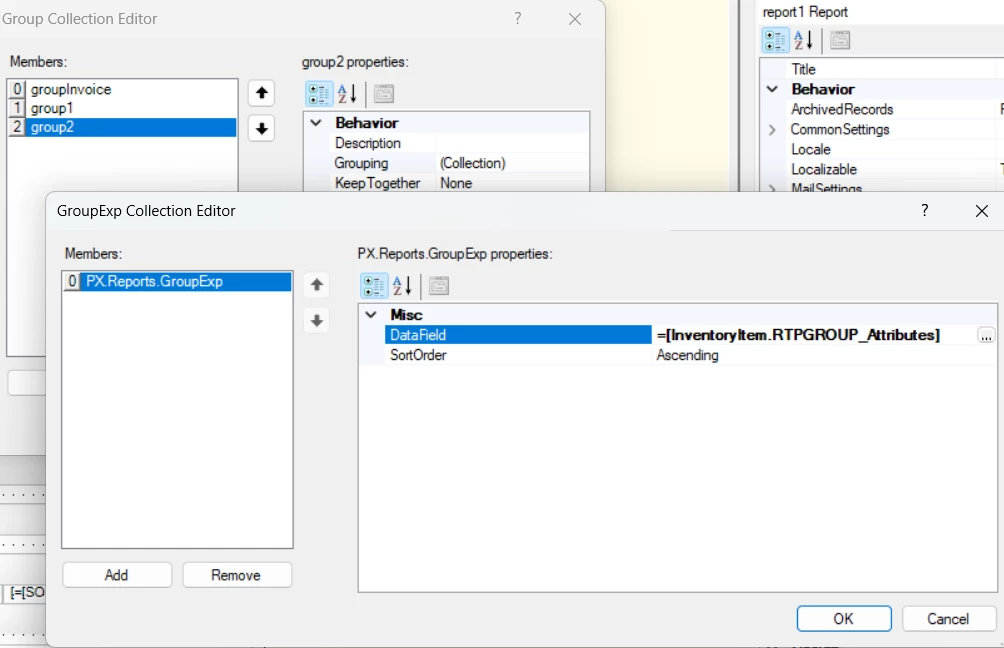
Add a grouping based on this new field to the Groups collection of the Report Properties in the report designer.  You can print the heading in the group header and the line details in the detail section.  You can print the section total in the group footer.  You can also use the attribute in your report filters to limit the rows that are returned.

See some screenshots below. 
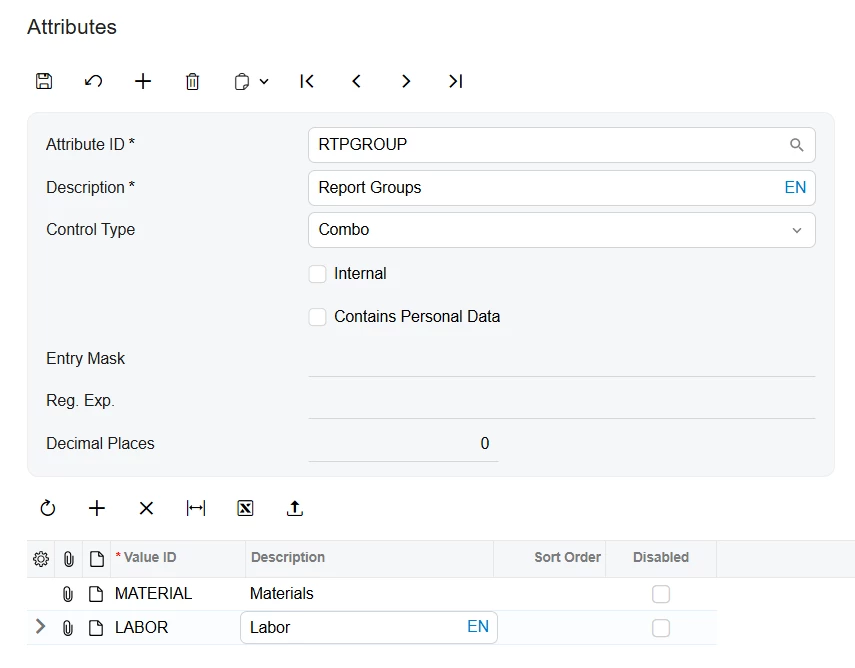
 

Hope this helps!

Laura

9 replies

lauraj46
Captain II
Forum|alt.badge.img+9
  • Captain II
  • May 14, 2026

Hi ​@lewisad ,

Have you considered configuring an attribute on the stock or non-stock items?  I would use a combo box attribute, then pull the field onto the invoice from the InventoryItem DAC onto the report to group and print.  No customization needed for this approach.

Laura


Forum|alt.badge.img
  • Author
  • Jr Varsity II
  • May 14, 2026

@lauraj46 Can you give me some guidance in doing this?


lauraj46
Captain II
Forum|alt.badge.img+9
  • Captain II
  • Answer
  • May 14, 2026

HI ​@lewisad ,

The first step is to create an attribute.  Then add the attribute to each item class on the Item Classes screen.  Assign a value to the attribute on each stock item.  

On your report design, refresh the InventoryItem table on the Build Schema dialog and then the new attribute should be available to use.

Add a grouping based on this new field to the Groups collection of the Report Properties in the report designer.  You can print the heading in the group header and the line details in the detail section.  You can print the section total in the group footer.  You can also use the attribute in your report filters to limit the rows that are returned.

See some screenshots below. 
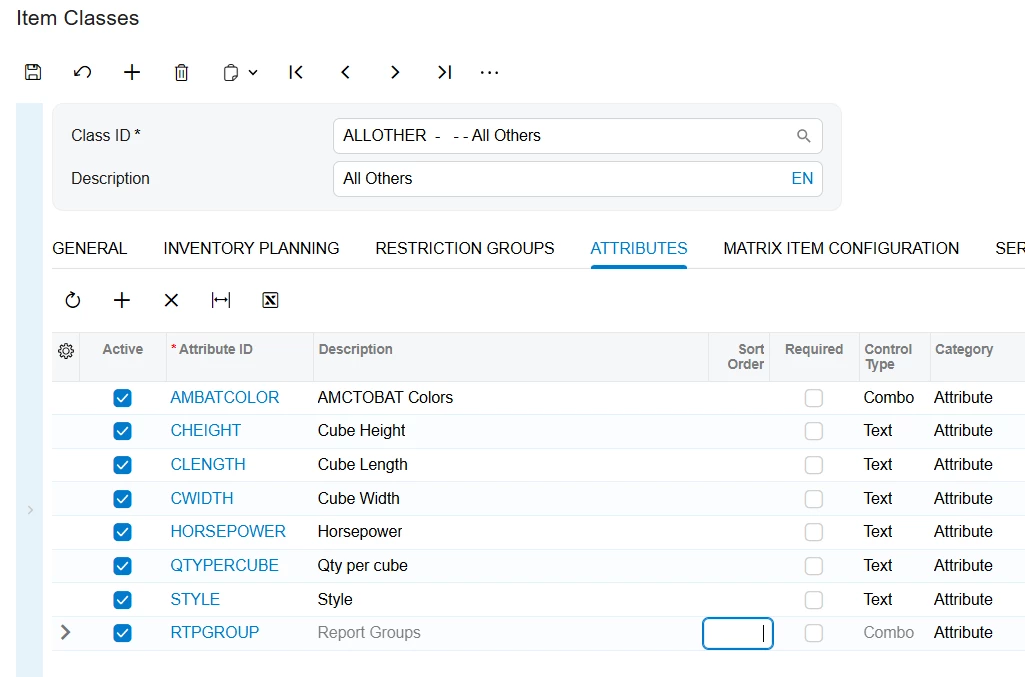
 

Hope this helps!

Laura


Forum|alt.badge.img
  • Author
  • Jr Varsity II
  • May 15, 2026

@lauraj46 This attribute field has to be manually added to each stock and non-stock individually?


Forum|alt.badge.img
  • Author
  • Jr Varsity II
  • May 18, 2026

@lauraj46 Read over your initial comment and saw the items would be updated once the attribute is added to the item class. How do i get the attribute field to show-up when i add an item to a service order and would the field be editable?


lauraj46
Captain II
Forum|alt.badge.img+9
  • Captain II
  • May 18, 2026

Hi ​@lewisad ,

This approach assumes that the attribute is consistent for a specific item across all service orders.  Once you add the attribute to the item class, it will be available to edit on the attributes tab of the stock or non-stock item.  In your report you can join the service orde line with InventoryItem and just the attribute from there for your grouping.

Hope this makes sense and helps!

Laura


Forum|alt.badge.img
  • Author
  • Jr Varsity II
  • May 18, 2026

@lauraj46 I saw the attribute being available on the inventory item for the particular item classes where it was added. I was just wonder if that field would be available on the service order or appointment screen where you could then adjust. Thought it would be part of the headings where warranty, prepaid item, UOM, etc.. appears.


lauraj46
Captain II
Forum|alt.badge.img+9
  • Captain II
  • May 18, 2026

Hi ​@lewisad ,

With this approach the attribute is not copied to the service order detail and cannot be edited for a specific service orer.  If that is required, you would need to go back to your original idea and add these user defined fields on the service order detail using a customization.

Laura


Forum|alt.badge.img
  • Author
  • Jr Varsity II
  • May 18, 2026

@lauraj46 Thank you.