


Since we started using them, Business Events have played a large role in the administrative side of our company. Sending out late approval reminders, automating import scenarios to help with security, and notifications going out to inform employees of data integrity errors are a few of the use cases that we have found for business events. I wanted to share how I created one of our most used Business Events.
Our most common use for Business Events is ‘Late Approval Reminders’. Previously, we started running into issues where approvals during the purchasing processes weren’t getting done in a timely manner, which was slowing everything down. The Purchasing team didn’t have the bandwidth to keep an eye on what was still pending approval, then trying to hunt the employee down to get the approval completed, before often learning the employee is out of office and that the item needed to be rerouted for approval again.
To sum up the lengthy tutorial, a generic inquiry is created to show any Purchase order that has been pending approval since the previous day. The Business Event schedule triggers during business days to send out notifications to the approvers and their supervisors reminding them to do the approval.
Creating a Business Event for Late Approval Reminders starts with a Generic Inquiry first. In the example below I have a GI made for Late Purchase Order Approval reminders.
Creating this notification we wanted the email to route to the Owner of the PO, the approver who is getting the reminder, and the approver’s supervisor. This required the following tables.

I know I left out the Relationships between the tables. Let me know if you have any questions on joining them.
For the Conditions, I wanted this GI to look at the following criteria
- The Purchase Order needs to be Pending Approval
- Only show the name of approvers who have not approved (Still in pending status)
- The PO was routed for approval during the previous day (This is what we defined as being late on an approval)

In the results grid, the following fields were added:
- PO Order Number,
- Order Description
- Name and Employee ID of the Owner
- Name and Employee ID the late approver
- Email address of the approver’s supervisor
Other fields could be added if you want to include further information or email anyone else.
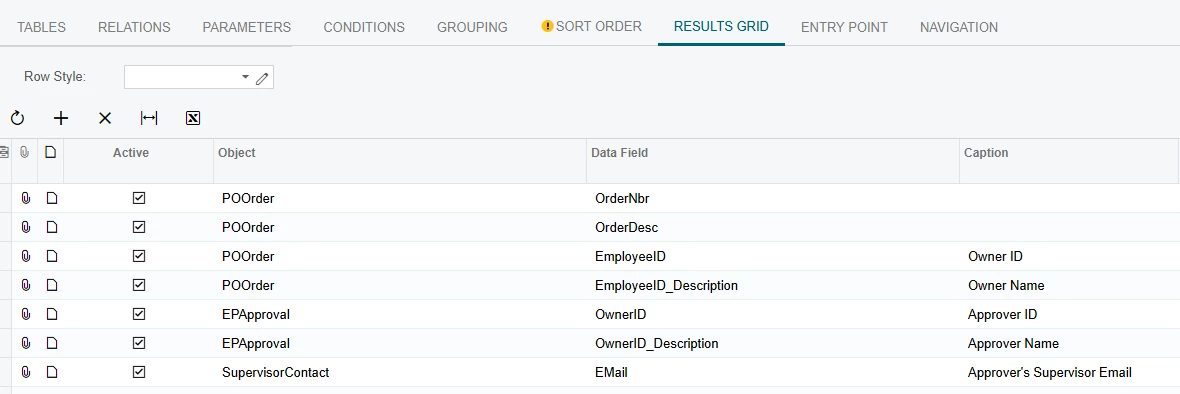
With that the GI is done.
Creating The business event, we chose to run it off of a schedule, and have the Trigger Conditions be similar to the Conditions on the GI.
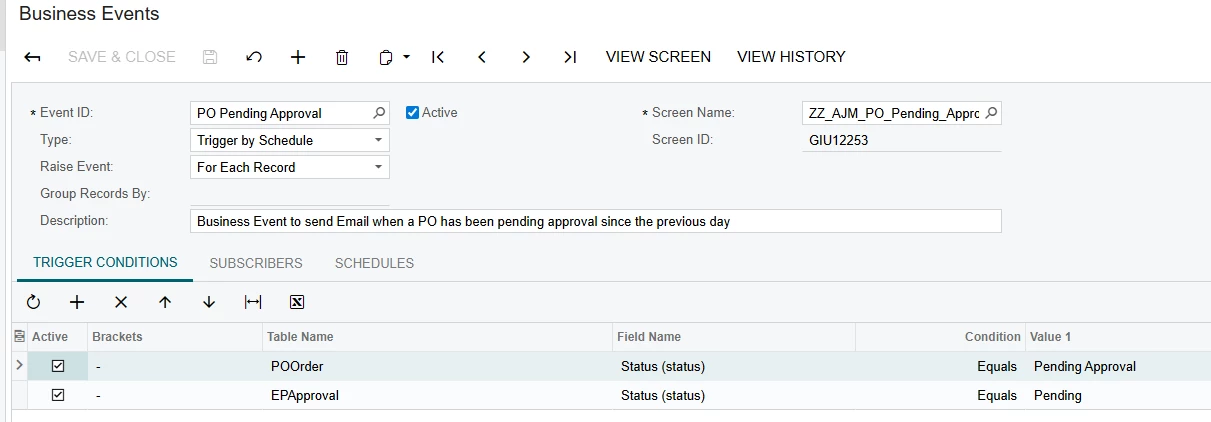
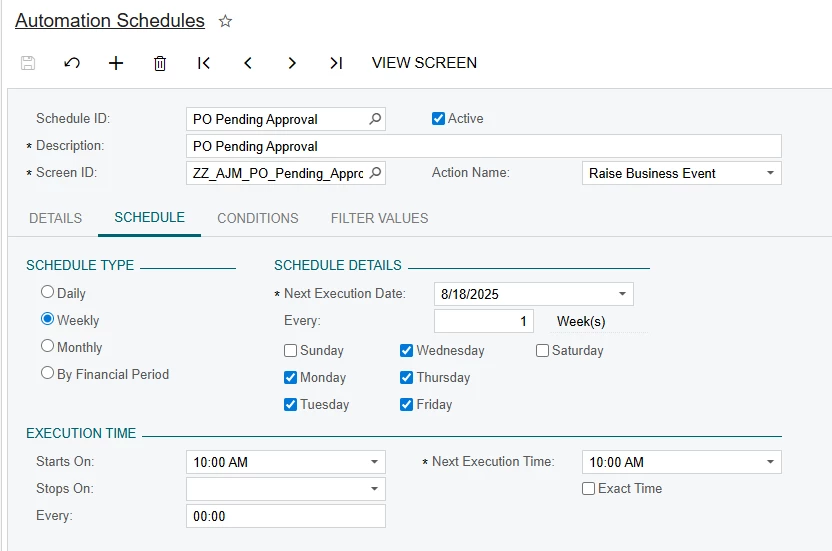
For the schedule, we decided that 10:00 AM was when approvals from the previous day were now considered late. For Schedule type I chose Weekly, as you can customize what days of the week you want the notifications to send, and I didn’t want people being told they were late over the weekend.
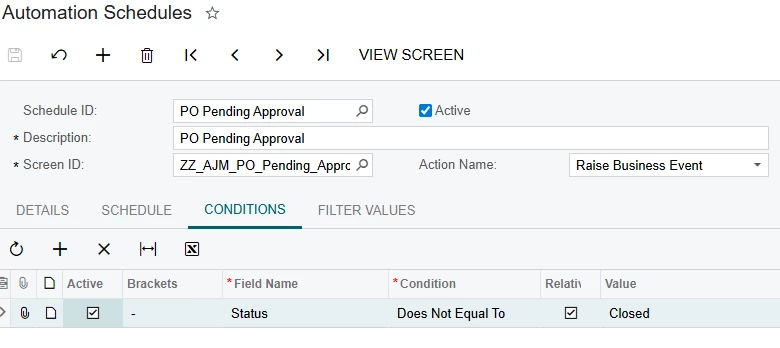
The Condition I set is included within both the condition for the Generic Inquiry, and the Business Event. I didn’t want anything excluded by this so I left it simple.
Finally is the notification itself.
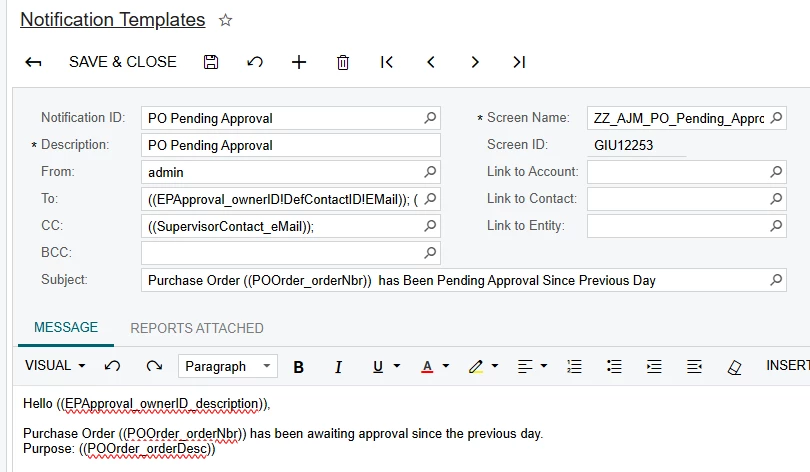
In the ‘To’ field we have the Approver who is being reminded to do the approval, and you can’t see it, but the Owner on the PO is included as well. The Approver’s supervisor is CC’d below, as we want someone to see this email if the employee is out of office.
This is a pretty simple notification, just mentioning what the PO number is, and a brief description.