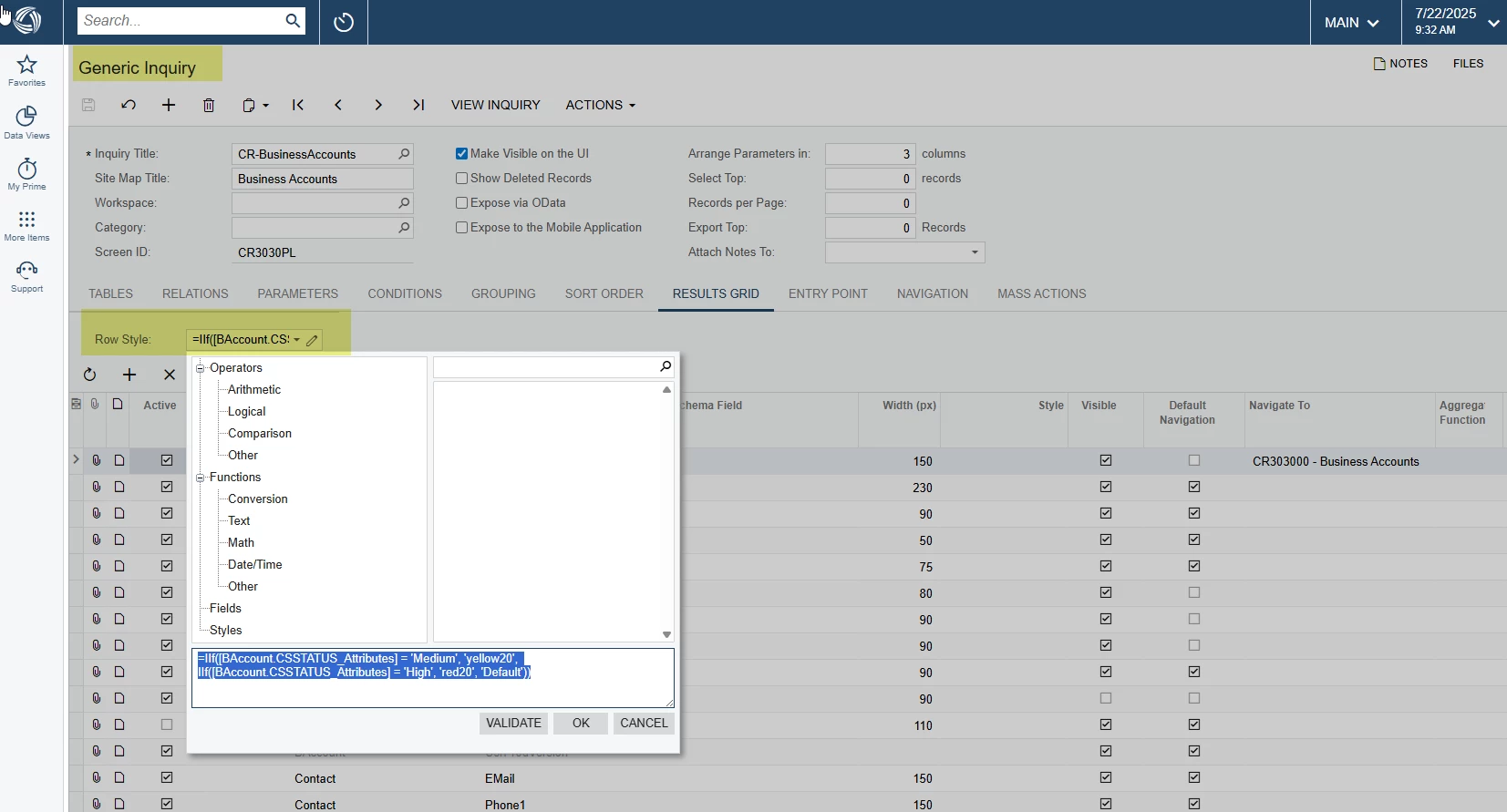

Generic Inquiries (GIs) in JAMIS Prime v8.0 allow for conditional formatting of rows, enabling users to highlight rows based on specific criteria. This feature enhances data visualization by visually distinguishing rows based on their data values.
To implement conditional formatting in a Generic Inquiry:
Navigate to the Generic Inquiry: Open the Generic Inquiry in question
Select the Results Grid Tab: Go to the "Results Grid" tab, where you'll find the "Row Style" box.
Click the Pencil Icon: Click the pencil icon within the "Row Style" field to open the formula editor.
Enter the Formula: Write an IIF statement to define the condition for highlighting. The formula should evaluate a specific field and apply a style based on the outcome.
Specify Styles: Choose the desired style (e.g., color, font) for rows that meet the condition and optionally, a different style for rows that don't meet the condition.
Validate and Save: Click "Validate" to check the syntax of your formula. If valid, save the Generic Inquiry.
Preview/Run: View the Generic Inquiry to see the conditional formatting in action. Rows meeting the specified criteria will be highlighted according to the defined styles.
Example:
If you want to highlight rows where the "Order Status" is "On Hold", the IIF statement could be:
Code
=IIF([SalesOrder.Status] = 'Hold', 'red', 'default')
This formula checks if the SalesOrder.Status field equals "Hold". If true, the row will be highlighted in red; otherwise, it will use the default style.
Key points:
You can use various functions and operators within the IIF statement to create more complex conditions.
Conditional formatting can be applied to entire rows or individual cells.