Question

Save the Export File on a Shared Folder

  • January 19, 2026
  • 2 replies
  • 22 views

Forum|alt.badge.img

Hello, 

I am required to export an excel from the Acumatica system and save it in my local folder or even in my drive. 

I tried to get this done using the Synchronization option on the file maintenance, but it gives me an error. Below is what I have configured.
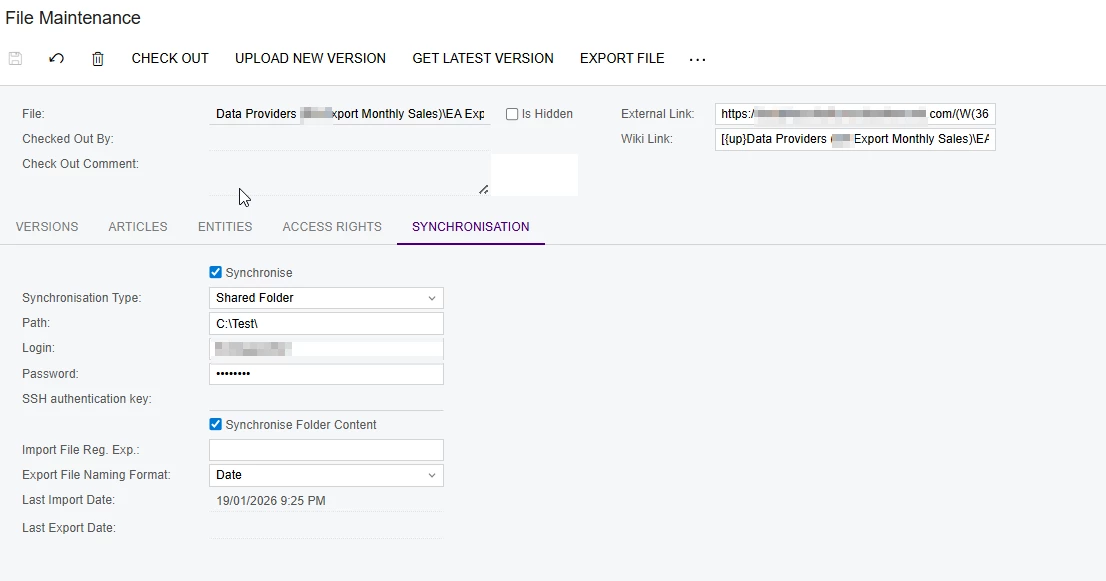
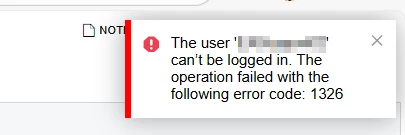
When I select Export File action, it gives me the below error. 
Is it possible to export files and kept save it in a folder or a drive, or this is not something can do within standard Acumatica?

Thank You!

2 replies

trieger
Jr Varsity II
Forum|alt.badge.img
  • Jr Varsity II
  • January 20, 2026

Using C:\ would imply saving it to the local machine the Acumatica instance is on rather than your local machine. 

Is your Acumatica instance installed within the local domain. If so you may be able to use the shared folder option using the Network Path on the Sharing tab in the folder properties but I don’t see how it would work if it is hosted elsewhere. If you have Google Drive or Onedrive the community post below may help.


mymetaforgeid26
Freshman I
Forum|alt.badge.img

Hello apallawala21,

The Error Code 1326 you are seeing is a standard Windows error that translates to "Logon failure: unknown user name or bad password." This means the credentials you entered in the Synchronization tab are being rejected by the destination folder's security.

Here are a few things to check to resolve this:

  • Format of Login: If the folder is on a network domain, ensure the Login field is formatted as Domain\Username. If it is a local machine, try .\Username.

  • Folder Permissions: Ensure the Windows user account you are using has "Full Control" or at least "Write" permissions specifically for the C:\Test\ folder.

  • SaaS vs. Local: If your Acumatica instance is hosted in the Cloud (SaaS), it cannot directly communicate with a local drive like C:\. In this case, you should consider using a File Provider like OneDrive, SharePoint, or an SFTP server instead of a "Shared Folder" type.

  • Password Update: Double-check that the password in the Synchronization tab is current and does not contain special characters that might be misread during the handshake.

I hope this helps you get your export working!