
Question

Import shipments with order that has multiple lines

  • May 23, 2025
  • 2 replies
  • 148 views

iqraharrison
Captain II
Forum|alt.badge.img+8

Hi!

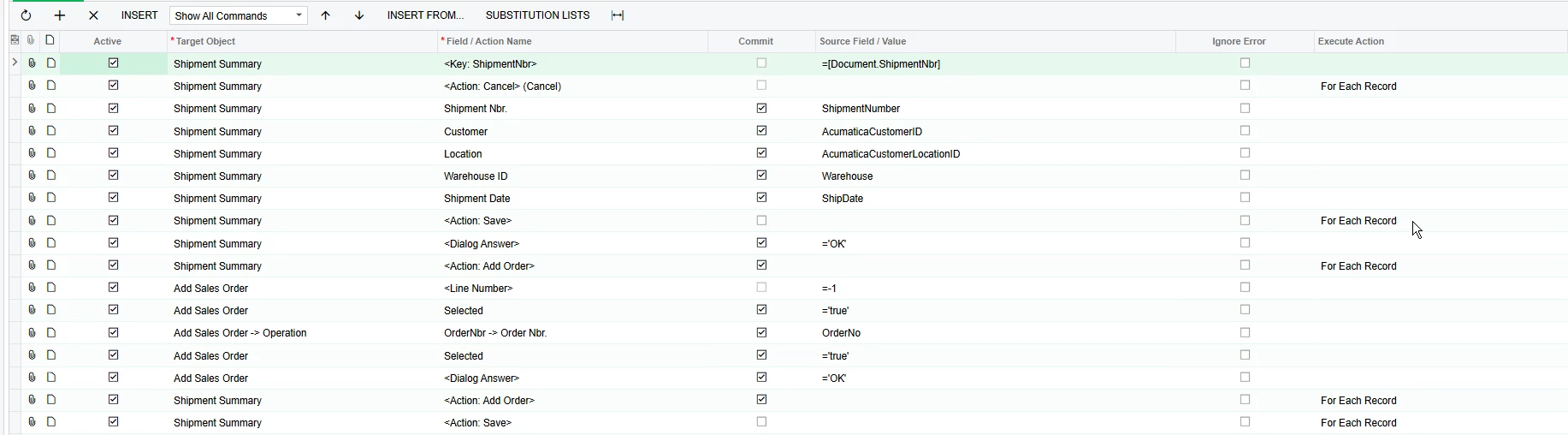
I am trying to create an import scenario that will create a shipment in acumatica.  i had tested this out before and managed to get it to work with one line but it’s not working with multiple lines (pretty sure i broke how to do it for one line too 😅).

the import scenario attached creates the shipment but it doesn’t add the lines to the shipment and save.  I have actions to confirm and prepare invoice too but at this point, i am just trying to select the lines and save the the shipment. 
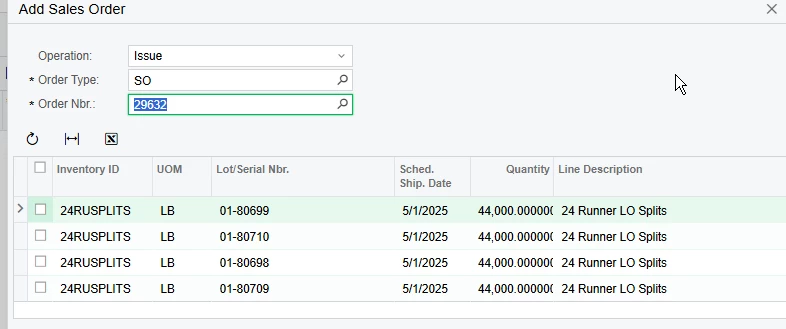
here’s the add order screen with what it looks like when i manually try to process this shipment, however, i cant seem to get the import scenario to select all the lines 
i appreciate your help in advance!

2 replies

saifalisabri
Jr Varsity II
Forum|alt.badge.img
  • Jr Varsity II
  • May 23, 2025

You're working on an Acumatica Import Scenario to create shipments and add multiple lines using the "Add Sales Order" dialog, but it's not selecting all the lines or saving the shipment correctly.

From your screenshots and description, it seems the issue lies in the order of execution and the use of dialog field actions when importing multiple lines.


✅ Key Fix Areas

  1. Ensure “Selected” Checkbox is Toggled for Each Line
    • In your import scenario, you must repeat the Selected = true action for each line.
    • If you're importing multiple lines from a source file, ensure your data source has one row per shipment line and map the Selected field with a value of 'true'.
  2. Line Navigation Logic
    • You may need a field (like Line Number = -1) to move to the next line for each row.
    • Make sure this is done before setting Selected = true.
  3. Commit and Execute Action Properly
    • The Dialog Answer = OK must be set to commit after selecting lines, triggering the dialog to add them.
  4. Insert Order of Steps
    Double-check this sequence in your import scenario:
pgsql CopyEdit
- Shipment Summary -> Key: ShipmentNbr
- Shipment Summary -> Action: Add Order
- Add Sales Order -> OrderNbr (set order number)
- Add Sales Order -> <Line Number> = -1 (navigate line)
- Add Sales Order -> Selected = true (for each row)
- Add Sales Order -> Dialog Answer = OK (trigger add)
- Shipment Summary -> Action: Save
 

✅ Sample Field Mapping Order (One Line Per Row in Excel/CSV):

Target Object

Field / Action Name

Commit

Source Field/Value

Execute Action

Shipment Summary

<Key: ShipmentNbr>


=[Document.ShipmentNbr]


Shipment Summary

<Action: Add Order>


For Each Record

Add Sales Order

OrderNbr


=OrderNo


Add Sales Order

<Line Number>


=-1


Add Sales Order

Selected


=true


Add Sales Order

<Dialog Answer>

=OK


Shipment Summary

<Action: Save>


If you have multiple lines per order, ensure each one is in a separate row in your source data with the same shipment number and order number, so Acumatica loops through them.


Additional Tips:

  • Use the “Show All Commands” view to see if any required fields are missing.
  • If you still have issues, enable tracing (Tools > Trace) and try the manual process again to see what actions are executed by Acumatica and mirror those in your import scenario.
 

Would you like a sample Excel template and import scenario XML file for this use case?


Chris Hackett
Community Manager
Forum|alt.badge.img
  • Acumatica Community Manager
  • July 3, 2025

Hi ​@iqraharrison were you able to find a solution? Thank you!