Answer

Import Scenario: Please Confirm is yo want to update current item settings with the inventory class defaults.

  • January 29, 2022
  • 10 replies
  • 1732 views

When importing Stock Items I am getting a message: “Please confirm if you want to update current Item settings with thee Inventory Class Defaults.

The import scenario will not p[roceed without a response.

How do I get past this message?

Best answer by Naveen Boga

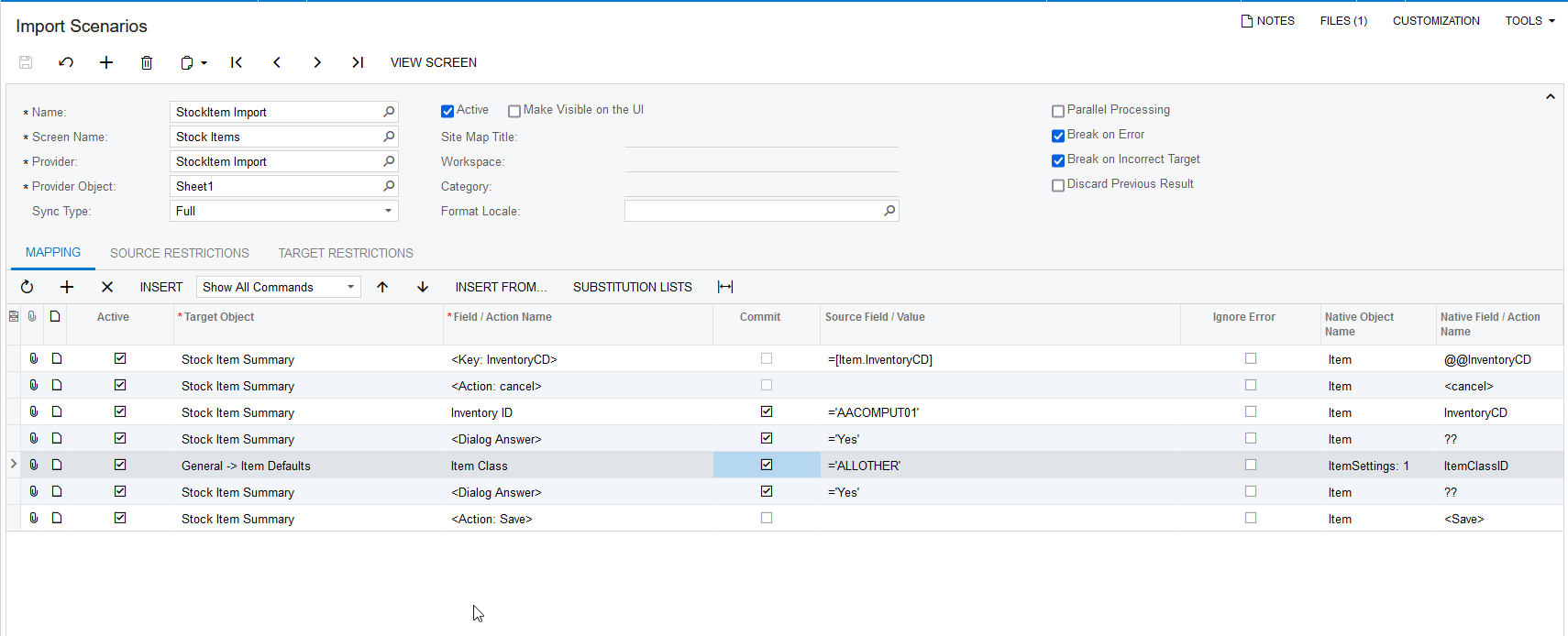
Hi @dstjohn84  When we are updating the Item Class field in the Stock Items it will pop up with warning message, to handle this pop-up in the import scenario we need to have <Dialogue Answer> = Yes.

Please find a very simple working import scenario for your reference.
 

10 replies

Naveen Boga
Captain II
Forum|alt.badge.img+19
  • Captain II
  • Answer
  • January 30, 2022

Hi @dstjohn84  When we are updating the Item Class field in the Stock Items it will pop up with warning message, to handle this pop-up in the import scenario we need to have <Dialogue Answer> = Yes.

Please find a very simple working import scenario for your reference.


  • Author
  • Freshman I
  • January 30, 2022

That worked, thank you!


Naveen Boga
Captain II
Forum|alt.badge.img+19
  • Captain II
  • January 31, 2022

@dstjohn84 Awesome :) thanks for sharing the update.


  • Freshman I
  • August 5, 2022

We had the same issue.  However, we had the <Dialog Answer> in the import scenario and were still getting the same error.  What we didn’t know was identified by Naveen in the screen shot.  In it he has a <Dialog Answer> BEFORE the field change (in addition to after).  We added the <Dialog Answer> before the Item Class update and that resolved the error.  Thank you Naveen!  (Who would have thought you needed a <Dialog Answer> BEFORE and AFTER the field change).


Jeff96
Captain II
Forum|alt.badge.img+4
  • Captain II
  • December 19, 2022

How can I do this on a Non-Stock item? I tried following the same example, but it won’t get me past the error of confirming the new item class. 


Jeff96
Captain II
Forum|alt.badge.img+4
  • Captain II
  • December 20, 2022

How can I do this on a Non-Stock item? I tried following the same example, but it won’t get me past the error of confirming the new item class. 

Never mind, I see I forgot to add the Dialog Answer after selecting the inventory ID. 


Forum|alt.badge.img
  • Jr Varsity II
  • January 5, 2023

@Naveen Boga 

It would be interesting to understand why one would put a dialog answer before AND after….


What if I need it to update with the information on the import file, but not defaults from the class? 


Forum|alt.badge.img
  • Jr Varsity III
  • November 14, 2025

Hi @dstjohn84  When we are updating the Item Class field in the Stock Items it will pop up with warning message, to handle this pop-up in the import scenario we need to have <Dialogue Answer> = Yes.

Please find a very simple working import scenario for your reference.


@Naveen Boga’s answer still helping us - 2024 version. Thanks. 


Forum|alt.badge.img
  • Jr Varsity III
  • November 14, 2025

We had the same issue.  However, we had the <Dialog Answer> in the import scenario and were still getting the same error.  What we didn’t know was identified by Naveen in the screen shot.  In it he has a <Dialog Answer> BEFORE the field change (in addition to after).  We added the <Dialog Answer> before the Item Class update and that resolved the error.  Thank you Naveen!  (Who would have thought you needed a <Dialog Answer> BEFORE and AFTER the field change).

Thanks for this tid-bit ​@bbeebe78, very helpful to have that pointed out!