Solved

Import Scenario not working when using "Quick Process" in SO's upload

  • September 29, 2021
  • 16 replies
  • 476 views
  • Translate All

Forum|alt.badge.img

Hi,

I am trying to use the “Quick Process” in an import scenario.   The SO already exists in Advanced.  The import contains only the Sales Order Nbr.   The SO has he “Quick Process” actions to “Ship” and “Invoice”.  The Import Scenario comes up with an Error “View: Name Document”.

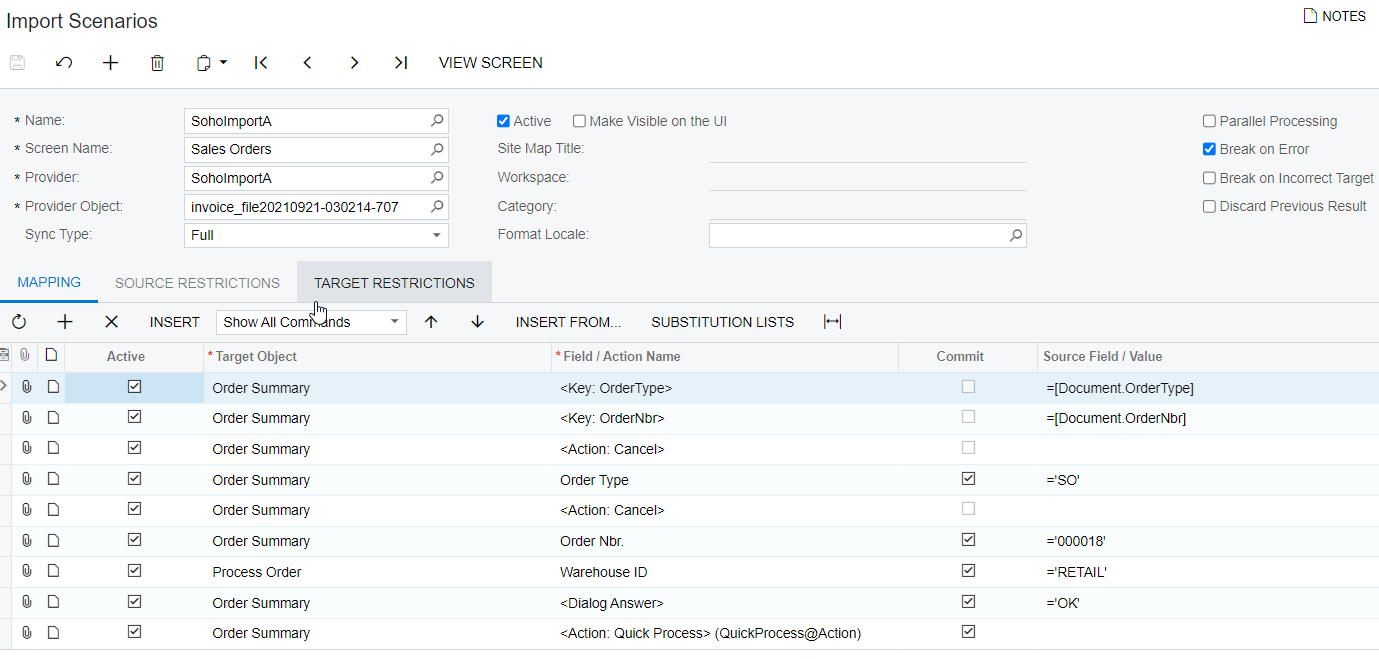
Import Scenario is very basic.  It is attached.

I would really appreciate any assistance.  A Sales Order just needs to exist in MYOB. Add the Sales Order no. i the Import Scenario .  And the quick action turned on in the SO Type.


Regards,

Laura
 

Best answer by Naveen Boga

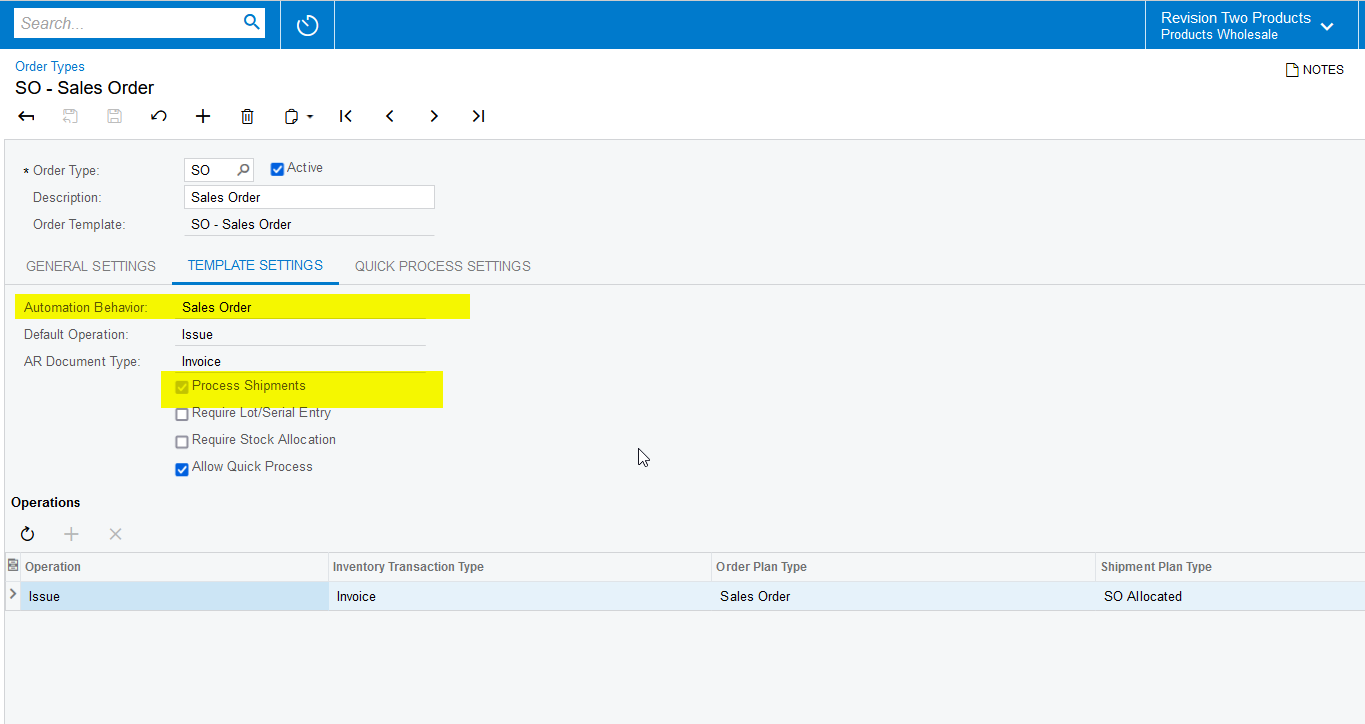
Hi @lauracastagna,

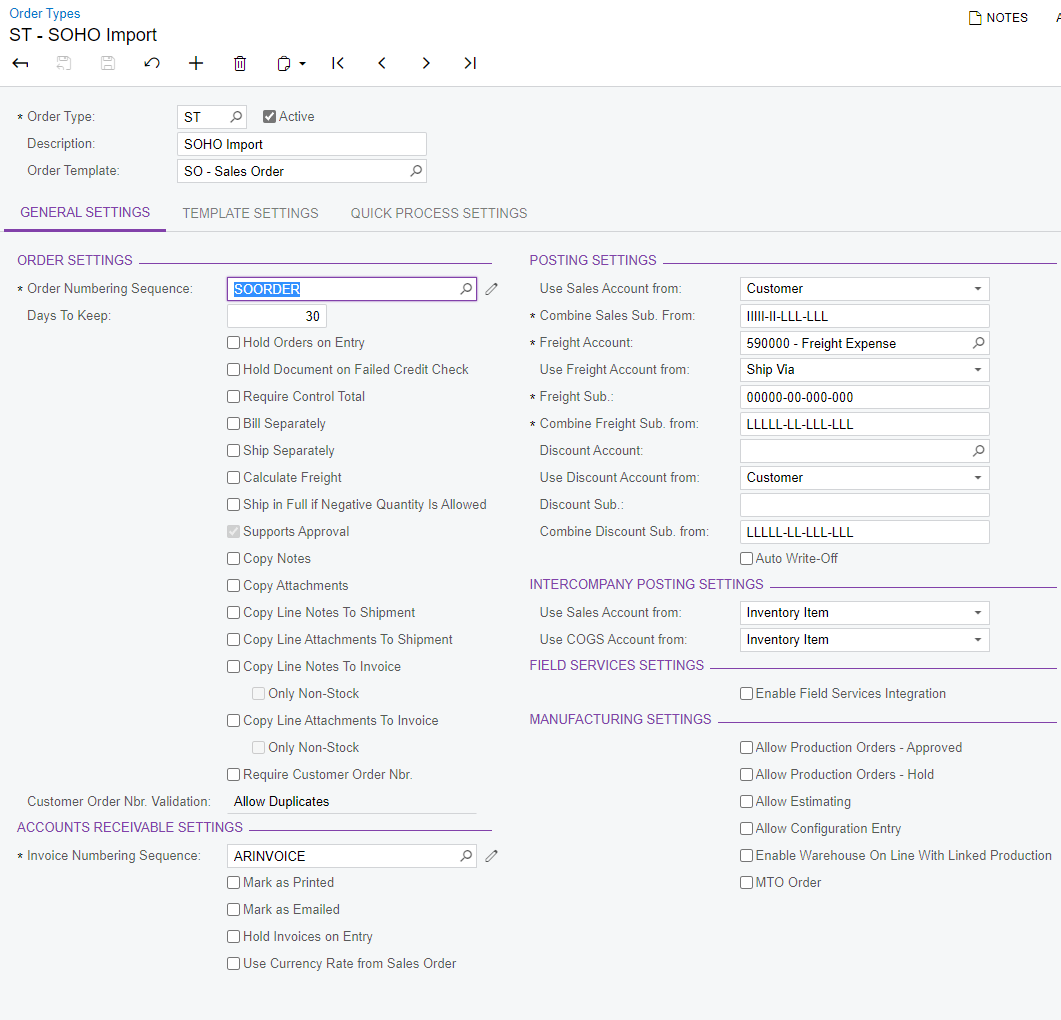
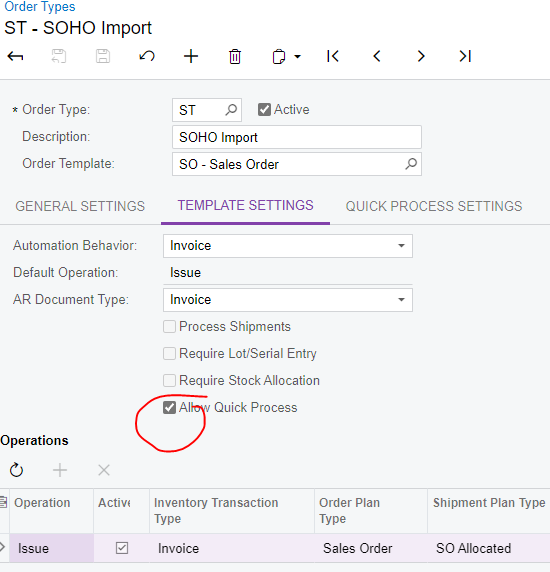
In the Order Types screen, Template Settings tab observed 2 differences. Please find the screenshot below.


View original

16 replies

Naveen Boga
Captain II
Forum|alt.badge.img+20

Hi Laura, You might forgot attaching the import scenario. Can you please attach here.

Translate

Forum|alt.badge.img

Import Scenario is attached

Translate

Forum|alt.badge.img

So the order is wrong with the Dialog box answers.  You have to put the answers before you call the dialog box.  Here is what I did.


This sort of works….the Import Scenario runs to a successful completion but the Status of the Sales Order stays in Shipping instead of going all the way to completion. I ran out of time to figure that out.  Hope this will at least get you one step closer.

Translate

Naveen Boga
Captain II
Forum|alt.badge.img+20

Hi @MRoszkowski15  I also worked the same but it is creating only the Shipment but NOT performing below actions

  • Confirm Shipment
  • Prepare Invoice
  • Release Invoice and other actions.

We may need to investigate further or may reach out to Acumatica for support. 

Translate

Naveen Boga
Captain II
Forum|alt.badge.img+20

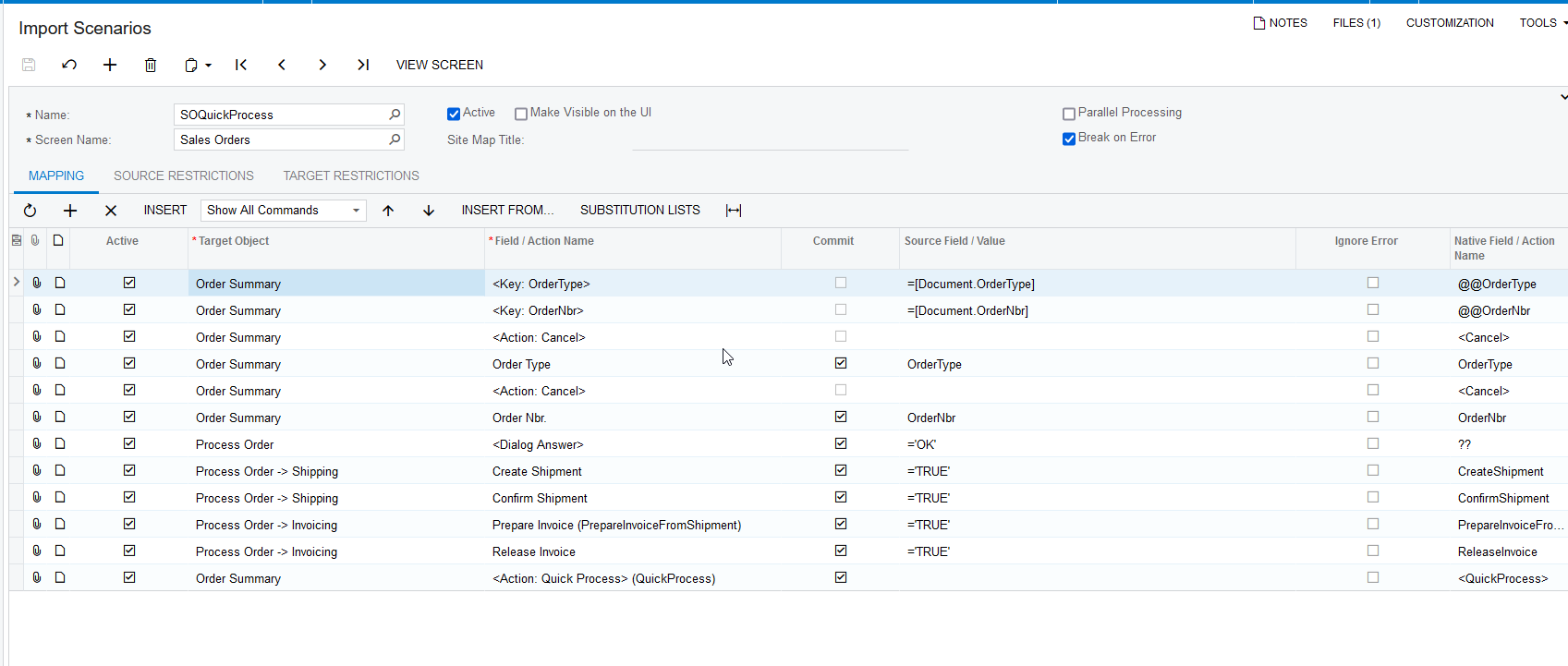
Hi Laura and @MRoszkowski15  Finally I cracked this import scenario.

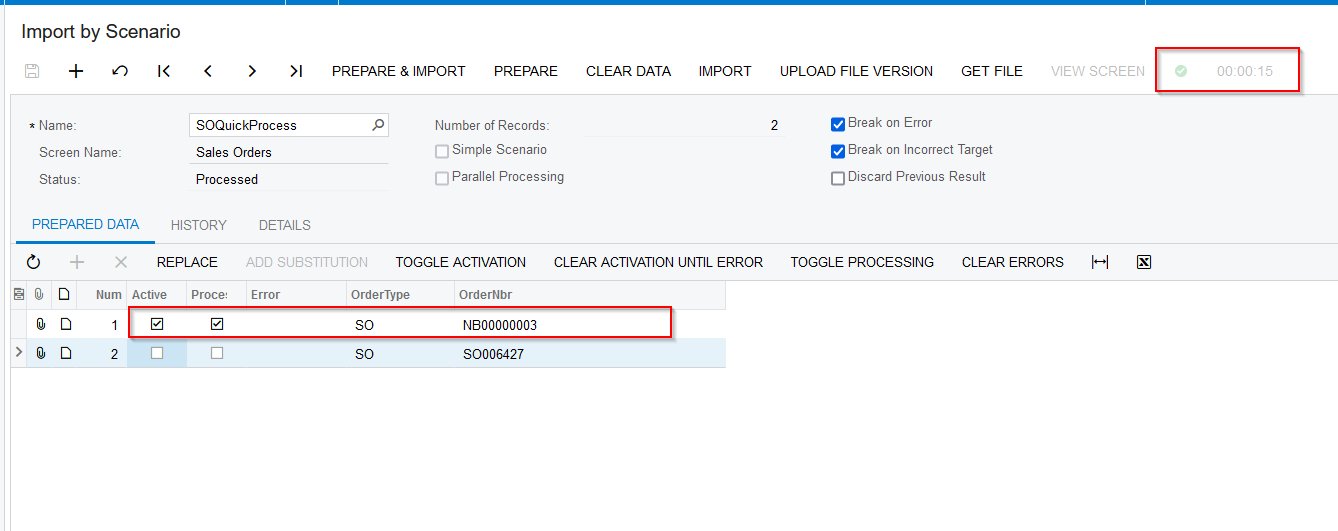
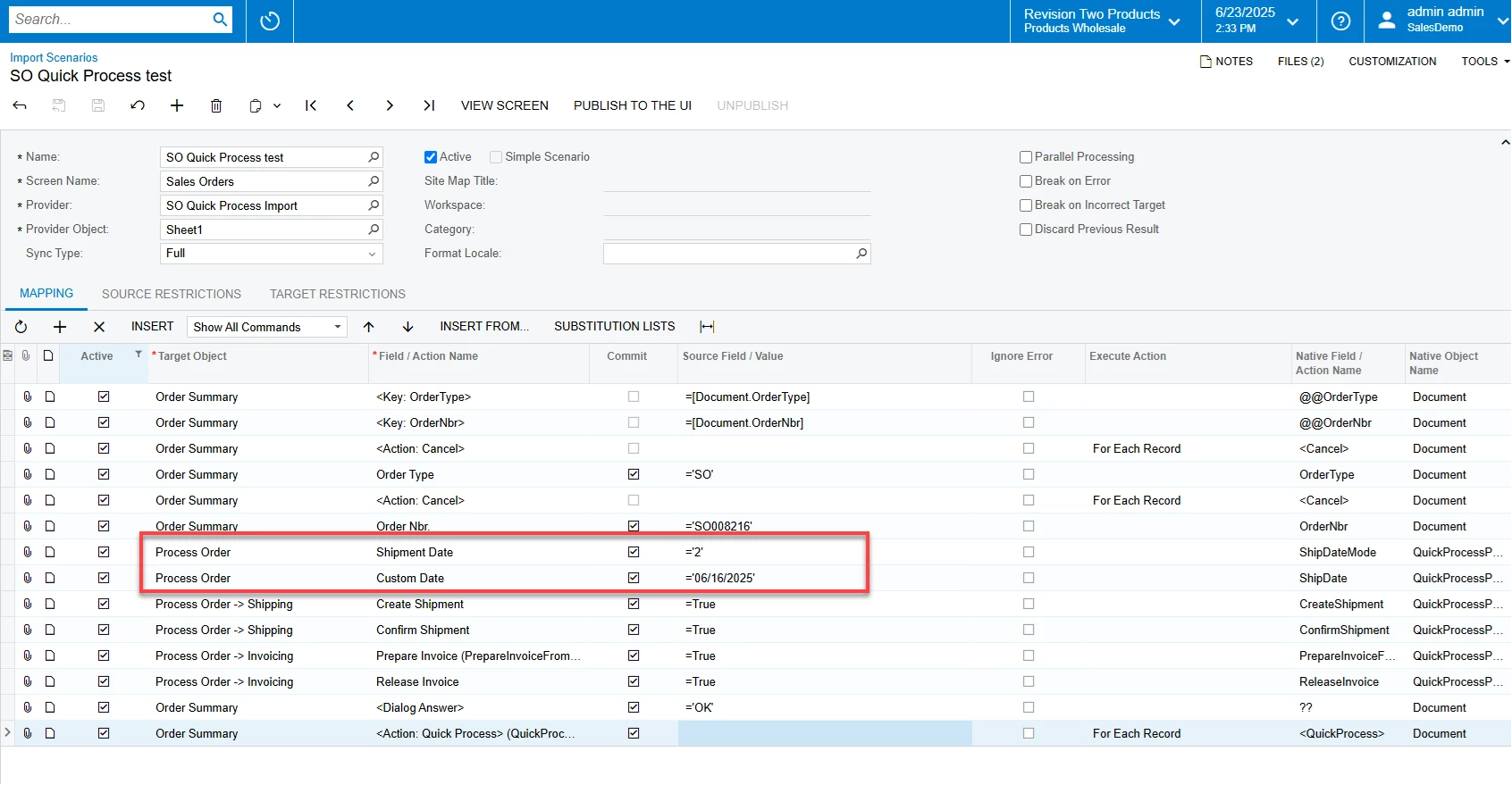
I can able to process the selected actions from quick process using import scenario. Please find the import scenario screenshots below.


Translate

Forum|alt.badge.img

@Naveen B That makes sense to be more explicit by checking the appropriate boxes.  

Translate

Naveen Boga
Captain II
Forum|alt.badge.img+20

Yes @MRoszkowski15   If we are NOT selecting the boxes explicitly, system is considering only “Create Shipment” and stopping the process.


Translate

Forum|alt.badge.img

Hi @Naveen B ,

the shipment completes but the invoice is not being created and released.  Did the invoice create and release for you?  If it did, can you please share the settings against the Sales Order type you used. 

Cheers,


Laura


Translate

Naveen Boga
Captain II
Forum|alt.badge.img+20

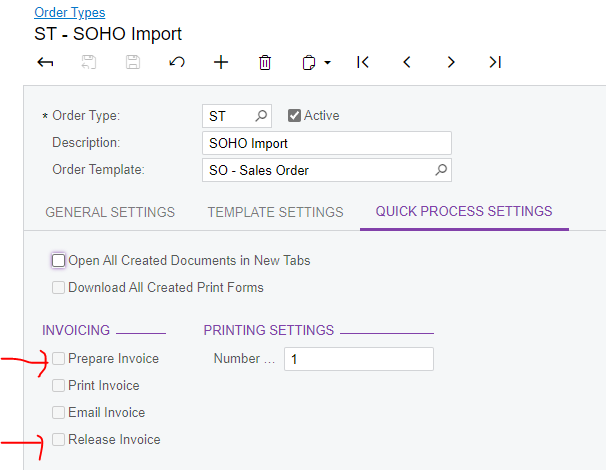
Yes Laura, I can able to create below actions from Quick Process using Import Scenario.

  • Create Shipment
  • Confirm Shipment
  • Prepare Invoice
  • Release Invoice

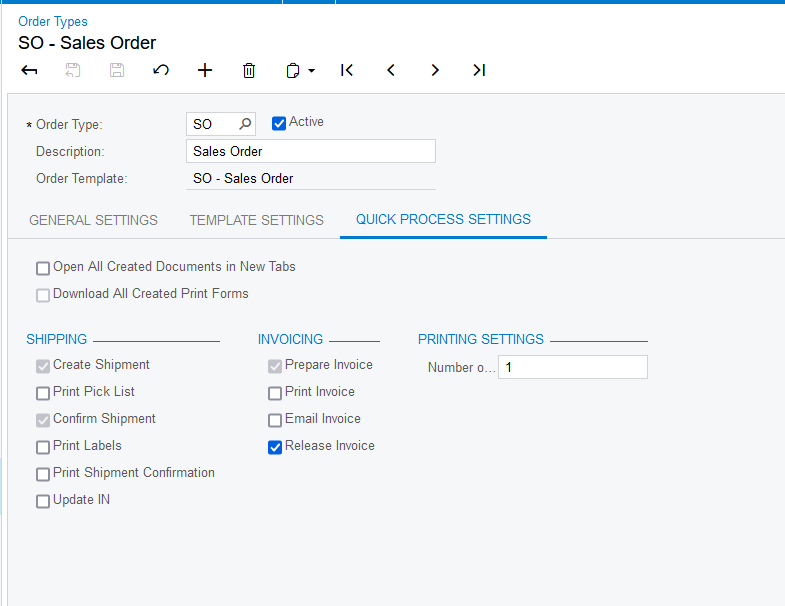
Please find the Quick Process configuration at Order Types screen below.


Translate

Forum|alt.badge.img

@Naveen B ,

even though i have ticked “Allow Quick Release” (refer second screen shot) its not ticking the “Create Shipment” like in yours?  Am i missing a parameter in the first two screens?….


Translate

Naveen Boga
Captain II
Forum|alt.badge.img+20
  • Captain II
  • Answer
  • September 30, 2021

Hi @lauracastagna,

In the Order Types screen, Template Settings tab observed 2 differences. Please find the screenshot below.


Translate

Forum|alt.badge.img


Translate

Forum|alt.badge.img

I had to create one from scratch.


THANK YOU Naveen!!

Translate

Naveen Boga
Captain II
Forum|alt.badge.img+20

Sure Laura. let me know if you get any issues on this.

Translate

  • Freshman I
  • July 12, 2022

@Naveen Boga - this was super helpful, thank you! Any ideas on how to set the Shipment Date in your import scenario to something other than the current system date?

The “Process Order” Target Object has Shipment Date and Custom Date fields, which makes it seem like this should be possible. I tried adding the following to your GI, and it runs successfully, but the shipment date is still the system date, not the order date.
Process Order→ Shipment Date = “CUSTOM”
Process Order→ Custom Date =[Document.OrderDate]

I also noticed in the UI, that when you click Quick Process action, make a change to the QP menu, close the menu (without pressing OK), then click QP again, it remembers any changes made except to the Shipment Date section (which one can see get update a split second after re-opening the QP menu). So my fear is that no matter what I do, when I call <Action: QP> in the import scenario, it will overwrite these values. 

Appreciate any guidance!

Translate

jbuddecke71
Varsity I
Forum|alt.badge.img

The shipment date field needs an integer instead of text. The following works.


Translate