Answer

Import Scenario for BOM - Update backflush based on inventory ID attributes

  • January 22, 2024
  • 4 replies
  • 175 views

Forum|alt.badge.img

We are importing material directly into BOMs through an import scenario - with only 1 operation. The operation is backflush OFF by default.

There are certain items that we are importing that we would like to get marked as Backflush ON during the import. There are attributes on these items indicating whether they should be Backflush ON or OFF.

Is there any way during the import scenario that the line can reference the attribute within the inventory item to say something like Backfush → IIF(InventoryID.AttributeBACKFLUSH=True, True, False).

Don’t seem to be able to look at the data within the inventory item that I’m adding to use in my IIF condition above.




Best answer by jharris

Right, so first you’d import the data from the excel provider, then you could change the provider to the GI with the IIF statement to change the value in the backflush settings. 
 

I would also set these in some sort of grouping you could isolate and filter with a condition for easier sorting in the GI, maybe by class so you’re not calling all the BOM’s in your system (unless of course you want to).


4 replies

jharris
Semi-Pro I
Forum|alt.badge.img+7
  • Semi-Pro I
  • January 22, 2024

@jwarren,

Not in the import scenario itself, however you could create a GI using this IIF statement, then use the GI as the source for the import scenario.

If you can create the results in the GI, then you can import the GI values into your BOM backflush settings.

Hope this helps!


Forum|alt.badge.img
  • Author
  • Semi-Pro I
  • January 23, 2024

Unfortunately the source for the import scenario is the Excel data provider and not a GI … 


jharris
Semi-Pro I
Forum|alt.badge.img+7
  • Semi-Pro I
  • Answer
  • January 23, 2024

Right, so first you’d import the data from the excel provider, then you could change the provider to the GI with the IIF statement to change the value in the backflush settings. 
 

I would also set these in some sort of grouping you could isolate and filter with a condition for easier sorting in the GI, maybe by class so you’re not calling all the BOM’s in your system (unless of course you want to).


bryanb39
Pro II
Forum|alt.badge.img+6
  • Pro II
  • January 23, 2024

You can create the GI James mentioned, expose to OData and have it linked to an Excel Template so it adds it to your import file.  

The use PowerQuery to create the import sheet, or use a VLookup.  

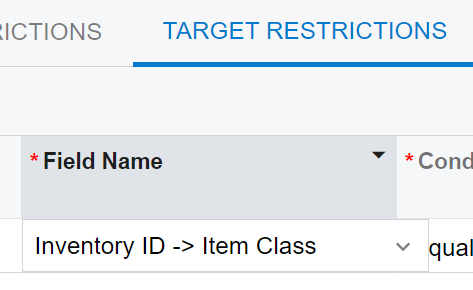
Alternatively, you can use Target Restrictions if by chance the Item Class or something else matches this Attribute, or description contains, etc.   Then you’d need two import scenarios, one with on and one with Off set and run both using the same source file.  Not as neat as referencing the attribute, but it’s what’s available.