Answer

Data Import Scenario - Field Service Equipment

  • August 30, 2025
  • 2 replies
  • 74 views

Forum|alt.badge.img

I’m trying to do an import that will support updating existing records and creating new ones

New records only is pretty straight forward using the Auto Number Key

We want to use Auto Numbering because we do not want to make the Serial Number the primary key because there are other factors down the road where the same Serial Number could be used multiple times across multiple customers/vendors, etc.  We are only importing records with a unique serial number right now.  But they will need to be updated.

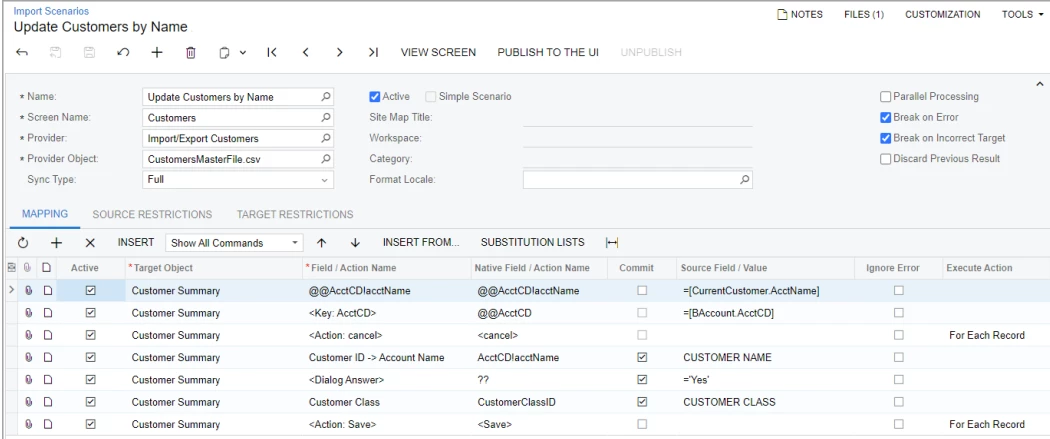
I’ve done some searching which seems to be involved with the concept of simulating the UI where you would use the Lookup Selector for the Reference Number and try to find a record with a matching Serial Number but I can’t get the right syntax down specifically for the Field Service Equipment FS205000

The example from the training references a “CurrentCustomer” in the Source Field Value in the first line.

That seems be an internal reference and I can’t quite figure out how to translate this example scenario  into the appropriate references for the FS Equipment scenario

All I’m trying to do is find a record that matches a serial number and then update it.


Any help would be greatly appreciated.  Thank you.


The below comes from: I100_IntegrationScenarios_2025R1.pdf


Best answer by ggnabasik47

@bwhite49 I figured it out. 


I also figured out how to do the same with Importing Contacts where you can use the fields in the Selector on the screen for ContactID using a custom field as the primary Contact Identifier so we can update records from our source system.  I had to add the user defined field/attribute UsrUnixIdentifier to the selector list of fields on the ContactID on the screen CR.30.20.00 via a customization.


2 replies

bwhite49
Captain II
Forum|alt.badge.img+10
  • Captain II
  • September 2, 2025

Since the serial number is not a key field for the screen, I don’t think this will work as an import scenario without first associating the equipment nbr to your data. 

One thing you could try is an Odata link to Microsoft Excel with a generic inquiry containing your equipment number field and serial number field. You can then link these data to your spreadsheet to associate an existing equipment nbr through a lookup formula or power query using the serial number as a key field. 

Once you tie to equipent nbr to your spreadsheet you can do a formula like =IIF([Equipment Nbr] =’’ or [Equipment Nbr] = NULL, ‘<New>’, [Equipment Nbr])

You can also use the API to create these equipment records and that might be the better long-term solution. 


Forum|alt.badge.img
  • Author
  • Freshman II
  • Answer
  • September 19, 2025

@bwhite49 I figured it out. 


I also figured out how to do the same with Importing Contacts where you can use the fields in the Selector on the screen for ContactID using a custom field as the primary Contact Identifier so we can update records from our source system.  I had to add the user defined field/attribute UsrUnixIdentifier to the selector list of fields on the ContactID on the screen CR.30.20.00 via a customization.