Question

Repeat descriptions column on each page of the report

  • February 16, 2026
  • 9 replies
  • 5 views

Ehren_Dimitry
Freshman II
Forum|alt.badge.img

I have created a 12-Month Profit and Loss Report and I want the columns to print on each page of the report.

  • Page 1 (Descriptions and months 1-6)
  • Page 2 (Descriptions and months 7-12)

I have to be missing something. Any help would be appreciated. 

 

9 replies

Forum|alt.badge.img


Hi ​@Ehren_Dimitry ,

In Report Designer, select the row group that contains the Description and set FixedData = True.

Then in Grouping → Advanced Mode, select the Static member for the Description column and set:

  • RepeatOnNewPage = True

  • KeepWithGroup = After


Forum|alt.badge.img+1

hey ​@Ehren_Dimitry ,

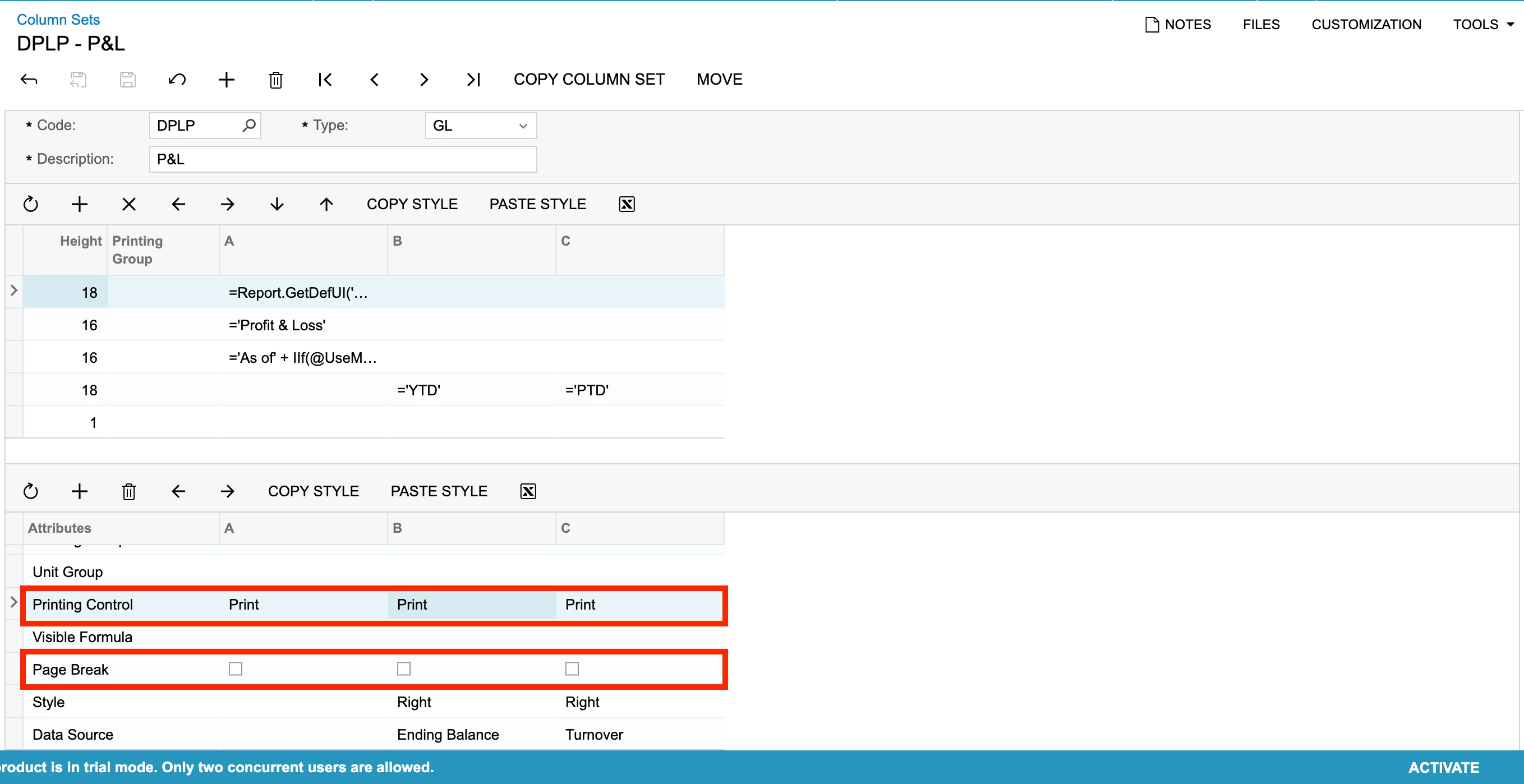
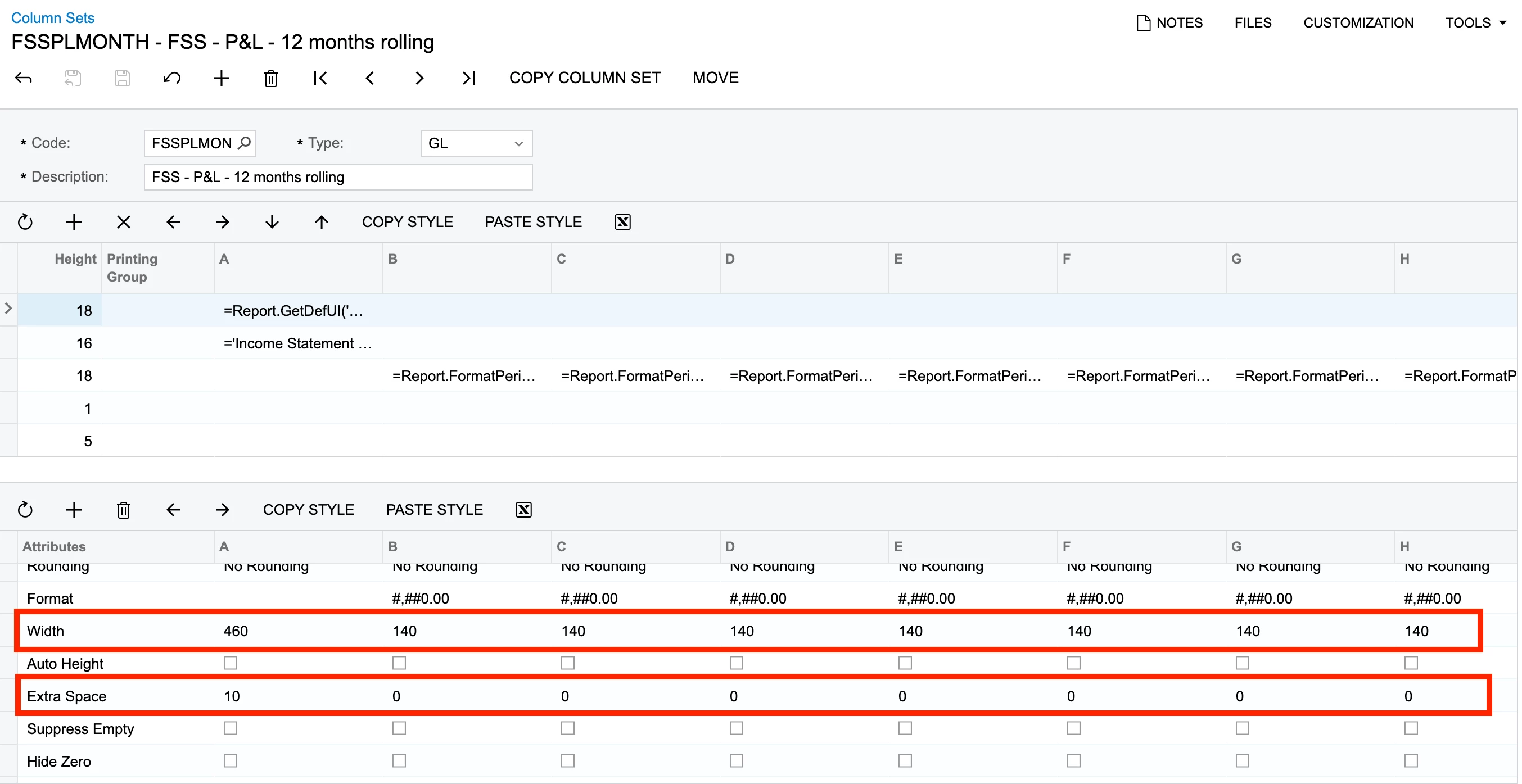
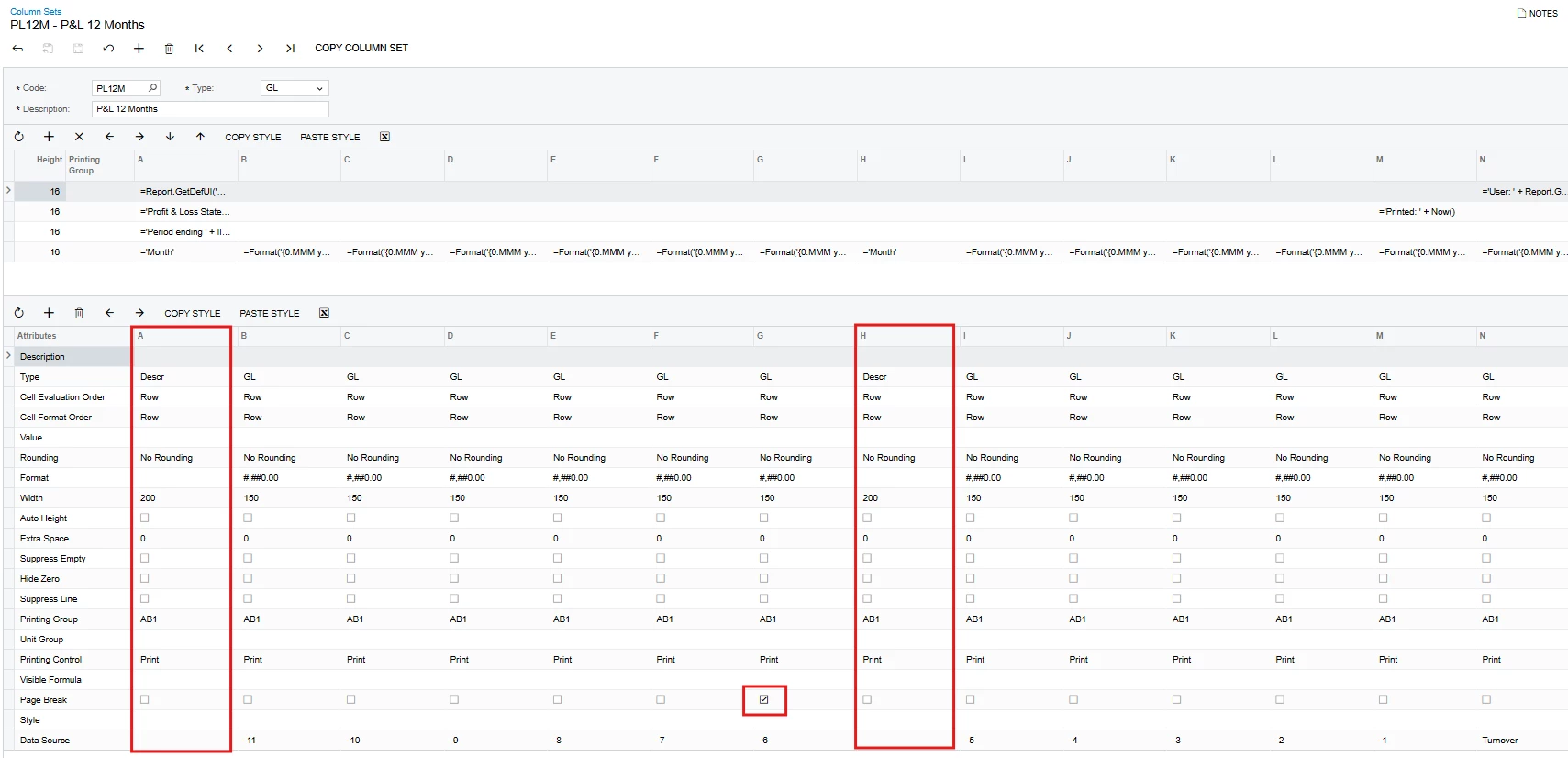
Assuming you built an ARM report, can you check the following as highlighted:


Hope this helps!!


Ehren_Dimitry
Freshman II
Forum|alt.badge.img
  • Author
  • Freshman II
  • February 16, 2026

hi ​@harshitasethia74 ,

It is a ARM report and I am working within Column Sets. The “Print Control” fields are all set to “Print” and I have “Page Break” set as true on the 7th column, where the 6th month ends. 

I tried to add a 2nd description column, but then I had two description columns on some pages. 

Thanks for any insight…

Ehren


Forum|alt.badge.img+1

hi ​@harshitasethia74 ,

It is a ARM report and I am working within Column Sets. The “Print Control” fields are all set to “Print” and I have “Page Break” set as true on the 7th column, where the 6th month ends. 

I tried to add a 2nd description column, but then I had two description columns on some pages. 

Thanks for any insight…

Ehren

@Ehren_Dimitry , can you share the screenshot for column set, row set, the current result & the intended result?
Thanks.


Laura03
Captain II
Forum|alt.badge.img+20
  • Captain II
  • February 16, 2026

Hello,

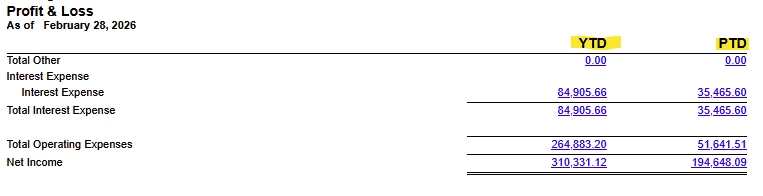
Column Headings configured in the upper grid of Column Sets do normally print on every page of ARM financial reports automatically. Page 2 of P & L shown:

If all pages do not contain column headers, check the Page Height setting in Report Definitions. Longer page lengths added to Report Definition, are useful for hiding column headings on page 2 forward, useful when exporting reports to Excel.

I don’t think Acumatica provides any Heading configurations that will allow months 1-6 to be on page one, with months 7-12 on page 2 as you’ve asked.  Reports containing 12 months may be printed in Landscape mode with 12 months across the page.


Laura


Ehren_Dimitry
Freshman II
Forum|alt.badge.img
  • Author
  • Freshman II
  • February 16, 2026

Hi all, 

I was able to get it to work properly. I added a 2nd description column after the 6th month with the 6th month having the Page Break checked. I also ensured there was a column header on both the description columns. This setup now works.


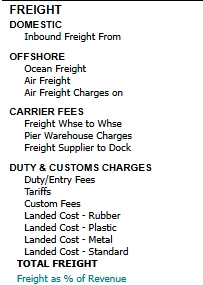
The only issue I am having is the description formatting on page 1 respects the Row Set indentation paraments where page 2 does not. My OCD is kicking in… 😁


Forum|alt.badge.img+1

@Ehren_Dimitry ,
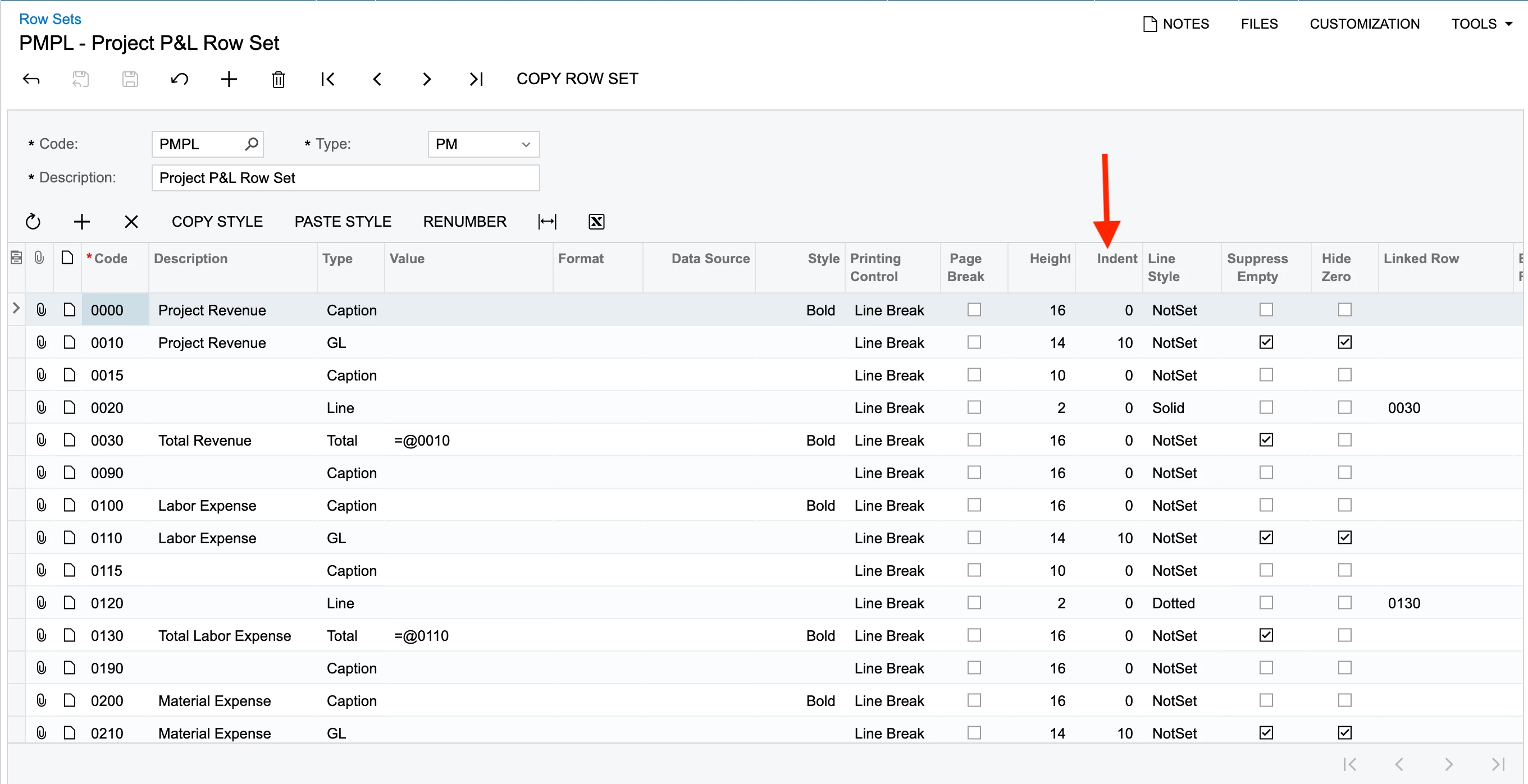
Thats great to hear. For the indentation, under Row sets, can you check as per the following :


Hope this helps!!


Ehren_Dimitry
Freshman II
Forum|alt.badge.img
  • Author
  • Freshman II
  • February 16, 2026

Hi ​@harshitasethia74 

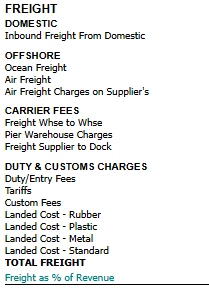
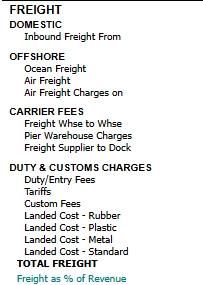
Yes, I have idents set correctly. However, column A follows these settings:


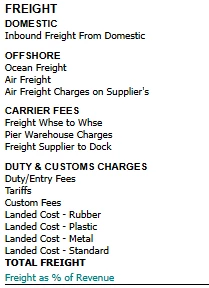
And column H does not follow these settings:


Forum|alt.badge.img+1

hey ​@Ehren_Dimitry ,

I did try to replicate the same in my local, however didnt find any gaps for indentation. What we can do is adjust the spacing between the columns under column set so that all the columns could be displayed under a single page when exporting it.


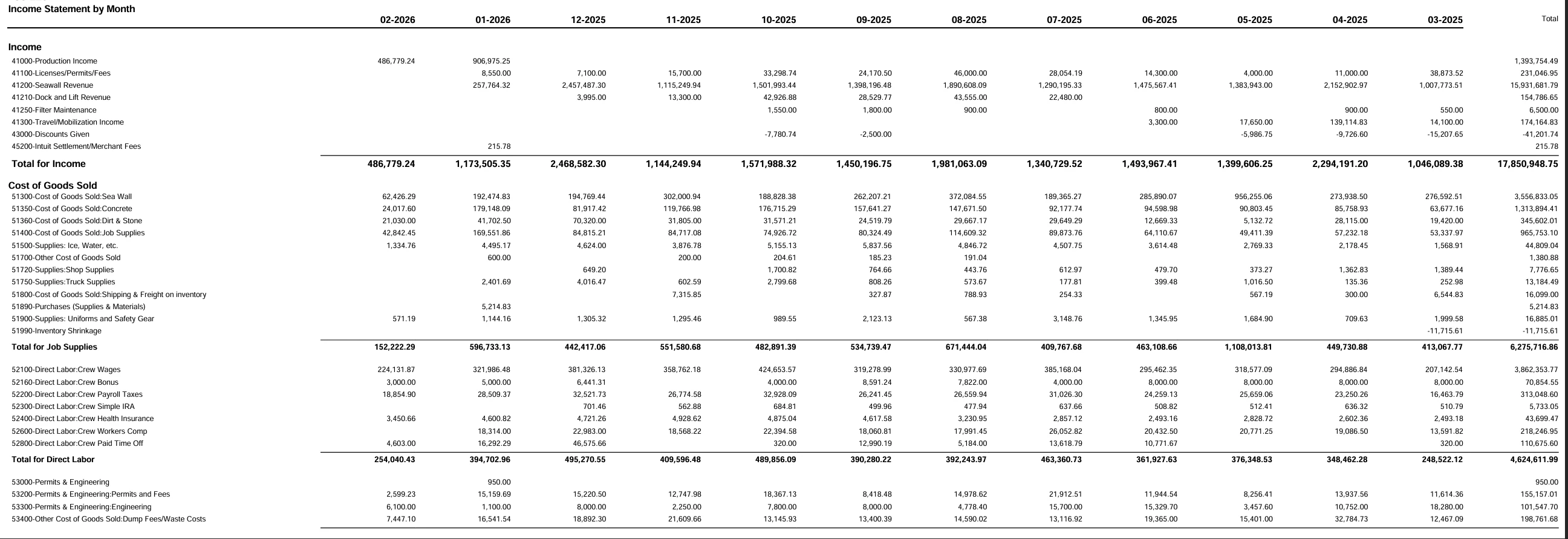
The output:

For instance, this report is a 12 month rolling statement


Hope this helps!!