Answer

Enter Old Landed Costs To Update Costs

  • August 4, 2025
  • 1 reply
  • 46 views

Forum|alt.badge.img

Hey all —

Before we had a solid handle on how landed costs worked in Acumatica, we used to just enter those charges (like freight, duty, etc.) directly onto AP bills as non-stock items. The issue is, that didn’t update the actual cost of the stock items.

Now that we do understand how landed costs work, we’d love to go back and properly incorporate them into the cost of those items.

My first thought was to create debit adjustments for those AP bills (where the fees were added as line items), then create actual landed cost docs tied to the original purchase receipts and pay them with the debit adjustments. But after testing, it doesn’t look like that method actually updates the item cost the way we need.

Has anyone found a good workaround for applying landed costs to POs/bills that are already completed and paid? Would love to hear what’s worked for you. Thanks!

Best answer by nhatnghetinh

Hi ​@SBaldwin 

Try using an Inventory Adjustment to retroactively update the Landed Cost for the items. The steps are as follows:


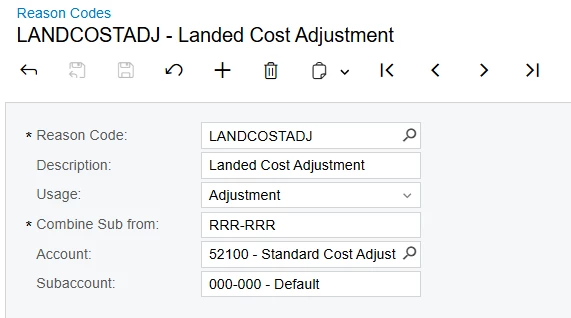
  • Step 1: Create a Reason Code named "Landed Cost Adjustment" with the expense account set to "Additional Landed Cost Update".


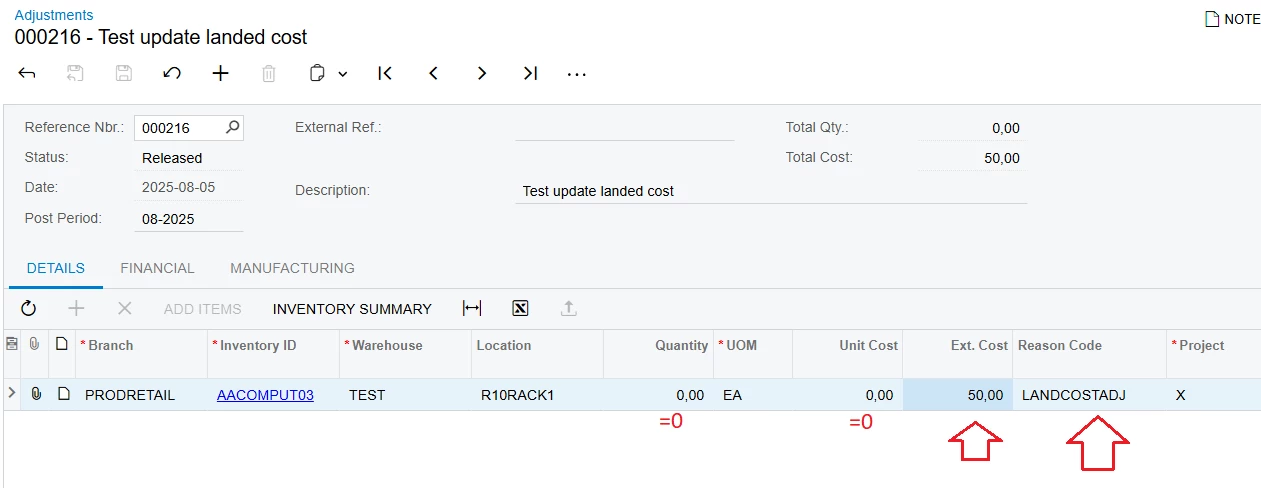
  • Step 2: Create an Inventory Adjustment (Inventory > Adjustments). In the Reason Code column, select the Reason Code created in Step 1.


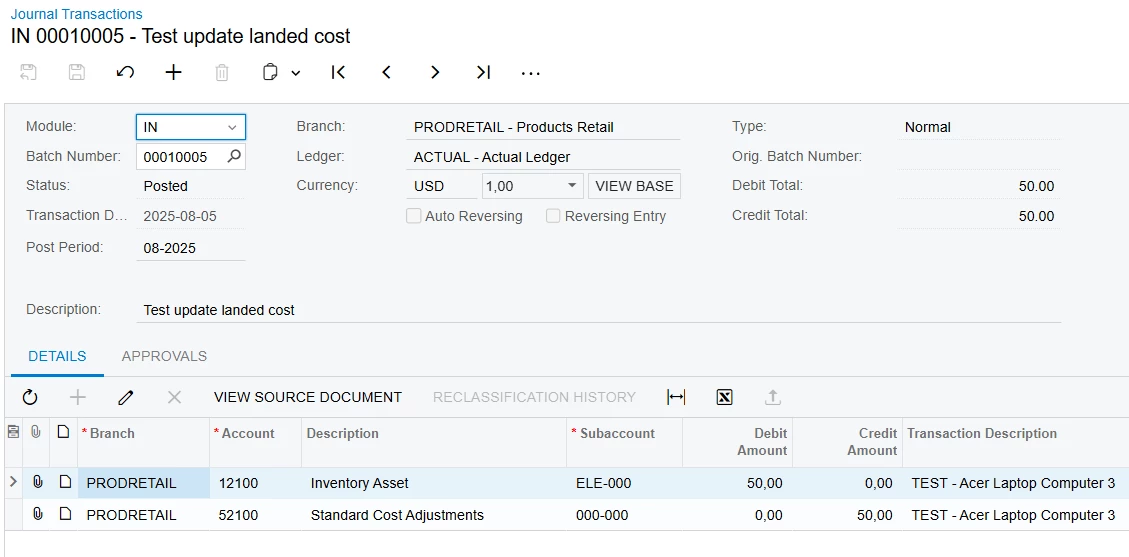
Journal Transactions of the Inventory Adjustment entry.


Unit Cost after performing Inventory Adjustment.

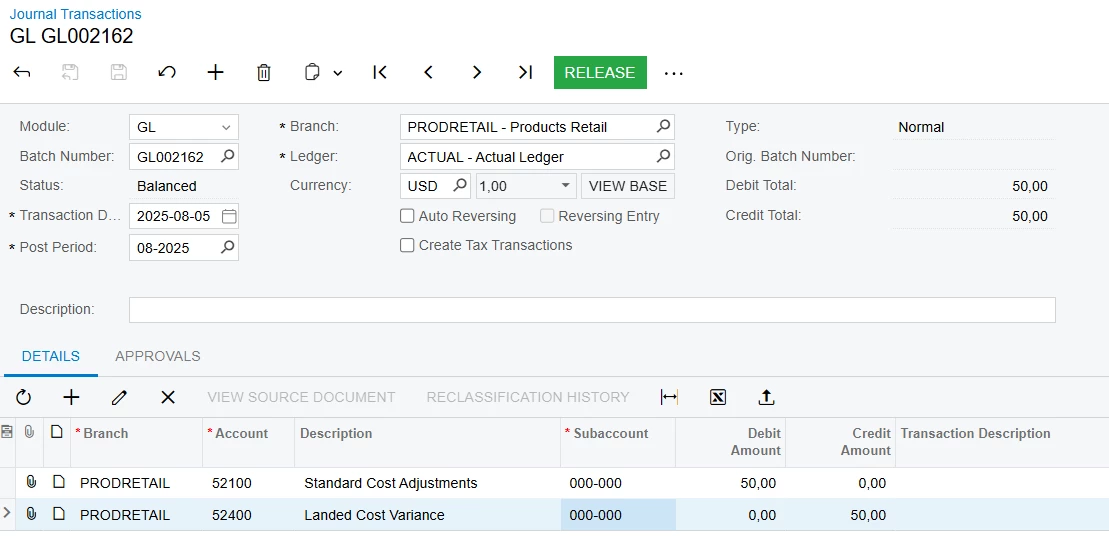
  • Step 3: Create a Journal Transaction to reclassify the Landed Cost expense account that was affected in Step 2


Best Regards,

NNT

1 reply

nhatnghetinh
Captain II
Forum|alt.badge.img+11
  • Captain II
  • Answer
  • August 5, 2025

Hi ​@SBaldwin 

Try using an Inventory Adjustment to retroactively update the Landed Cost for the items. The steps are as follows:


  • Step 1: Create a Reason Code named "Landed Cost Adjustment" with the expense account set to "Additional Landed Cost Update".


  • Step 2: Create an Inventory Adjustment (Inventory > Adjustments). In the Reason Code column, select the Reason Code created in Step 1.


Journal Transactions of the Inventory Adjustment entry.


Unit Cost after performing Inventory Adjustment.

  • Step 3: Create a Journal Transaction to reclassify the Landed Cost expense account that was affected in Step 2


Best Regards,

NNT