Question

Approval of journal batches

  • April 29, 2026
  • 2 replies
  • 9 views

Hi

Is it possible for a journal batch to be input by a junior employee and then held waiting for approval by a senior approver? 

thanks in advance

2 replies

Forum|alt.badge.img
  • Jr Varsity I
  • April 29, 2026

@FionaO12155 Yes definitely, you can do it by setting up the approval maps.
 

1. Enable Approval Workflow - Go to General Ledger Preferences and enable the approval workflow option for journal transactions.


2. Configure an Approval Map - Navigate to Configuration > Approval > Approval Maps and create a map that defines your approvers (e.g., senior employees or a specific role) and the conditions under which approval is required.


3. Assign the Approval Map - Link the approval map to the Journal Transactions screen.


Once configured, when a junior employee enters and submits a journal batch, it will be routed to the designated approver(s). The batch cannot be released and posted to the General Ledger until it has been approved. Approvers can be notified automatically and can approve or reject directly from the approval screen or via email notification.


Hope that helps!


Laura03
Captain II
Forum|alt.badge.img+20
  • Captain II
  • April 29, 2026

Hello,

In response to the above suggestion which might be AI generated…. 

  1. We can’t enable the Approval map in Step 1 above, because it’s not created until step 2 - above.
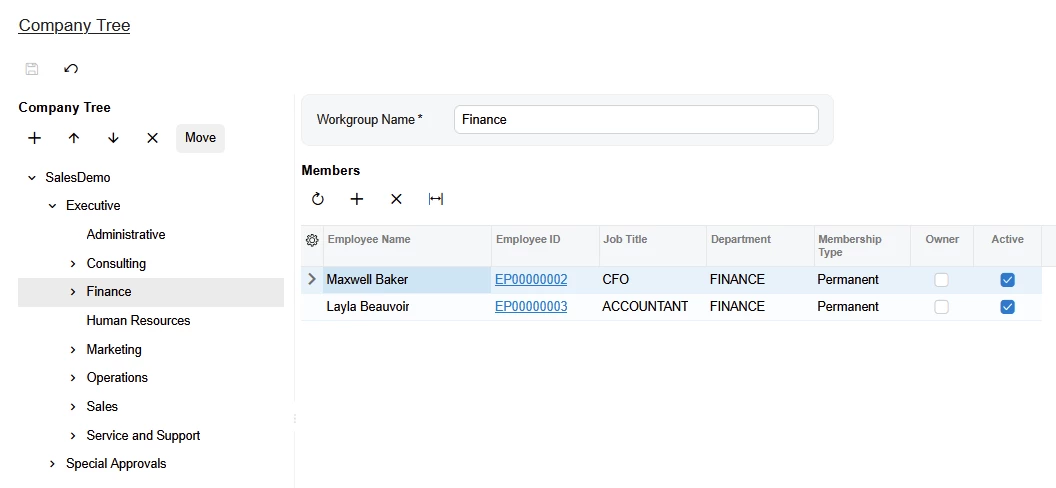
  2. Step 2 doesn’t mention the need for a Company Tree.  You can assign to a specific Employee Name without the Tree but Company tree is recommended best practice for easier maintenance going forward, as employees come, go, and get promoted.
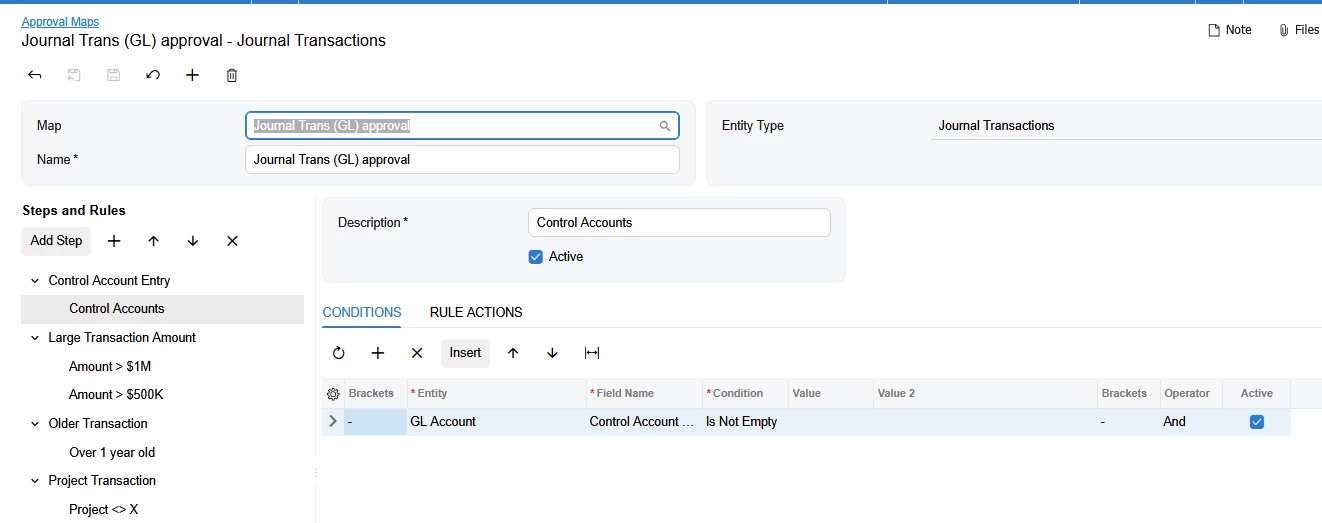
  3. There is no separate/last step to “assign” an approval map. Map becomes linked it to Journal Transactions screen (as shown in the first screen shot below) when we choose the Entry Type at the beginning of a new map.  Entry Type is selected First and controls where the Approval Map can be seen/used.

I recommend completing the following steps in your test company, then export/import the company tree and approval map components to your production tenant:

  • Populate the Company Tree - organizational hierarchy
  • Create Approval Map linked to Journal Transactions screen using Company Tree WorkGroups for assignment (versus employee names)
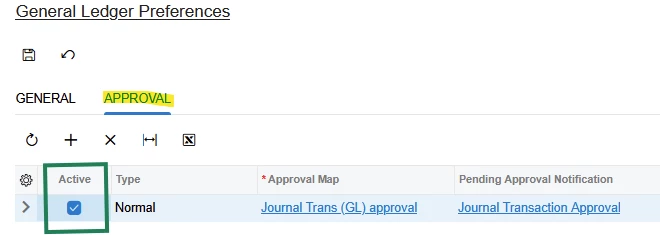
  • Activate Approval Map in Approvals tab of GL Preferences

An example of Journal Transaction Approval maps can be found in the Sales Demo tenant provided by Acumatica as a test environment, shown next.  Many helpful videos can be found on YouTube.  

Sample Approval Map from Sales Demo
Sample Company Tree from Sales Demo

As the Last step, connect and Activate your Approval may on Approvals tab of GL Preferences:

Good luck!