We do a lot of service work where an appointment might branch more than one day and warrant a return visit. In addition to that, it might not always be the same technician returning to complete the work so we need the notes/documents to roll forward.
What is the best way to schedule a service order for multiple days? Consecutive days and nonconsecutive? And what is the best way to get all the notes to aggregate so a tech can see what all was done before him?
Best answer by vdiaz
@kerrim
Hi!
I have a question. Would you tipically create appointments from the service orders? Or only create service orders and register the work there?
Appointments are designed to handle the situations you describe in a better way.I can provide some advise regarding appointments creation:
Follow-up appointments: To mark unfinished work or services, to can use the “Not Finished” status on the appointment line. This will indicate that a new appointment needs to be scheduled. How it works? The related line on the service order will get status “Requiring Scheduling” so that when a new appointment is created, this service will be included.
Scheduling multi-day appointments/services: What is the best way to schedule a service order for multiple days?
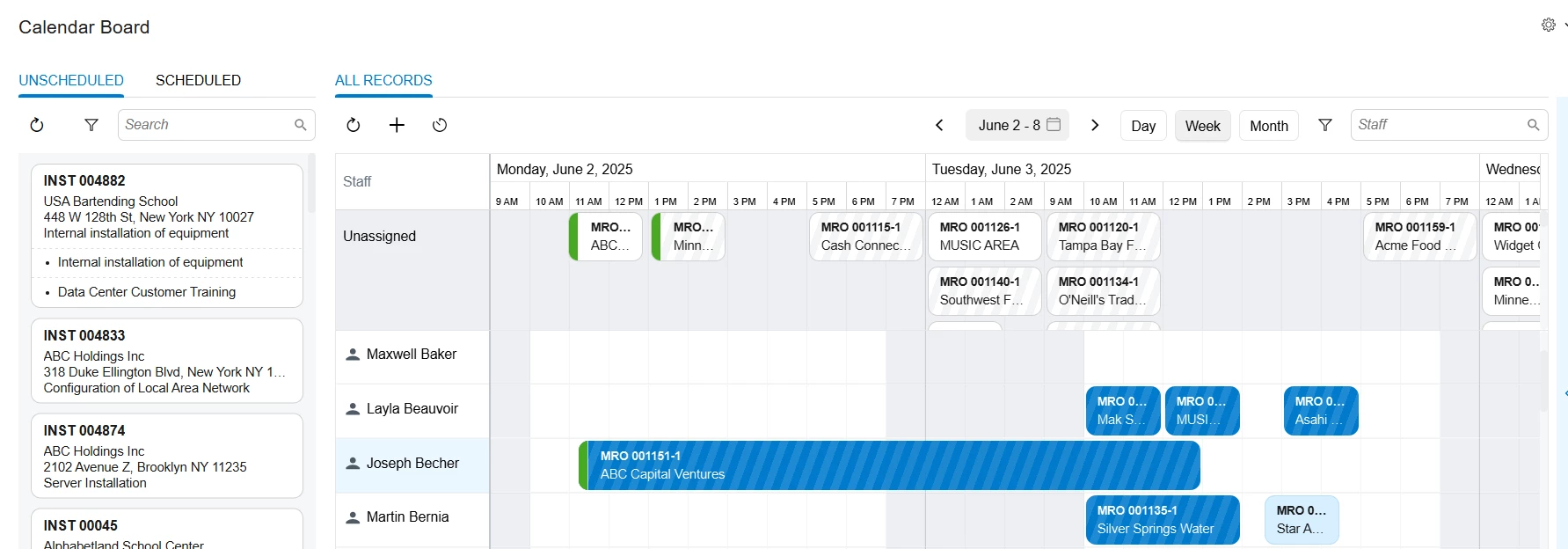
I advise to create appointments, since the system supports multi-day appointments. Such appointments can be viewed properly on the calendar Example: (the appointment 001151-1 on the screenshot starts on Monday and ends on Tuesday)
Eventhough the system supports multi-day appointments, some customers still prefer to create one appointment per day. They would tipically use the “Clone Appointment” action to create multiple appointments for consecutive days from the same service order.
Use the Calendar board to schedule each appointment to the corresponding staff member in a convenient way
Depending on your companys processes, you may decide to create one appointment per day or to create multiple appointments.
Regarding the notes:
There are different places where you can add notes:
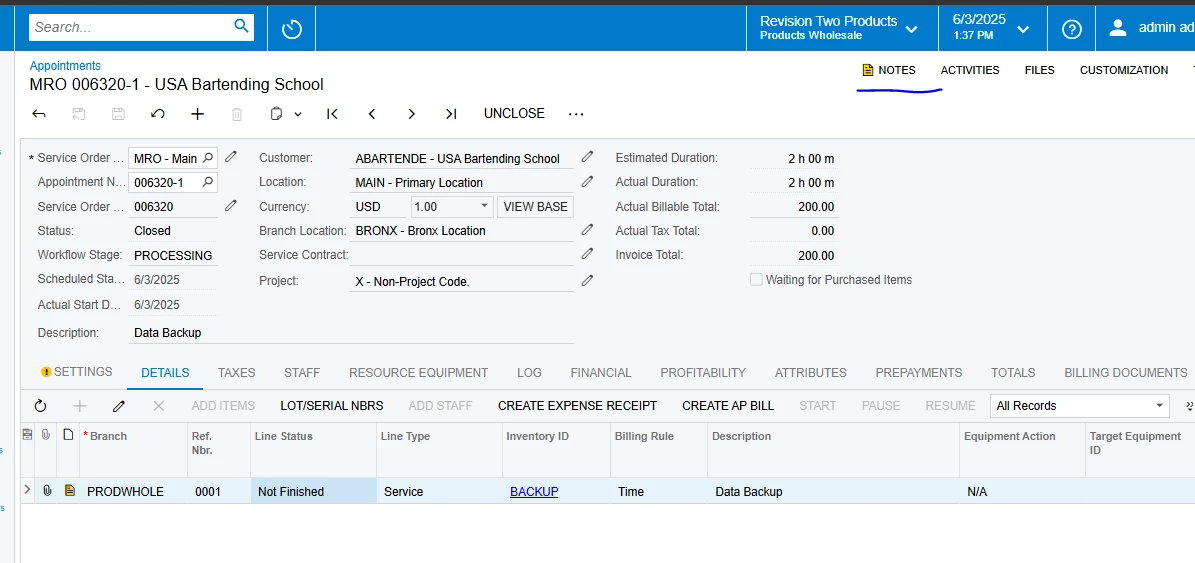
The header of the document:
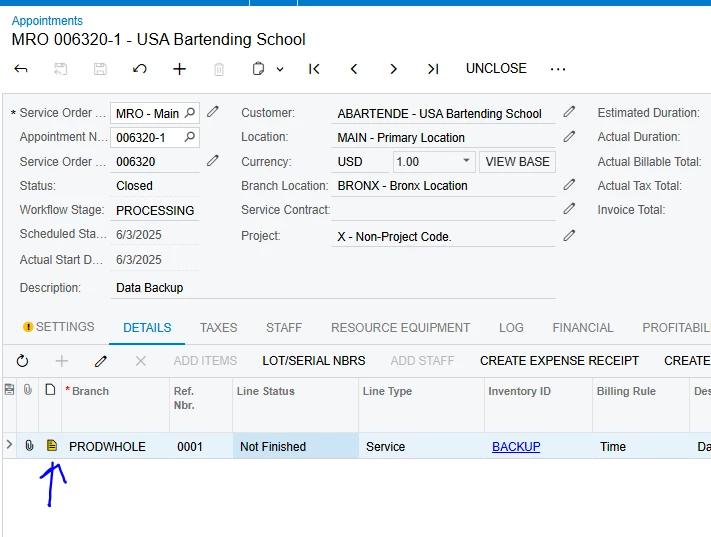
The Details of the document
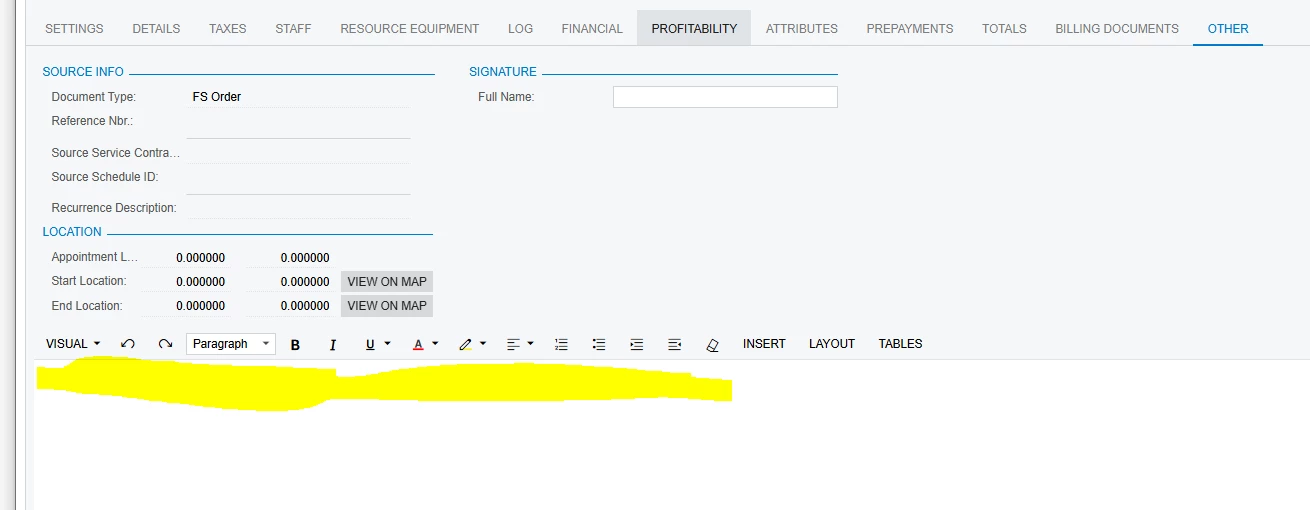
The rich text editor(Other tab)
Notes can be added to the service order, and notes from the service order can be copied to the appointments.
However, notes are not shared amongst appointments, so in that case, the technician will have to open the previous appointment and see if there are notes there.
I hope this suggestions help. Maybe I you can share more information about the specific scheduling process in your company I can provide more tailored advice.
I have a question. Would you tipically create appointments from the service orders? Or only create service orders and register the work there?
Appointments are designed to handle the situations you describe in a better way.I can provide some advise regarding appointments creation:
Follow-up appointments: To mark unfinished work or services, to can use the “Not Finished” status on the appointment line. This will indicate that a new appointment needs to be scheduled. How it works? The related line on the service order will get status “Requiring Scheduling” so that when a new appointment is created, this service will be included.
Scheduling multi-day appointments/services: What is the best way to schedule a service order for multiple days?
I advise to create appointments, since the system supports multi-day appointments. Such appointments can be viewed properly on the calendar Example: (the appointment 001151-1 on the screenshot starts on Monday and ends on Tuesday)
Eventhough the system supports multi-day appointments, some customers still prefer to create one appointment per day. They would tipically use the “Clone Appointment” action to create multiple appointments for consecutive days from the same service order.
Use the Calendar board to schedule each appointment to the corresponding staff member in a convenient way
Depending on your companys processes, you may decide to create one appointment per day or to create multiple appointments.
Regarding the notes:
There are different places where you can add notes:
The header of the document:
The Details of the document
The rich text editor(Other tab)
Notes can be added to the service order, and notes from the service order can be copied to the appointments.
However, notes are not shared amongst appointments, so in that case, the technician will have to open the previous appointment and see if there are notes there.
I hope this suggestions help. Maybe I you can share more information about the specific scheduling process in your company I can provide more tailored advice.