Answer

Field Service Mobile App: How to start and complete time independently for multiple staff members on the same appointment?

  • May 7, 2024
  • 7 replies
  • 246 views

We have multiple staff members assigned to an appointment and they start at different times.

In the mobile app, the “primary” driver starts the appointment. We tried for others to start their appointments at different times with the “start” button as well, but it did not work for us.

We did log their time manually on the log tab in the mobile app as a workaround. 

Is it possible for all assigned staff member to start and complete the appointment automatically when they select “start” and “complete” or is it only possible to capture individual time manually through the log tab on the app?

Is there a configuration or flag that I am not seeing?

Your input is greatly appreciated. Thank you!

Best answer by maybellebulahan84

Hi! It is possible to capture each individual’s time as long as they are in different line items in the details tab and each line item has to have a Staff member assigned. On the mobile app, go to the Details Tab, long press on the line item and click the Start for the Assigned Staff button, configure the date and time and click OK. Once completed, click the Complete button instead. The Start and End Time should be automatically updated in the log tab for each staff member.

7 replies

Hi! It is possible to capture each individual’s time as long as they are in different line items in the details tab and each line item has to have a Staff member assigned. On the mobile app, go to the Details Tab, long press on the line item and click the Start for the Assigned Staff button, configure the date and time and click OK. Once completed, click the Complete button instead. The Start and End Time should be automatically updated in the log tab for each staff member.


jaymarzian
Varsity I
Forum|alt.badge.img
  • Varsity I
  • June 10, 2024

We have multiple staff members assigned to an appointment and they start at different times.

In the mobile app, the “primary” driver starts the appointment. We tried for others to start their appointments at different times with the “start” button as well, but it did not work for us.

We did log their time manually on the log tab in the mobile app as a workaround. 

Is it possible for all assigned staff member to start and complete the appointment automatically when they select “start” and “complete” or is it only possible to capture individual time manually through the log tab on the app?

Is there a configuration or flag that I am not seeing?

Your input is greatly appreciated. Thank you!

mstuber02, Did you folks figure this out?   I am seeing inconsistent behaviour when trying to do this.  Issues like all line items starting when the Primary Driver starts and other weird issues when trying to have multiple techs in one appointment.  This seems to work well when there is only one tech per appointment, so my customer is actually scheduling an appointment for each tech in the same service order ending up with multiple appointments to manage in billing.


vdiaz
Acumatica Moderator
Forum|alt.badge.img+2
  • Acumatica Moderator
  • June 28, 2024

To add to @maybellebulahan84 reply, thare are different Start buttons on the Appointments form, the start action on the header of the form will start the whole appointment (so the document gets status In Process). This action will be done only once, and depending on the settings on the Service Order type, it can trigger other actions (such as setting the start time on the appointment or tracking time for the technitians).

The Start action on the Details tab and the other one on the Staff tab, will start a particular the service (or multiple services) for a technitian or mutliple technicians. 

Similarly, there is one Complete action that completes the whole appointment (this can be done only once) and other Complete actions that complete specific services and or complete the logs for technicians.  


  • Freshman I
  • May 21, 2025

@maybellebulahan84  - I followed your instructions to long press a service line item on the DETAILs tab (mobile app), but I don’t see an option to start each detail line individually on the mobile app. For the same appointment, I can perform this step from the web app.

Could you please share a screenshot of how to do this on the mobile app?
 

Thanks!


vdiaz
Acumatica Moderator
Forum|alt.badge.img+2
  • Acumatica Moderator
  • May 26, 2025

Hi! ​@mstuber02 

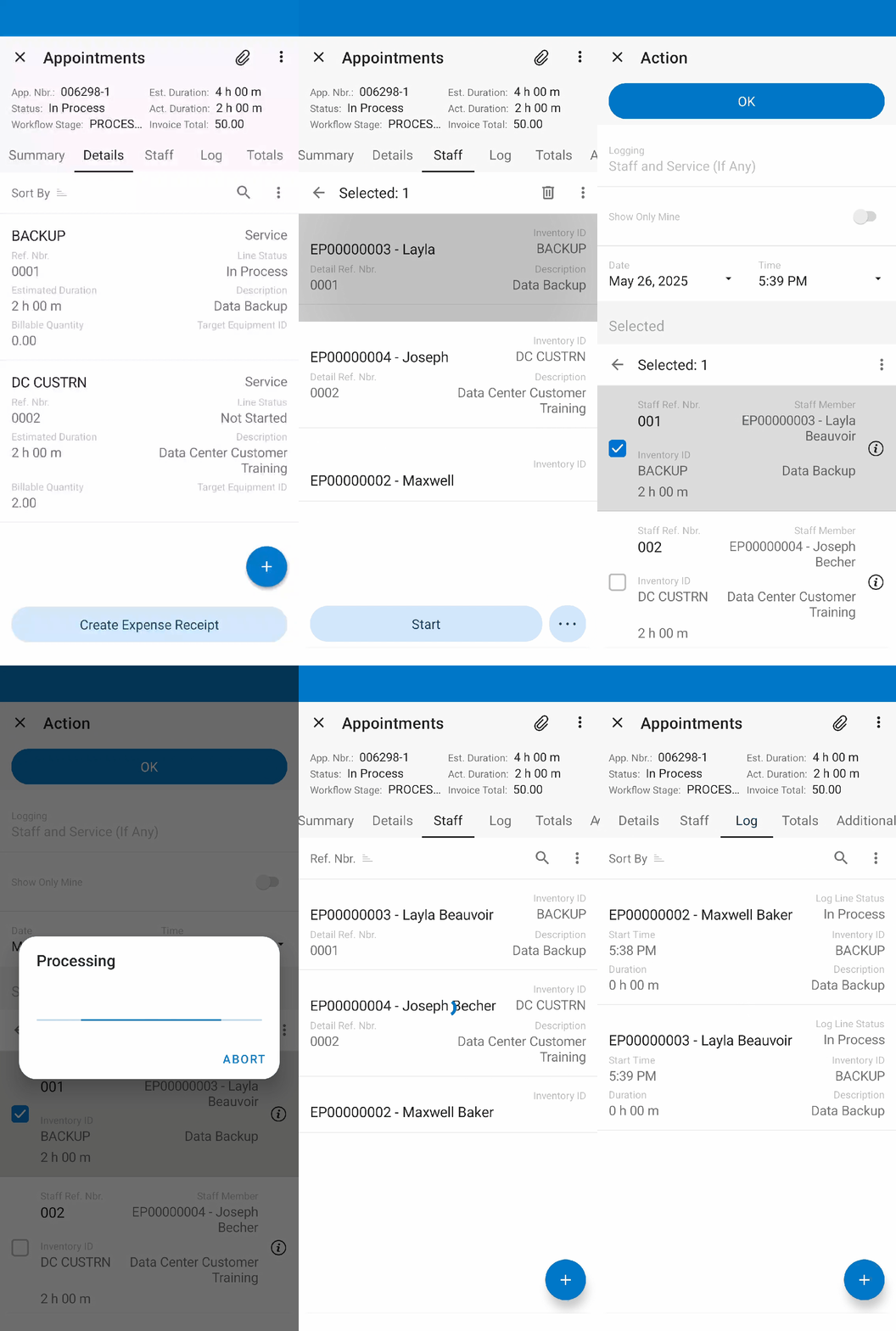
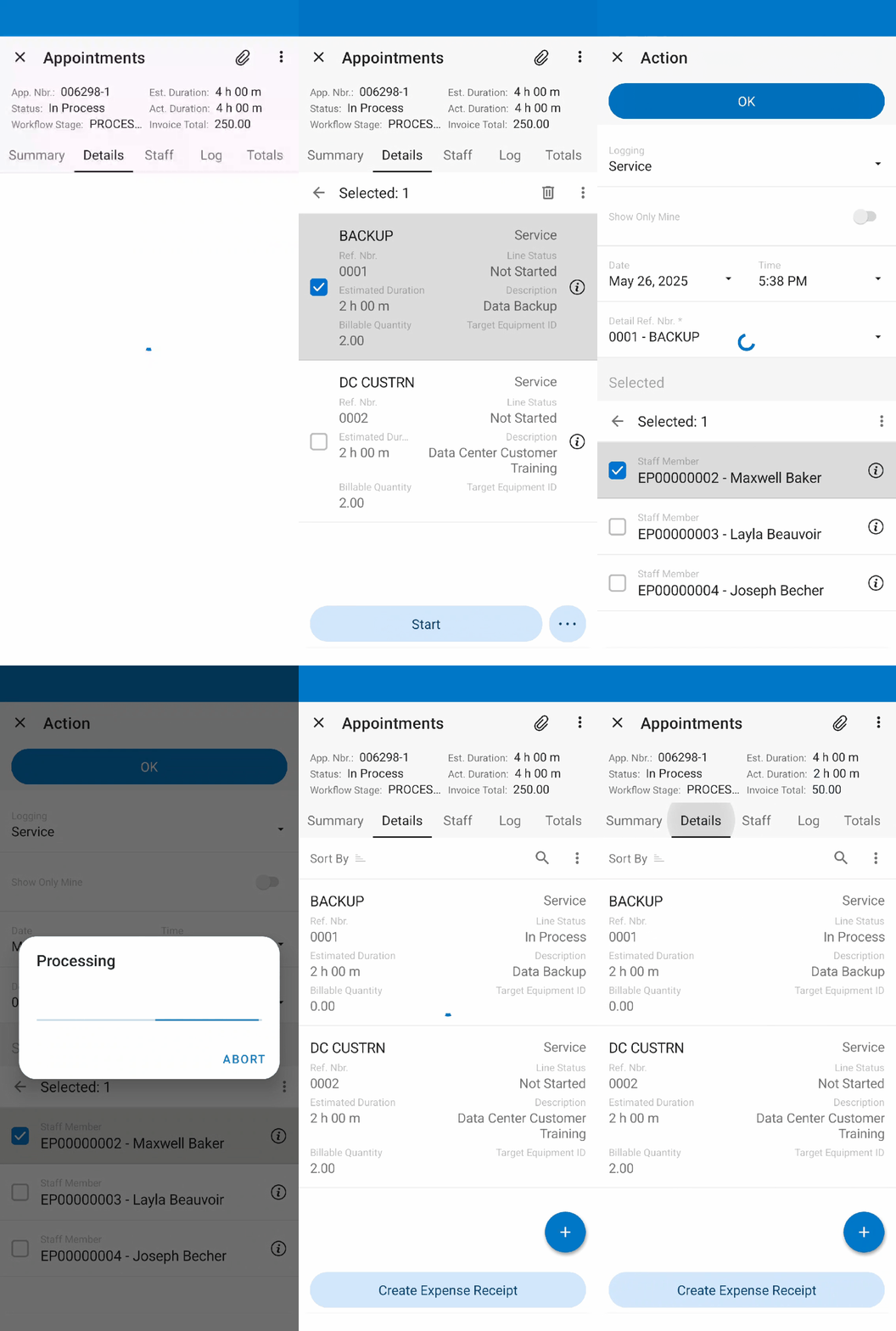
I was able to record the screen with the steps. Please consider that I used Android, in iOS the buttons could be in a different position.

Initially, since you mentioned that the primary driver will start, he/she shoud start the whole appointment (so click the elipsis button at the top, then click on Start → this will start the appointment, not necesarilly, track the time).

After this (the appointment should have status “In Process”), open the Details tab, long click one service line, click on the big Start button at the bottom of the screen.  

You can also use similar buttons on the Staff tab (instead of selecting a service you could select a staff memeber).


vdiaz
Acumatica Moderator
Forum|alt.badge.img+2
  • Acumatica Moderator
  • May 26, 2025

@mstuber02 This is the recording while using the actions of the Details tab.

Please note that on the elipsis button below, you can also find the actions Complete, Pause, etc. With those actions you can individually pause of complete the services. 


  • Freshman I
  • November 26, 2025

the above process described by vdiaz is a nice workaround, but way too prone to errors, as a service tech could start ANY of the services on the appointment, even ones they are NOT ASSIGNED to, by accident.

functionality should be that when a tech ARRIVES at a job, ONLY THE LINES he or she is assigned to should be auto-started. hopefully improvements being made with the long-awaited version we have been hearing about for a while now

thanks