I've encountered an issue concerning how item descriptions are handled between the Stock Item master and its usage within the Bill of Material module.
When I update the Description of a standard Stock Item (e.g., on the Stock Items (IN202500) screen), this change is not automatically inherited by the corresponding component line item within any existing BOM. I must manually open and update the BOM to reflect the new description.
Why is this the intended behavior in Acumatica? From a data consistency and efficiency standpoint, it seems logical that the BOM component's description would always reference or automatically update from its master Stock Item record.
Could someone explain the design philosophy behind this apparent lack of synchronization? I'm trying to understand why this would be implemented as a feature to be managed manually, rather than an automatic system update. Is there a specific business scenario this design supports?
Any insight into the technical or functional reason for this distinction would be greatly appreciated!
Best answer by bwhite49
Some of the businesses we work with will use the same part number to represent multiple physical items and the description differentiates what the item actually is. This separation of descriptions also offers the flexibility to have a customer facing description as well as description that an engineer can understand. Multiple descriptions for the same part. This same behavior exists on all of the screens in Acumatica (purchase orders, sales orders, service orders, etc.) so that these business’ can tailor their descriptions for their needs.
It would be fairly easy to update the BOMs automatically with a business event if you need the material description to be correct. You would need to create a GI that identifies where the item desc differs from the BOM desc, then setup the business event that uses that GI to fire an import scenario to update the material lines.
If the issue is on the production ticket or another printable form, you can modify the document to use the InventoryItem.Desc rather than the AMBOMMatl.Desc or the description from the prod order
Some of the businesses we work with will use the same part number to represent multiple physical items and the description differentiates what the item actually is. This separation of descriptions also offers the flexibility to have a customer facing description as well as description that an engineer can understand. Multiple descriptions for the same part. This same behavior exists on all of the screens in Acumatica (purchase orders, sales orders, service orders, etc.) so that these business’ can tailor their descriptions for their needs.
It would be fairly easy to update the BOMs automatically with a business event if you need the material description to be correct. You would need to create a GI that identifies where the item desc differs from the BOM desc, then setup the business event that uses that GI to fire an import scenario to update the material lines.
If the issue is on the production ticket or another printable form, you can modify the document to use the InventoryItem.Desc rather than the AMBOMMatl.Desc or the description from the prod order
Thanks so much for the response. I have a case opened with Acumatica to try and get this live. We really need the single source of truth to be the stock item.
This is contradicted with how the multi-level BOM prints (Engineering). This report pulls the stock item description and not the BOM description (This separation of descriptions also offers the flexibility to have a customer facing description as well as description that an engineer can understand.)
If you use the Mass Change process screen, you can replace an item in a BOM with itself and the update will grab the current item description - helpful for one off scenarios but an import scenario is going to be a better option to maintain consistency
Create GI with 2 tables (InventoryItem and AMBomMatl) where inventory ID = Inventory ID. Make it in inner join and include a 2nd condition where InventoryItem.descr <> AMBOMMatl.descr. The idea is that this list should be empty. If something shows up in this list, the import scenario will update the record and remove it from the list. Make sure you include the key fields… BOM ID, Revision ID, Operation ID, and Line Nbr (Inventory ID as a substitute might be fine). Also include InventoryItem.Desc for the update value.
Create the business event (BE). I typically will start with a Trigger by Action type BE which creates a manual button at the top of the GI. This is great for testing. From the BE, create a new import scenario subscriber. When everything works as expected, you will want to replace with a trigger by schedule and have this run on a schedule to update regularly.
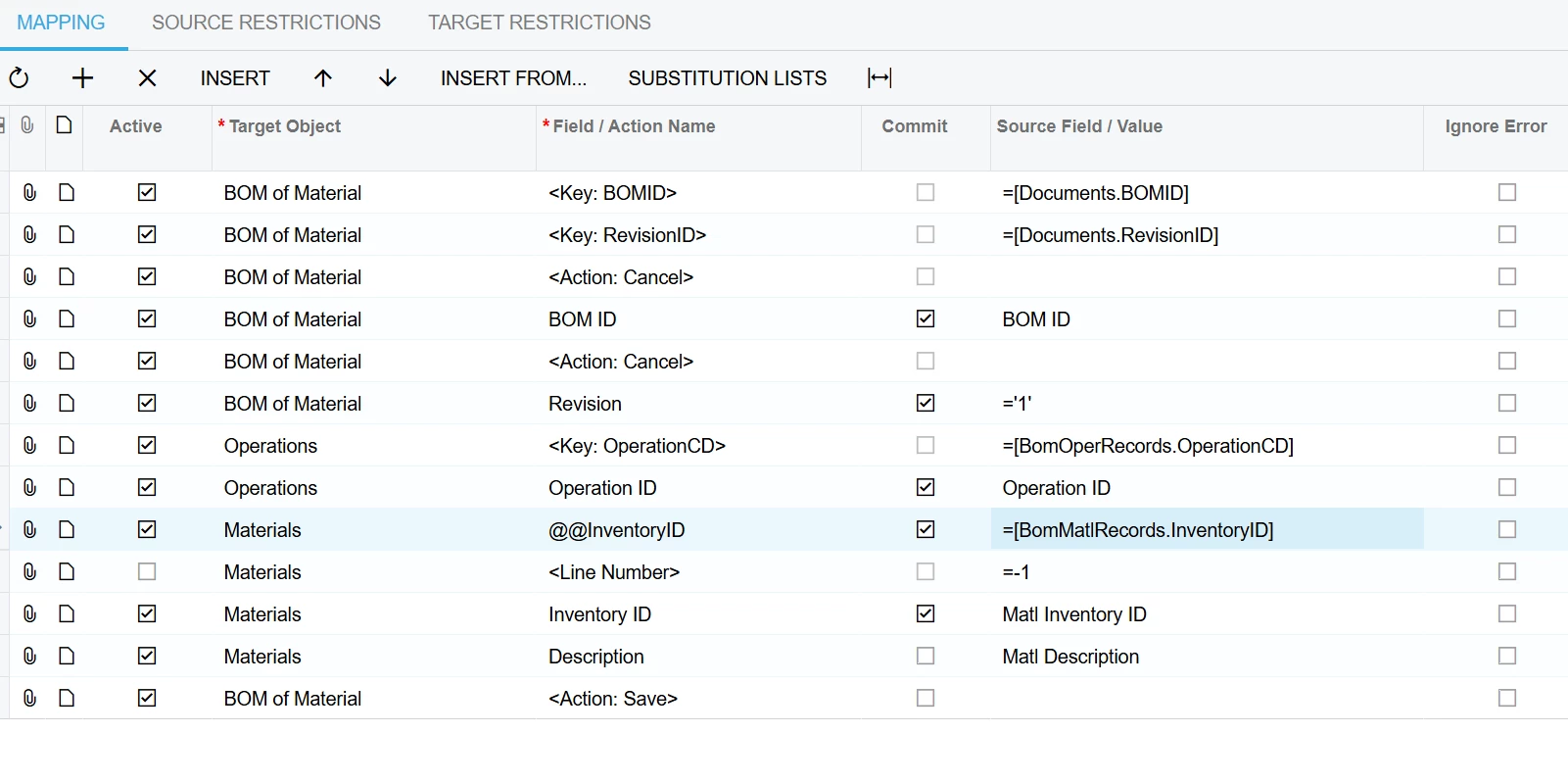
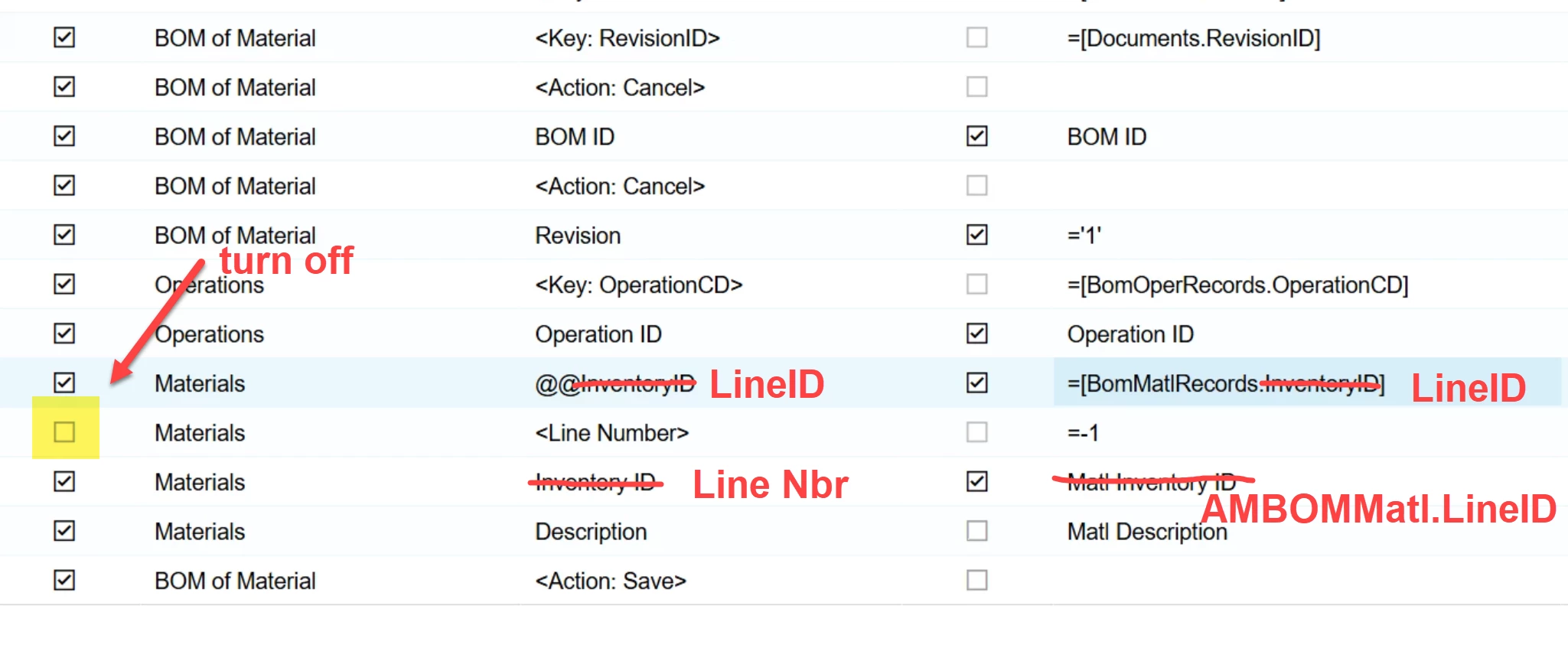
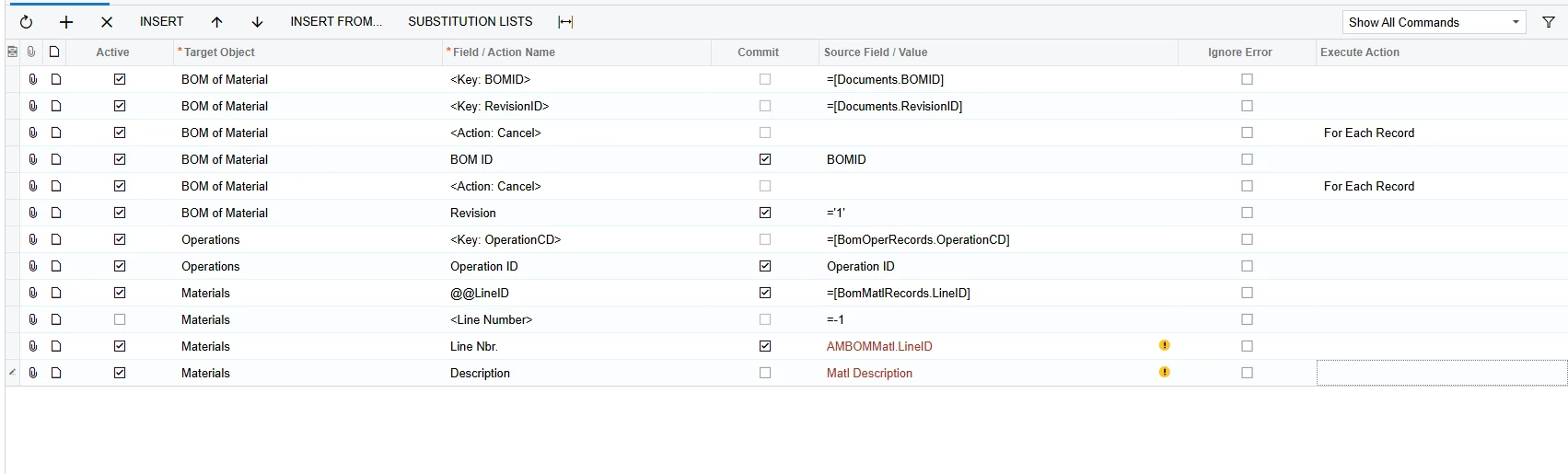
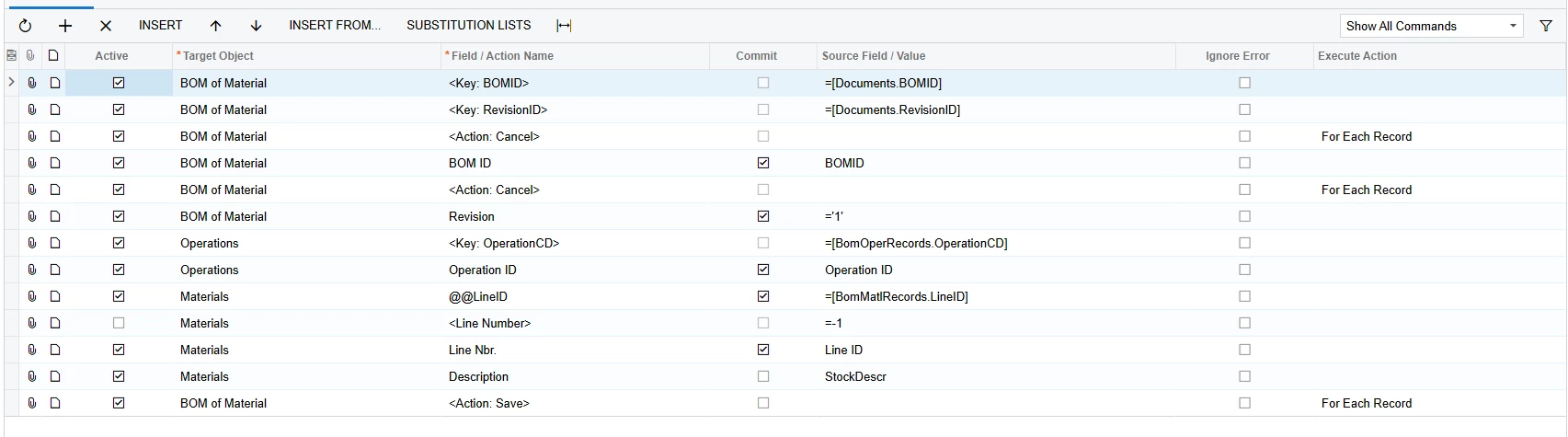
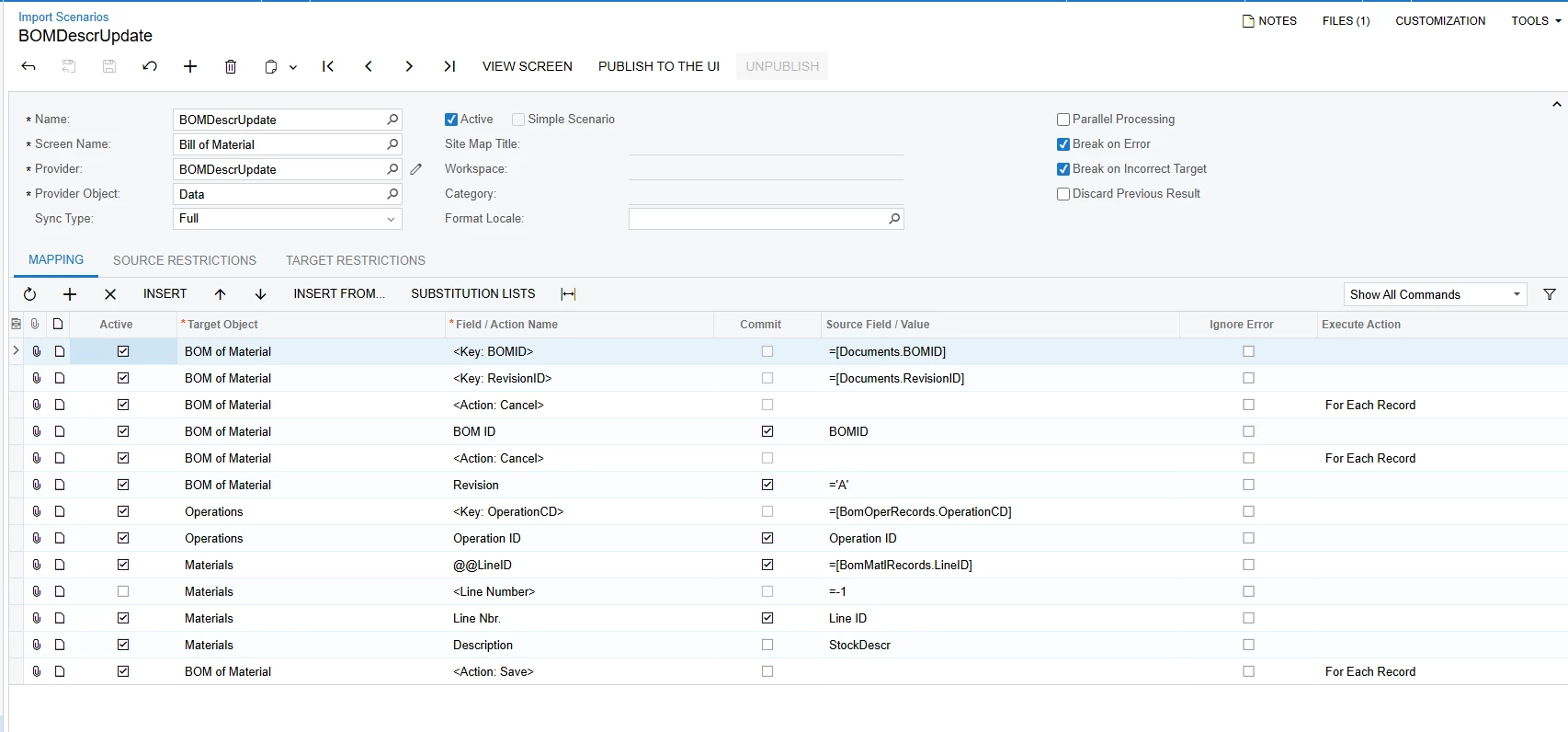
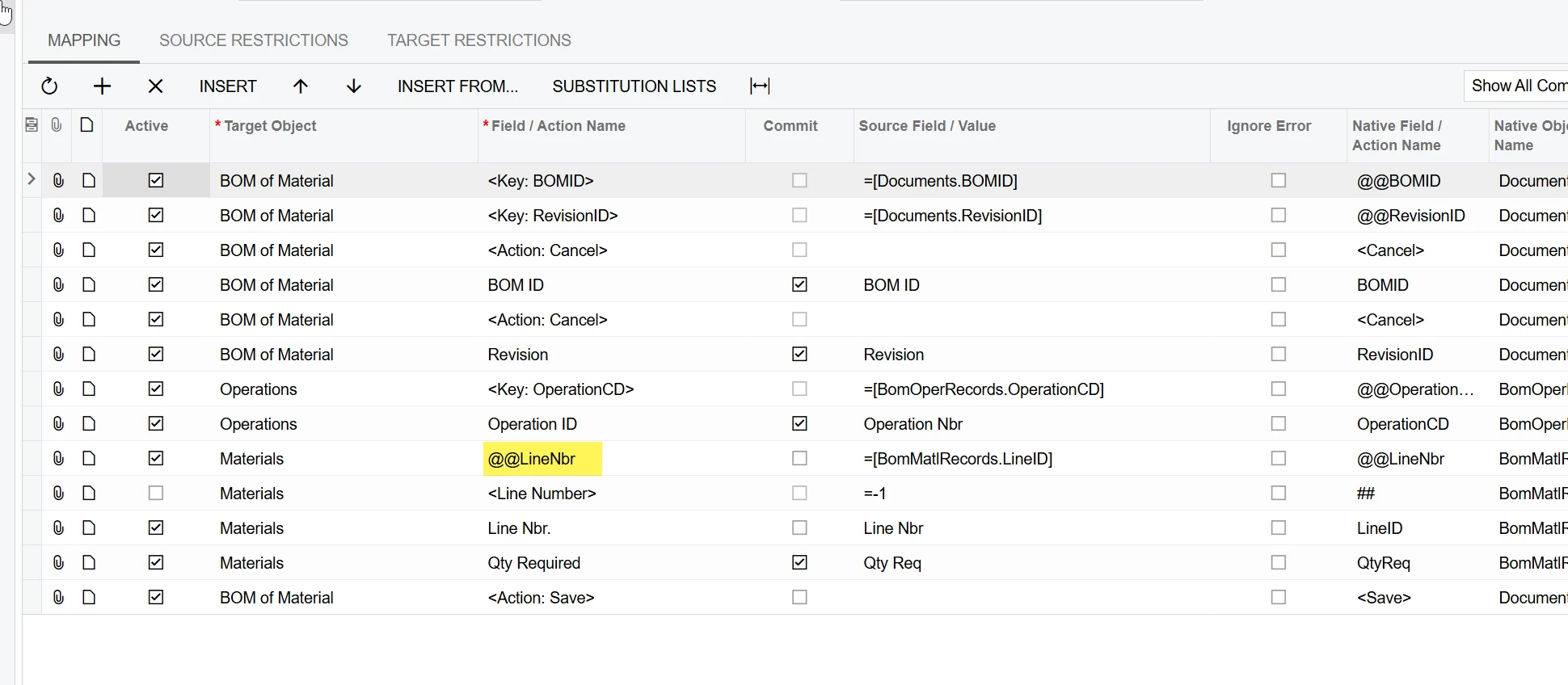
The import scenario should look like below. replace the =’1’ for the revision field with the revision ID from the GI. The @@InventoryID allows us to use the inventory ID as a key field. For the best results, you should actually use @@LineID or @@LineNbr where they equal [BomMatlRecord.LineID], but in the example below I used Inventory ID. Using Inventory ID will fail if the same inventory ID exists multiple times under the same operation, which is why line number is better, Make sure <Line Number> is turned off. This prevents a new line being created. Replace Matl Description with InventoryItem.Descr as that is the correct description you want to update the material line with.
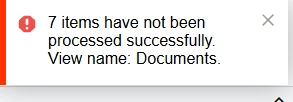
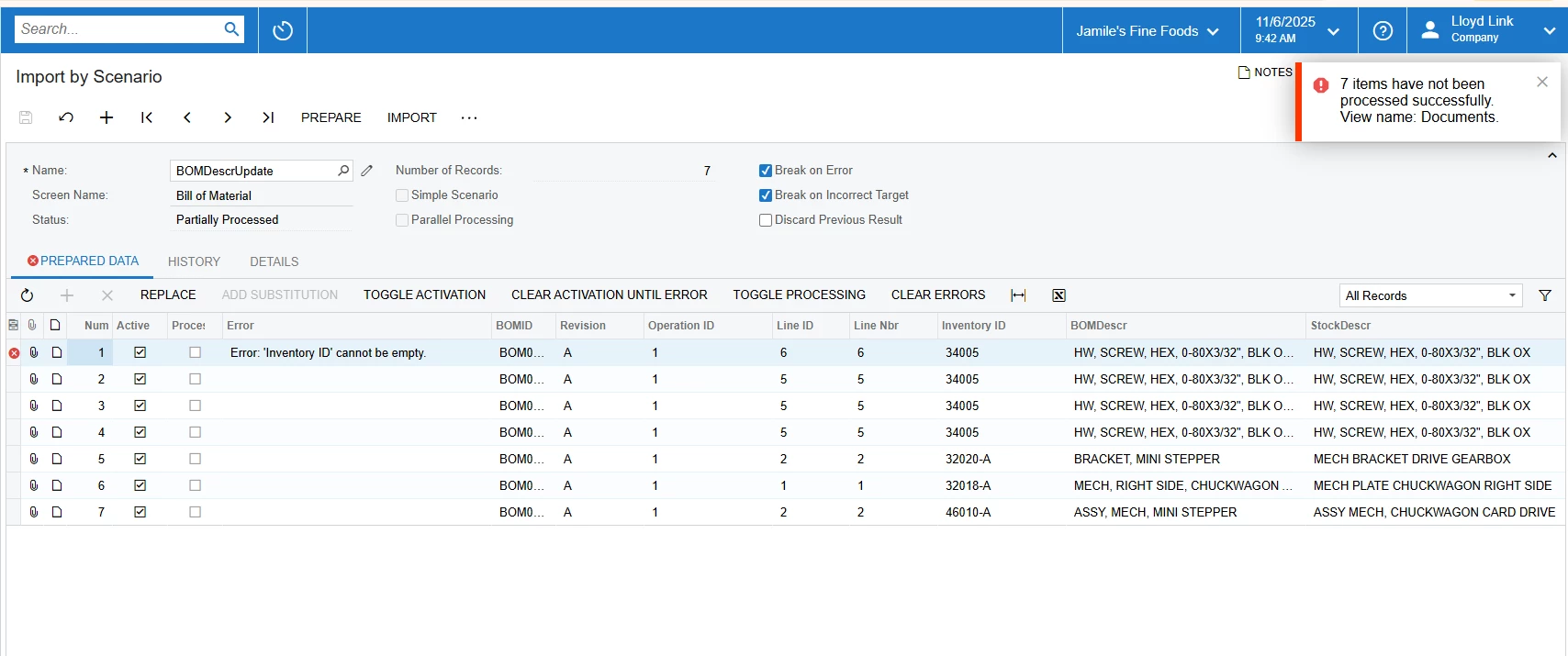
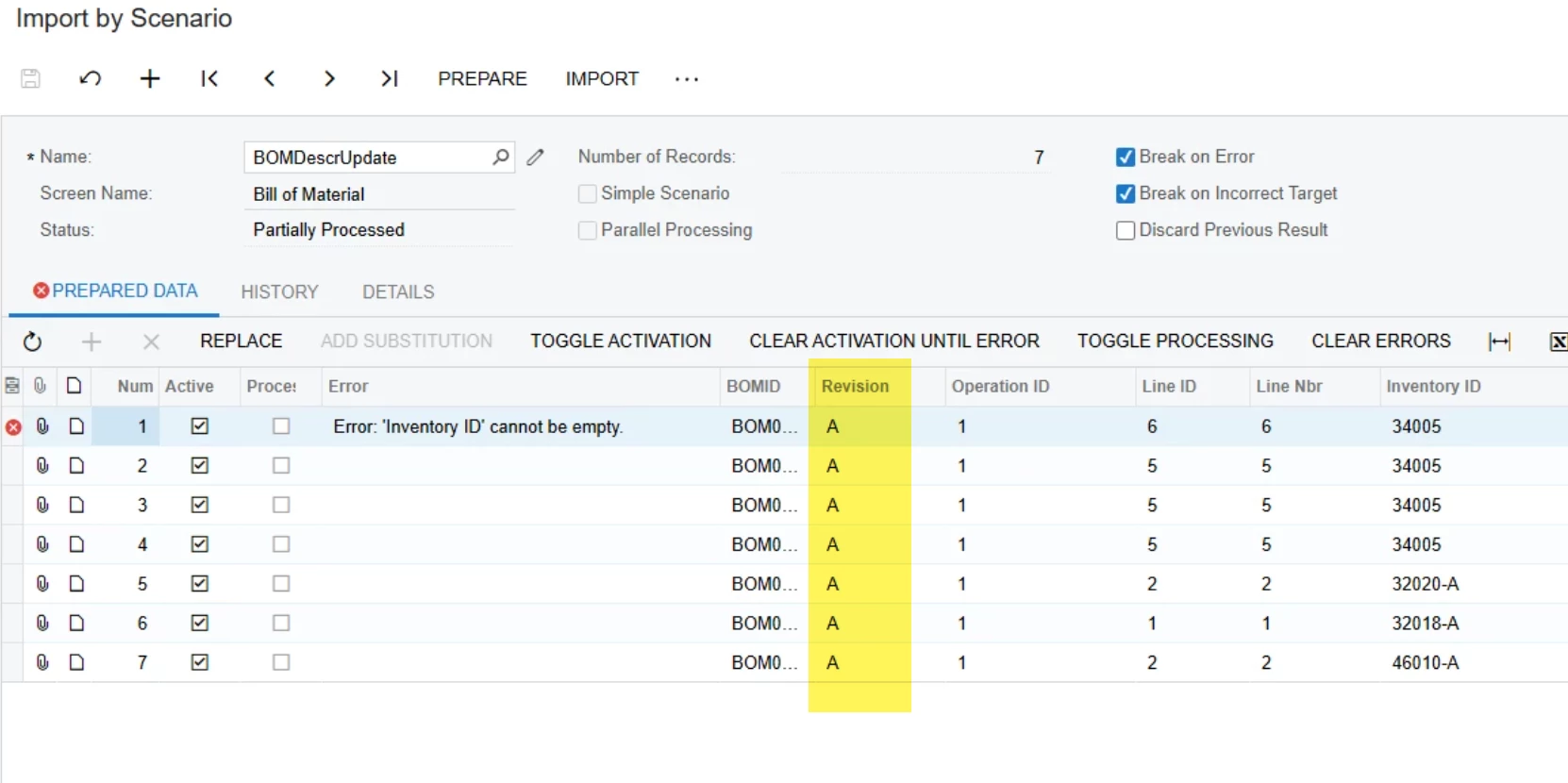
OK, what is the error you are getting? You might need to get the OperationCD out of the AMBomOper table. You can connect the AMBomMatl to AMBomOper through the BOM ID, Revision ID, and operation ID. Acumatica I think needs the OperationCD in the import scenario
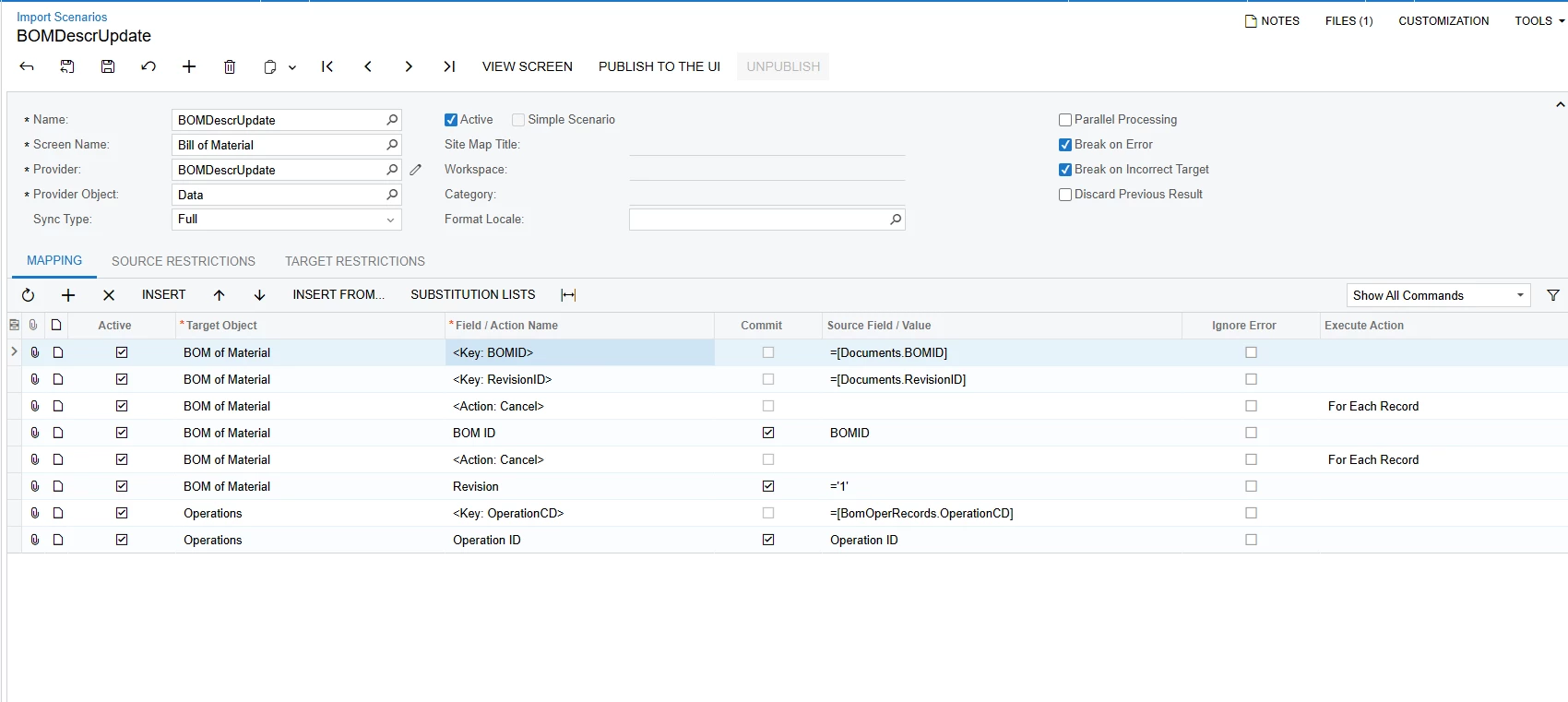
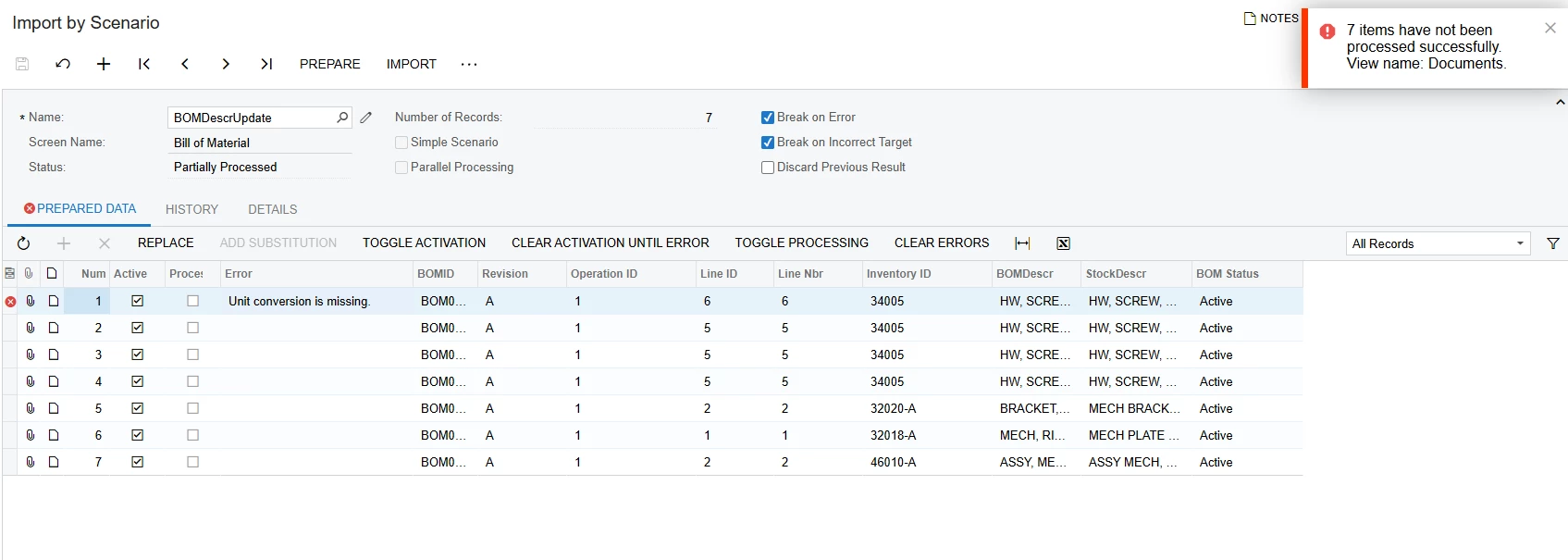
I was getting errors through my failed attempt. I am trying this mapping now but appears I dont have some options to select in the source field. Maybe I should just start fresh with a new GI
Looks like you are missing the materials section as well as the save action.
First add materials → inventory ID
Line number is going to show up. Just disable it.
You have to type out @@LineID. It’s not something that shows up in the drop down. For the source/field value, you can click the pencil, click internal field, and then find [BomMatlRecord.LineID] or you can just type it out.
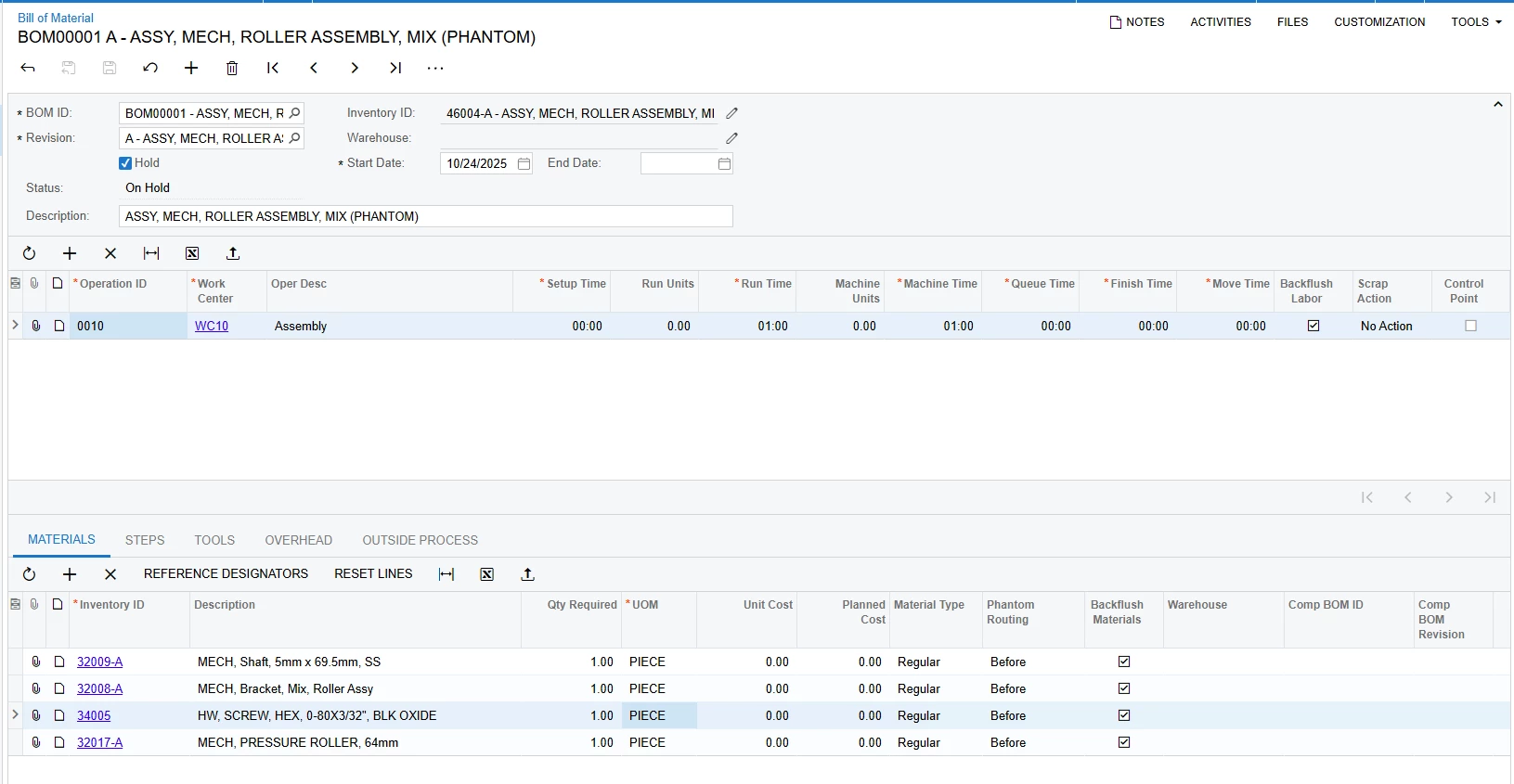
I think there is a pre-existing issue with that BOM. Go to the bill of material screen and try to change that description manually. You should receive that error or look for a yellow warning on the material. There is an item on that BOM where the conversion was deleted.