

Answer

Email SO - SO Type RMA

  • June 25, 2025
  • 1 reply
  • 41 views

Forum|alt.badge.img

Hello Acumatica Community, 

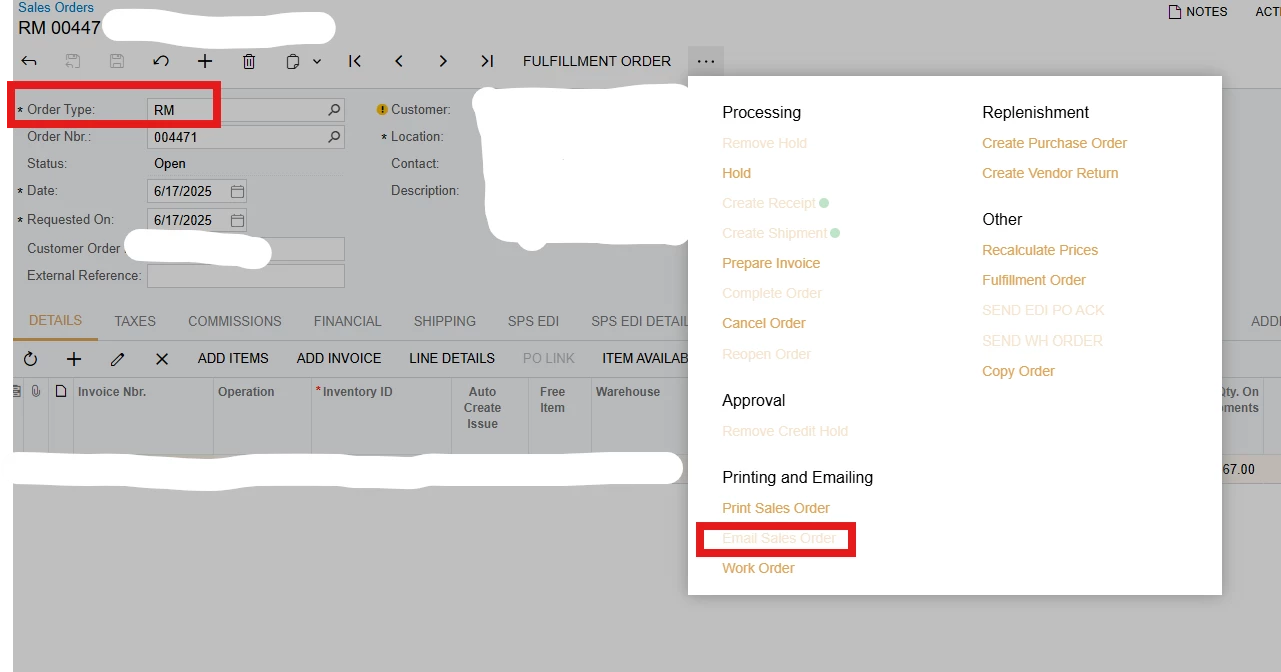
How can I enable the Email Sales Order for Sales Order Type - RM? It is currently greyed out and our customer is using a temporary work-around. 


Best answer by JohnMichels

@aminerd  The Email Sales Order options (under Printing & Emailing menu option) originate from the Customer/Mailing & Printing tab.  These are defaulted in from the Customer Class and can be modified at the customer level.  The Sales Order Preferences and AR Preferences also include these options. 

Native ACU provides pre-defined emails templates for Orders & Invoices as described in the below help articles.  These pre-defined emails do NOT include an option for order type = RM, and I cannot provide assistance in creating an email template w/report that would achieve your desired results.  But you have a starting point. 

RM’s can be sent via email using Sales Order>Print and Emailing > Print Sales Order (report pop-up created) > Press SEND (email activity pop-up) > Press SEND

Hope this helps.


Mailings for Customers: Available Mailings

Mailings for Customers: General Information


1 reply

Forum|alt.badge.img+1
  • Jr Varsity I
  • Answer
  • June 30, 2025

@aminerd  The Email Sales Order options (under Printing & Emailing menu option) originate from the Customer/Mailing & Printing tab.  These are defaulted in from the Customer Class and can be modified at the customer level.  The Sales Order Preferences and AR Preferences also include these options. 

Native ACU provides pre-defined emails templates for Orders & Invoices as described in the below help articles.  These pre-defined emails do NOT include an option for order type = RM, and I cannot provide assistance in creating an email template w/report that would achieve your desired results.  But you have a starting point. 

RM’s can be sent via email using Sales Order>Print and Emailing > Print Sales Order (report pop-up created) > Press SEND (email activity pop-up) > Press SEND

Hope this helps.


Mailings for Customers: Available Mailings

Mailings for Customers: General Information
