Question

CRM: Sending Multiple Documents in One Email

  • February 16, 2026
  • 4 replies
  • 55 views

Forum|alt.badge.img

I was trying to test out the new capabilities of sending multiple documents in one email and it created multiple emails instead of one.  I didn’t have an email template so that might be the issue, however I get an error when I created and attached a template. After attaching the template, I get an error “There is no active notification source to process the operation”.

I had both check boxes clicked, Send documents in One Email and Combine Into One file.  I looked at enable/disable features and I didn’t see anything that specifically said Print/Email Sales (or Project) Quotes form.  I also noticed the date range doesn't do anything. I didn’t see invoices and quotes on any of the same screens so not sure how this works entirely.  

The release notes states “Good news for sales and project managers: You no longer need to send multiple invoices, quotes, and orders one by one to a customer or prospect. In Acumatica ERP 2025 R2, you can attach multiple documents to one email for each customer—and even combine multiple documents into one PDF to save time for everyone.” 

Then immediately after it says 

“Now you can print and email multiple sales and project quotes at once from these forms:”

So can you only send multiple quotes? How do I set this up as the release notes don’t really tell me or I don’t get it. 

Can anyone help what I am missing?
 

4 replies

Forum|alt.badge.img+1
  • Jr Varsity I
  • February 17, 2026

Hi ​@cwomack98 

This feature works per document type and per processing screen. You cannot mix invoices and quotes in one batch. You must use the supported Print/Email processing screen for that document type.

The error “There is no active notification source to process the operation” means the system cannot find an active Notification Source linked to that screen.

To fix it:

  1. Use the correct processing screen (for example Print/Email Sales Quotes or Project Quotes). Do not send from the document entry screen.

  2. Go to System Management → Email → Notification Sources.
    Make sure there is a Notification Source for that screen ID and that it is Active.

  3. Ensure a report and an Active email template are assigned to that Notification Source.

  4. In the Email Template, confirm:
    – Screen ID matches the processing screen
    – Template is Active
    – Report is correctly linked

“Send documents in One Email” groups documents per customer.
“Combine Into One File” merges them into a single PDF.

If documents belong to different customers, the system will still send one email per customer.


Forum|alt.badge.img+1

hey ​@cwomack98 ,

Can you let us know which documents are you looking to send in one mail?

Regards.


Forum|alt.badge.img
  • Author
  • Varsity I
  • February 17, 2026

I was trying to send 2 invoices to same customer using the print/email AR Documents (AR508000) top option from release notes.


Forum|alt.badge.img+1

Hey ​@cwomack98 ,

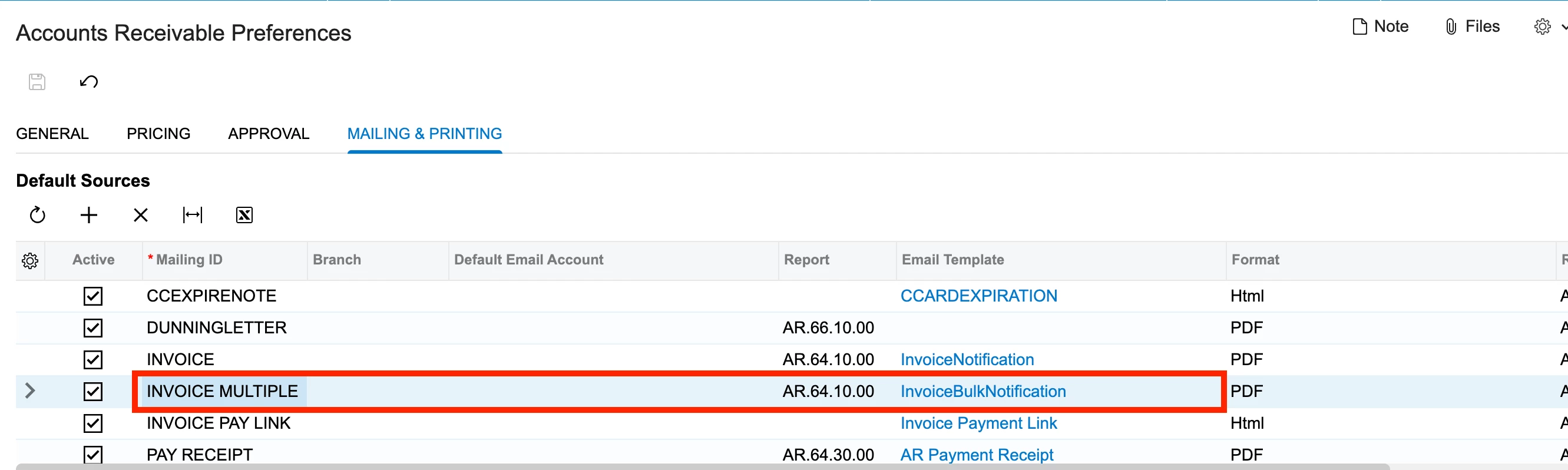
Below are the steps that you could follow:

  1. Under AR Pref screen (AR101000), make sure you have defined as follows:


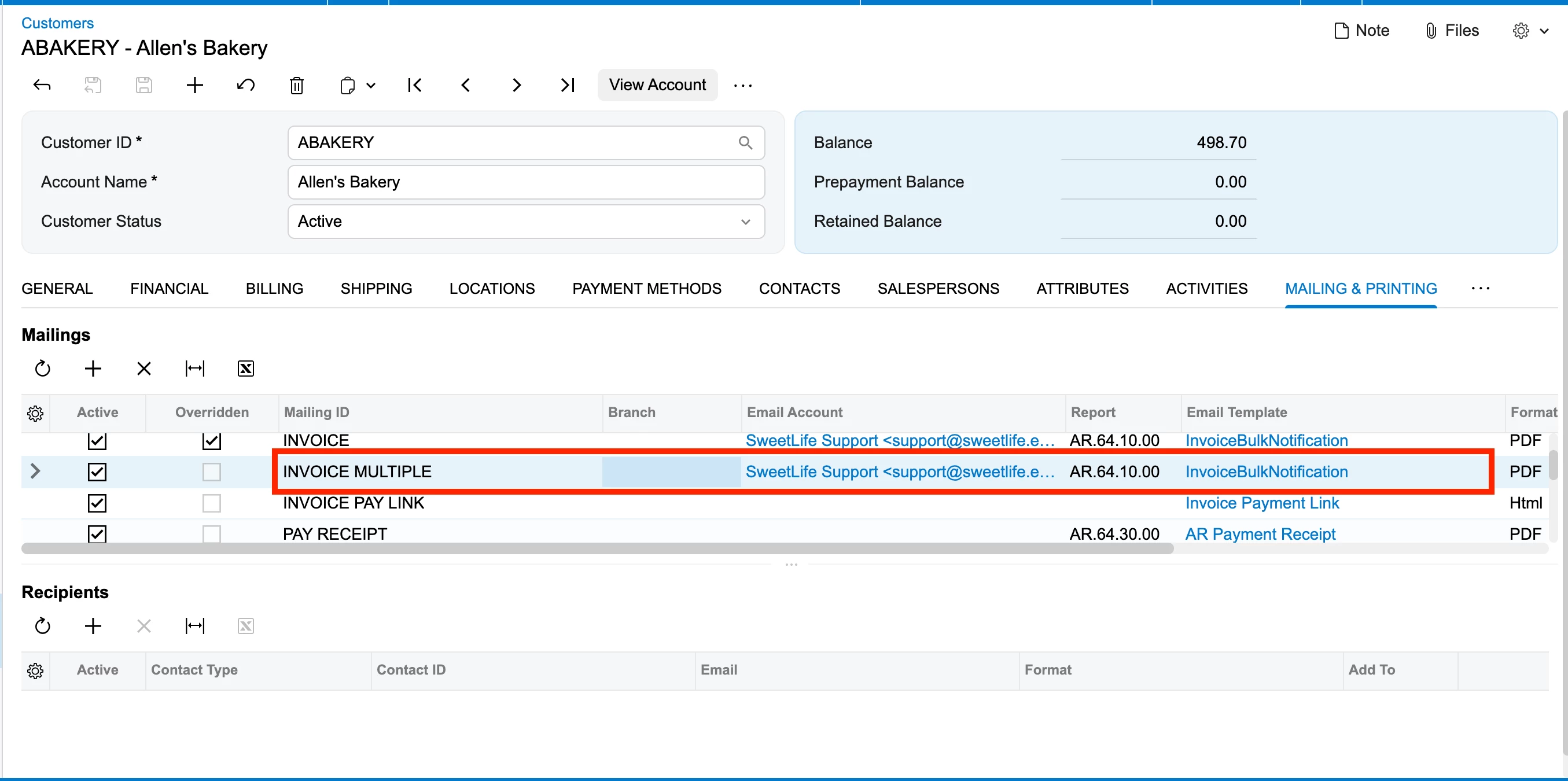
  2. Make sure, the same has been added to the customer record:
     

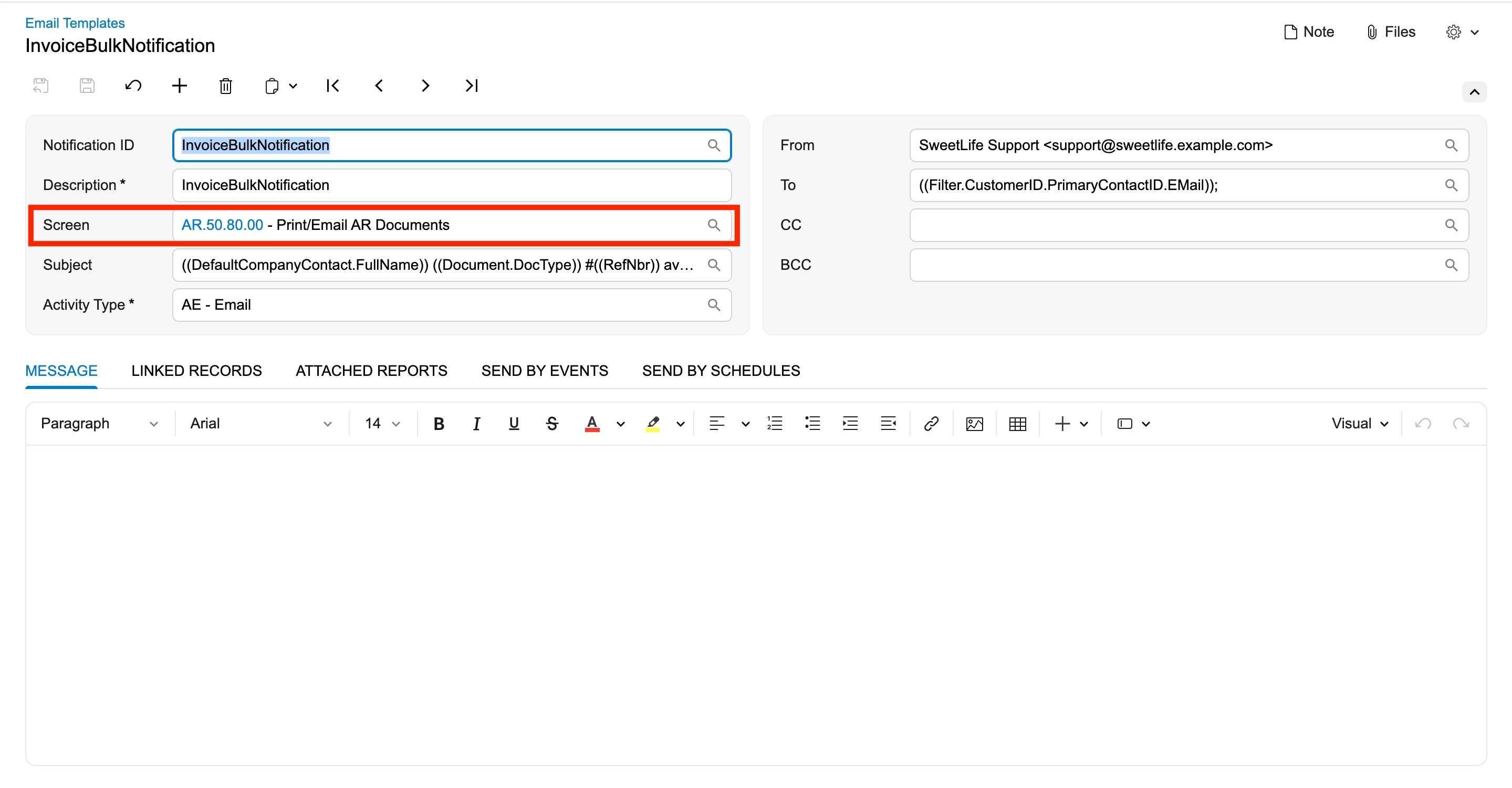
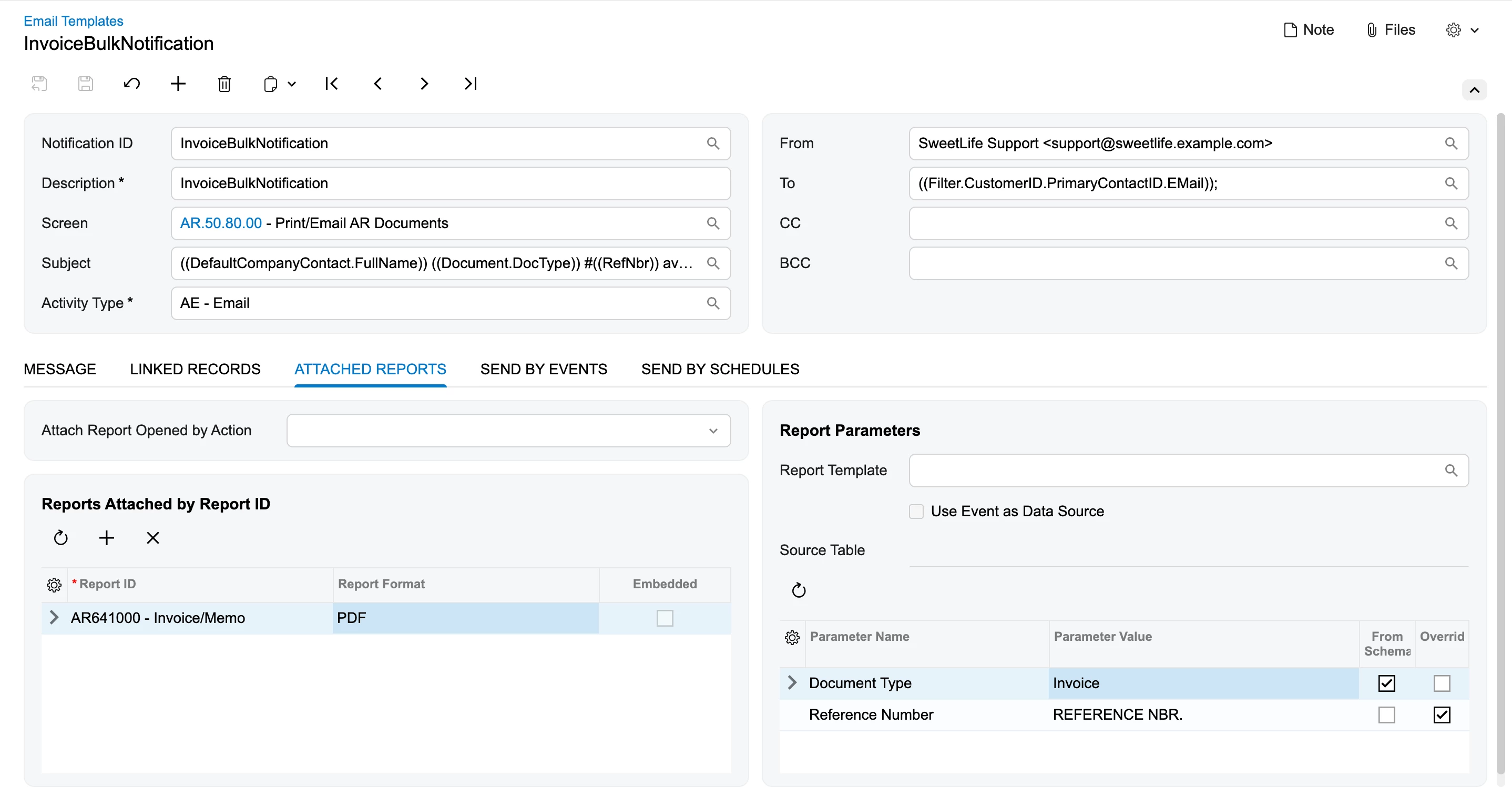
  3. The Notification Template:
     
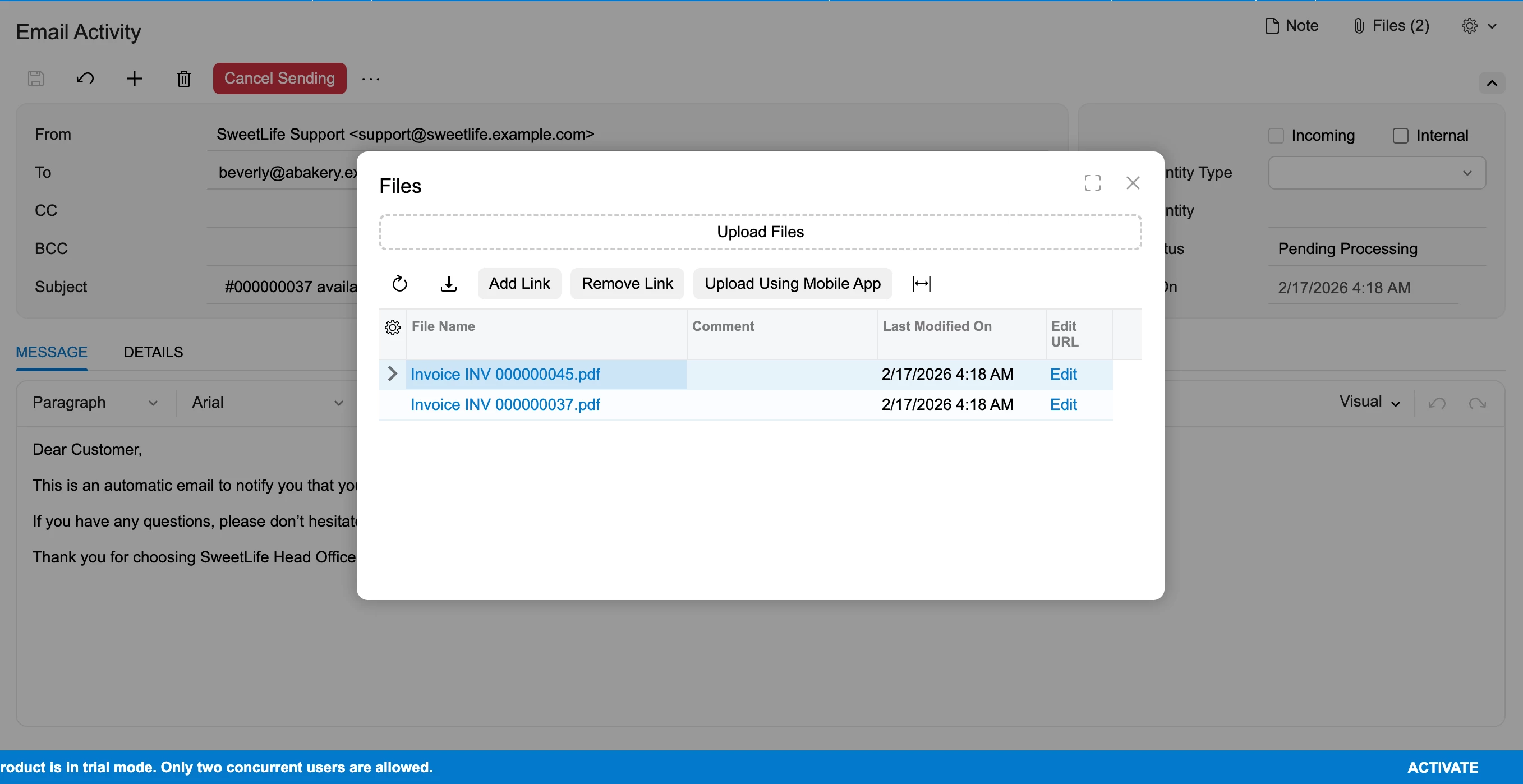
  4. And finally when I processed it:


Hope this helps!!