Answer

Business Event + Import Scenario Overwriting Multi-Select Attribute Values — How to Append Instead of Replace?

  • November 26, 2025
  • 4 replies
  • 51 views

Background

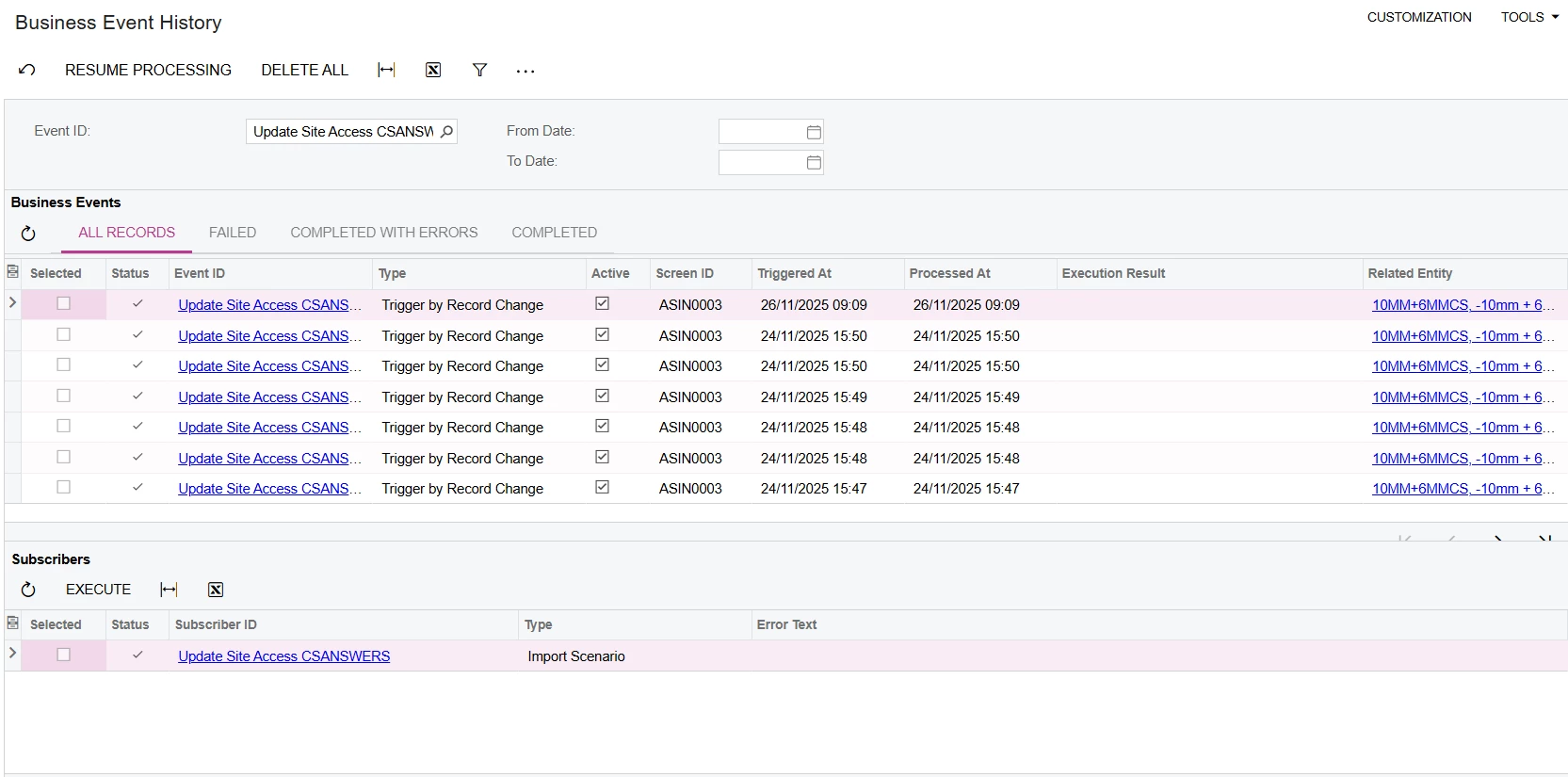
I am trying to automate an attribute update using a Business Event triggered by a Generic Inquiry and processed through an Import Scenario. I am running into a challenge with updating a multi-select combo attribute without losing the existing selections.


Scenario

I have the following setup:
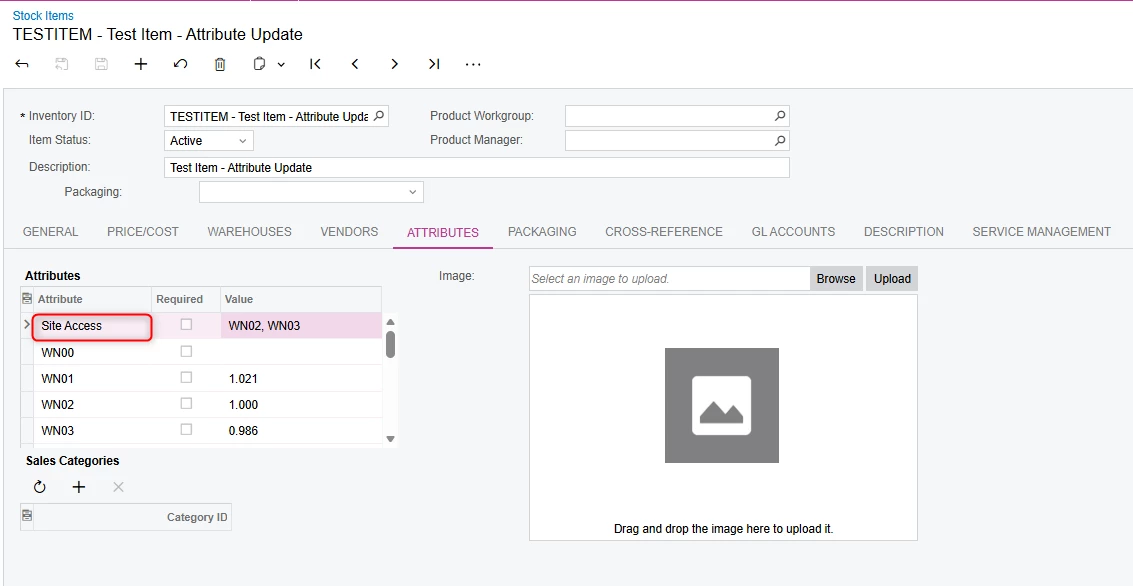
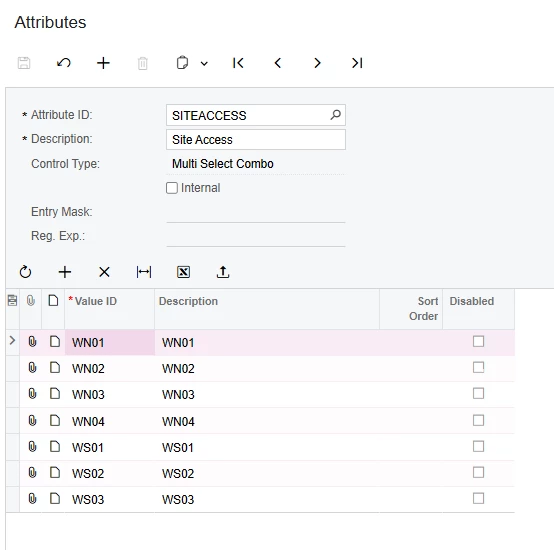
  • One master attribute called “Site Access”, which is a multi-select combo attribute on a Business Account.
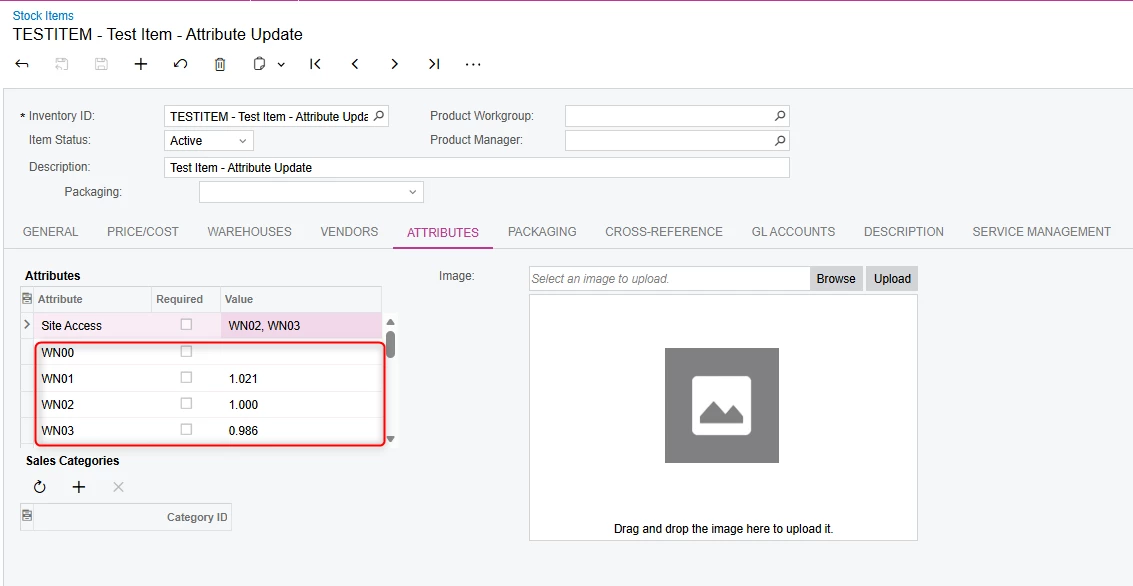
  • Multiple site-specific attributes (one per site), each storing a Conversion Factor. These values are maintained manually by users.
 

Goal

When a site has a Conversion Factor entered (not blank or zero), I need the system to automatically select that site's checkbox inside the Site Access multi-select attribute.

For example:
If users enter Conversion Factors for WN02 and WN03 (WN01 already had a conversion factor entered prior to adding WN02 and WN03), then the “Site Access” attribute should automatically reflect WN01, WN02 and WN03 as selected.


The Problem

My Generic Inquiry correctly returns only the sites where a Conversion Factor exists. 
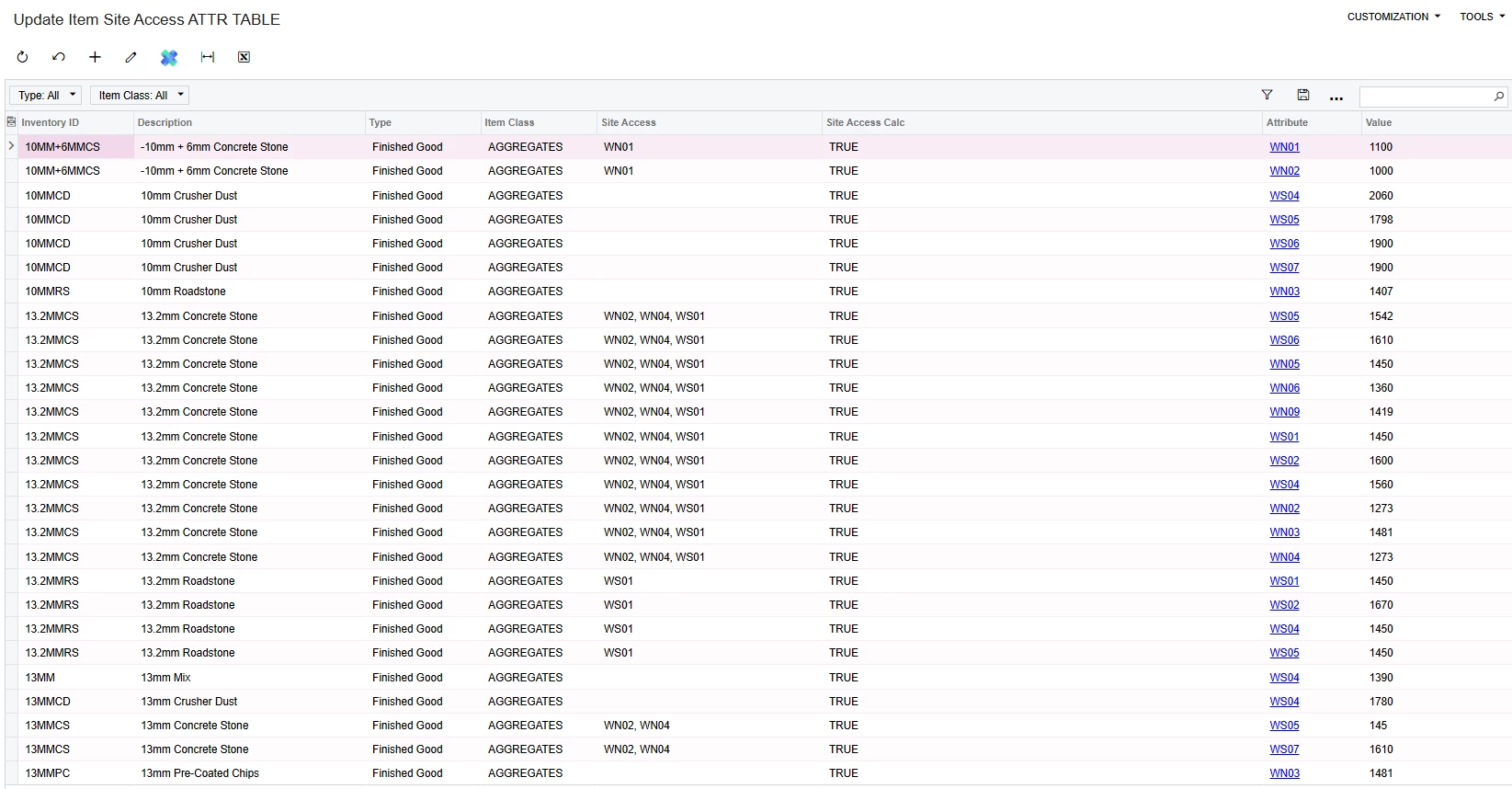
 

The Business Event triggers the Import Scenario as expected.
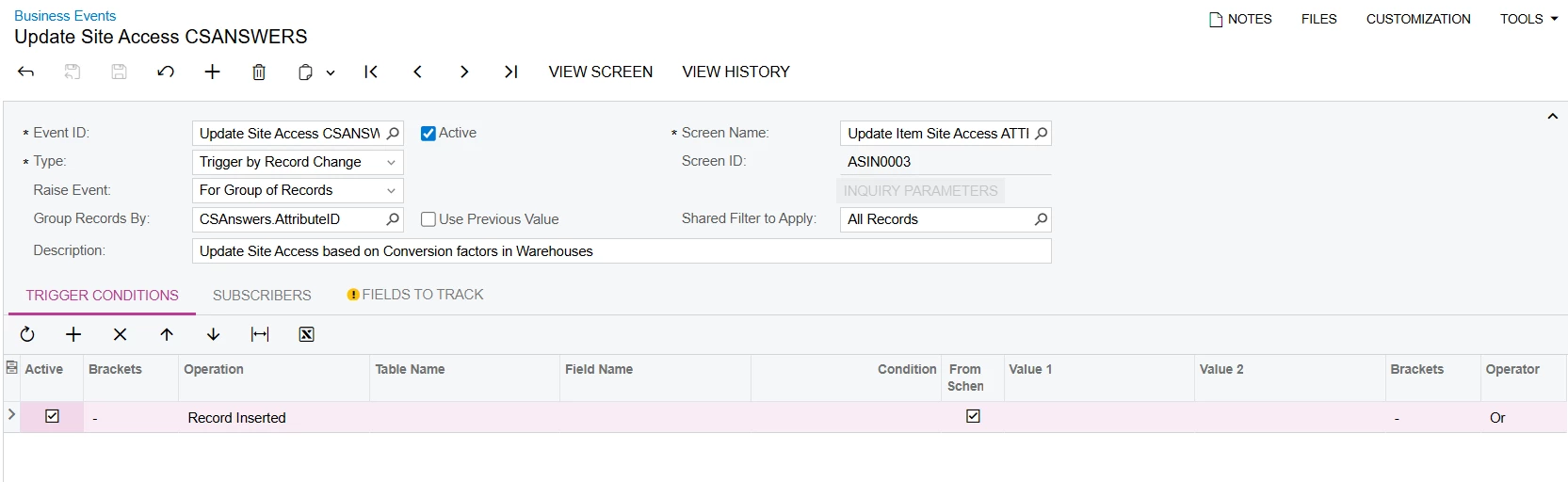
However, Import Scenarios overwrite attribute values for multi-select fields.
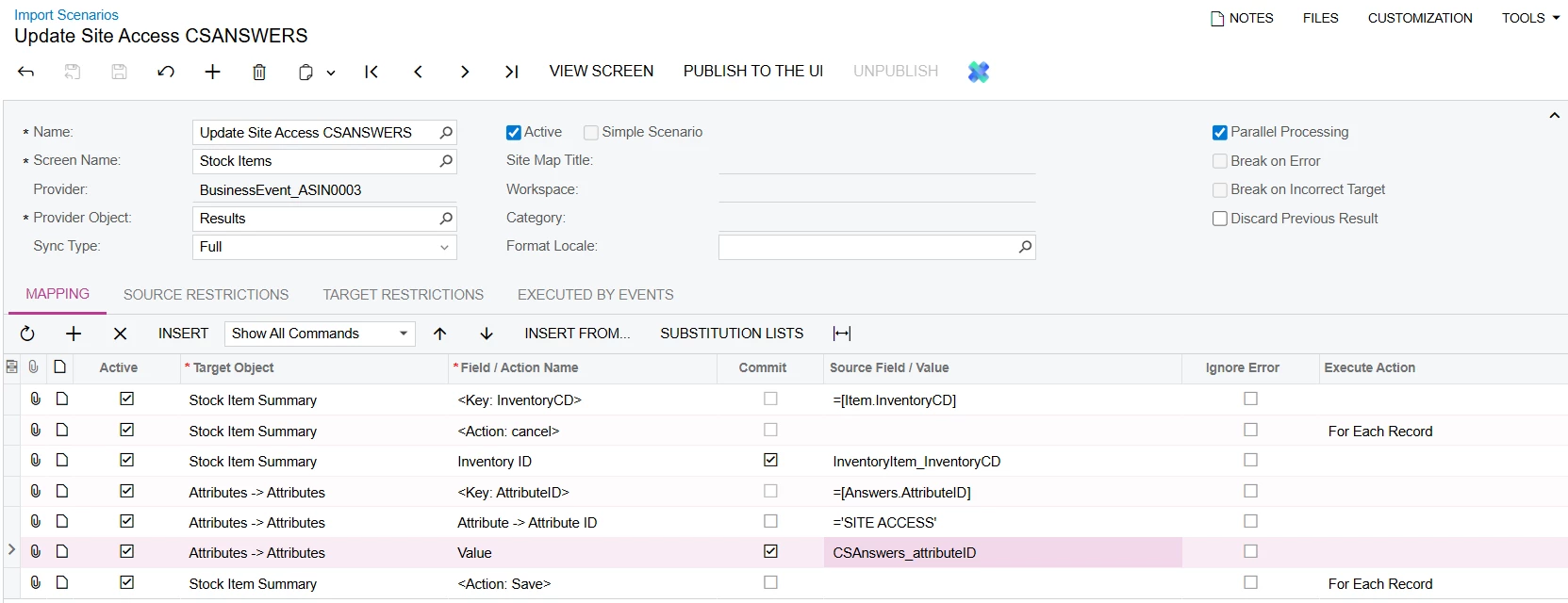
 

Instead of appending to the existing selections, the import:

  1. Clears all existing selections in the multi-select attribute.

  2. Selects only the site(s) changed or newly inserted in the GI.

  3. As a result, previously selected sites are removed / overrode with the changed / new sites.

Before:
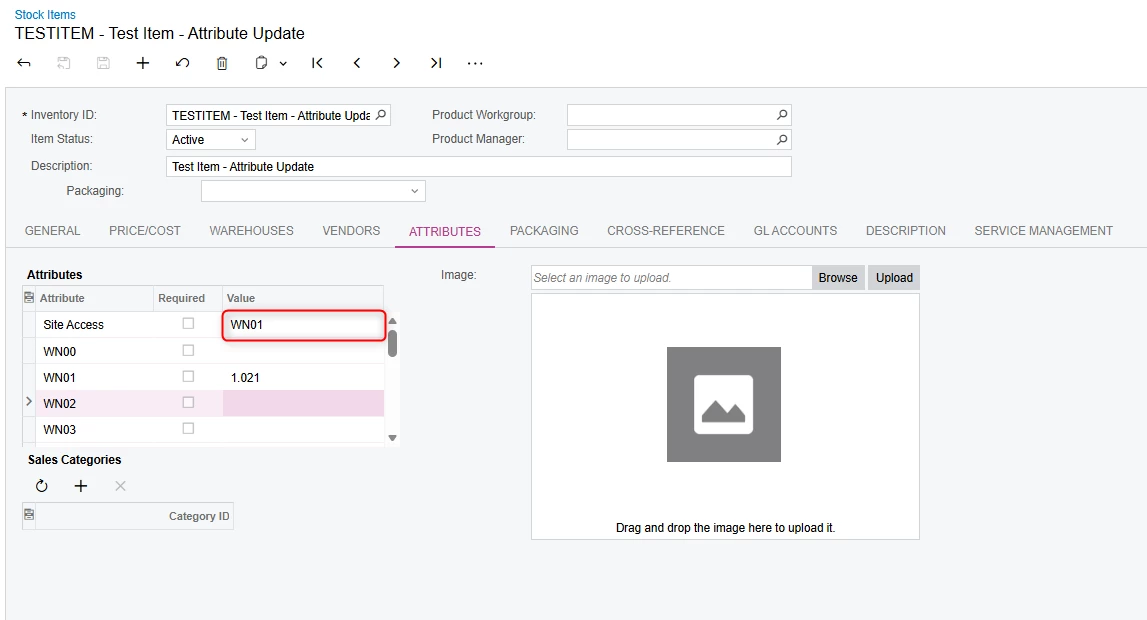
After:
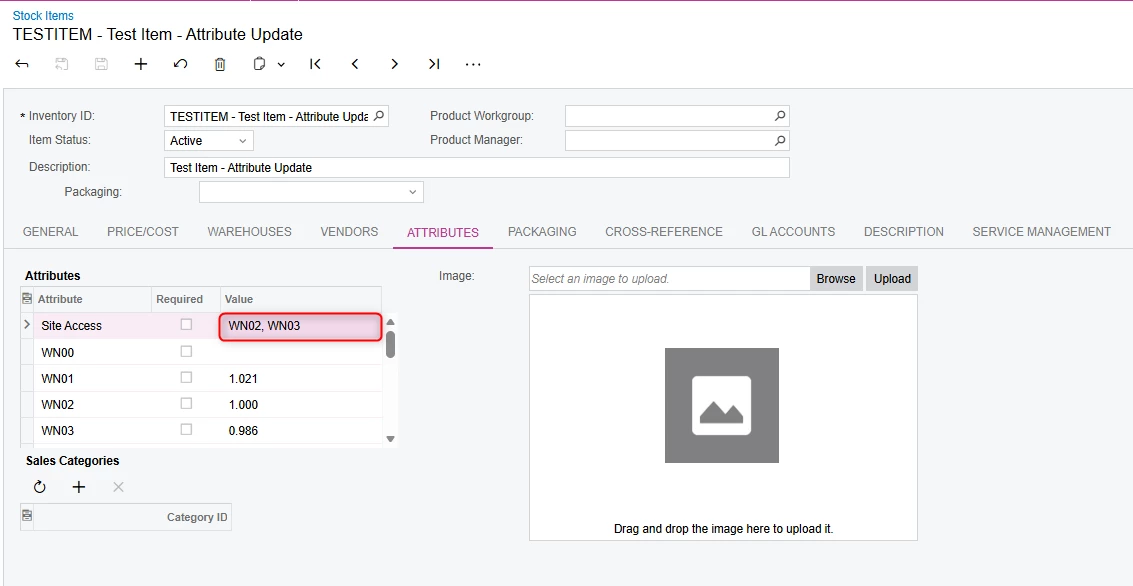
 

What I am looking for

Has anyone found a method to:

  • Append / remove values to a multi-select combo attribute through a Business Event (i.e. import scenario)?

  • Preserve existing selections while updating new ones?

  • I do not want to dynamically rebuild the complete list of selected sites as that will have a huge influence on the audit history active on the Stock Items Screen?

Best answer by Aniscan68

I logged a case with Acumatica and received the following response:


Hello Anisca,


Hope you're doing well!


Import scenarios simulate user entry on the Acumatica form. When a mapping provides a value for a screen field, Acumatica sets that field to the mapped value and persists it. As a result, import scenarios replace field values and (for some field types such as multi-select attributes) imports will overwrite existing selections rather than append


However, the following workarounds can be tested


Option 1 Two-step Export → Concatenate → Import (I100 guide attached)

1. Export the existing target records/fields (Export Scenario or Export by Scenario / GI) so you have the existing value in a column.  
2. In Excel (or your data provider), create a new column that concatenates existing + incoming values (Excel example: =TRIM(A2 & " " & B2) where A2 = existing value, B2 = new text).
3. Map that concatenated column to the target field in your Import Scenario and run it — the import writes the combined string and thereby appends the new text to the existing content.


Option 2  Read/Modify/Write via API or scripted process

 Use the Acumatica REST API (or an external script) to:
1. GET the target record (read current value),
2. build combined = current + separator + incoming, and
3. PUT/PATCH the record with combined.


Option 3  Create a Customization inside Acumatica

Please note custom import scenarios are outside the scope of our support. If further assistance is required this request will need to go through our Services team, they will provide you with a estimate of costs (SOW).


Thank you

4 replies

mohammadnawaz51
Jr Varsity I
Forum|alt.badge.img+4

@Aniscan68 I found the same issue when I am updating new attributes which is multiselect one.


I am also looking for any answer here.


MissyMain41
Jr Varsity I
Forum|alt.badge.img
  • Jr Varsity I
  • November 26, 2025

Hey everyone,

This has been an issue for as long as I can remember, perhaps submitting a case to ACU would benefit. 
Please update us here on the result if you could!
Here’s another post from 4 or 5 years ago, same thing, but no update :( 
Import Scenario on attributes without overriding existing data.  | Community


  • Author
  • Freshman II
  • Answer
  • November 28, 2025

I logged a case with Acumatica and received the following response:


Hello Anisca,


Hope you're doing well!


Import scenarios simulate user entry on the Acumatica form. When a mapping provides a value for a screen field, Acumatica sets that field to the mapped value and persists it. As a result, import scenarios replace field values and (for some field types such as multi-select attributes) imports will overwrite existing selections rather than append


However, the following workarounds can be tested


Option 1 Two-step Export → Concatenate → Import (I100 guide attached)

1. Export the existing target records/fields (Export Scenario or Export by Scenario / GI) so you have the existing value in a column.  
2. In Excel (or your data provider), create a new column that concatenates existing + incoming values (Excel example: =TRIM(A2 & " " & B2) where A2 = existing value, B2 = new text).
3. Map that concatenated column to the target field in your Import Scenario and run it — the import writes the combined string and thereby appends the new text to the existing content.


Option 2  Read/Modify/Write via API or scripted process

 Use the Acumatica REST API (or an external script) to:
1. GET the target record (read current value),
2. build combined = current + separator + incoming, and
3. PUT/PATCH the record with combined.


Option 3  Create a Customization inside Acumatica

Please note custom import scenarios are outside the scope of our support. If further assistance is required this request will need to go through our Services team, they will provide you with a estimate of costs (SOW).


Thank you


Chris Hackett
Community Manager
Forum|alt.badge.img
  • Acumatica Community Manager
  • December 1, 2025

Thank you for sharing the solution with the community ​@Aniscan68!