Question

Add Formula for Date Calculation in Email Template

  • November 25, 2025
  • 5 replies
  • 43 views

I’m editing the email template for Dunning Letters.

I want to include a sentence that has the due date for the overdue balance. 14 days from the day the letter is sent

=Today()+14 isn’t something that works when I add it into the template’s email body. What’s the trick to get this to work?

5 replies

BenjaminCrisman
Acumatica Employee
Forum|alt.badge.img+4
  • Acumatica Support Team
  • November 25, 2025

@mhayes1987 What screen are you using as the data source for the email template? If you are using a GI you can just make this function in the results grid and then reference the field in the template. Have you already tried that?

The email screen isn’t performing a query, so it isn’t able to query results using functions. it relies on tables and fields from the screen powering the template, so a function won’t ever work like that unfortunately.

Try with the GI method and I think it’ll work no problem


  • Author
  • Freshman II
  • November 25, 2025

@mhayes1987 What screen are you using as the data source for the email template? If you are using a GI you can just make this function in the results grid and then reference the field in the template. Have you already tried that?

Hi Benjamin,

I got this same suggestion from Google so I did try it, but it didn’t work. What is the correct way to do it?

The Screen for the template was the default: AR.52.20.00 - Print / Release Dunning Letters.

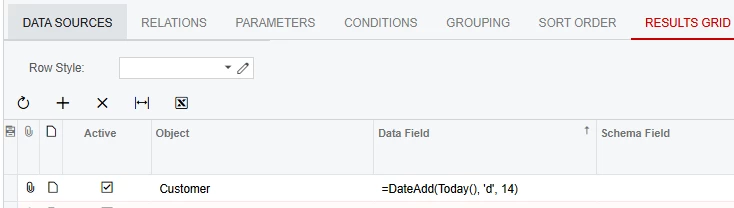
I changed it to one that was a GI and then edited the GI. This is what I added to the GI:


It looks like this in the template, this is added directly from the “insert” menu:


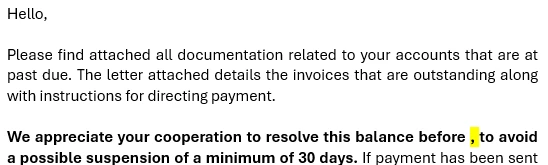
But once the email is sent it ends up as this:


Additionally, when I change the Screen from the default for the Dunning Template to something else, my subject line does not work correctly either. It is set as:

And was working correctly before changing the Screen field. Neither the Account ID nor the Full Name show in the subject line when the Screen is changed to the GI that has my date formula.


How can I add the date to the body, while also using additional references in the subject line?


  • Author
  • Freshman II
  • November 25, 2025

I’ve tried formatting the date specifically as a string, as well: =CStr(Month(DateAdd(Today(), 'd', 14))) + '/' + CStr(Day(DateAdd(Today(), 'd', 14))) + '/' + CStr(Year(DateAdd(Today(), 'd', 14)))


It appears correctly on the GI, but not in the email.


bwhite49
Captain II
Forum|alt.badge.img+10
  • Captain II
  • November 25, 2025

@mhayes1987 What screen are you using as the data source for the email template? If you are using a GI you can just make this function in the results grid and then reference the field in the template. Have you already tried that?

Hi Benjamin,

I got this same suggestion from Google so I did try it, but it didn’t work. What is the correct way to do it?

The Screen for the template was the default: AR.52.20.00 - Print / Release Dunning Letters.

I changed it to one that was a GI and then edited the GI. This is what I added to the GI:


It looks like this in the template, this is added directly from the “insert” menu:


But once the email is sent it ends up as this:


Additionally, when I change the Screen from the default for the Dunning Template to something else, my subject line does not work correctly either. It is set as:

And was working correctly before changing the Screen field. Neither the Account ID nor the Full Name show in the subject line when the Screen is changed to the GI that has my date formula.


How can I add the date to the body, while also using additional references in the subject line?

Your date formula looks good. Are you missing the business event step?

To send an email from a GI, you need to first create a business event. I don’t think you can just change the data source of the email template to the GI with any success. Unfortunately, this means that you can’t use the existing processes to send the dunning letter. 


BenjaminCrisman
Acumatica Employee
Forum|alt.badge.img+4
  • Acumatica Support Team
  • November 25, 2025

@mhayes1987 What ​@bwhite49 is correct, I didn’t realize how you were sending these, so the query isn’t going to generate the correct data if you just try to send manually, it needs to be sent via event.
The reason your subject isn’t working is because it is referencing something which is no longer there.

You’ll have to make sure that the contact is part of the GI and then pull these fields from the available contacts fields displayed in the GI results.

When you add a filed from a screen it will have format like ((Table.Field)), but if you add it from a GI it will have format like ((Table_Field)), so you want to make sure if your template is based off a GI that all the references are coming from the GI.