Answer

Restrict Item Visibility in Order forms

  • June 18, 2025
  • 4 replies
  • 130 views

Forum|alt.badge.img

Hi Everyone,

In a Single Tenant Multi Company Environment, I’m trying to create a row-level security for item restrictions based on the item classes. Wherein company A will have visibility to all other item classes and related items and Company X will have access only to the X item class and items created for through the same class.


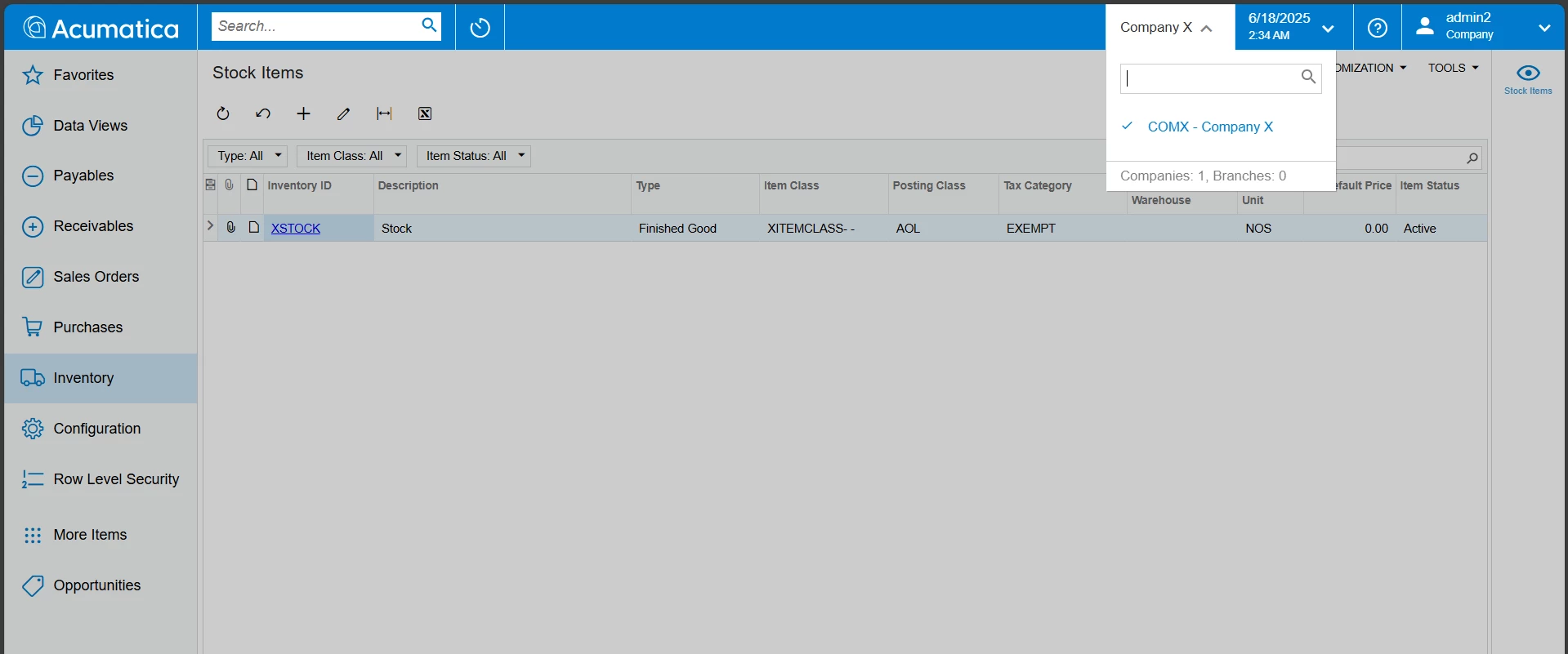
Based on row level security set up in Inventory Item Access form (Referred document:  https://help.acumatica.com/(W(330))/Wiki/ShowWiki.aspx?pageid=09c9c94d-1707-4e24-bb2c-29343e18864f) I was successfully able to restrict the item visibility for the companies as shown below.


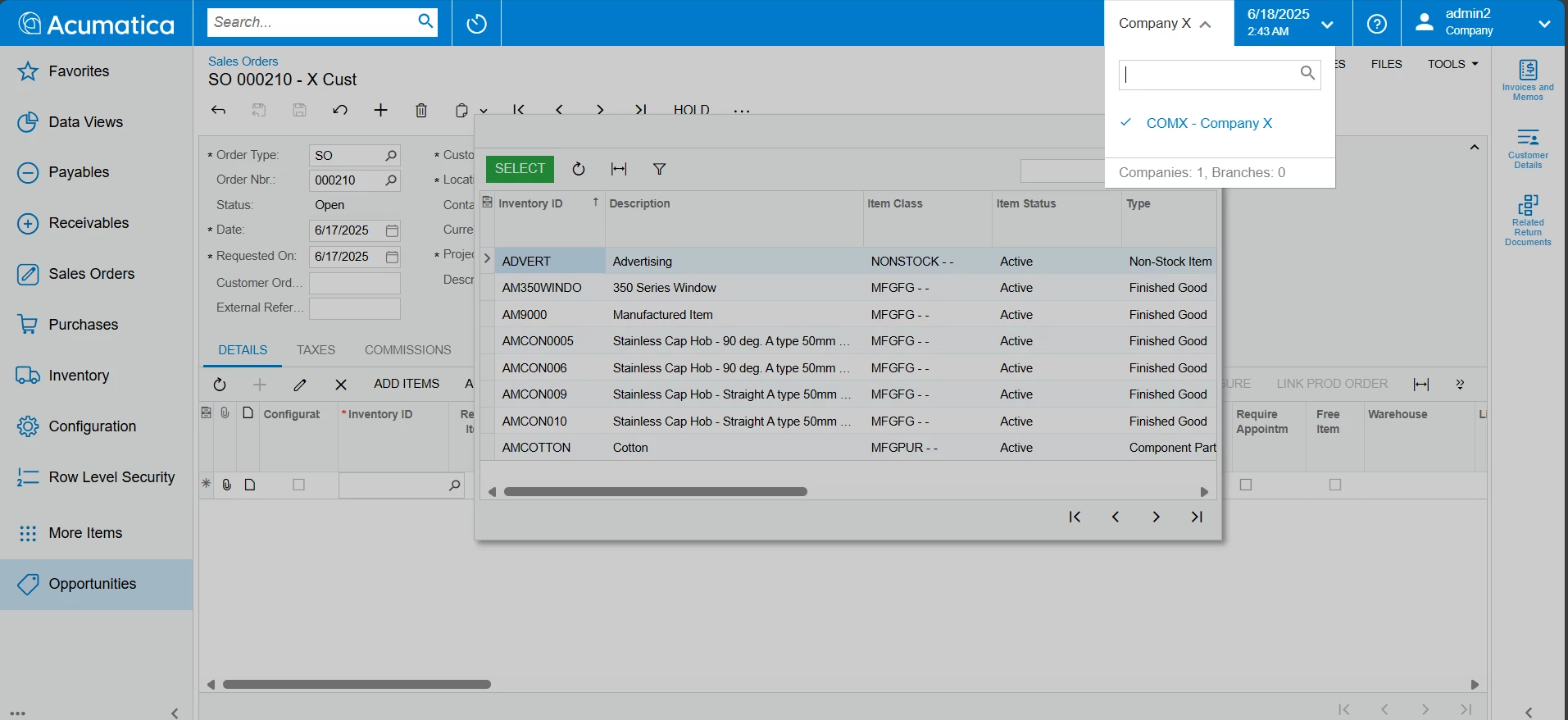
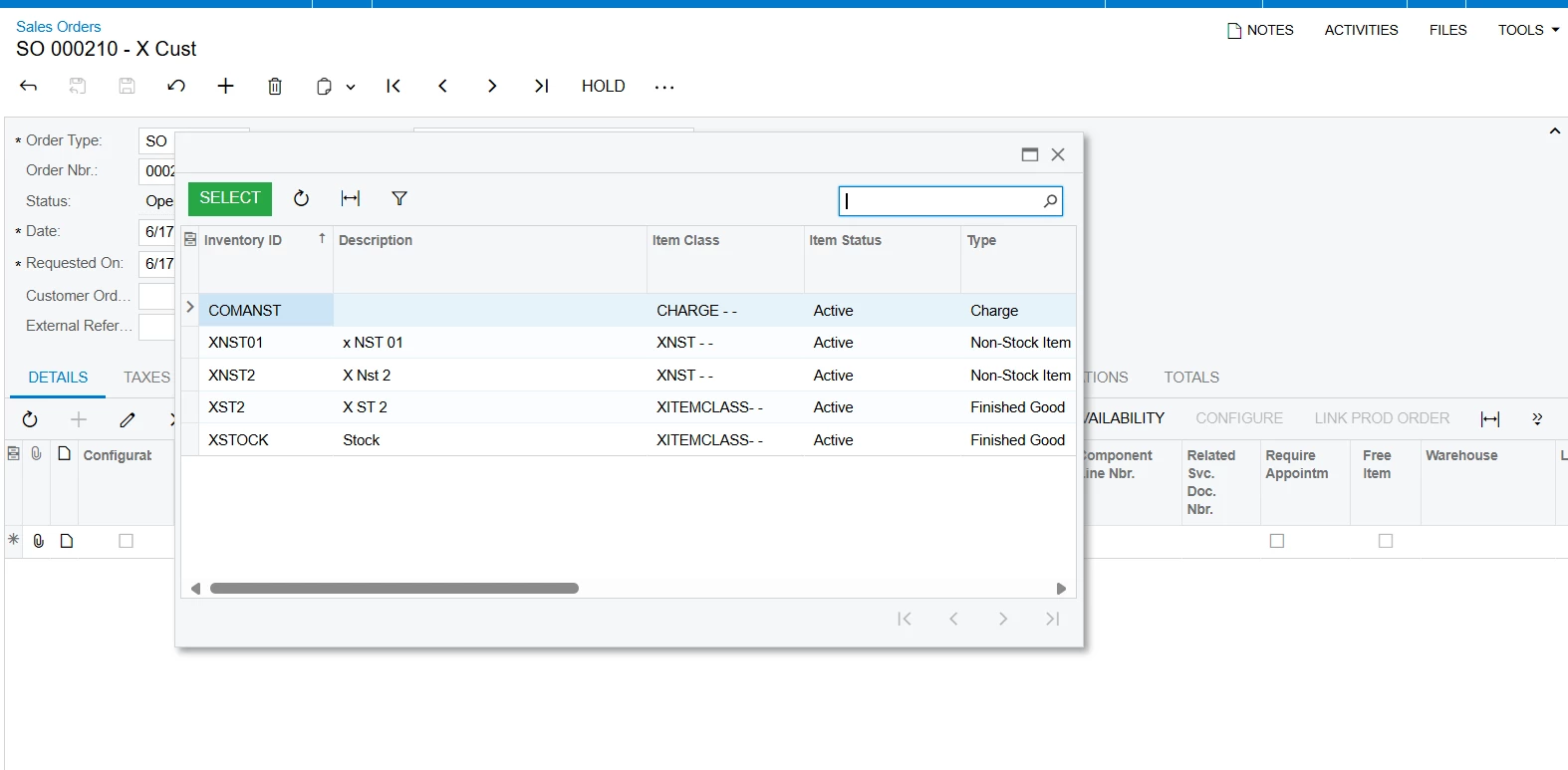
However when creating orders i can still see all other items in the tenant.

Have I missed any steps during configurations? or otherwise, how can I ensure that the user will only be able to select from the list of items restricted to the user?


Thank you in advance!

Best answer by CherryStreet

We are testing our new AI Assistant and ran your scenario through it, I hope this helps:

You're on the right track — you've implemented Item Class-based row-level security using Restriction Groups in a Single Tenant, Multi-Company environment in Acumatica. From your screenshots and description, the primary issue is:

New non-stock items still appear for all companies, even when their Item Class is restricted.

This is a known limitation in the way Acumatica applies Item Class restrictions: assigning a Restriction Group to the Item Class does not automatically cascade the restriction to newly created items unless manually triggered.


Summary Diagnosis:

The issue occurs because row-level restriction inheritance is not enforced automatically for new items created under a restricted Item Class unless explicitly propagated.


🛠️ Resolution Steps

1. Manually Apply Restrictions to New Items

After creating a new item (Stock or Non-Stock):

  1. Go to: Inventory Preferences Restriction Groups (CS101000).
  2. Select the group (e.g., X or Y).
  3. Go to the Group Details tab.
  4. Under Entity Type, select Inventory Item.
  5. Click + and add the new item(s) manually.

This makes the item visible only to the assigned group.


2. Use the “Apply Restriction Settings to All Items” Tool

If you want Acumatica to apply Item Class restriction inheritance:

  1. Go to: Inventory Preferences Item Class (IN201000).
  2. Select your Item Class (e.g., XNST).
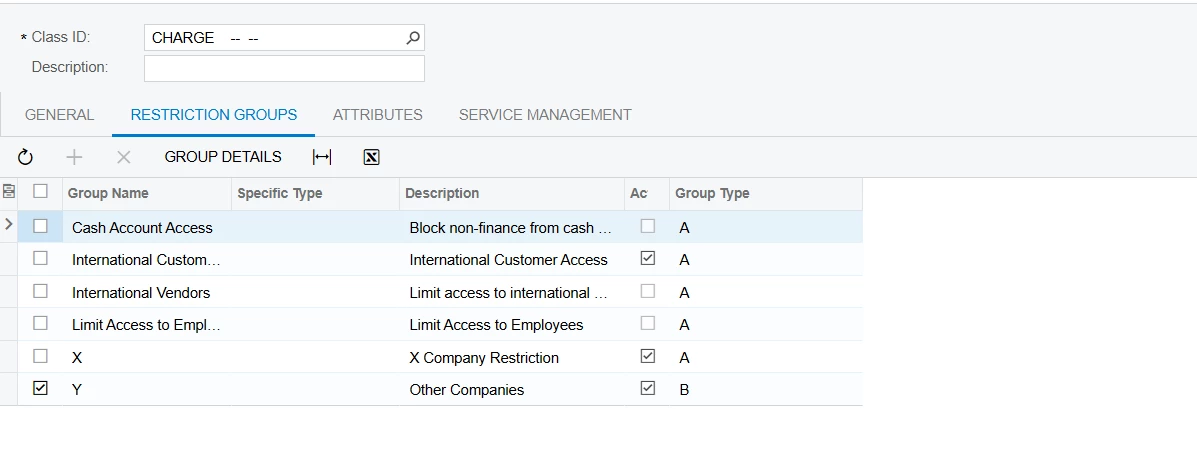
  3. On the Restriction Groups tab, confirm the correct group (e.g., X) is assigned.
  4. Click (Actions) Apply Restriction Settings to All Items.

This forces the system to apply the current group restriction to all existing and future items under that class — including newly created ones.

⚠️ This is a manual step. It needs to be executed each time after a new item is added unless you implement an automation (see below).


🪄 Optional: Automate Inheritance via Customization

To fully automate restriction propagation for new items:

  • Create a customization that hooks into the RowPersisted event on InventoryItem and applies the Restriction Group based on its Item Class.
  • You can also trigger ApplyToAllItems logic programmatically.

This ensures no human step is missed during item creation.


What You Did Right:

  • ✅ Set up restriction groups properly
  • ✅ Connected them to Item Classes
  • ✅ Verified restriction enforcement works when manually updated
 

💡 ERP Pro Tips

💡 Tip for Admins: Add the “Apply Restriction Settings to All Items” as a dashboard shortcut or automation schedule if new items are being created frequently.

💡 Tip for Security Teams: Use a Generic Inquiry to list all inventory items that do not belong to any Restriction Group, to monitor gaps.


Final Checklist

Task

Required?

Notes

Assign Restriction Group to Item Class

Done

Apply restriction to new items manually

⚠️

Required unless automated

Run “Apply Restriction Settings to All Items” after item creation

Triggers propagation

Customize for automation (optional)

🚀

Ideal for frequent item creation

4 replies

Forum|alt.badge.img

To add to my question, I was able to identify that the stock items were visible because the “Manage Restriction Settings to All Items” option was not executed properly by the system. Once the restriction group is added to the previously existing items one by one they disappeared from the search in SO.

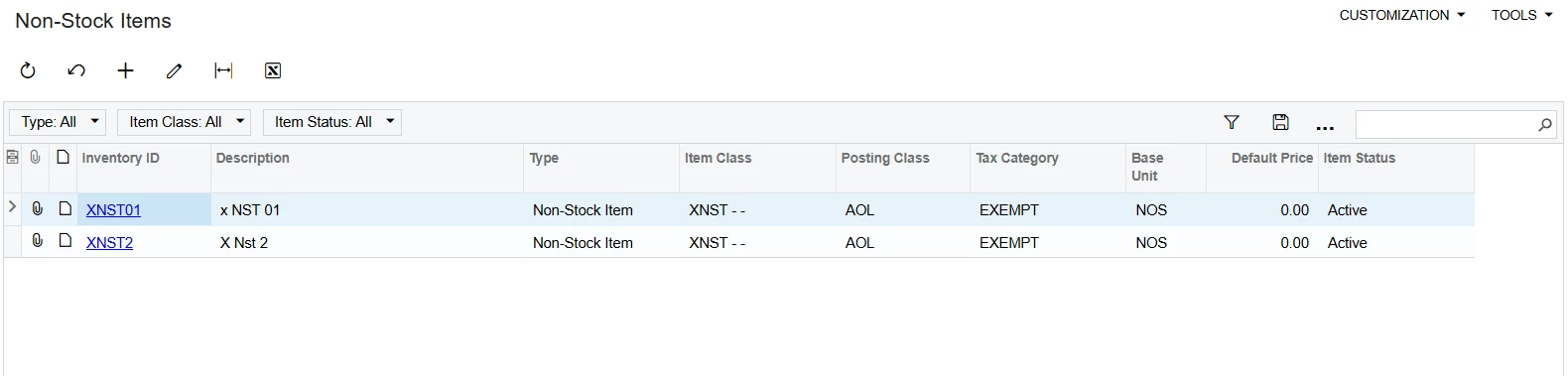
However when a new nonstock item is created it still appears in the order though the item class has the restriction group assigned properly.


Am i missing any steps in configuration which restrict the non-stocks from appearing for orders?


CherryStreet
Jr Varsity I
Forum|alt.badge.img
  • Jr Varsity I
  • Answer
  • June 19, 2025

We are testing our new AI Assistant and ran your scenario through it, I hope this helps:

You're on the right track — you've implemented Item Class-based row-level security using Restriction Groups in a Single Tenant, Multi-Company environment in Acumatica. From your screenshots and description, the primary issue is:

New non-stock items still appear for all companies, even when their Item Class is restricted.

This is a known limitation in the way Acumatica applies Item Class restrictions: assigning a Restriction Group to the Item Class does not automatically cascade the restriction to newly created items unless manually triggered.


Summary Diagnosis:

The issue occurs because row-level restriction inheritance is not enforced automatically for new items created under a restricted Item Class unless explicitly propagated.


🛠️ Resolution Steps

1. Manually Apply Restrictions to New Items

After creating a new item (Stock or Non-Stock):

  1. Go to: Inventory Preferences Restriction Groups (CS101000).
  2. Select the group (e.g., X or Y).
  3. Go to the Group Details tab.
  4. Under Entity Type, select Inventory Item.
  5. Click + and add the new item(s) manually.

This makes the item visible only to the assigned group.


2. Use the “Apply Restriction Settings to All Items” Tool

If you want Acumatica to apply Item Class restriction inheritance:

  1. Go to: Inventory Preferences Item Class (IN201000).
  2. Select your Item Class (e.g., XNST).
  3. On the Restriction Groups tab, confirm the correct group (e.g., X) is assigned.
  4. Click (Actions) Apply Restriction Settings to All Items.

This forces the system to apply the current group restriction to all existing and future items under that class — including newly created ones.

⚠️ This is a manual step. It needs to be executed each time after a new item is added unless you implement an automation (see below).


🪄 Optional: Automate Inheritance via Customization

To fully automate restriction propagation for new items:

  • Create a customization that hooks into the RowPersisted event on InventoryItem and applies the Restriction Group based on its Item Class.
  • You can also trigger ApplyToAllItems logic programmatically.

This ensures no human step is missed during item creation.


What You Did Right:

  • ✅ Set up restriction groups properly
  • ✅ Connected them to Item Classes
  • ✅ Verified restriction enforcement works when manually updated
 

💡 ERP Pro Tips

💡 Tip for Admins: Add the “Apply Restriction Settings to All Items” as a dashboard shortcut or automation schedule if new items are being created frequently.

💡 Tip for Security Teams: Use a Generic Inquiry to list all inventory items that do not belong to any Restriction Group, to monitor gaps.


Final Checklist

Task

Required?

Notes

Assign Restriction Group to Item Class

Done

Apply restriction to new items manually

⚠️

Required unless automated

Run “Apply Restriction Settings to All Items” after item creation

Triggers propagation

Customize for automation (optional)

🚀

Ideal for frequent item creation


Forum|alt.badge.img

@CherryStreet, Thank you so much. I thought that the system would automatically pick the restriction group assigned to the item class when creating a new item. However, seems like it's not the case especially with non-stock items. 


To add to your point. for step no 1. Manually Apply Restrictions to New Items, I believe that the navigation path should be: Row Level Security » Profiles » Restriction Groups. wherein the user should filter the newly created item name and select as included for the selected item group.


CherryStreet
Jr Varsity I
Forum|alt.badge.img
  • Jr Varsity I
  • June 19, 2025

Glad we could help, and thank you for the tip in step 1.  😊