We have about 350 stock items that are set to either inactive or marked for deletion. Some of these items still have a quantity on hand in one or more warehouses.
The items marked inactive/m4d do not show up on the physical count, and will not let us create adjustments for them.
Is there a way to zero out the on hand inventory for these items without manually going through all 350, reactivating them, doing an adjustment, and then deactivating them again?
Thank you!
Best answer by nhatnghetinh
Hi @xkylewrightx
There is no one-step way for Acumatica to automatically bring the on-hand quantity of Inactive/M4D items to zero. However, you have a faster way to do it to get the final result as you want
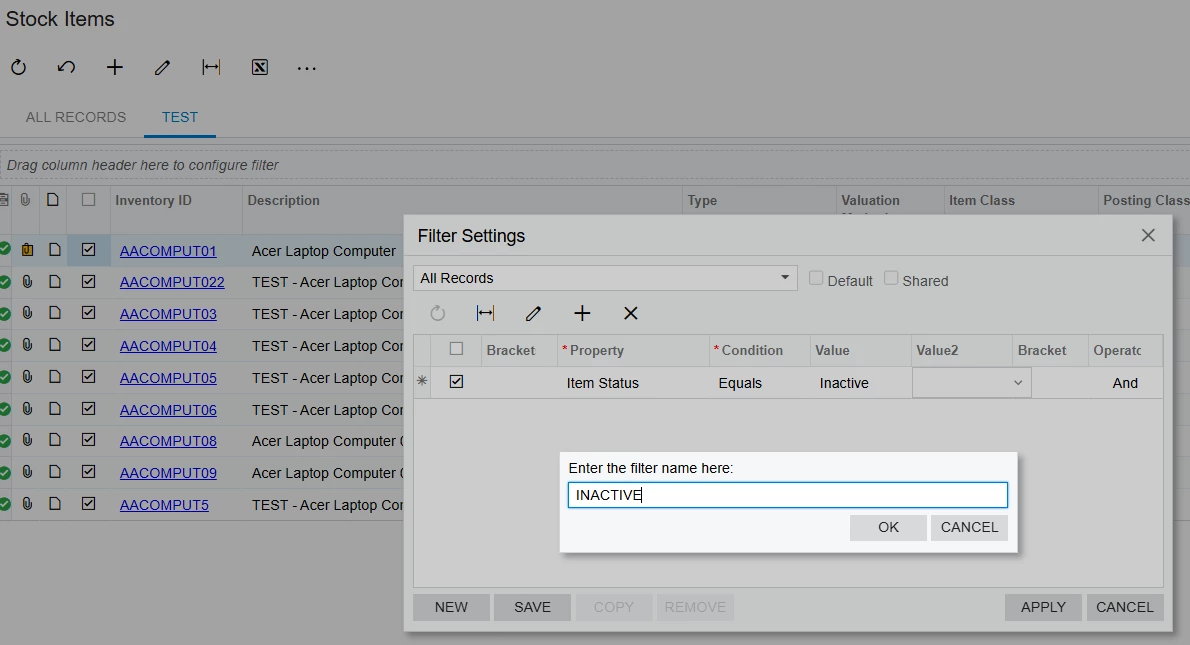
Step 1: On the Stock Item screen. Create a Filter to filter 350 Inactive items
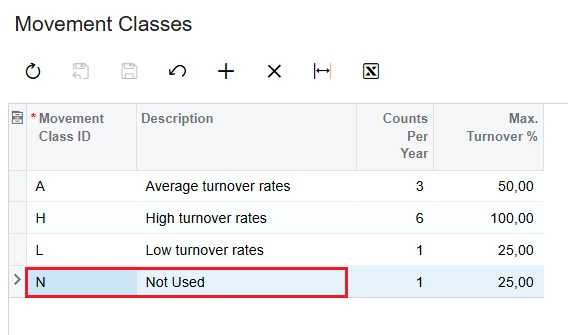
Step 2: Create a mark to identify these 350 items. For example, create a Movement Class of N: Not Used
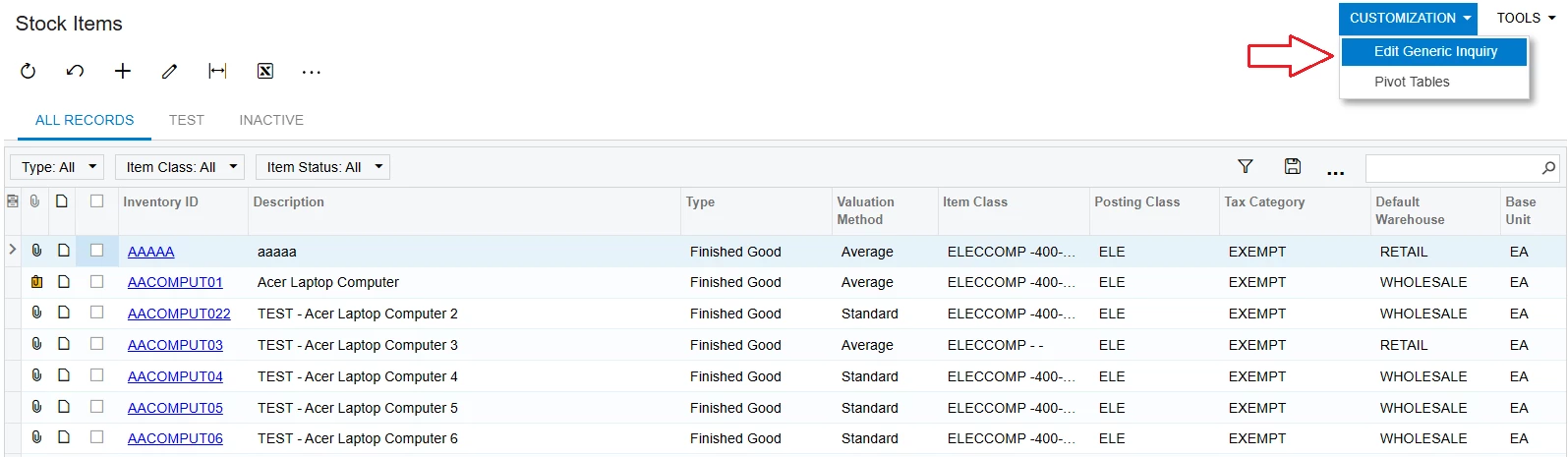
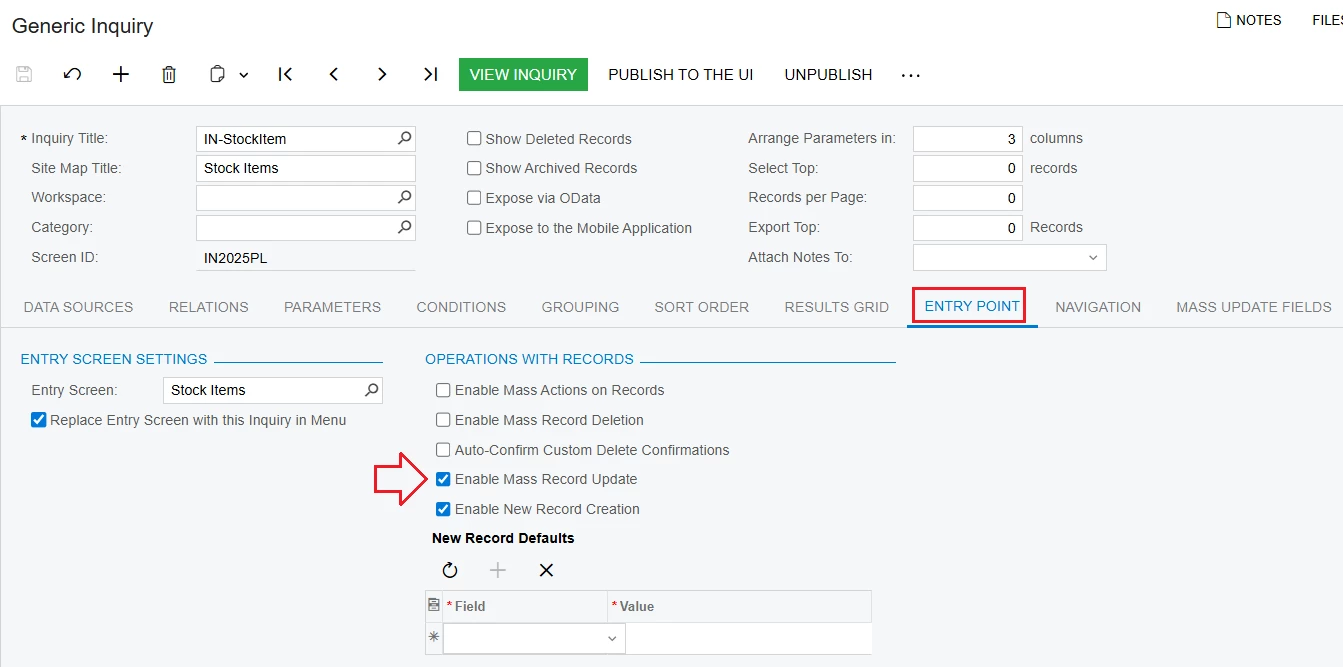
ENTRY POINT Tab: check "Enable Mass Record Update"
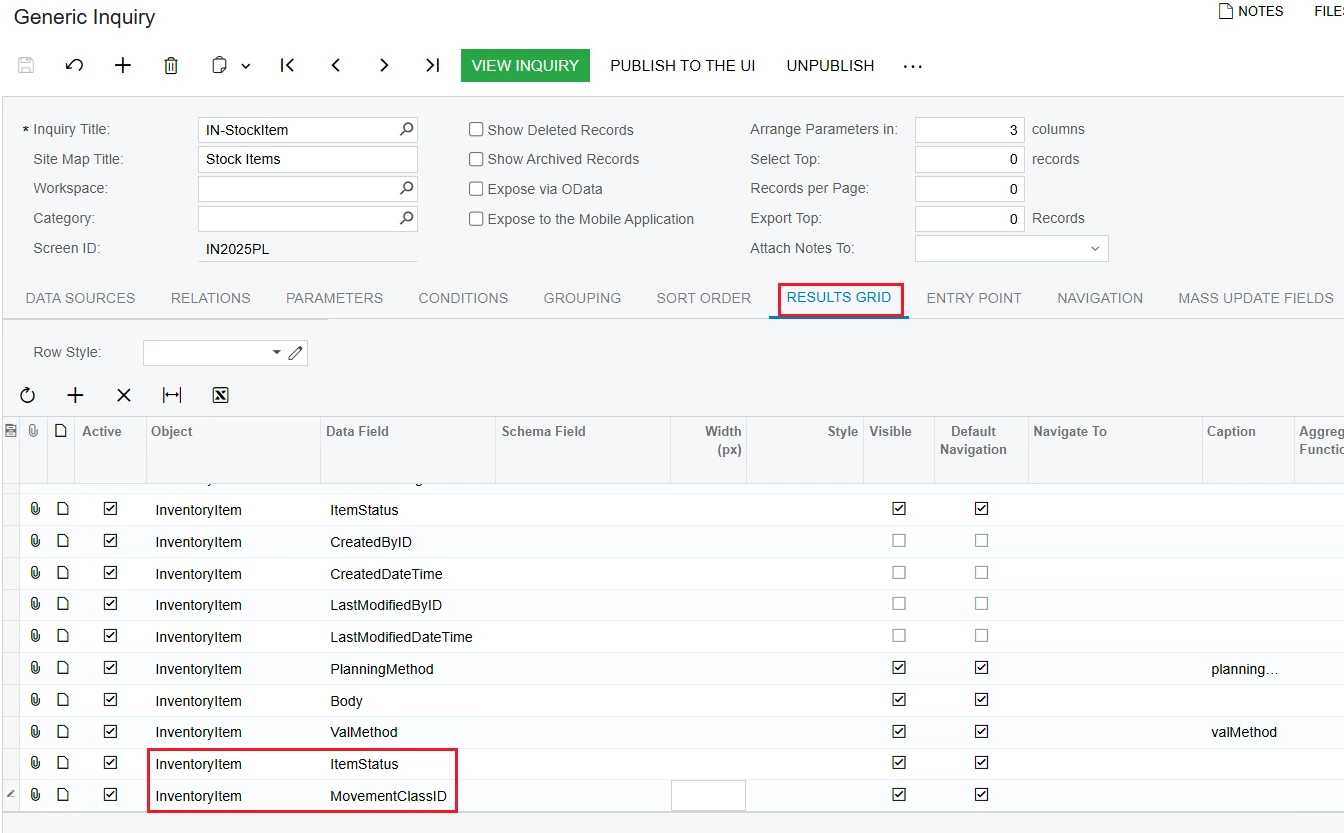
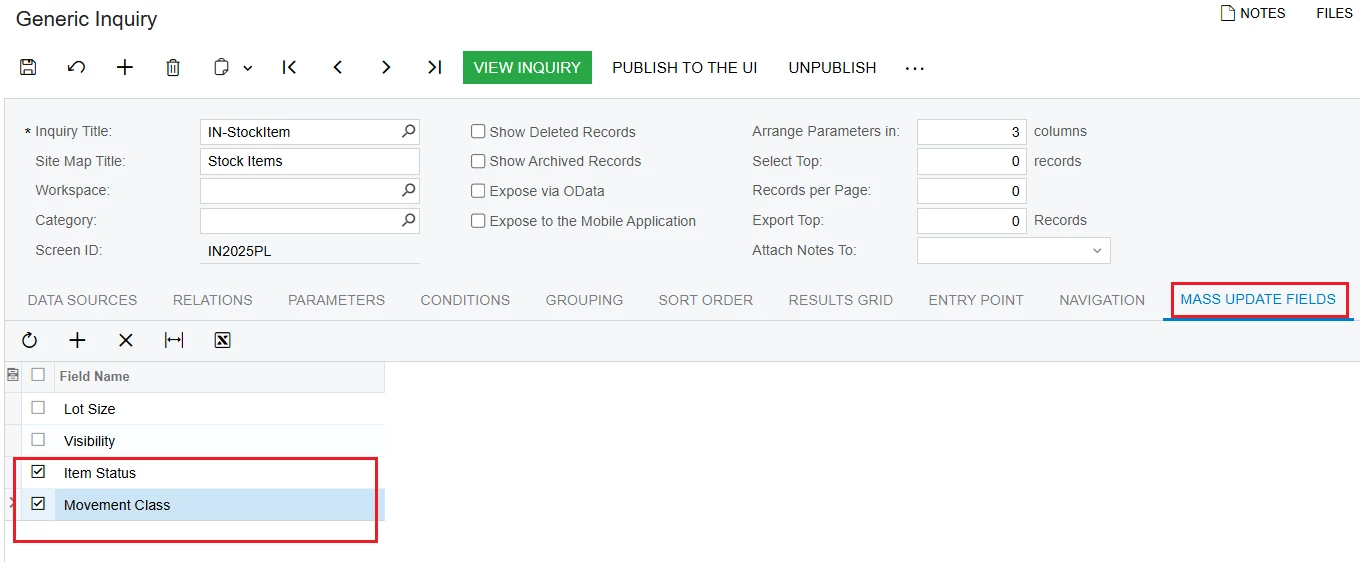
+ MASS UPDATE FIELDS tab: add 2 fields: itemStatus, movementClassID
+ Click SAVE and VIEW INQUIRY
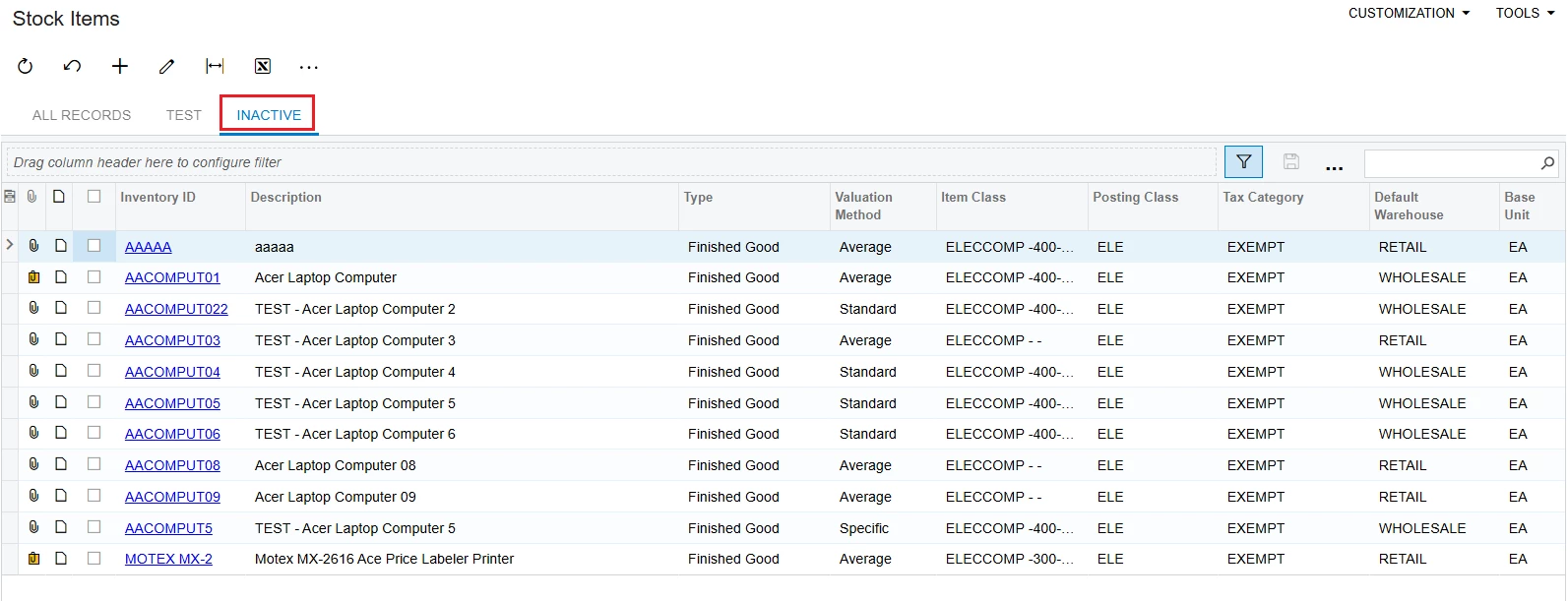
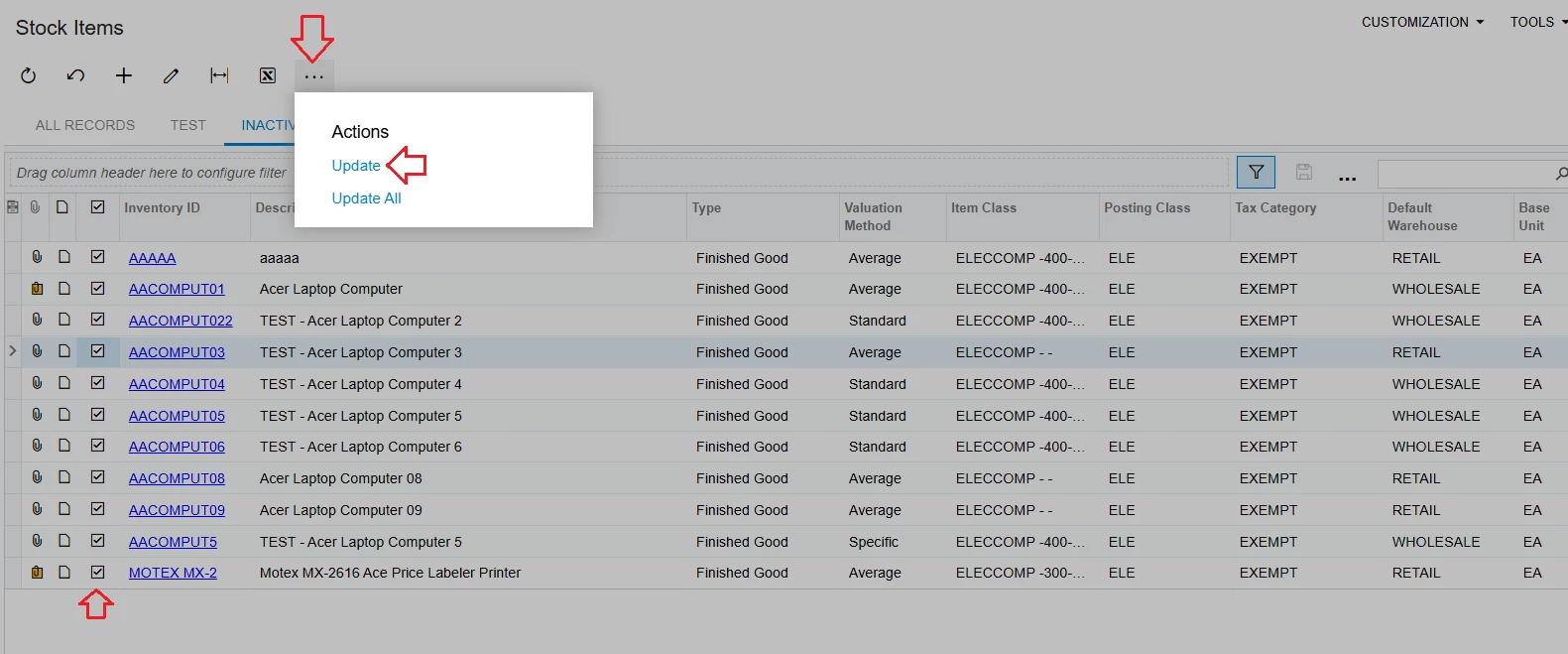
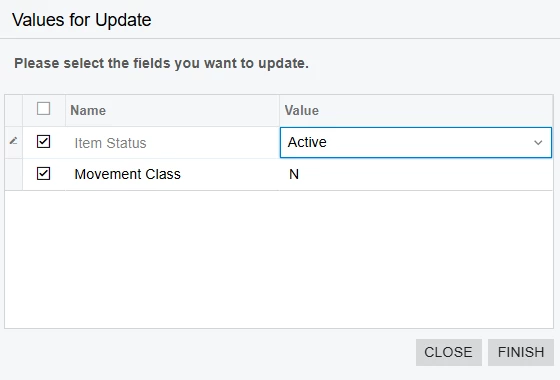
Step 4: on the Stocks Item screen > INACTIVE tab > Check 350 items > Click "..." > Click Update
Values for Update:
Item Status: Select Value: Active
Movement Class: Select Value: N
Click FINISH
Step 5: Export these 350 items to Excel Step 6: Import 350 items into the adjustment screen. Make adjustments so that the on hand inventory = 0 Step 7: Create a Filter to filter these 350 items with movementClassID = N. Do the same as Step 2 Step 8: Inactive 350 items. Do the same as Step 4
Personally I would handle this with a basic import scenario if you can write one, rather than manually going into each stock item.
- Export a list of the relevant items from the stock items screen (filter by item status) - On this list, set the item status for each item to Active - Write and run an import scenario using your excel sheet as a data provider, to make all of the items active - Do the stock adjustment - again I would import the data to the stock adjustment with an excel sheet. - Alter your import scenario and excel sheet / data provider to change the status back to inactive/deletion and run it again
There is no one-step way for Acumatica to automatically bring the on-hand quantity of Inactive/M4D items to zero. However, you have a faster way to do it to get the final result as you want
Step 1: On the Stock Item screen. Create a Filter to filter 350 Inactive items
Step 2: Create a mark to identify these 350 items. For example, create a Movement Class of N: Not Used
ENTRY POINT Tab: check "Enable Mass Record Update"
+ MASS UPDATE FIELDS tab: add 2 fields: itemStatus, movementClassID
+ Click SAVE and VIEW INQUIRY
Step 4: on the Stocks Item screen > INACTIVE tab > Check 350 items > Click "..." > Click Update
Values for Update:
Item Status: Select Value: Active
Movement Class: Select Value: N
Click FINISH
Step 5: Export these 350 items to Excel Step 6: Import 350 items into the adjustment screen. Make adjustments so that the on hand inventory = 0 Step 7: Create a Filter to filter these 350 items with movementClassID = N. Do the same as Step 2 Step 8: Inactive 350 items. Do the same as Step 4