Question

Item allocated to Shipment but getting negative qty. error when picking the item for the shipment

  • January 23, 2025
  • 6 replies
  • 165 views

We have an item that is allocated. It is the last qty that is in stock:

It is allocated to this shipment from this location:

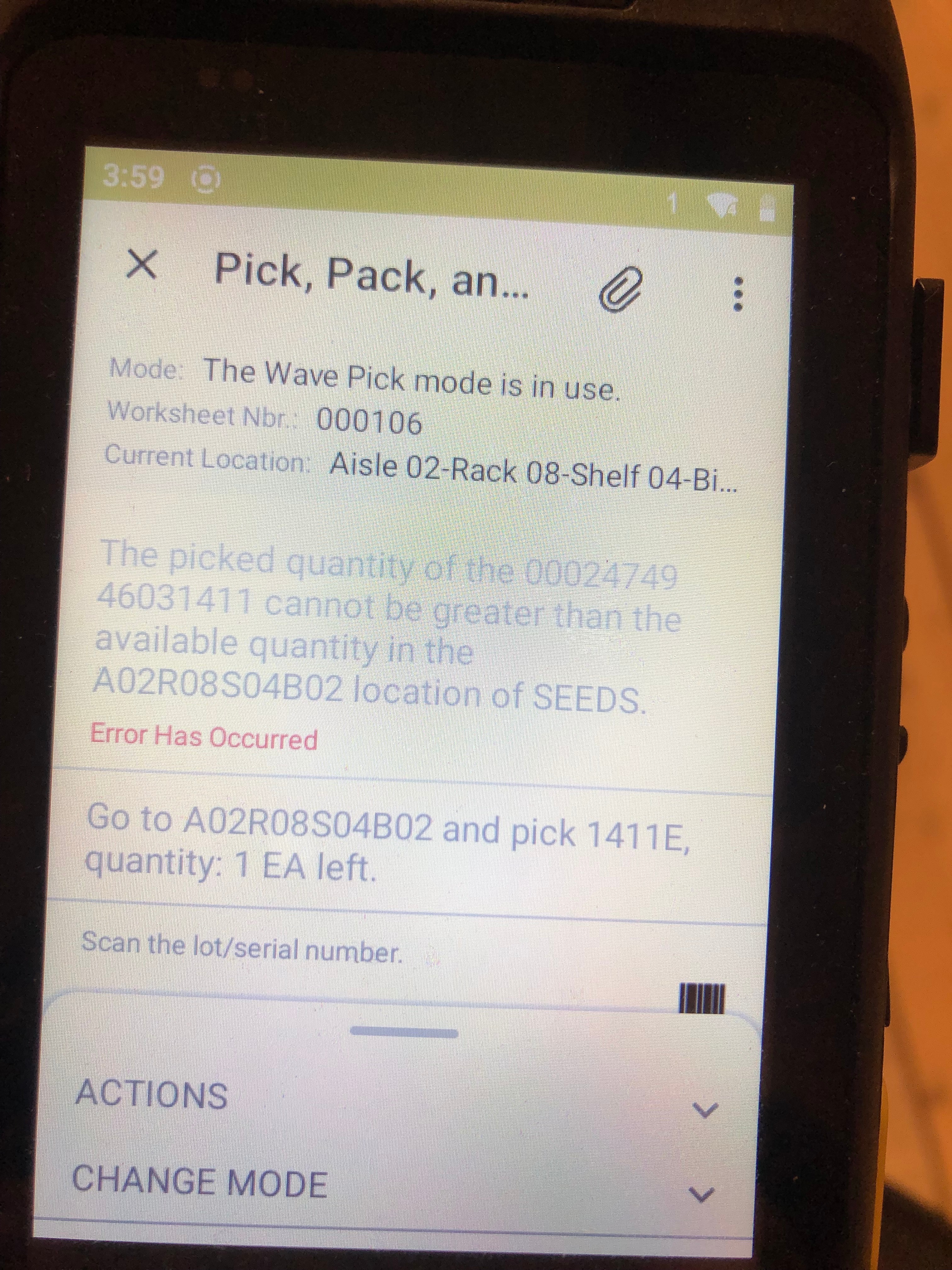
But, when we go to pick the item, we get this error. Our lot class issue method is user-enterable, so we scan the lot number when we pick the item. This is happening repeatedly. Since we are in Pick Pack Ship, we are stuck with leaving the item on back order if we want to get the order out same day, even though all our ducks seem to be in a row. Sorry about the size of the image.


6 replies

Forum|alt.badge.img
  • Varsity I
  • January 24, 2025

@xryxanx  This is AI generated solution try this hope its help for you!

Root Cause Analysis

  1. Negative Quantity in Available for Shipment:

    • In your first screenshot, the row <UNASSIGNED> shows a negative quantity of -6 in the "Available for Shipment" column.
    • The allocated lot has a quantity of 1, but the "Available for Shipment" column shows -1, indicating an inventory mismatch or double allocation.
  2. Allocation Conflicts:

    • The allocated lot (A02R08S04B02) is assigned to Reference Nbr. 019382, but there may be another allocation or shipment trying to use the same lot.
  3. Timing of Inventory Transactions:

    • If an item is allocated and then shipped (Reference Nbr. 019387 in the second screenshot), the system may not have updated the inventory in real-time, causing conflicts.
  4. System Configuration:

    • The lot class issue method being user-enterable might lead to manual entry errors or discrepancies during scanning.

Suggested Solutions

1. Adjust Inventory Levels

  • Navigate to Inventory → Transactions → Adjustments.
  • Create an inventory adjustment to correct the negative "Available for Shipment" value:
    • Add stock back to <UNASSIGNED> to align the quantities.
  • Verify the adjustment reflects properly in the "Available for Shipment" column.

2. Clear and Reallocate the Item

  • Go to the Sales Order screen for Reference Nbr. 019382.
  • Remove the allocation:
    • Click Actions → Unallocate Inventory.
  • Reallocate the correct lot manually:
    • Click Actions → Allocate Inventory and ensure the lot and location match.

3. Resolve Allocation Conflicts

  • Check if the same lot is allocated across multiple sales orders or shipments:
    • Navigate to Allocations Inquiry under Inventory and filter by the lot number (A02R08S04B02).
    • Reassign lots to different orders if needed to avoid conflicts.

4. Validate Lot Settings

  • Navigate to Inventory → Lot Classes and review the lot settings:
    • Ensure the Issue Method is appropriate for your workflow.
    • If needed, temporarily change the Issue Method to "First Expired First Out (FEFO)" or "First In First Out (FIFO)" to automate selection.

5. Verify Pick Pack Ship Configuration

  • Ensure the Pick Pack Ship workflow is correctly configured:
    • Go to Order Types → Workflows and confirm settings for the relevant sales order type.
    • Ensure Partial Shipments are allowed if you want to ship available items without backordering.

6. Reconcile Inventory

  • Use Inventory → Processes → Inventory Reconciliation to identify discrepancies and reconcile inventory levels across the system.

Preventive Measures

  • Automate Lot Selection: Use automated lot selection (FIFO/FEFO) to minimize manual entry errors.
  • Regular Inventory Audits: Periodically review inventory levels and reconcile discrepancies.
  • Update Workflow Settings: Ensure workflows in Pick Pack Ship align with your operational processes.

  • Author
  • Freshman I
  • February 14, 2025

We think the issue is double allocation.  We will see the qty. as Allocated therefor deducting it form Available for Shipment. But, when we look at the allocation details, we see that the qty. being deducted is for the shipment we are picking. How do we fix double allocations?

It only happens when we are picking in Waves using Pick Pack Ship with scanners. We have found if we pick orders individually not using Pick Pack Ship, but are manually printing pick sheets and assigning lots on the shipment screen using desktop computers, we are not experiencing this double allocation. We have even broken the shipment out of the wave and assigned lots manually on the shipment screen using a desktop and we do not get the negative qty. error.

Is there somehow lag with inventory numbers when we are using Pick Pack Ship and scanners?


Forum|alt.badge.img

@lauraj46 Any chance you know someone who would be able to answer this?


lauraj46
Captain II
Forum|alt.badge.img+8
  • Captain II
  • March 5, 2025

Hi ​@lunarchickadee ,

Have you tried opening a support case with Acumatica for this issue?

Laura


plambert
Semi-Pro I
Forum|alt.badge.img+2
  • Semi-Pro I
  • June 20, 2025

This may be a silly idea, but since you are able to assign lots at the time of scan, is the scanner picking up the wrong lot? Your image shows 0024749<br>46031411, so without more context I’m tempted to believe that it’s trying to use “002474946031411” as the entire lot number, of which you have 0 at that location, obviously. Are you able to manually enter the “46031411” lot number into the scanner to ensure that it is rejecting the proper value?


  • Author
  • Freshman I
  • June 23, 2025

@plambert That’s not it. We gerenally only have a single lot of an item. 00024749 is the Acumatica Inventory ID while 46031411 is definitely the lot number. Our lot numbers are generated in-house and the numbers mean very specific things: the fiscal year + our catalog number. The lot had been inputted hundreds of time previously with no issue. It is just when we get down to having one or two of the lot in a particular location that we start getting bogus negative qty. warnings.