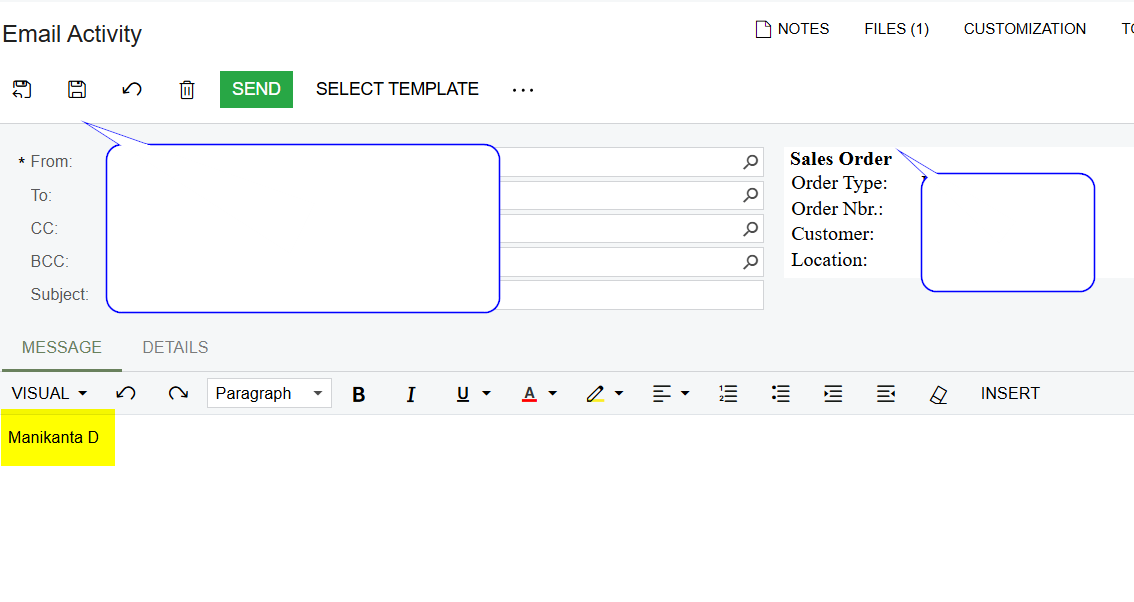
When I send an email using below actions> Purchase order> Print purchase order> send- When I click send I am getting only signature in the email body, however the subject line shows as expected.
I am unable to reproduce the issue in another instance or local instance.
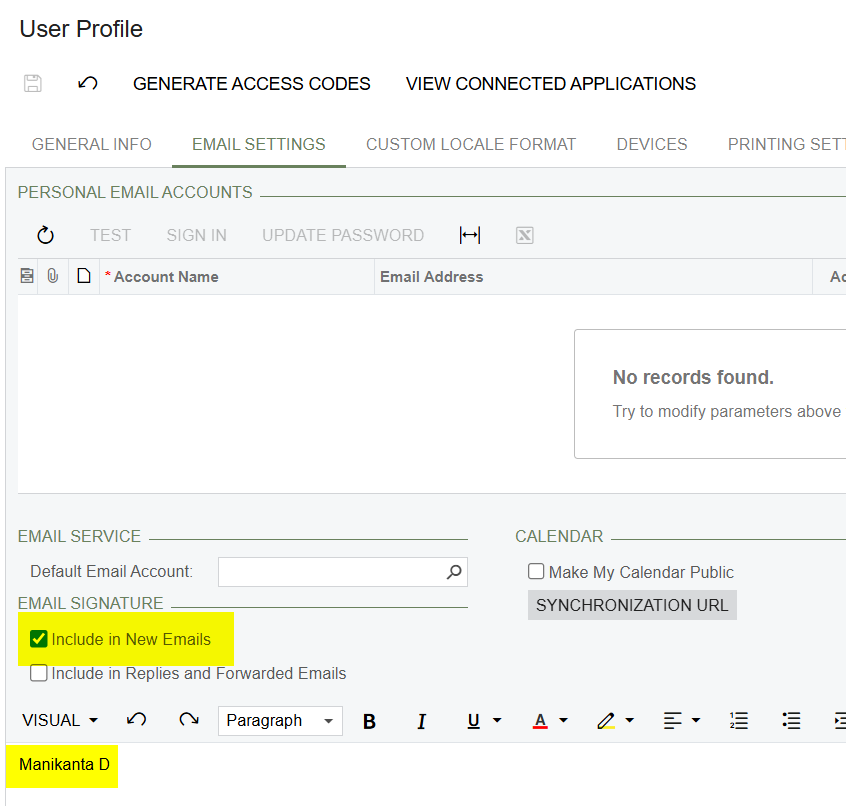
AC-329922: If an email template was specified in the report editor and the Include in New Emails check box was selected for the email signature in the user's profile on the User Profile (SM203010) form, the signature overrode the template body in generated emails.
@mclarke88 The issue happening after the upgrade and this is same for every action like sales order, purchase order ect, when I turn off use in email account it is working as expected but I want signature to be included while sending emails.
We just upgraded to 2024 R2 this morning and we are now having the same issue. One user has setup a signature to use when she sends an email that is not based on a template. Since the upgrade, the template for quotes and sales orders is not appearing and all she sees is her signature.
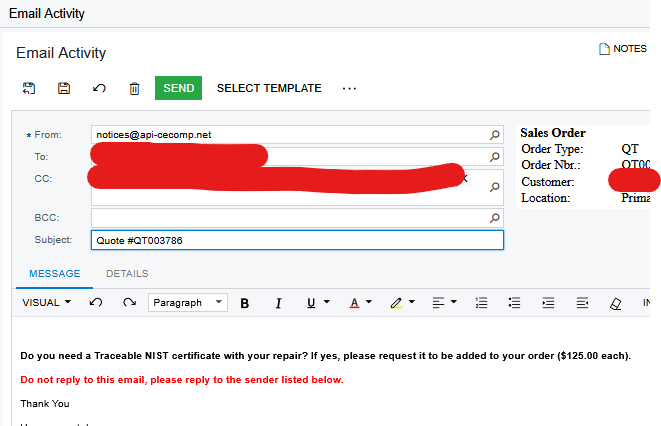
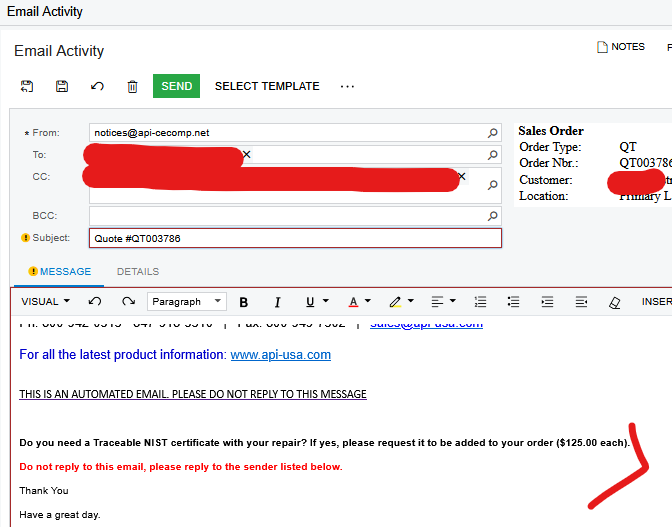
We also tried manually selecting the correct template and clicked the “Replace Email Contents”. The template verbiage was there but the unwanted “signature” was still at the bottom of the email.
With EMAIL SIGNATURE ACTIVE IN USER PROFILESELECT TEMPLATE / REPLACE CONTENTS - UNWANTED SIGNATURE AT BOTTOM
My response was crafted with AI assistance, tailored to provide detailed and actionable guidance for your query. If you want to include an email signature when sending reports from Acumatica without overriding the report template data, follow these steps:
Option 1: Use Email Account Signatures (Recommended)
Navigate to System Management > Email Preferences > Email Accounts (SM204002).
Select the email account used for sending reports.
In the Signature tab, enter the desired signature (HTML formatting is supported).
Save and test by sending an email with a report attachment.
🔹 Benefit: This method ensures a consistent signature without modifying report templates.
Option 2: Customize the Notification Template
Go to System Management > Email Preferences > Notification Templates (SM204003).
Locate the template used for sending the report (e.g., SOInvoiceMail).
Edit the Body and add the email signature below the main content:
🔹 Benefit: This method allows customization per template without affecting reports.
Option 3: Modify the Report to Include a Signature (Less Preferred)
If the email signature must be embedded within the report itself:
Open the Report Designer and load the specific report (e.g., SO641000.rpx).
Add a textbox at the bottom of the report and enter the signature details.
Save, publish, and test the report.
🔹 Downside: This hardcodes the signature into the report, affecting printed versions as well.
Best Practice Recommendation
For email-specific signatures, use Option 1 (Email Account Signature) or Option 2 (Notification Template Update). These methods ensure proper formatting while maintaining report integrity.
We also encountered this issue. We have several reports with embedded email bodies that inject specific signatures. After updating to 24R2, the templates are being entirely replaced with the sender’s signature. Our current workaround is to deselect the ‘Include in New Emails’ checkbox on the User Profile > Email Settings tab.
I have found a possible solution to this. Firstly, you will need to deselect “Include in New Emails” from your user profile.
Then you can go into the email template and insert the following data field at the end of the template: ((GeneralInfo.MailSignature))
Just remember that reports can also have default emailing information attached to them. Check to see if they are set up with generic To, Subject, Body information or if they are linked to an email template.
AC-329922: If an email template was specified in the report editor and the Include in New Emails check box was selected for the email signature in the user's profile on the User Profile (SM203010) form, the signature overrode the template body in generated emails.