We’re trying to configure Acumatica so that certain programming information — specifically the contractor’s email and phone number — is stored in the Customer record and then automatically printed on the Sales Order whenever a specific group of items is ordered.
Has anyone implemented something similar? We would prefer to do this without a Customization Project.
Any guidance would be greatly appreciated.
Best answer by lauraj46
Hi @jsudak ,
You should be able to accomplish this by configuring attributes or user defined fields on the customer and stock item screens and adjusting the printed Sales Order form using the report designer.
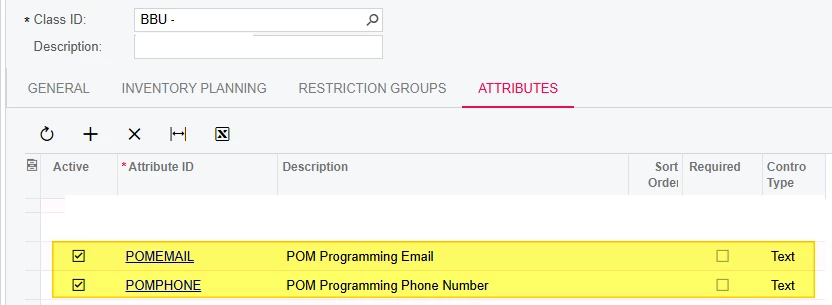
On the customer screen add attributes (or user defined fields) for the contractor email and phone number.
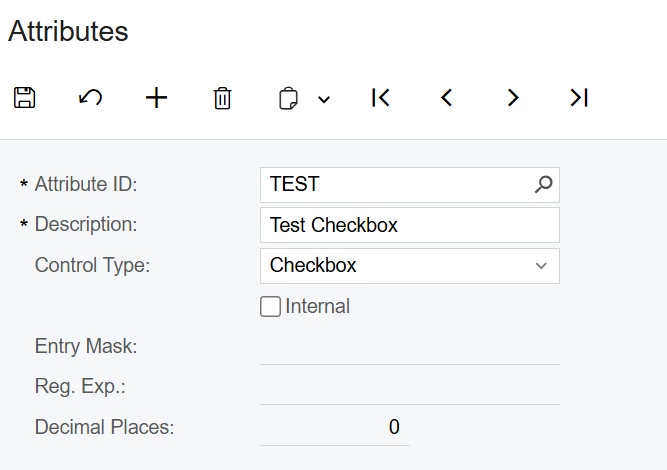
On the stock item screen define an attribute to indicate if the information should be printed.
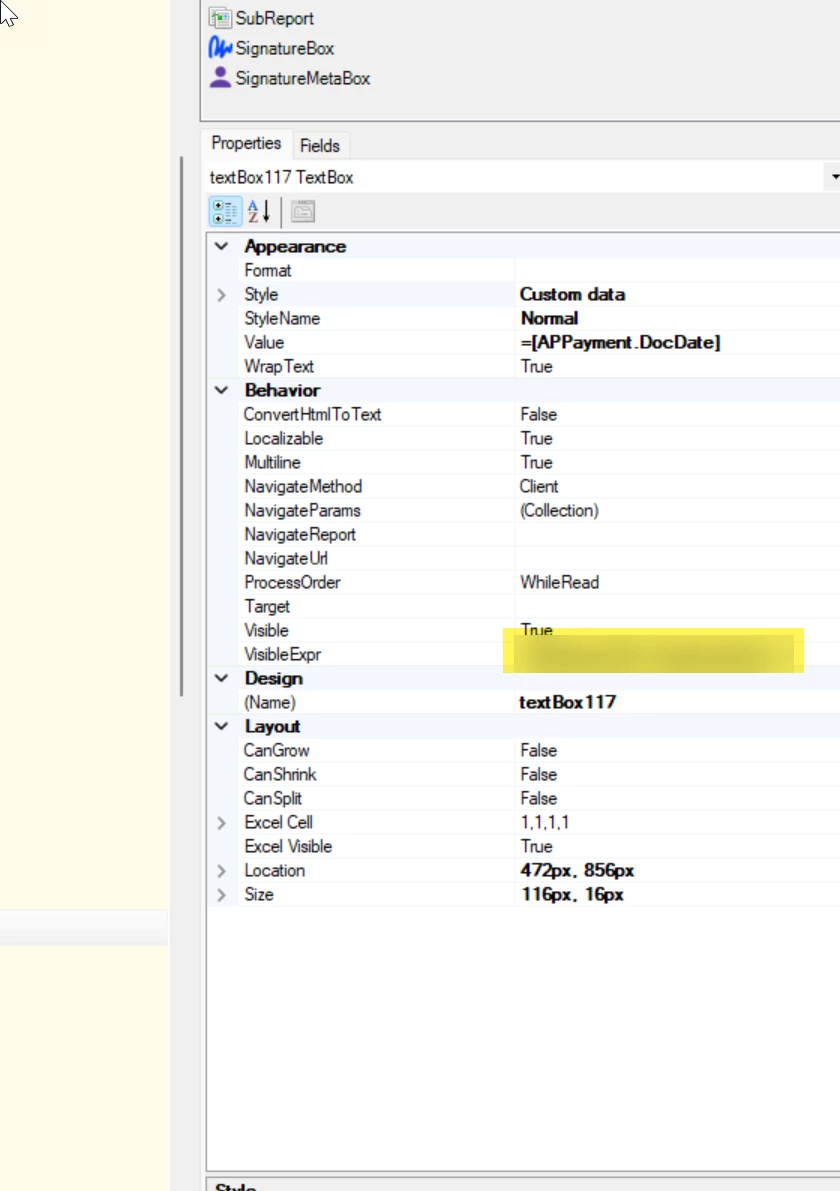
Use the Report Designer to adjust the Sales Order printed form. Use a visibility condition to hide or display the customer fields based on the value of the attribute on the stock item.
You should be able to accomplish this by configuring attributes or user defined fields on the customer and stock item screens and adjusting the printed Sales Order form using the report designer.
On the customer screen add attributes (or user defined fields) for the contractor email and phone number.
On the stock item screen define an attribute to indicate if the information should be printed.
Use the Report Designer to adjust the Sales Order printed form. Use a visibility condition to hide or display the customer fields based on the value of the attribute on the stock item.
Add the contractor to the customer record as a contact.
Add an attribute to the contact to identify the contact as a contractor. This could be a checkbox or combo type attribute. This is to separate this contact info from the other contacts associated with the customer. So, if you had 4 contacts on the customer, you don’t want to print all 4 contacts on the report, you just want to print the one assigned in the attribute. That’s what this attribute if for.
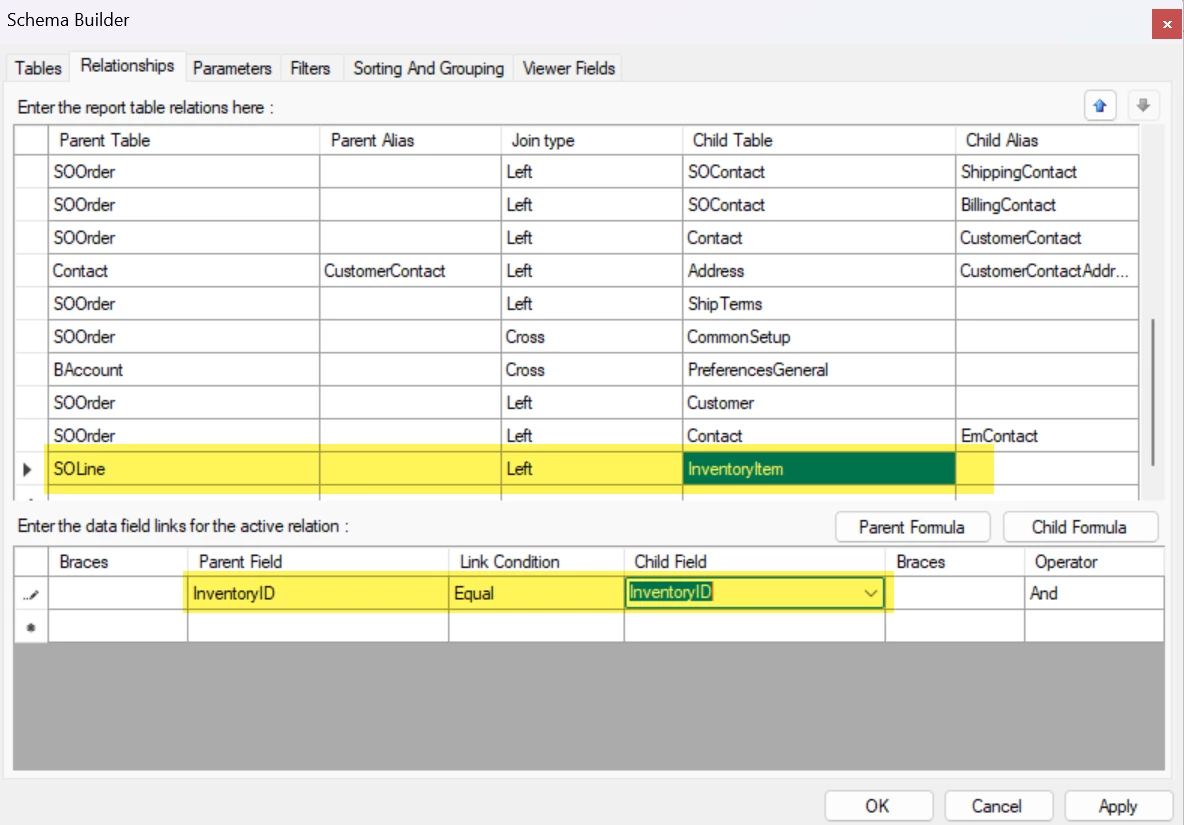
In Acumatica report designer make sure you have a join from the SOLine table to the InventoryItem table through the inventoryID field. Also make sure you have a join from the customer table to the contact table through the customer/baccount field and where that attribute you added to the contact = True (if checkbox) or whatever value is defined in your attribute.
In Acumatica report designer, you will need to add join the Address table to your contacts table where the defaddressID field = addressID field.
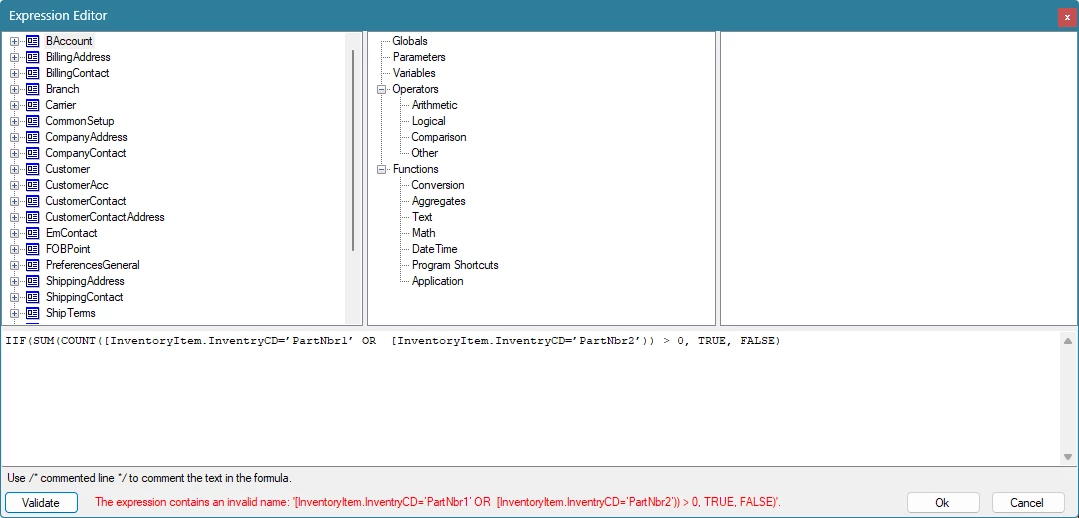
Also in report designer, copy the “ship to” text box with your customers shipping info and place where you want the contractor’s info to show. Add a visibility condition to it such as… =IIF(COUNT([InventoryItem.InventryCD=’PartNbr1’ OR [InventoryItem.InventryCD=’PartNbr2’) > 0, TRUE, FALSE) . Replace PartNbr1 and 2 with your actual Inventory IDs. Add additional items if relevant.
Replace all the info in the ship to text box with the contact info in the contact and address tables.
How do I set up Report Designer to determine when the POM Programming Info should print and to ensure it selects the 2 UDF’s? How do I have the 2 UDF’s print in the body below the item description?
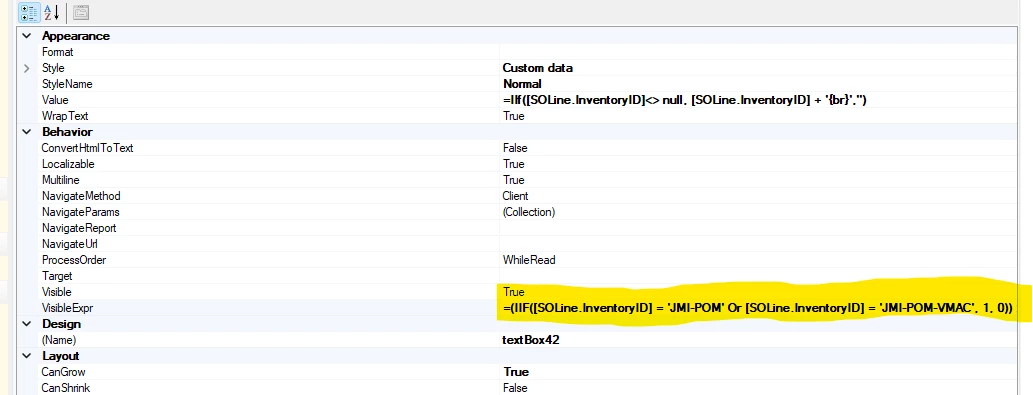
The error message indicates a syntax error in the visibility expression, looks like a couple of missing square brackets. Also, you will want to swap out the specific part numbers in the example expression that @bwhite49 shared and replace that logic with the attribute. If your attribute is named TEST, then the expression would be something like this:
IIF(SUM(COUNT([InventoryItem.AttributeTEST]=’true’)) > 0, TRUE, FALSE) or depending on how you are grouping it could be simplified to this:
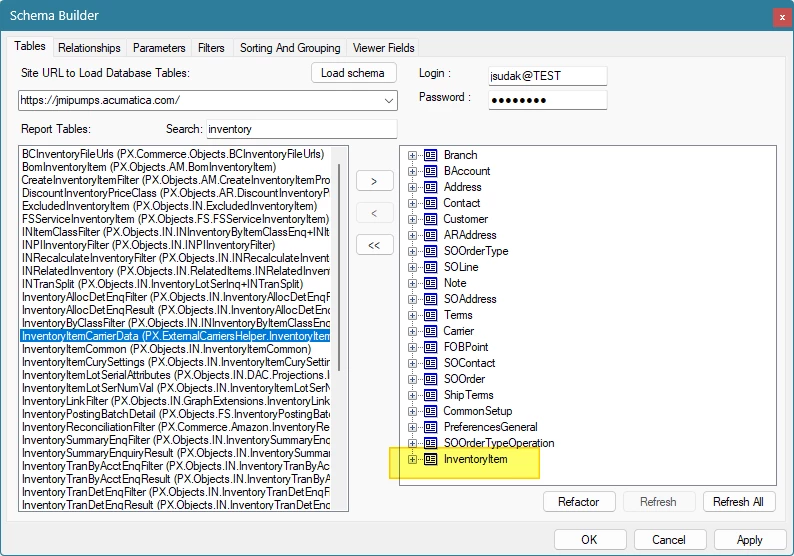
If you don’t see the attribute in the Schema Builder, click on the InventoryItem table name in the schema and choose Refresh.
Agree with @bwhite49 that there is a bit of a learning curve to get up to speed with Report Designer. One of the best ways to learn is to examine the many existing reports that are built into Acumatica. The Acumatica Open University Course (S130) is also helpful.
You have encountered another complexity where InventoryID and InventoryCD are not the same, so your formula will not work. InventoryCD is your front-end identified for the part (ex. JMI-POM) whereas InventoryID is the back-end (ex. 12345)
Have you joined InventoryItem to SOLine in your schema builder? You either need to swap [SOLine.InventryID] with [InventoryItem.InventoryCD] or use the attribute as Laura mentioned.