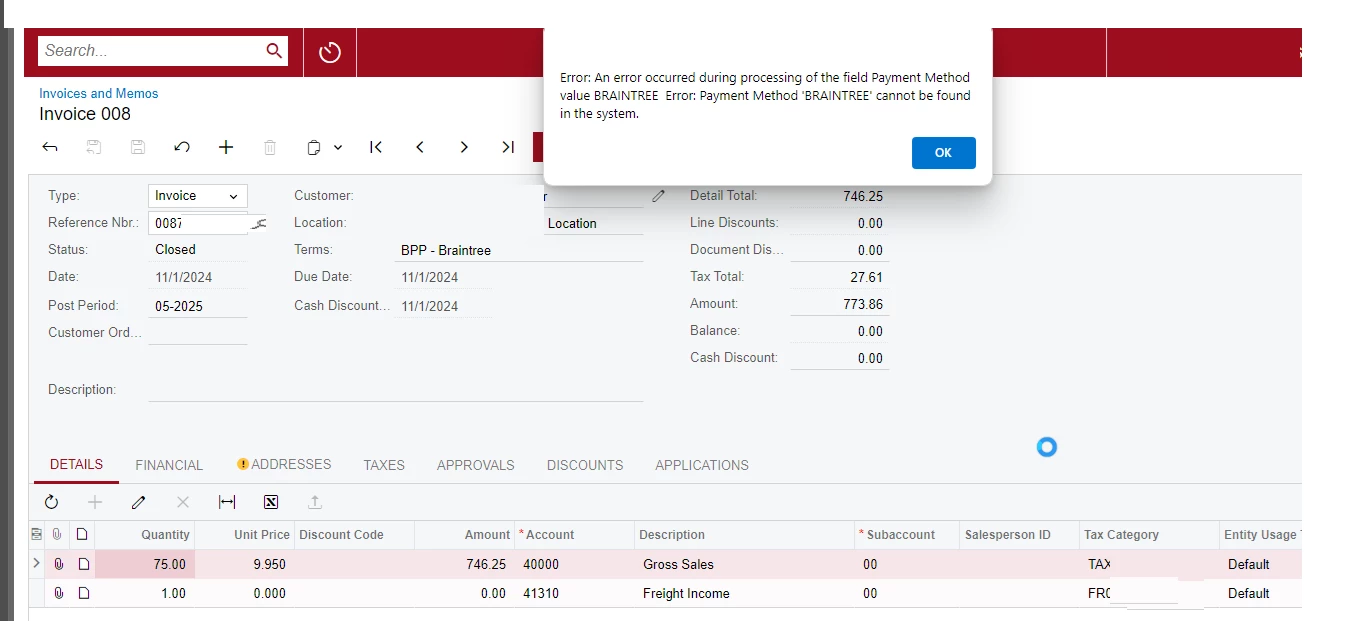
There are times an invoice is created accidentally and we need to reverse it but, for customers with Credit card terms, if we try to reverse an invoice, we get the error in the screenshot attached stating the customer does not have a braintree method set up. We do not want to refund the customer, just to reverse the invoice. This customer in the example screenshot pays with cc but he does not store his cc when he places orders, so we cannot set up a braintree profile for him. In these situations, how do we reverse an invoice for a customer with credit card (BPP) terms without having a braintree profile set up?
Best answer by saifalisabri
This reply has been created with the help of AI
Reversing a customer invoice with credit card (BPP) terms in Acumatica without a Braintree profile setup can be challenging because the system enforces credit card integration checks when processing reversals.
Option 1: Temporarily Change Payment Terms
Change Payment Terms: Go to the customer profile and temporarily change the payment terms from "Credit Card (BPP)" to a non-credit card-based term (e.g., "Net 30").
Reverse the Invoice: Reverse the invoice as you would for a standard customer.
Revert Payment Terms: Once the reversal is completed, revert the payment terms back to "Credit Card (BPP)."
Option 2: Create an Adjustment Entry
Create a Credit Memo:
Navigate to Receivables > Transactions > Credit Memos.
Create a credit memo for the full amount of the original invoice.
Apply the credit memo to the invoice.
Post the Credit Memo:
This method balances the customer’s account without processing any refunds.
Option 3: Use a Zero-Dollar Payment
Create a Payment Record:
Go to Receivables > Payments and Applications.
Enter a zero-dollar payment to apply the invoice against itself, effectively reversing it without triggering a credit card transaction.
Apply the Payment:
Link the zero-dollar payment to the invoice to offset the balance.
Option 4: Disable Credit Card Processing for the Reversal
Create a New Payment Method:
Define a new payment method, such as "Manual Credit Card."
Assign this method to the customer profile temporarily.
Reverse the Invoice:
Reverse the invoice using this new payment method.
Reassign Original Payment Method:
After the reversal, switch the payment method back to "Credit Card (BPP)."
Key Considerations
Audit Compliance: Ensure that any manual changes are documented for auditing purposes.
User Permissions: Verify that you have sufficient permissions to modify payment terms or apply adjustments.
Business Process Impact: Discuss these options with your finance or accounting team to ensure they align with business practices.
Reversing a customer invoice with credit card (BPP) terms in Acumatica without a Braintree profile setup can be challenging because the system enforces credit card integration checks when processing reversals.
Option 1: Temporarily Change Payment Terms
Change Payment Terms: Go to the customer profile and temporarily change the payment terms from "Credit Card (BPP)" to a non-credit card-based term (e.g., "Net 30").
Reverse the Invoice: Reverse the invoice as you would for a standard customer.
Revert Payment Terms: Once the reversal is completed, revert the payment terms back to "Credit Card (BPP)."
Option 2: Create an Adjustment Entry
Create a Credit Memo:
Navigate to Receivables > Transactions > Credit Memos.
Create a credit memo for the full amount of the original invoice.
Apply the credit memo to the invoice.
Post the Credit Memo:
This method balances the customer’s account without processing any refunds.
Option 3: Use a Zero-Dollar Payment
Create a Payment Record:
Go to Receivables > Payments and Applications.
Enter a zero-dollar payment to apply the invoice against itself, effectively reversing it without triggering a credit card transaction.
Apply the Payment:
Link the zero-dollar payment to the invoice to offset the balance.
Option 4: Disable Credit Card Processing for the Reversal
Create a New Payment Method:
Define a new payment method, such as "Manual Credit Card."
Assign this method to the customer profile temporarily.
Reverse the Invoice:
Reverse the invoice using this new payment method.
Reassign Original Payment Method:
After the reversal, switch the payment method back to "Credit Card (BPP)."
Key Considerations
Audit Compliance: Ensure that any manual changes are documented for auditing purposes.
User Permissions: Verify that you have sufficient permissions to modify payment terms or apply adjustments.
Business Process Impact: Discuss these options with your finance or accounting team to ensure they align with business practices.