Solved

Can't Create Purchase Receipt in Acumatica When Tracking Expiration Dates

  • December 11, 2025
  • 2 replies
  • 29 views

Forum|alt.badge.img+6

We plan to use Acumatica to track items' expiration dates. Here's our workflow:

  1. First, print a physical copy of the purchase receipt.
  2. The warehouse receiver then uses this paper to accept goods, fills in the received quantity on the receipt, and records the expiration date for items requiring expiration tracking.
  3. After receiving the completed physical receipt, the office clerk enters the details into the system.
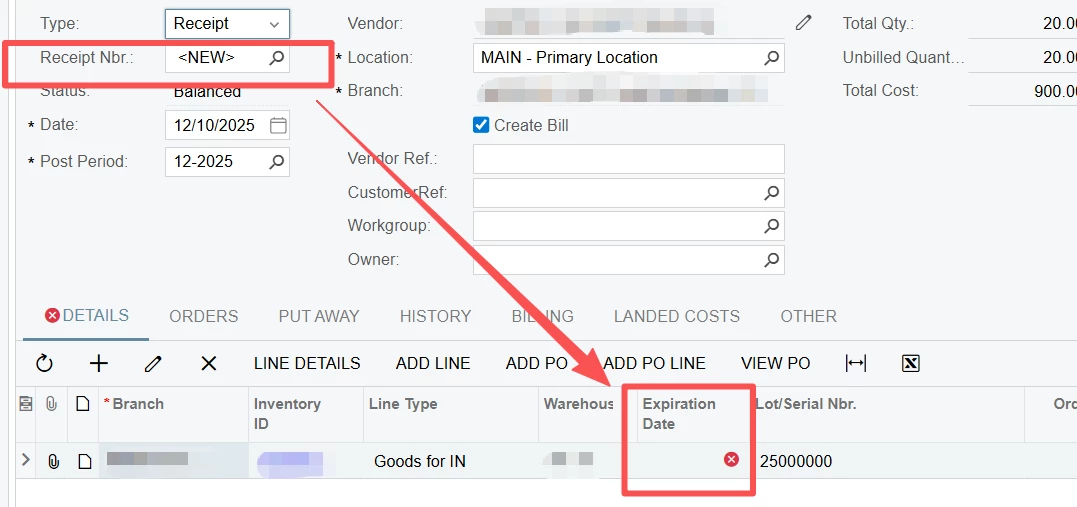
     

     However, we encountered an issue: once the "Track Expiration Date" feature is enabled, we can't create a purchase receipt in Acumatica unless we first enter an expiration date. But without creating the purchase receipt, we can't print the physical copy—this is a total catch-22.A paradox where one step depends on the other.

Any suggestions on how to resolve this?
Best answer by ShoKetchum56

Hi Ray!

I did some local testing and I think the issue is that once with Expiration Dates, once you declare the Serial (or Lot Number), you have to also declare the Expiration Date. 


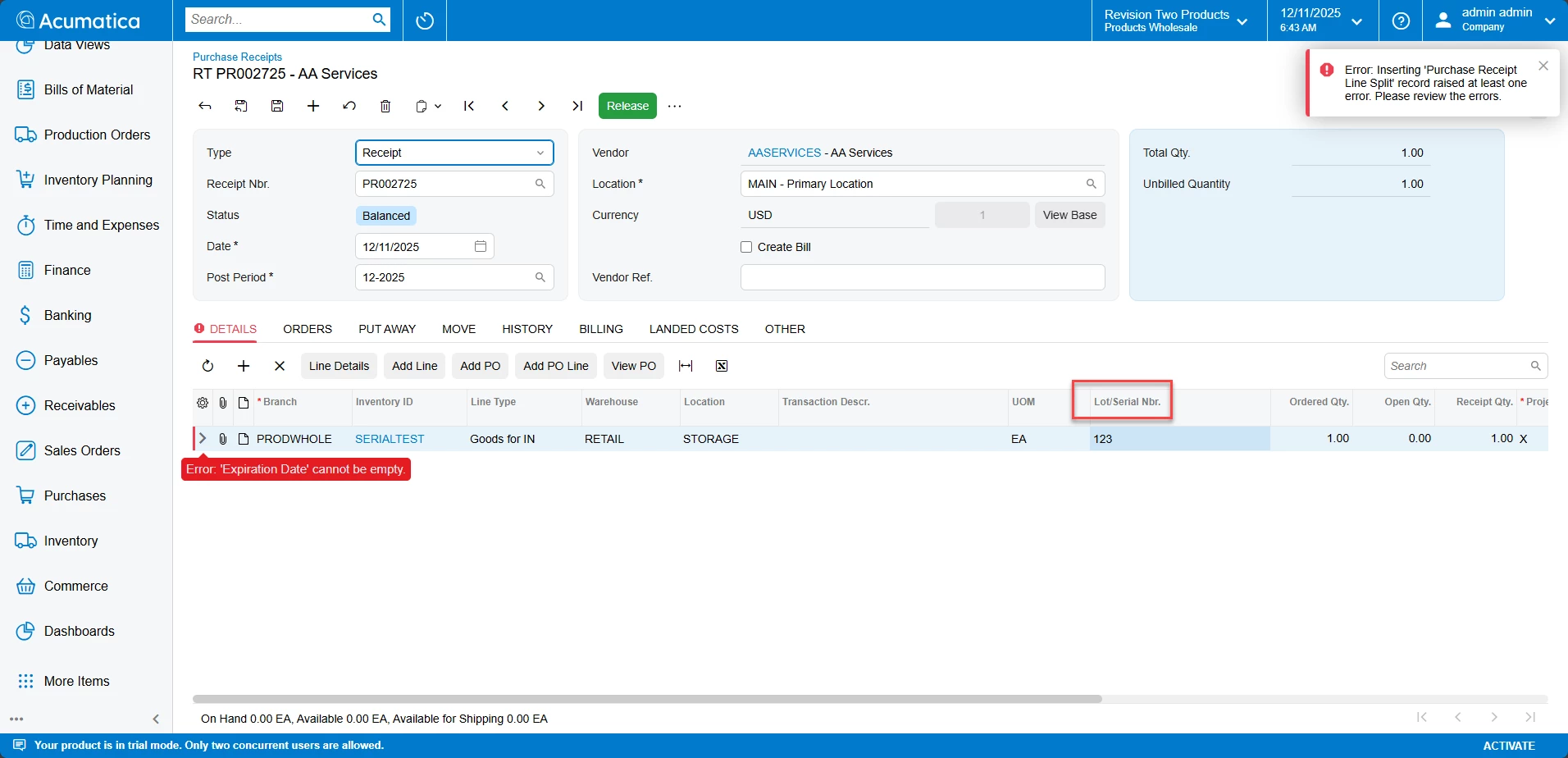
In you shared screenshot, there is a value in the “Lot/Serial Number” field. In this case, the user entering the value should enter both the Serial Number and the Expiration date at the same time. 


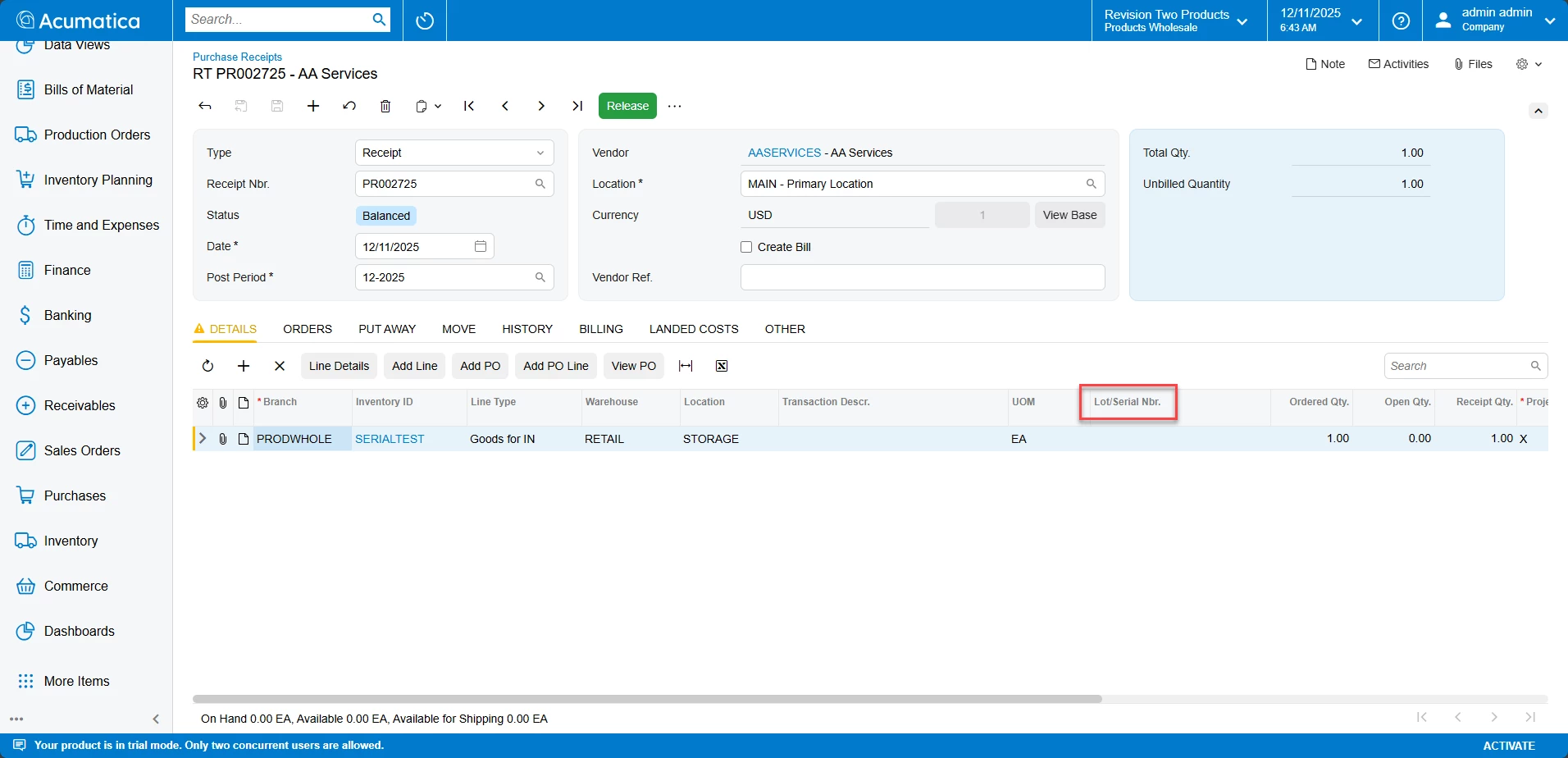
In my local, leaving Lot/Serial Blank allowed the creation of the Purchase Receipt!


However, once I entered a Serial Number, it also required the Expiration Date:


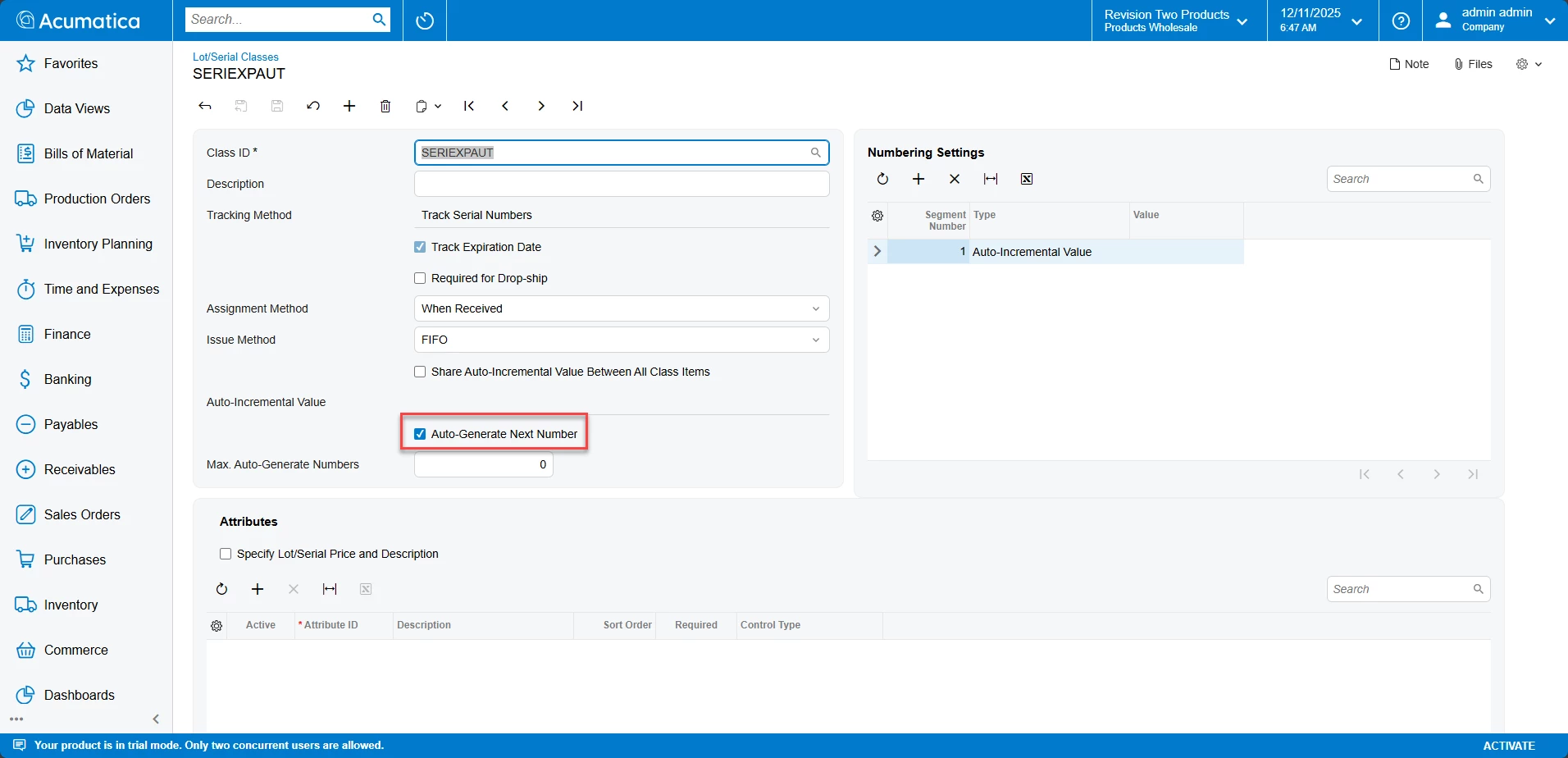
However, you may have “Auto Generate Next Number” set on your Lot/Serial Class, which would automatically enter the Lot/Serial Number on the Receipt creation:

You may want to disable this for the Lot/Serial Class of your items tracked by Expiration Date to ensure the Receipt can be created.

Then your users can enter the Expiration Date when generating the Serial Number!


Hope this information helps!

2 replies

  • Acumatica Employee
  • Answer
  • December 11, 2025

Hi Ray!

I did some local testing and I think the issue is that once with Expiration Dates, once you declare the Serial (or Lot Number), you have to also declare the Expiration Date. 


In you shared screenshot, there is a value in the “Lot/Serial Number” field. In this case, the user entering the value should enter both the Serial Number and the Expiration date at the same time. 


In my local, leaving Lot/Serial Blank allowed the creation of the Purchase Receipt!


However, once I entered a Serial Number, it also required the Expiration Date:


However, you may have “Auto Generate Next Number” set on your Lot/Serial Class, which would automatically enter the Lot/Serial Number on the Receipt creation:

You may want to disable this for the Lot/Serial Class of your items tracked by Expiration Date to ensure the Receipt can be created.

Then your users can enter the Expiration Date when generating the Serial Number!


Hope this information helps!


Forum|alt.badge.img+6
  • Author
  • Captain II
  • December 12, 2025

@ShoKetchum56  Hi, Expert, thank you for your help. Yes, I tried, if I clear the lot/serial filed on purchase receipt or I uncheck the “auto generanate next number”,  the receipt can be saved without error.  But with no auto genearation of lot#, would make things even worse. That user can probably not well handle the lot#.
I think the best way to fix it, is the system do not check during save/persisting. The system should only check the expiration date enterrred or not when releasing.  Does this make sense?
By they way, can you look at the below post and give some guides ?
How to convert non-expiration date capture items to expiration date capture items? | Community