Answer

What is the best way to copy an existing screen?

  • October 13, 2025
  • 3 replies
  • 75 views

I need to make a copy of an existing screen in Acumatica, and I’m looking for a way to do it that will allow the screen to follow through with an upgrade without breaking.

I followed the instructions in this topic: Is it possible to copy existing screens? | Community .  That worked, but when we did an upgrade, the copied files were lost.  Also, that method requires direct access to the server.

I know you can make a new screen in a customization, but I am not sure the correct way to use that to make a copy of an existing screen to then customize.  I would appreciate if someone could provide the steps to make a copy of an existing screen in a customization that could be published even after an application upgrade.  For example, I would like to copy and customize the service order screen FS300100.
Best answer by Abhishek Niikam

Thanks for the response.

I followed the steps given the best I could, but when I do this:

  1. In the Customization Editor, click Files → Add File.

It seems I can only select from a list of existing files to add, and I can’t seem to add a new file.  Is that because I do not have correct permissions or settings?


If I create a new screen in the Customization Editor, Screens → Create Screen, that adds files that could be edited as mentioned in ​@smuddurthi81’s response. However, this is where I had questions about the graph name and namespace.

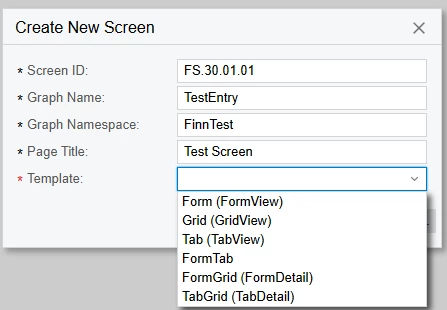
When you click “add screen”, a dialog pops up like this: 

The screen ID should be, in my case, FS.30.01.01. 

If I don’t need to customize the graph, do I still need to create a new one?  It appears so, because it won’t let me enter the name of an existing one.

What does the Graph Namespace do? Is the name of the customization project (which auto-populates) the best name for that?

Thanks again.


Hello ​@harlane ,

You have to create Graph for new screen it will auto generate by Editor (even if you don’t want to use it).
The Graph Namespace defines the .NET namespace under which your graph or graph extension lives.
It’s mainly for code organization and to avoid name conflicts.
& Yes It auto-populate as name of project. but you can change it accordingly. as per your requirement.


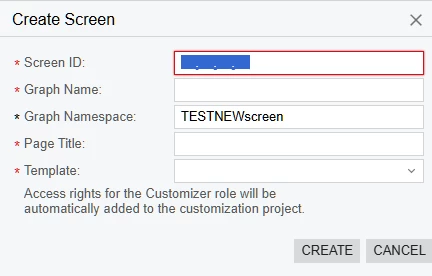
In Create Screen dialog box all field are Mandatory. If you want create new screen just for testing purpose then you can referee existing screen Graph names & Templates that you want to replicate.
and Acumatica follows some rules were they Use specific Numbers for Screen ID’s, Graph Names, etc.


You can use above snap for reference & choose Template from list according to need. & it will auto create Graph if you don’t want modify keep as it is in Code section.
& for best practice’s I suggest that you should create separate DAC for your screen so you can understand it (need new table you can use it later for View creation).

After this In Access Rights you can give access to new screen by searching its name or ID.

I hope it helps!

3 replies

Forum|alt.badge.img
  • Varsity I
  • October 14, 2025

@harlane This is AI generated answer hope it’s useful.

Step-by-Step: Copying a Screen Safely in a Customization Project

Step 1: Create a new customization project

  1. Go to System > Customization > Customization Projects (SM204505).

  2. Click + to create a new project (e.g., CustomServiceOrder).

  3. Save it.

Step 2: Open the customization editor

  1. Click Edit Project to open the Customization Project Editor.

  2. In the Code section (left panel), expand Files → Pages.

Step 3: Copy the original screen

You’ll now copy the page and graph definitions into your customization.

Option 1: Use Visual Studio + Acumatica SDK (Recommended for complex screens)

If you have a local development environment:

  1. Locate the screen under \App_Data\Projects\FieldService\Pages\FS\FS300100.aspx.

  2. Copy it and rename to FS300101.aspx.

  3. Open the .aspx file and update the first line to point to your custom graph (you’ll define it next).

Example:


<%@ Page Language="C#" MasterPageFile="~/MasterPages/FormDetail.master" AutoEventWireup="true" CodeFile="FS300101.aspx.cs" Inherits="PX.Objects.FS.CustomServiceOrderEntry" Title="Custom Service Order" %>

Then, include this file in your customization project using the Files → Add File option.

Option 2: Copy directly within the Customization Editor (No server access)

If you don’t have access to the file system:

  1. In the Customization Editor, click Files → Add File.

  2. Create a new page with your new screen ID (e.g., FS300101.aspx).

  3. Copy the contents of the original page (FS300100.aspx) from Customization → Inspect Element → View Source in your browser, or from an exported customization containing that page.

  4. Paste it into your new .aspx file.

Step 4: Create a new graph

  1. In your customization project, under Code → Add File, create a new .cs file (e.g., CustomServiceOrderEntry.cs).

  2. Copy the logic from the original ServiceOrderEntry graph (PX.Objects.FS.ServiceOrderEntry) and rename the class.

Example:


using PX.Data; using PX.Objects.FS; namespace PX.Objects.FS { public class CustomServiceOrderEntry : ServiceOrderEntry { // Add your overrides or new logic here } }

This inherits all standard functionality but allows you to customize it without modifying base code.

Step 5: Register your new screen

  1. In Customization Project Editor → Screens, click Add Screen.

  2. Enter:

    • Screen ID: FS300101

    • Screen Name: “Custom Service Order”

    • URL: ~/Pages/FS/FS300101.aspx

  3. Save.

Now your new screen appears in the site map.

Step 6: Publish and Test

  1. Click Publish Current Project.

  2. Navigate to your new screen (FS300101).

  3. Test all functionality and add customizations as needed.

✅ Result

You now have:

  • A copy of the Service Order screen (FS300101)

  • A custom graph (CustomServiceOrderEntry)

  • All contained within a customization project, safe from upgrades


  • Author
  • Freshman II
  • October 14, 2025

Thanks for the response.

I followed the steps given the best I could, but when I do this:

  1. In the Customization Editor, click Files → Add File.

It seems I can only select from a list of existing files to add, and I can’t seem to add a new file.  Is that because I do not have correct permissions or settings?


If I create a new screen in the Customization Editor, Screens → Create Screen, that adds files that could be edited as mentioned in ​@smuddurthi81’s response. However, this is where I had questions about the graph name and namespace.

When you click “add screen”, a dialog pops up like this: 

The screen ID should be, in my case, FS.30.01.01. 

If I don’t need to customize the graph, do I still need to create a new one?  It appears so, because it won’t let me enter the name of an existing one.

What does the Graph Namespace do? Is the name of the customization project (which auto-populates) the best name for that?

Thanks again.


Forum|alt.badge.img+2
  • Jr Varsity III
  • Answer
  • October 15, 2025

Thanks for the response.

I followed the steps given the best I could, but when I do this:

  1. In the Customization Editor, click Files → Add File.

It seems I can only select from a list of existing files to add, and I can’t seem to add a new file.  Is that because I do not have correct permissions or settings?


If I create a new screen in the Customization Editor, Screens → Create Screen, that adds files that could be edited as mentioned in ​@smuddurthi81’s response. However, this is where I had questions about the graph name and namespace.

When you click “add screen”, a dialog pops up like this: 

The screen ID should be, in my case, FS.30.01.01. 

If I don’t need to customize the graph, do I still need to create a new one?  It appears so, because it won’t let me enter the name of an existing one.

What does the Graph Namespace do? Is the name of the customization project (which auto-populates) the best name for that?

Thanks again.


Hello ​@harlane ,

You have to create Graph for new screen it will auto generate by Editor (even if you don’t want to use it).
The Graph Namespace defines the .NET namespace under which your graph or graph extension lives.
It’s mainly for code organization and to avoid name conflicts.
& Yes It auto-populate as name of project. but you can change it accordingly. as per your requirement.


In Create Screen dialog box all field are Mandatory. If you want create new screen just for testing purpose then you can referee existing screen Graph names & Templates that you want to replicate.
and Acumatica follows some rules were they Use specific Numbers for Screen ID’s, Graph Names, etc.


You can use above snap for reference & choose Template from list according to need. & it will auto create Graph if you don’t want modify keep as it is in Code section.
& for best practice’s I suggest that you should create separate DAC for your screen so you can understand it (need new table you can use it later for View creation).

After this In Access Rights you can give access to new screen by searching its name or ID.

I hope it helps!