Solved

Updating MUI screens by running the command line doesn't seem to work

  • July 10, 2026
  • 13 replies
  • 133 views

Joe Schmucker
Captain II
Forum|alt.badge.img+3

The only way I can get the changes to the MUI screen is to modify the files in the development section in VS, then update the MUI files in the project editor and publish the project.

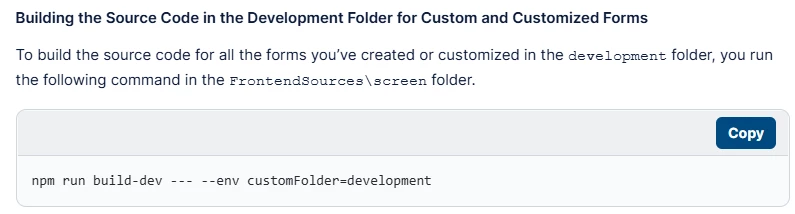
I thought I could update the MUI screen by executing this statement in Terminal, but it doesn’t make the changes:

If this worked, it would save me hours in testing.  Publishing the entire project takes forever compared to running the command line to build the screen.

Also, my popup wasn’t showing the fields.  I published, restarted the app, reset caches, MANY times.  I kept changing the TS and HTML, but the fields were not showing.  Suddenly, they are showing.  I literally spent 5 hours trying things, republishing resetting everything and it didn’t show the fields.  

Is there some steps I am not taking after publishing the project to get the MUI code to display properly?  I’ve been losing my mind over this.



Best answer by darylbowman

I'm in the same position. The local compile works as long as no files are published. Once even a single file is published, local builds do nothing.


Haven't cracked it yet.

13 replies

darylbowman
Captain II
Forum|alt.badge.img+17
  • Answer
  • July 10, 2026

I'm in the same position. The local compile works as long as no files are published. Once even a single file is published, local builds do nothing.


Haven't cracked it yet.


darylbowman
Captain II
Forum|alt.badge.img+17

I don't think this ☝🏻 is a good answer. I'd love to get some Acumatica feedback.


MichaelShirk
Captain II
Forum|alt.badge.img+6
  • Captain II
  • July 10, 2026

I’m assuming we’re talking here about modifications to OOB screens, and not changes to custom screens?


darylbowman
Captain II
Forum|alt.badge.img+17

I’m not sure it makes any difference, but I do mostly modifications.


MichaelShirk
Captain II
Forum|alt.badge.img+6
  • Captain II
  • July 10, 2026

So far I’ve only been converting our custom screens, but I never have to publish to see MUI changes. 
I thought waiting ~30 seconds for the build to finish and the screen to load was bad! 
 

I’d be interested in comparing my process with someone who’s having an issue with it. 


darylbowman
Captain II
Forum|alt.badge.img+17

You’re mixing published MUI changes with local compiles?


MichaelShirk
Captain II
Forum|alt.badge.img+6
  • Captain II
  • July 10, 2026

If I’m understanding correctly, then yes. 

I have our large customization project published with many MUI screens. 
If I need to make a change, I do so in Visual Studio, follow the steps in the screenshot below, then reload my page in the browser. 
 

Then once I’m ready to release a new package version, I open the customization project, load changes for MUI files, and publish.  


Forum|alt.badge.img+8
  • Captain II
  • July 11, 2026

Buried within another discussion thread was this command line option:

npm run build-dev --- --env screenids=SO301000 customFolder=development

However, sometimes it works, sometimes it doesn’t.

It also doesn’t respond to manual changes to the .ts field, it only seems to work for the HTML file.

So if I need to change the .ts file, I update the project and then do a full publish.

Also, changes I make to the .ts file and import into the customization project aren’t properly reflected in the MUI editor.


darylbowman
Captain II
Forum|alt.badge.img+17

Buried within another discussion thread was this command line option:

npm run build-dev --- --env screenids=SO301000 customFolder=development

I use this pretty much exclusively, except without the screenIds param


darylbowman
Captain II
Forum|alt.badge.img+17

I just ran into a situation where no MUI files were published; I was compiling locally. Screen changes were successfully reflected on various screens, but not on SO301000. I couldn’t see anything wrong, so I added the files to the package and published. Now the changes on SO301000 show up just fine 🤔 


MichaelShirk
Captain II
Forum|alt.badge.img+6
  • Captain II
  • August 13, 2026

Unfortunately I’m facing this issue now too. 😒
For me it seems to work correctly as long as the screen I’m working on doesn’t have MUI files published in the customization. If I’m converting a screen or screen customization initially, it works. But if, after I’ve included those changes in the customization and published them, I need to make additional changes, the command line build doesn’t work correctly and I have to load the modifications to the customization and publish before I can see the changes. 

Yesterday I spent pretty much all day on performance improvements on one page, largely because for everything I wanted to test, I had to do another publish. 


This is so so bad! 


MichaelShirk
Captain II
Forum|alt.badge.img+6
  • Captain II
  • August 13, 2026

Anyone found a solution yet?


Joe Schmucker
Captain II
Forum|alt.badge.img+3
  • Author
  • Captain II
  • August 13, 2026

@darylbowman gave me the perfect advice.  Here is what I do:

Export your project!  You do not want to lose your current MUI files in case you mess up your files while doing the steps below.

  1. From the project editor, open MUI files and export to the site.  This will put the files here: FrontendSources\screen\src\development\screens
  2. Unpublish your project.
  3. It might seem counter intuitive, but remove all MUI files in Project Editor.  MAKE SURE YOU EXPORT YOUR PROJECT SO YOU DON’T LOSE YOUR EXISTING FILES JUST IN CASE.  Ask me why…. ;-)
  4. Publish your project.
  5. From now on, make your HTML and TS file changes in the directory from 1 above.  I do it in Visual Studio.  It has very nice Intellisense.
  6. Open FrontendSources\screen folder on your local computer and right click somewhere in the white space and choose Open in Terminal.
  7. From the terminal, run this command:  npm run build-dev --- --env "customFolder=development"   This will only rebuild files in development.
    1. NOTE: you no longer have to republish your project from the UI.  Just run the command and refresh your UI screen!
  8. If you get an error running that command in 7 above, backup one directory (CD..) to FrontendSources and run this command: npm run getmodules.  If it is a new install, I find I have to do this in order to get the build command to work.  Maybe it is just me.  It only takes a minute or two so I’d just do it.

THIS IS IMPORTANT

After making changes to the MUI files, you want to backup your development folder from the site.  This is a pain, but if you do not do this, you may very easily lose your work.  I actually open two explorer tabs, one for the place I want to backup the folder and the other is the location where the development folder is displayed on the site.  Every time I rebuild, I copy the development folder from the site to my backup location.  I sometimes even create multiple backup folders as I go just in case I make a mistake.

Here is what happened to me several times.  After I have made manual changes to the MUI files on the site, in the project editor, I added a field to one of the grid views for the page.  This will add a new file to the MUI Files folder.  If you open MUI Files and Export to the site, you will lose everything in the development folder on the site.  This is irreversible!

I use the project editor wizard to add fields etc. to a customized page.  It creates the boilerplate MUI files for you.  Even if I have the MUI files for that page on the site already, I still use the wizard. Then I manually copy and paste the code created by the wizard to my existing file on the site.  I then follow these steps:

  1. Backup the folder from the site.
  2. If the page is new, I Export the MUI files from the project editor.  This puts my new screen files into the development folder on the site for me.  THIS WILL DELETE ALL OTHER FILES FROM THE SITE!
  3. Delete the files from the project editor.  If you already published your project without any MUI files in your project, you do not need publish the project.
  4. Copy my backup folder back to the site.  This will get all your custom files back to the site.  You should now have ALL your MUI files on the site
  5. You can also manually create the files on the site that were generated.  Then delete the files from the project editor and do not Export the files to the site.

When you are ready to deliver your customization project, go to the MUI Files and add all your files to the project.  It will show you every file that is in the development tree on the site.

As Daryl pointed out to me, if you have ANY MUI files in your project editor and you publish, the command line build will complete, but will do NOTHING to update your site.

Hope this helps.