I have a local instance with a snapshot of client data on build 25.101.0153. After installing the instance, I ran the npm run getmodules and npm build.
I have custom screens. I can npm build my screens and they look great in my local instance.
I added the custom Modern UI files to the Modern UI files section in the Project Editor screen.
When I publish the project in the same instance that I created the MUI files, I get errors.
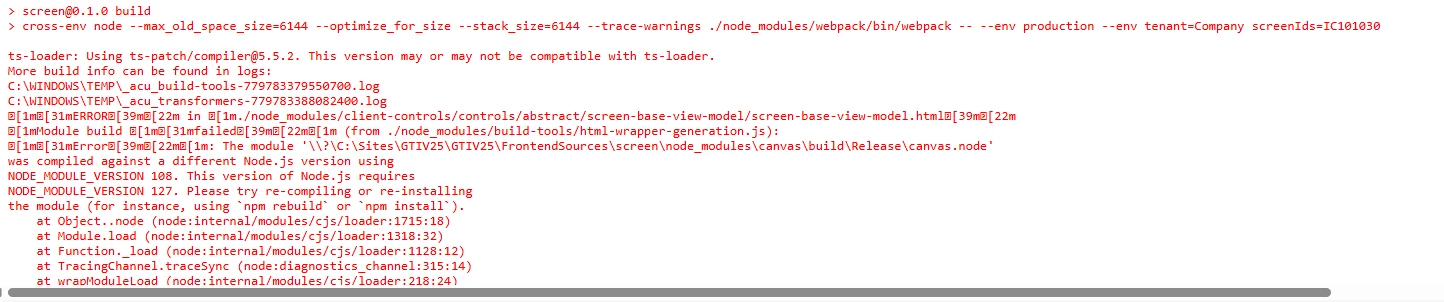
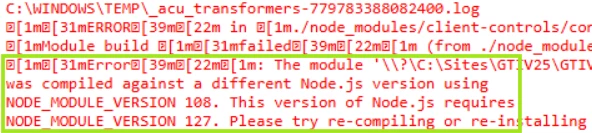
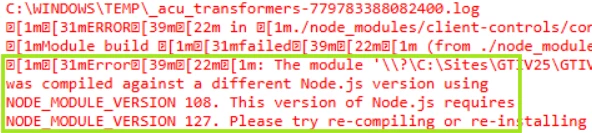
I think this is the main reason for the error
ts-loader: Using ts-patch/compiler@5.5.2. This version may or may not be compatible with ts-loader.
I have about 20 instances of MANY build versions as my snapshots are being restored into the build of the client’s snapshots.
In google, the AI tells me that I should use NVM to manage my active node.js version. The error seems to have something to do with typescript.
For sake of argument, say I am able to get my active version of node.js / typescript to match the instance I am publishing into. Before I spend hours trying to resolve this, has anyone had this issue and did you resolve it?
Secondly, IF this is truly the issue, does that mean when I provide my customization package to my customer, I have to know what version they are using? And, how would I get that?
I know it is early in the process to deploy MUI screens, but we are getting close to MUI going live.
I would love it if someone else has solved this and I don’t have to become a npm/Node.js guru to deploy my customizations to my customers.
Thanks in advance for any insights.
Best answer by Joe Schmucker
I submitted a request to Acumatica support. They don’t really know what happened. Here is what happened in case it happens to you!
I installed 25R1 and checked the boxes to enable MUI and to install NodeJS (v22).
I upgraded my local instance of a tenant on 24R1.
All the issues happened as described above.
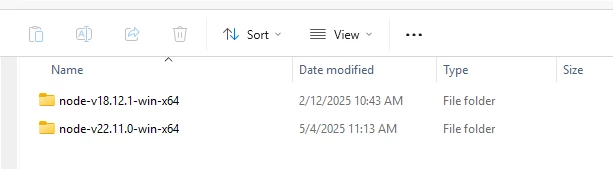
In troubleshooting, I found that even though I installed 25R1 and said to install NodeJS 22, it did not install this version on my PC.
Steps Taken:
I manually installed NJS 22.
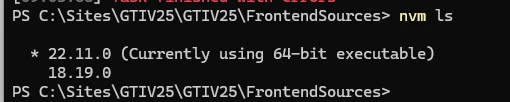
Using NVM, I set the active NJS version to 22.
I restored a copy of the 24R1 database.(GTITest)
I created a new instance of 24R1 (GTITestSite) and pointed to the existing database.
I unpublished my customization.
I ran the Acumatica config V25R1 and upgraded GTITestSite.
I published my customization.
I ran the npm get modules in the FrontendSources folder
I ran the npm build in the FrontendSources folder.
I ran the npm build on my custom module folder (IC).
I set my custom page to use the MUI.
WORKS GREAT.
NOTE: After doing the upgrade the first time when NodeJS 22 was not installed, there was NOTHING I COULD DO to correct that upgraded instance. SO BEWARE.
The original issue might be due entirely because of my PC.
Summary of my thoughts
When installing 25R1, even though I checked the box to install NodeJS, it did NOT install 22. I had to install it manually.
This time, I used NVM to change the active node to 22 prior to upgrading.
It worked perfectly.
Somehow, I think upgrading from 24 to 25 without manually updating nodejs version to 22 caused the issue. For some reason, upgrading to 25 without node 22 installed, the upgraded site is “hanging on” to node 18 and you can’t get around it.
Acumatica Support is going to do some testing to see if they can duplicate my issue. If they have nodeJS 22 installed, I doubt they will be able to duplicate the issue.
If I hear back from Support that this is an actual bug, I will report back here.
I’ve seen this before and was able to fix the issue by setting the right node version. You can set the node version by executing command: nvm use v22.11.0 from FrontendSources folder. Once you set the version, now rebuild the screens against the new node version then readd the screens to the customization project.
Thanks all! Will I have to recompile my custom screens to match my clients cloud instance when it is time for them to publish my screens? That sounds problematic.
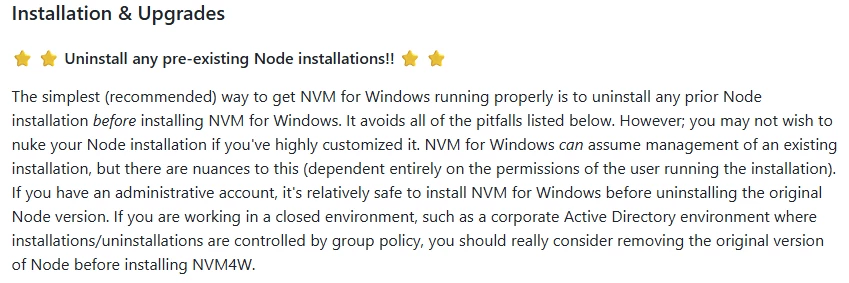
As you found out, Acumatica recommends you use the node version specified for each release, and it allows you to install the required version during setup. This is the easiest way to get started, but it starts to get complicated if you need to work with different Acumatica releases that use different node versions, (since each one will install its own node version and configure the web.config file to point to it) or if you use node for other projects. You can choose to handle node yourself using nvm to have all your node version in one place. It is relatively safe to do it, since nvm, as a version manager, will help you install the node versions you need, update the web.config in each instance to point to the path of the required node version in your nvm setup and activate the correct version using nvm before running commands. It this sound like too much work, I would stick with the Acumatica provided node setup and use the full installation path of the Acumatica-provided node version to execute the node commands.
If I understand correctly, this is going to be a VERY PAINFUL process every time I send my customer an updated project to publish. I do my customizations locally (obviously). Lets say I do my project today on version X. The customer is on version X. I send them my package. They install is successfully.
Next month, they ask me for a minor change. Meanwhile, they were automatically upgraded to the latest BUILD of Acumatica. They are now on version Y. My dev environment is still on version X. Does this mean I have to know exactly what build they are on, then rebuild my MUI screens before I can send them an updated package? Or, will minor builds not be affected? If it is by BUILD number, that is a REAL PAIN for a developer.
EDIT: Maybe I create a separate project with JUST the UI files and only have them publish that project only if I’ve made changes to the Modern UI of my custom screens.
I may have made it sound worse than it actually is.
As far as I know, Acumatica has only updated node versions on Releases, so it should be stable between patches and service packs and you wouldn’t need to have that many different versions.
I’ve seen this before and was able to fix the issue by setting the right node version. You can set the node version by executing command: nvm use v22.11.0 from FrontendSources folder. Once you set the version, now rebuild the screens against the new node version then readd the screens to the customization project.
Hope that resolves the issue!
I just need to get NVM installed. That command is not recognized when I try to execute it.
Gotta be honest, I was (and am) psyched about the Modern UI, but I had a lot of issues trying to publish it into other instances. I also don’t understand the most about Node.js. I didn’t have the time or the direction to keep messing with it, so I stopped for a while. Being a trailblazer is a lot more work than being a tourist.
npm run build-dev -- --env modules=IC runs and gets to the place where it is going to compile the screens. I get about 100 errors:
ERROR in ./src/systemScreens/ReportScreen.html Module build failed (from ./node_modules/build-tools/html-wrapper-generation.js): Error: The module '\\?\C:\Sites\GTIV25\GTIV25\FrontendSources\screen\node_modules\canvas\build\Release\canvas.node' was compiled against a different Node.js version using NODE_MODULE_VERSION 108. This version of Node.js requires NODE_MODULE_VERSION 127. Please try re-compiling or re-installing the module (for instance, using `npm rebuild` or `npm install`). at Object..node (node:internal/modules/cjs/loader:1715:18) at Module.load (node:internal/modules/cjs/loader:1318:32) at Function._load (node:internal/modules/cjs/loader:1128:12) at TracingChannel.traceSync (node:diagnostics_channel:315:14) at wrapModuleLoad (node:internal/modules/cjs/loader:218:24) at Module.require (node:internal/modules/cjs/loader:1340:12) at require (node:internal/modules/helpers:141:16) at Object.<anonymous> (C:\Sites\GTIV25\GTIV25\FrontendSources\screen\node_modules\canvas\lib\bindings.js:3:18) at Module._compile (node:internal/modules/cjs/loader:1546:14) at node:internal/modules/cjs/loader:1689:10
if I set the current node version to use to V18.19.0, edit the config file to this:
I submitted a request to Acumatica support. They don’t really know what happened. Here is what happened in case it happens to you!
I installed 25R1 and checked the boxes to enable MUI and to install NodeJS (v22).
I upgraded my local instance of a tenant on 24R1.
All the issues happened as described above.
In troubleshooting, I found that even though I installed 25R1 and said to install NodeJS 22, it did not install this version on my PC.
Steps Taken:
I manually installed NJS 22.
Using NVM, I set the active NJS version to 22.
I restored a copy of the 24R1 database.(GTITest)
I created a new instance of 24R1 (GTITestSite) and pointed to the existing database.
I unpublished my customization.
I ran the Acumatica config V25R1 and upgraded GTITestSite.
I published my customization.
I ran the npm get modules in the FrontendSources folder
I ran the npm build in the FrontendSources folder.
I ran the npm build on my custom module folder (IC).
I set my custom page to use the MUI.
WORKS GREAT.
NOTE: After doing the upgrade the first time when NodeJS 22 was not installed, there was NOTHING I COULD DO to correct that upgraded instance. SO BEWARE.
The original issue might be due entirely because of my PC.
Summary of my thoughts
When installing 25R1, even though I checked the box to install NodeJS, it did NOT install 22. I had to install it manually.
This time, I used NVM to change the active node to 22 prior to upgrading.
It worked perfectly.
Somehow, I think upgrading from 24 to 25 without manually updating nodejs version to 22 caused the issue. For some reason, upgrading to 25 without node 22 installed, the upgraded site is “hanging on” to node 18 and you can’t get around it.
Acumatica Support is going to do some testing to see if they can duplicate my issue. If they have nodeJS 22 installed, I doubt they will be able to duplicate the issue.
If I hear back from Support that this is an actual bug, I will report back here.