Solved

Modern UI: Custom Field Not Working on BOM and Stock Item Screens

  • January 31, 2026
  • 6 replies
  • 109 views

Forum|alt.badge.img+2

Hi Community

Could someone please help me with the correct code for displaying a custom field in the Modern UI?

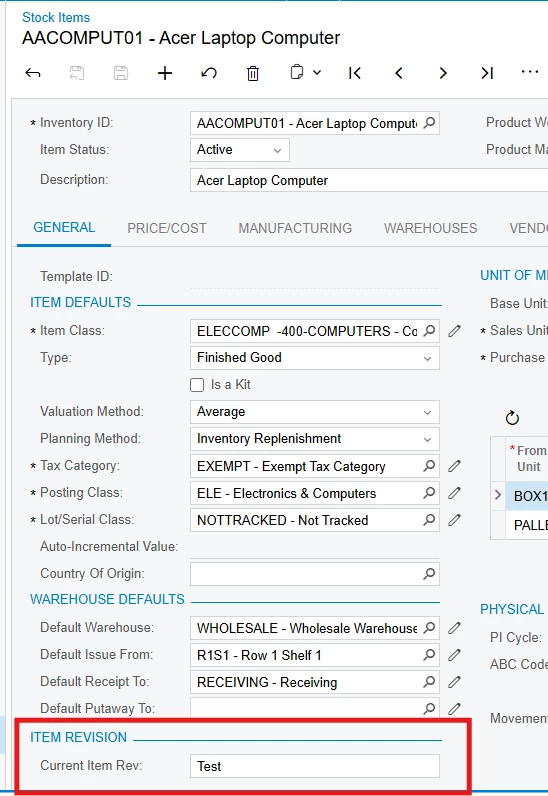
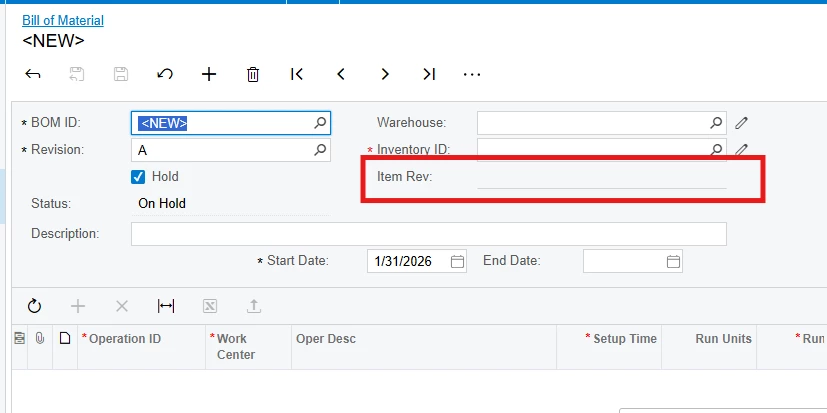
I am trying to convert the custom field UsrItemRevision to Modern UI and display it on the BOM (AM208000) and Stock Item (IN202500) screens.

I have already tried adding the field using TypeScript and HTML, but it does not work on these screens. Similar code works correctly on other screens, so I believe I may be missing something specific to AM208000 and IN202500.

BOM Screen (AM208000)

import { PXFieldState } from "client-controls";
import { AM208000, AMBomItem } from "src/screens/AM/AM208000/AM208000";

export interface AM208000_InventoryRevision25R2_generated extends AM208000 {}

export class AM208000_InventoryRevision25R2_generated {}

export interface AMBomItem_InventoryRevision25R2_generated extends AMBomItem {}

export class AMBomItem_InventoryRevision25R2_generated {
UsrItemRevision: PXFieldState;
}

HTML

<template>
<field name="Documents.UsrItemRevision"></field>
</template>

Stock Item Screen (IN202500)

<template>
<qp-fieldset
id="ItemRevision"
view.bind="ItemSettings"
caption="Item Revision">

<field name="ItemSettings.UsrItemRevision"></field>
</qp-fieldset>
</template>

TypeScript (TS)

import { PXFieldState, PXFieldOptions } from "client-controls";
import { ItemSettings } from "src/screens/IN/IN202500/IN202500";

export interface IN202500_GeneralRevision extends ItemSettings {}

export class IN202500_GeneralRevision {
UsrItemRevision: PXFieldState<PXFieldOptions.CommitChanges>;
}
 

Best answer by Vard86

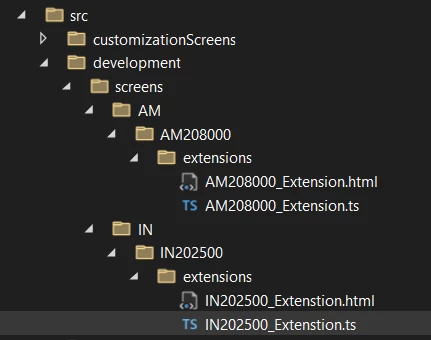
@SKV687  Please make sure that the .ts and .html files are located in their correct folders.
 

Also, if you have added these files to the package’s Modern UI files, please republish the package and verify that your changes have been updated within the package.

Note:  

If the Modern UI files are already included in the package and the package has been published, then any changes you make afterward and build will not be reflected on the screen.

I suggest adding the modern UI files(.Ts and .Html) to the package only at the final stage, once no further changes are expected.
 

npm run build-dev -- --env customFolder=development
is sufficient to display the implemented changes on the screen.


If it still doesn’t work on your side, please send screenshots of the package’s Modern UI files and their location within the package.

Regards,
Vard

6 replies

Forum|alt.badge.img
  • Jr Varsity III
  • January 31, 2026

Hello ​@SKV687,


For the added custom field on the Stock Item screen

TypeScript (TS)
 

import { ItemSettings } from "src/screens/IN/IN202500/IN202500";
import {
PXFieldState,
PXFieldOptions,
} from "client-controls";

export interface IN202500_GeneralRevision extends ItemSettings { }

export class IN202500_GeneralRevision {
(Your Field Name): PXFieldState<PXFieldOptions.CommitChanges>;
}

HTML

<template>
<template modify="#divColumnA-General">
<qp-fieldset id="StockItem1" wg-container="ItemSettings_tab" view.bind="ItemSettings" slot="A" caption="Item Revision">
<field name="(Your Field Name)"></field>
</qp-fieldset>
</template>
</template>


For the added custom field on the AM208000 screen

TypeScript(TS)
 

import { AMBomItem } from "src/screens/AM/AM208000/AM208000";
import {
PXFieldState,
PXFieldOptions,
} from "client-controls";

export interface AM208000_GeneralRevision extends AMBomItem { }

export class AM208000_GeneralRevision {
(Your Field Name): PXFieldState<PXFieldOptions.CommitChanges>;
}


HTML 
 

<template>
<field name="Your Field Name" after="#Documents2 FIELD[name='InventoryID']"></field>
</template>

Regards,
Vard


Forum|alt.badge.img+2
  • Author
  • Pro II
  • February 1, 2026

@Vard86 Thanks for the response.

I tried the code you shared, but it’s not working on my end. I ran the build commands, added the package, published it, and verified everything, but I’m still not seeing any success

I tested the following commands:

npm run build-dev --- --env customFolder=development

npm run build-dev --- --env customFolder=development screenIds=IN202500

 npm run build-dev --- --env customFolder=development screenIds=AM208000

Unfortunately, none of these worked.


Forum|alt.badge.img
  • Jr Varsity III
  • Answer
  • February 1, 2026

@SKV687  Please make sure that the .ts and .html files are located in their correct folders.
 

Also, if you have added these files to the package’s Modern UI files, please republish the package and verify that your changes have been updated within the package.

Note:  

If the Modern UI files are already included in the package and the package has been published, then any changes you make afterward and build will not be reflected on the screen.

I suggest adding the modern UI files(.Ts and .Html) to the package only at the final stage, once no further changes are expected.
 

npm run build-dev -- --env customFolder=development
is sufficient to display the implemented changes on the screen.


If it still doesn’t work on your side, please send screenshots of the package’s Modern UI files and their location within the package.

Regards,
Vard


Jhon Reeve Penuela
Freshman I

Hi ​@SKV687 here my sample code using Modern UI Editor Only.

Stock Item Screen

TS File

import { IN202500, InventoryItem } from "src/screens/IN/IN202500/IN202500";

export interface IN202500_CustomFieldBOMandStockItem_generated
extends IN202500 {}
export class IN202500_CustomFieldBOMandStockItem_generated {}

export interface InventoryItem_CustomFieldBOMandStockItem_generated
extends InventoryItem {}
export class InventoryItem_CustomFieldBOMandStockItem_generated {
@fieldConfig({ caption: "Item Revision" })
UsrItemRevision: PXFieldState;
}

BOM Screen

TS File

import { AM208000, AMBomItem } from "src/screens/AM/AM208000/AM208000";

export interface AM208000_CustomFieldBOMandStockItem_generated
extends AM208000 {}
export class AM208000_CustomFieldBOMandStockItem_generated {}

export interface AMBomItem_CustomFieldBOMandStockItem_generated
extends AMBomItem {}
export class AMBomItem_CustomFieldBOMandStockItem_generated {
UsrItemRevision: PXFieldState;
}

hope above helps !!


Forum|alt.badge.img
  • Jr Varsity II
  • February 2, 2026

@SKV687 please try this. 

Stock Item:

TS:

import {

 PXFieldState,

 PXFieldOptions,

} from "client-controls";

import { ItemSettings } from "src/screens/IN/IN202500/IN202500";

export interface IN202500_GeneralRevision extends ItemSettings { }

export class IN202500_GeneralRevision {

    UsrItemRevision: PXFieldState<PXFieldOptions.CommitChanges>;

}
HTML:

<template>

    <qp-template modify id="form-General" name="1-1" wg-container="ItemSettings_tab">

    <div modify id="divColumnA-General" slot="A">

        <qp-fieldset id="StockItem1" wg-container="ItemSettings_tab" view.bind="ItemSettings" slot="A" caption="Item Revision">

            <field name="UsrItemRevision"></field>

        </qp-fieldset>

    </div>

    </qp-template>

</template>


zherring
Freshman I
Forum|alt.badge.img
  • Freshman I
  • February 2, 2026

I believe this is the case where your import path should get changed to relative instead of absolute.

Try using ./IN20250 and ./AM208000

I cannot remember which part of the path changes to be relative so also try putting the ./ in front of some of other parts if that doesn't fix it.