Question

Modern Portal 2026 R1 - Custom Screens Not Appearing in Menu After Convert to Modern UI

  • June 15, 2026
  • 2 replies
  • 46 views

HristinaP77
Freshman I
Forum|alt.badge.img

Hello,

I have a customization package that was originally created for Acumatica 2025 R1. I imported it into the Modern Portal (2026 R1), published it, clicked Convert to Modern UI, and published again.

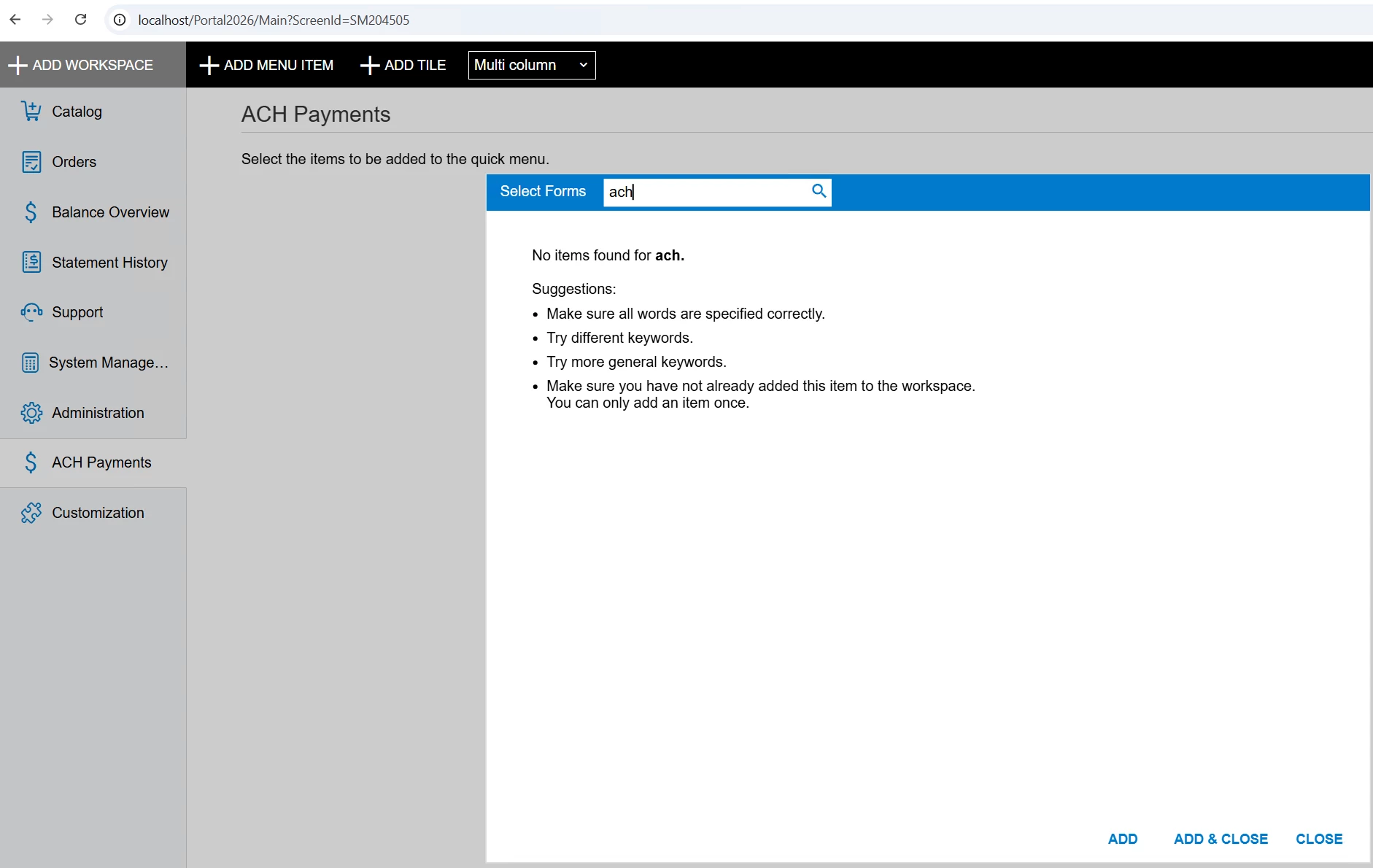
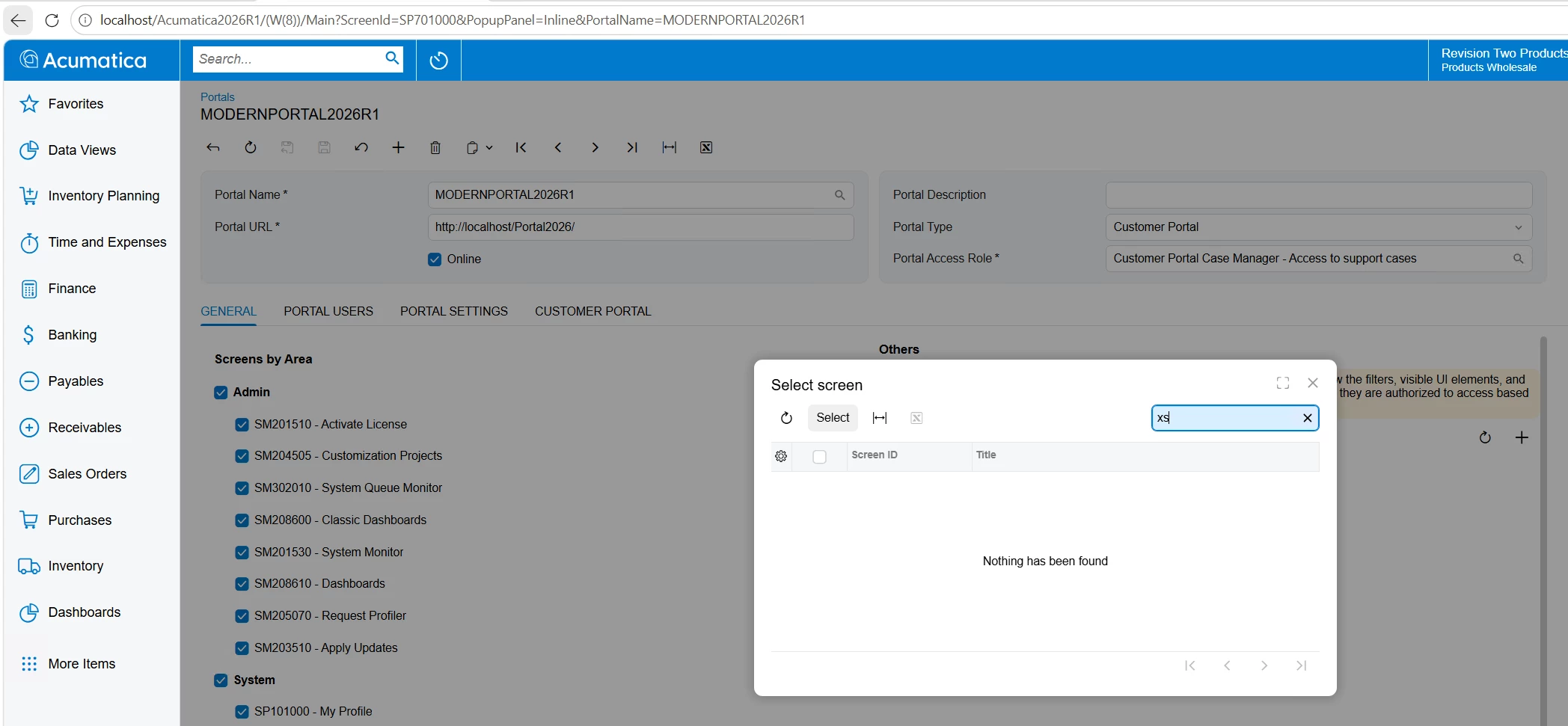
After that I'm not sure how to add these screens to the portal menu. They do not appear in the Select Forms dialog when I try to add them to a workspace.

I also noticed that the Portal Map screen no longer exists in 2026 R1. When I open the Site Map, set a Workspace and Category for my screens, save, and then refresh the page, my changes are lost.

I must be missing something in the deployment process. Is there a documented workflow for adding custom screens to the Modern Portal menu in 2026 R1?

Any help is appreciated. Thank you!

2 replies

shushanna34
Jr Varsity I
Forum|alt.badge.img
  • Jr Varsity I
  • June 16, 2026

Hi,


The conversion part looks fine - the issue is that in 2026 R1 menu placement is no longer driven by the Workspace/Category fields on the classic Site Map. That's exactly why your Site Map edits disappear on refresh, and why the Portal Map screen is gone. In the Modern UI you add screens to the menu through Menu Editing mode, and a form only shows in the Select Forms dialog if it has a site map node AND your current role has access rights to it.


Here is the workflow that works in 2026 R1:


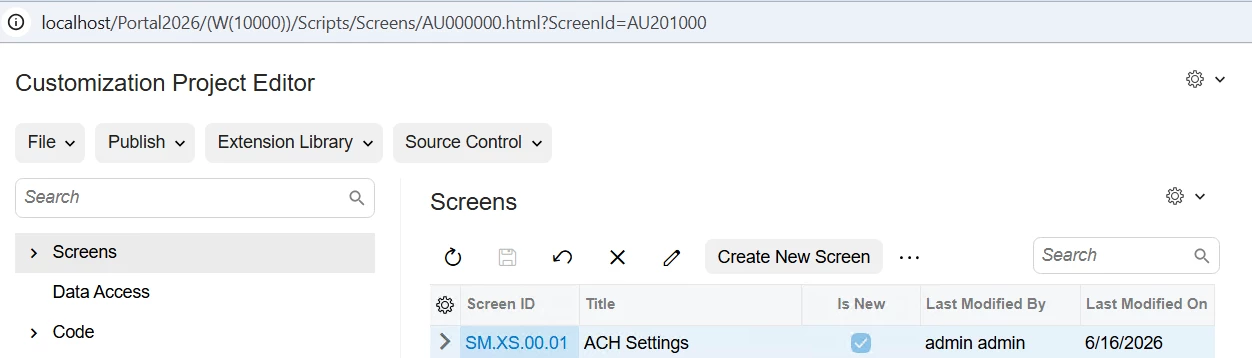
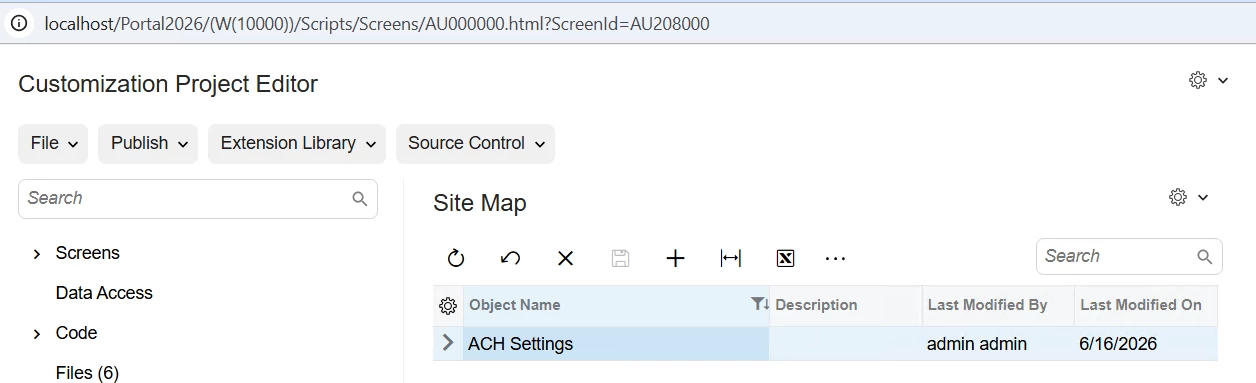
1. Confirm the screen has a Site Map node. In Site Map (SM200520), check that each custom screen ID is present and not hidden. If it is missing, add the screen to your customization project (Screens section) and republish - without a site map node the form can never appear in Select Forms.

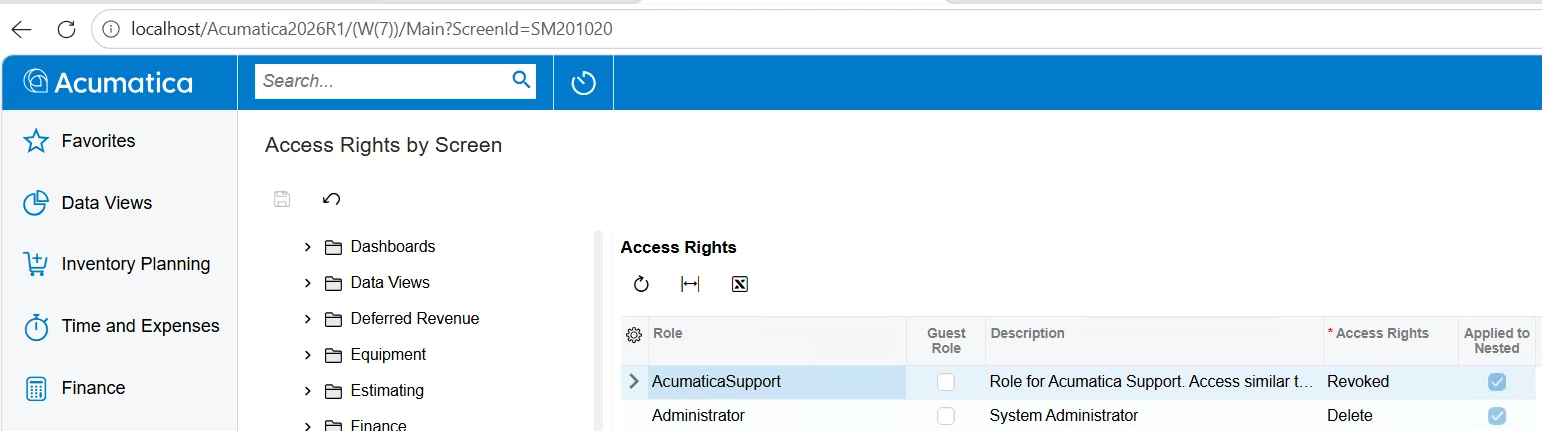
2. Grant access rights to the screen. This is the most common reason a screen does not appear in Select Forms. Open Access Rights by Screen (SM201020) and grant your role access to each custom screen. The Select Forms dialog hides anything the current role cannot access, so a freshly converted screen with no rights is invisible there.

3. Add it to the workspace via Menu Editing mode (not the Site Map). In the Modern UI, switch to Menu Editing mode, open the target workspace, click Add forms / Select Forms, pick your custom screen, and assign it to a Category. A category only appears in a workspace once at least one link has been added to it. This is the supported replacement for the old Portal Map and for the Site Map Workspace/Category columns.


Since you mentioned the Self-Service Portal specifically, note that is a separate surface from the main Modern UI, but the same Menu Editing approach applies there.


Hope this helps!


HristinaP77
Freshman I
Forum|alt.badge.img
  • Author
  • Freshman I
  • June 17, 2026
Modern Portal
Modern Portal
Modern Portal


Acumatica
Acumatica
Acumatica

Hello ​@shushanna34 ,

Thank you so much for your time, but unfortunately this doesn't work, or maybe I'm still missing something. I'm logged in as administrator and I still don't see the screen. Above are screenshots from Acumatica and the Modern Portal.