Answer

Is it possible to use a mailto: link in a notification message

  • July 7, 2023
  • 8 replies
  • 197 views

Tony Lanzer
Pro III
Forum|alt.badge.img+2

When referencing an email address in a notification message, is it possible to use a mailto: link in the message? If I use mailto: in a link in the richtext visual mode, it prepends an http:// in front of it when saved.  If I edit as html, it removes the mailto: when saved.

Best answer by Samvel Petrosov

@Samvel Petrosov You’re likely only viewing it in html.  Try switching from html to visual mode and back, or try triggering the notification and testing the link in the actual email.  It pulls out the href and there’s no link in the email, or the link doesn’t work.  At least in v21R2 in which I’m testing. I can try to see if it’s fixed in a newer version.

Yes, but if you save without doing that and trigger the notification then it will work, but that also means that anytime in the future if you need to modify the notification template you will have to start from scratch.

8 replies

Samvel Petrosov
Jr Varsity II
Forum|alt.badge.img+8

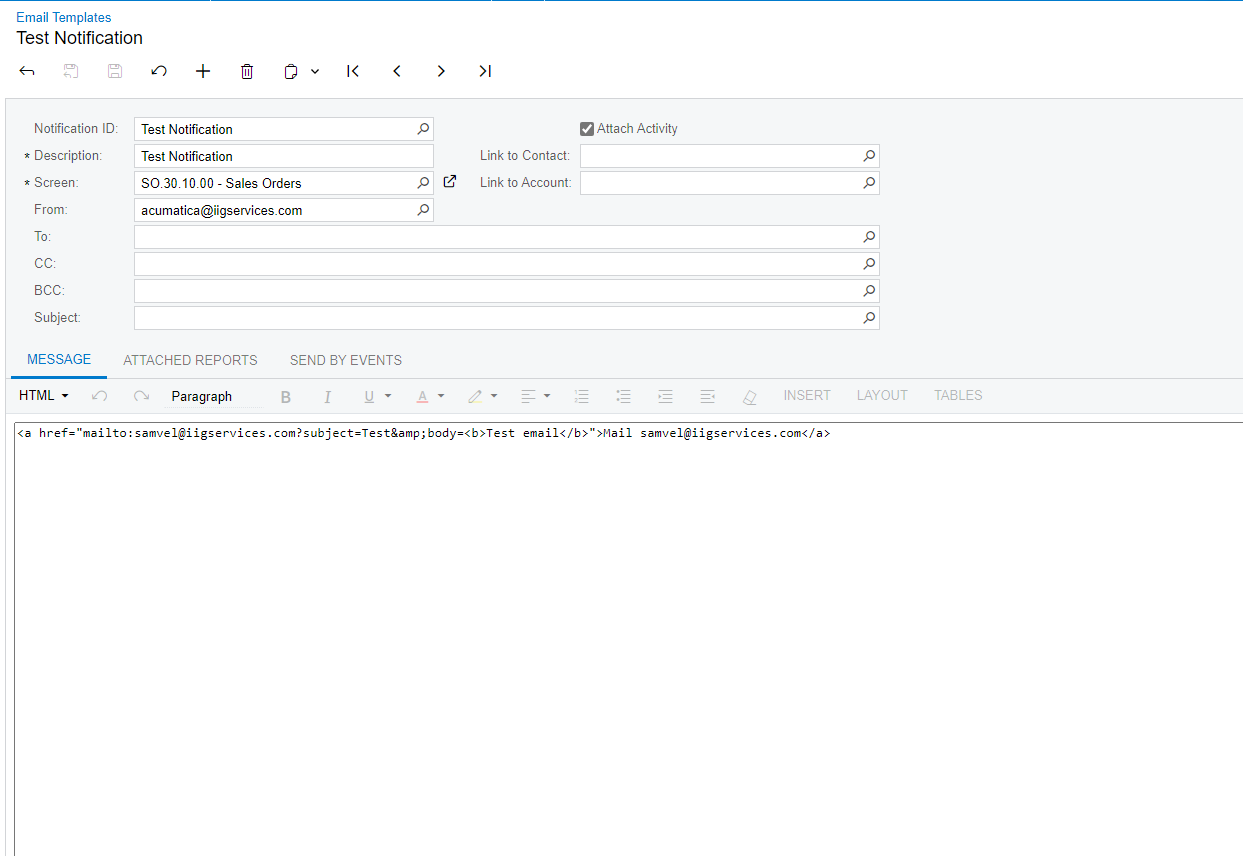
Putting a tag in the HTML editor works fine for me


<a href="mailto:samvel@iigservices.com?subject=Test&amp;body=<b>Test email</b>">Mail samvel@iigservices.com</a>


Tony Lanzer
Pro III
Forum|alt.badge.img+2
  • Author
  • Pro III
  • July 7, 2023

Thanks for testing @Samvel Petrosov.  The difference is that in my case, the email comes from a data field and is not hard-coded.  In other words, href is “mailto:((<field>))”…

href="mailto:((Document.CustomerID.DefContactID.EMail))"


Update:  Actually, I just tried without the field, and it is still removing the href.  Try switching from html to visual mode and back, or try triggering the notification and testing the link in the actual email.  It pulls out the href and there’s no link in the email, or the link doesn’t work.


Samvel Petrosov
Jr Varsity II
Forum|alt.badge.img+8

@Tony Lanzer got it. I just checked with shipping address → email and it works that way too.

<a href="mailto:((Shipping_Contact.Email))?subject=Test&amp;body=<b>Test email</b>">Mail ((Shipping_Contact.Email))</a>


Tony Lanzer
Pro III
Forum|alt.badge.img+2
  • Author
  • Pro III
  • July 7, 2023

@Samvel Petrosov You’re likely only viewing it in html.  Try switching from html to visual mode and back, or try triggering the notification and testing the link in the actual email.  It pulls out the href and there’s no link in the email, or the link doesn’t work.  At least in v21R2 in which I’m testing. I can try to see if it’s fixed in a newer version.


Samvel Petrosov
Jr Varsity II
Forum|alt.badge.img+8

@Samvel Petrosov You’re likely only viewing it in html.  Try switching from html to visual mode and back, or try triggering the notification and testing the link in the actual email.  It pulls out the href and there’s no link in the email, or the link doesn’t work.  At least in v21R2 in which I’m testing. I can try to see if it’s fixed in a newer version.

Yes, but if you save without doing that and trigger the notification then it will work, but that also means that anytime in the future if you need to modify the notification template you will have to start from scratch.


Tony Lanzer
Pro III
Forum|alt.badge.img+2
  • Author
  • Pro III
  • July 7, 2023

@Samvel Petrosov That’s strange, since it shouldn’t persist again by just changing to visual mode and back to html.  I’ll try that, but still seems to be a problem.


Tony Lanzer
Pro III
Forum|alt.badge.img+2
  • Author
  • Pro III
  • July 7, 2023

@Samvel Petrosov You’re right, it seems to work if I don’t change back to visual mode, but otherwise it disappears and doesn’t work.  I guess it must actually convert and persist without warning -- reminds me of the .aspx editor unreliability sometimes.


Forum|alt.badge.img
  • Jr Varsity II
  • February 14, 2025

This is still an issue in 2024R2. Setup:

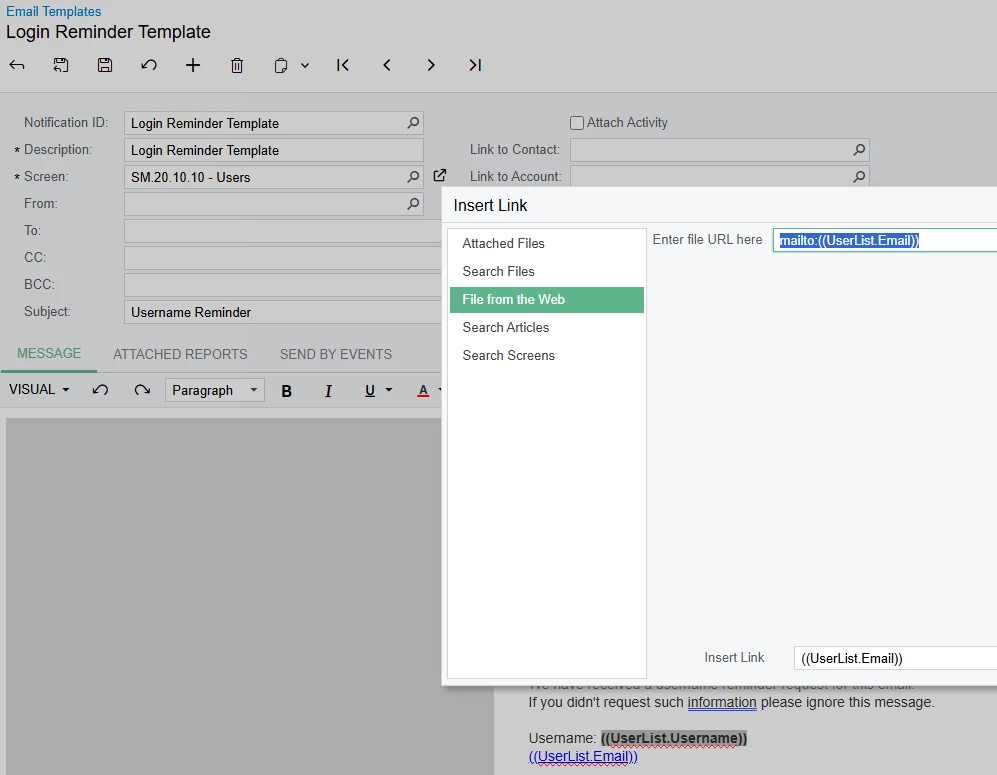
  1. Edit the default Login Reminder Template
  2. Add a link using the Visual editor
    1. Use the Files from the Web panel
    2. Enter ‘mailto:((UserList.Email))’ into the file URL input
    3. Enter ‘((UserList.Email))’ into the Insert Link input
  3. Save the template

At this point you have a working mailto: link in the template. If you switch to the HTML editor, it will remain. If you save from the HTML editor, it is lost. If you switch back to Visual, it is lost.

I did not see issues with it persisting just from changing editors.