Answer

How to use Import Scenario Attributes

  • November 15, 2024
  • 18 replies
  • 465 views

Forum|alt.badge.img

I can't find them in the attributes. How can I select the field name in my import scenario?

Best answer by DipakNilkanth

Hi ​@jhoncandare04,

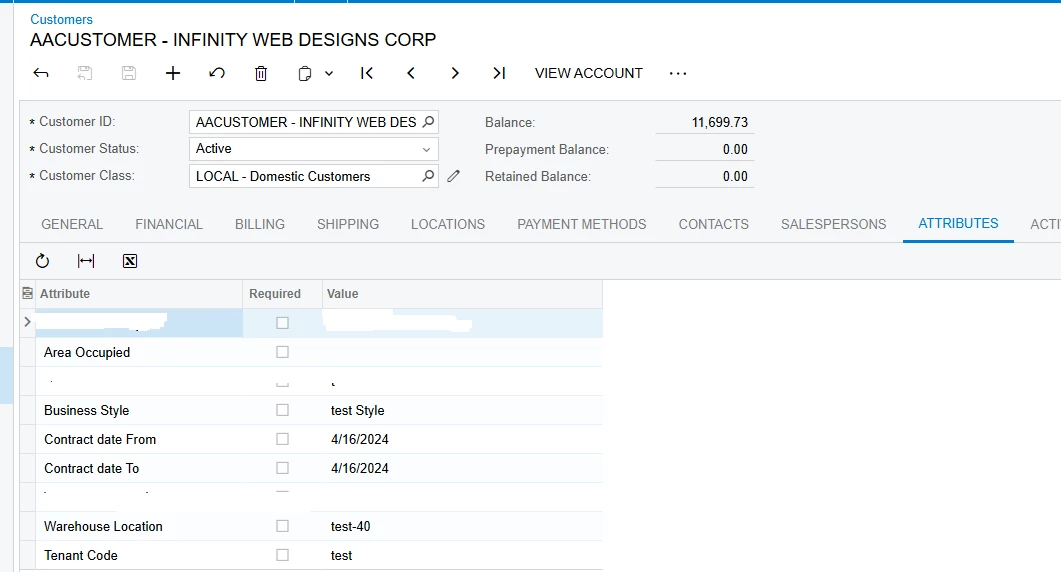
You need to add all mentioned attributes to the Customer class for the customer you are trying to update. Only the attributes included in the Customer class will be available on the Customer screen.
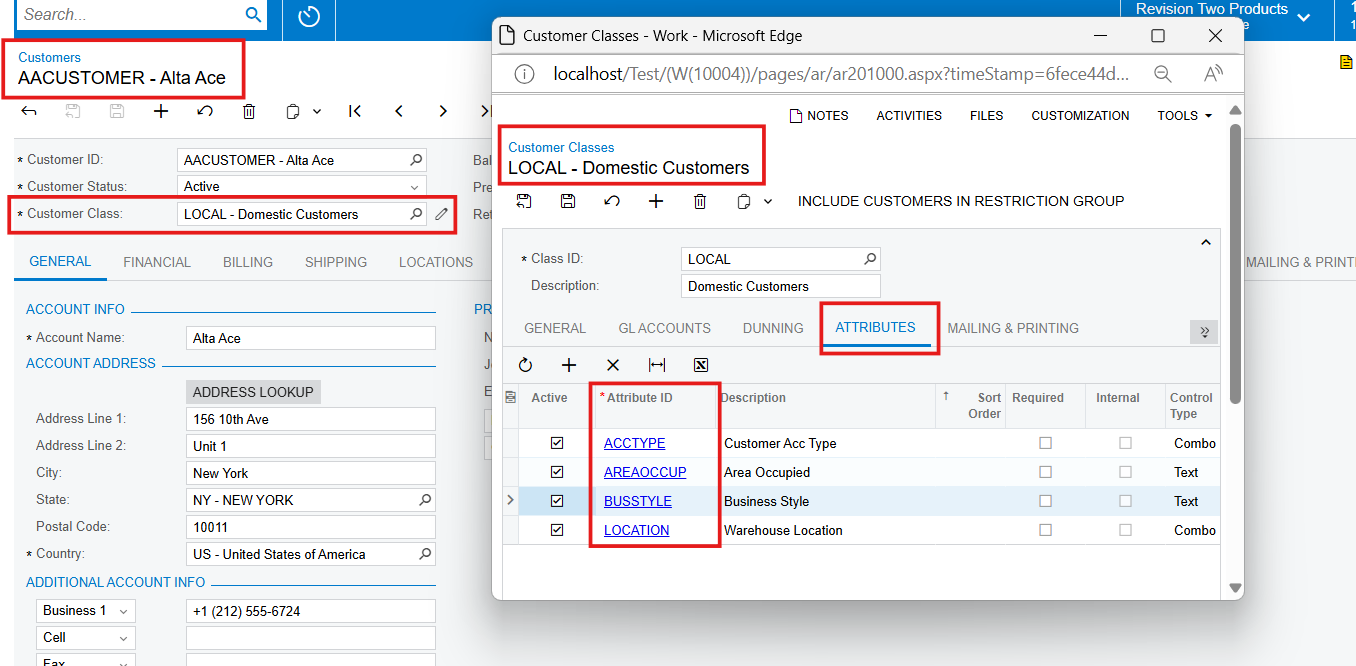


Use attached import scenario with all attributes.(make sure to fill Customer class column in your excel file)
 

please use attached import scenario, it works fine for me.


18 replies

jwright
Jr Varsity III
Forum|alt.badge.img+1
  • Jr Varsity III
  • November 15, 2024

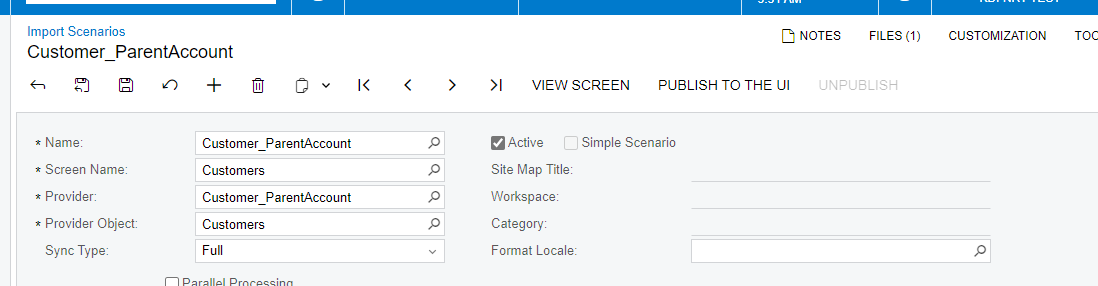
@jhoncandare04   What screen are you importing to? Are you needing to add attributes to a customer record or add the values to the attributes on a customer record? (If you provide a full screenshot (the header section of the import scenario screen) it would answer these questions)


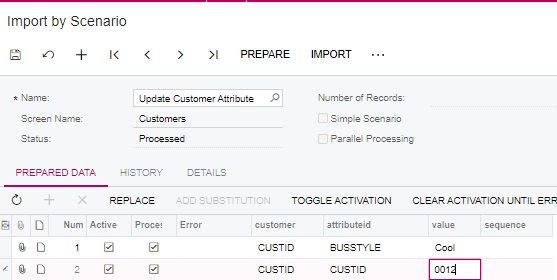
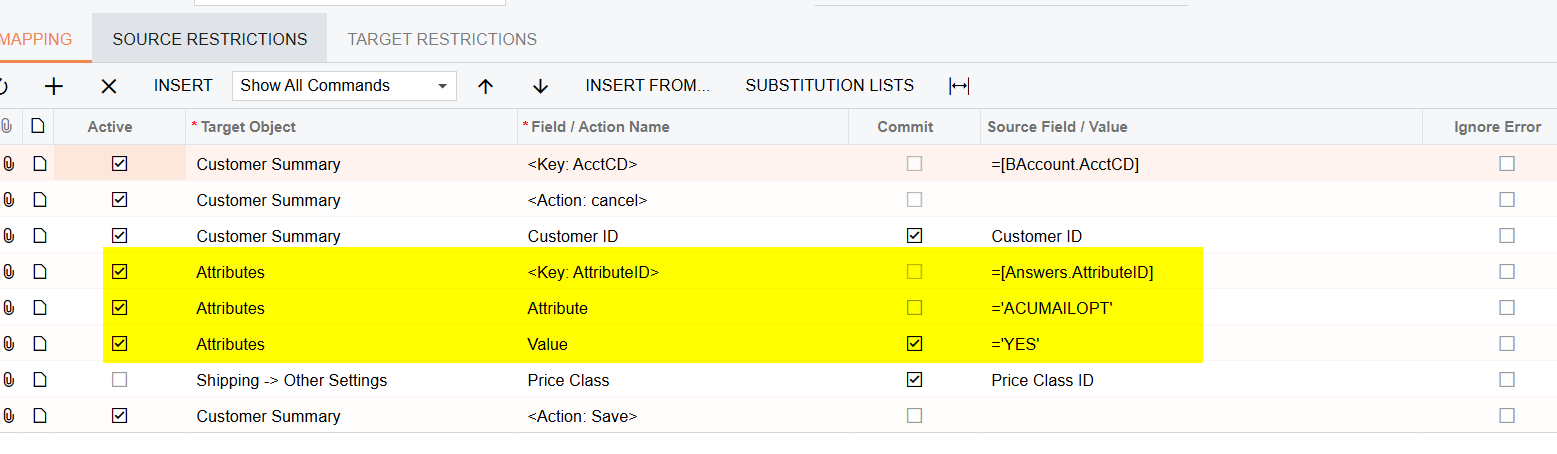
Here is the steps to import values to a Customer records screens’ attributes.

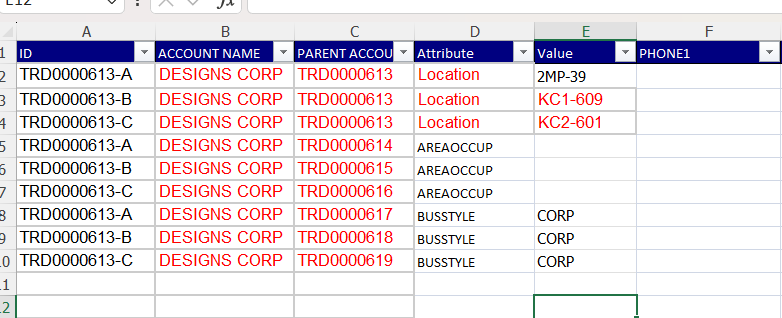
The excel import would look like this.


Manikanta Dhulipudi
Captain II
Forum|alt.badge.img+15

@jhoncandare04 Please share the XML file of import scenario once, which screen it is?


Forum|alt.badge.img
  • Author
  • Jr Varsity II
  • November 15, 2024

Im Importing to Customer.


Forum|alt.badge.img
  • Author
  • Jr Varsity II
  • November 15, 2024


Forum|alt.badge.img
  • Author
  • Jr Varsity II
  • November 15, 2024

@jwright ​@Manikanta Dhulipudi 


Manikanta Dhulipudi
Captain II
Forum|alt.badge.img+15

@jhoncandare04 

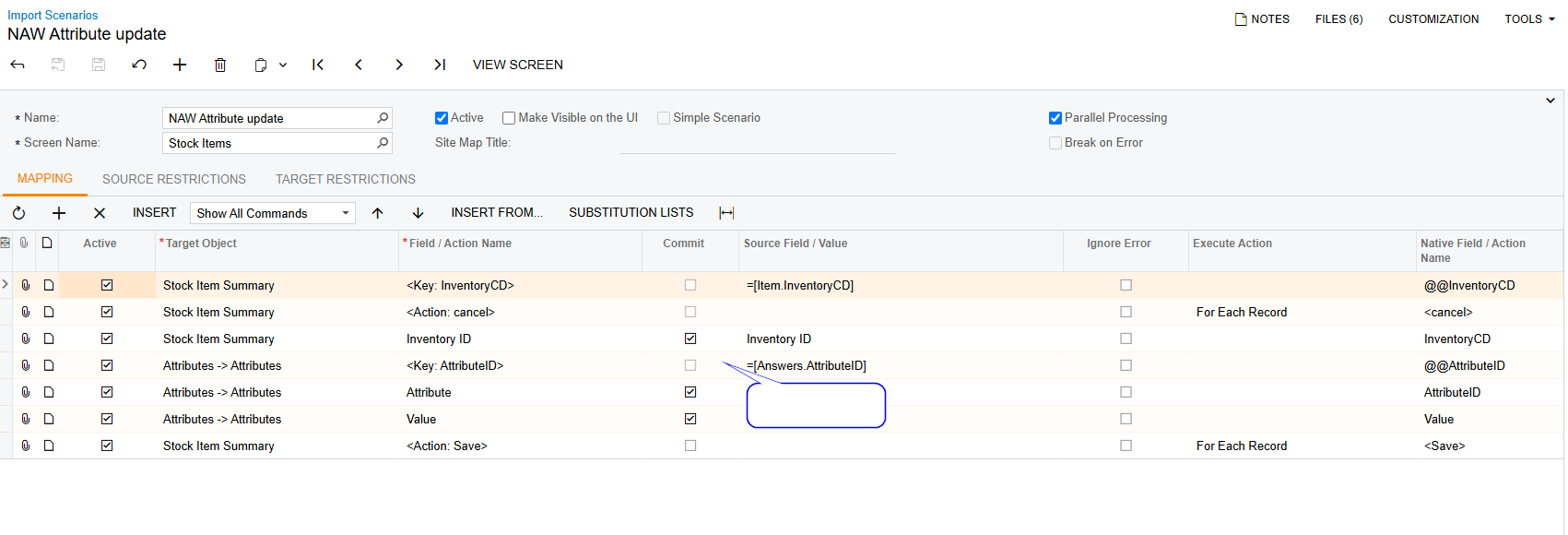
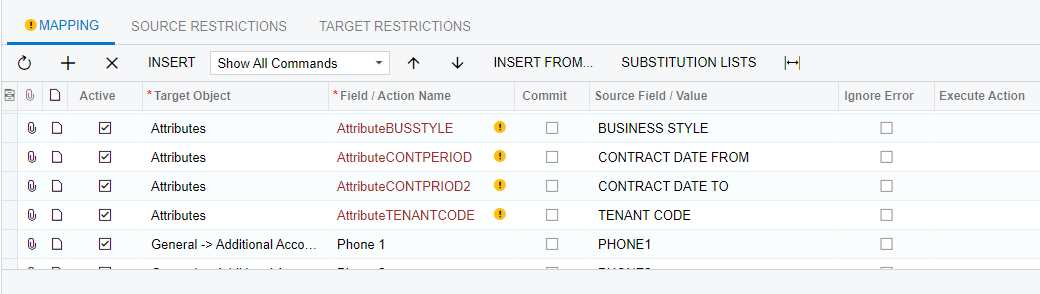
This is the mapping missing 


Forum|alt.badge.img
  • Author
  • Jr Varsity II
  • November 15, 2024

@jhoncandare04 

This is the mapping missing 


This is for selection. What about when it's for text, and I have two or more attributes? Sorry, I'm new to using this ​@Manikanta Dhulipudi also how will i call my value on excel in this attribute?


DipakNilkanth
Pro III
Forum|alt.badge.img+13

Hi ​@jhoncandare04,

Please use attached XML file to import.
You need to pass attributes values as below.

Attribute ID → Value for each attribute from the excel file.
 

Hope, it helps!


Forum|alt.badge.img
  • Author
  • Jr Varsity II
  • November 15, 2024

Is this the final option? I ask because using this will require me to upload a lot of data, which could make my records more complicated. ​@Manikanta Dhulipudi 


DipakNilkanth
Pro III
Forum|alt.badge.img+13

Hi ​@jhoncandare04,

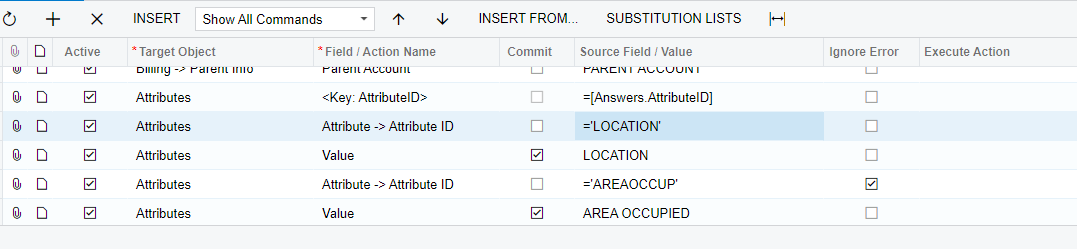
You can try to add all attributes in import scenario like below with your excel file.
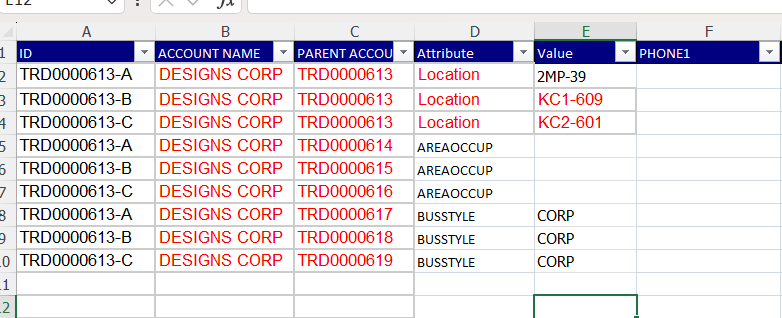
Just add Attribute ID and Value column in Import scenario for each attribute and in Value column pass Excel column name for respective attribute.
 

Let me know if you can able to do this.

Hope, it helps!


Forum|alt.badge.img
  • Author
  • Jr Varsity II
  • November 15, 2024

@Manikanta Dhulipudi im getting an error
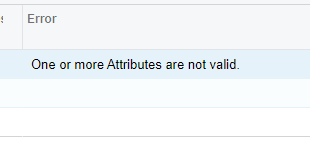
Field: Value, Value: 2MP-39, Error: The  class does not have the LOCATION attribute. Make sure the attribute name is correct or consider adding the attribute to the class.


Manikanta Dhulipudi
Captain II
Forum|alt.badge.img+15

@jhoncandare04 The data may be wrong, Please check you need to give the value description not the value ID in the import scenario.


DipakNilkanth
Pro III
Forum|alt.badge.img+13

Hi ​@jhoncandare04,

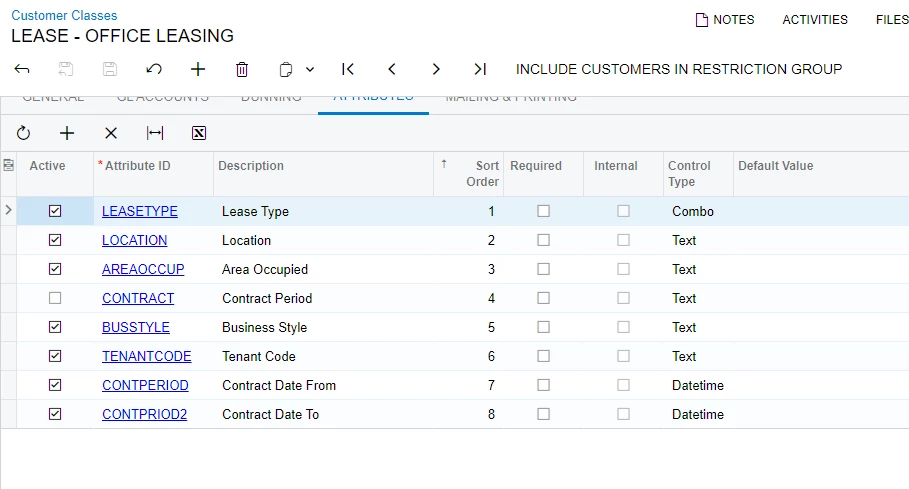
You need to add all mentioned attributes to the Customer class for the customer you are trying to update. Only the attributes included in the Customer class will be available on the Customer screen.


Use attached import scenario with all attributes.(make sure to fill Customer class column in your excel file)


Forum|alt.badge.img
  • Author
  • Jr Varsity II
  • November 15, 2024

i already add all the attributes to customer class but it is still getting the same error


DipakNilkanth
Pro III
Forum|alt.badge.img+13

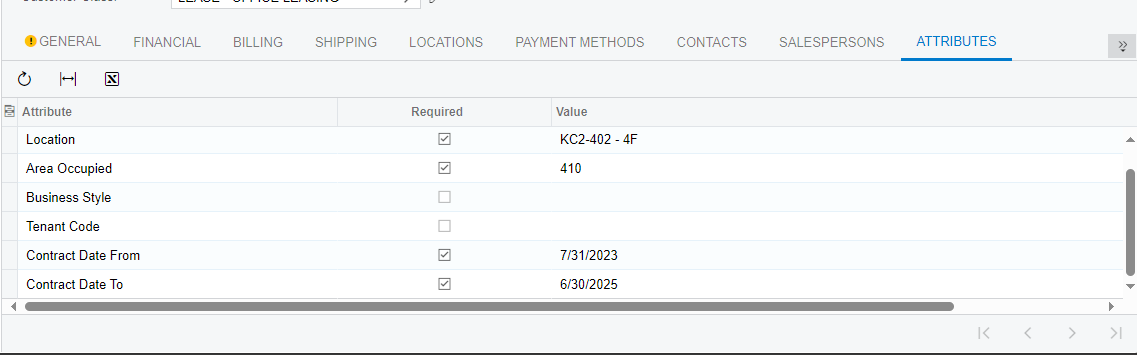
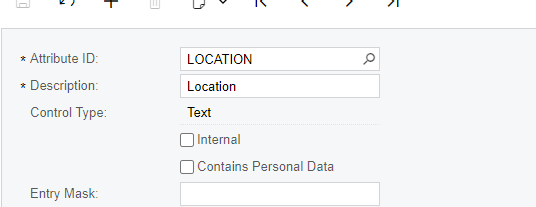
Can you provide screenshot of your Location Attribute ? how did you define?


Forum|alt.badge.img
  • Author
  • Jr Varsity II
  • November 15, 2024

Field: Value, Value: 2MP-39, Error: The  class does not have the LOCATION attribute. Make sure the attribute name is correct or consider adding the attribute to the class.


DipakNilkanth
Pro III
Forum|alt.badge.img+13
  • Pro III
  • Answer
  • November 15, 2024

Hi ​@jhoncandare04,

You need to add all mentioned attributes to the Customer class for the customer you are trying to update. Only the attributes included in the Customer class will be available on the Customer screen.


Use attached import scenario with all attributes.(make sure to fill Customer class column in your excel file)
 

please use attached import scenario, it works fine for me.


Forum|alt.badge.img
  • Author
  • Jr Varsity II
  • November 15, 2024

Thank you it works now hehehe