Question

How to Configure QR Code or Barcode in Modern Ui

  • June 11, 2026
  • 3 replies
  • 143 views

Forum|alt.badge.img+3

I have tried all the possible ways to implement the Barcode or QR code it is working fine in Classic UI Modern UI Not-It is for Sales Order Screen

My HTML code

<template modify="#form-Order">
    <field name="UsrQRCodeBase" unbound="" replace-content="">
        <div class="v-stack col-12" style="align-items: center; justify-content: center; padding: 10px 0;">
            <!-- Clean label element matching modern framework styling -->
            <qp-label caption="Scan to Capture" style="font-weight: 600; margin-bottom: 8px;"></qp-label>

            <!-- Standard HTML layout image container that natively decodes the Base64 variable -->
            <img src="data:image/png;base64,{{Document.UsrQRCodeBase}}"
                 alt="Sales Order QR Code"
                 style="width: 160px; height: 160px; border: 1px solid var(--qp-border-color, #e0e0e0); border-radius: 4px; background-color: #ffffff; box-shadow: 0 1px 3px rgba(0,0,0,0.05);" />
        </div>
    </field>
       

3 replies

arpine08
Jr Varsity I
Forum|alt.badge.img+2
  • Jr Varsity I
  • August 5, 2026

Hi ​@FarhanaM60,

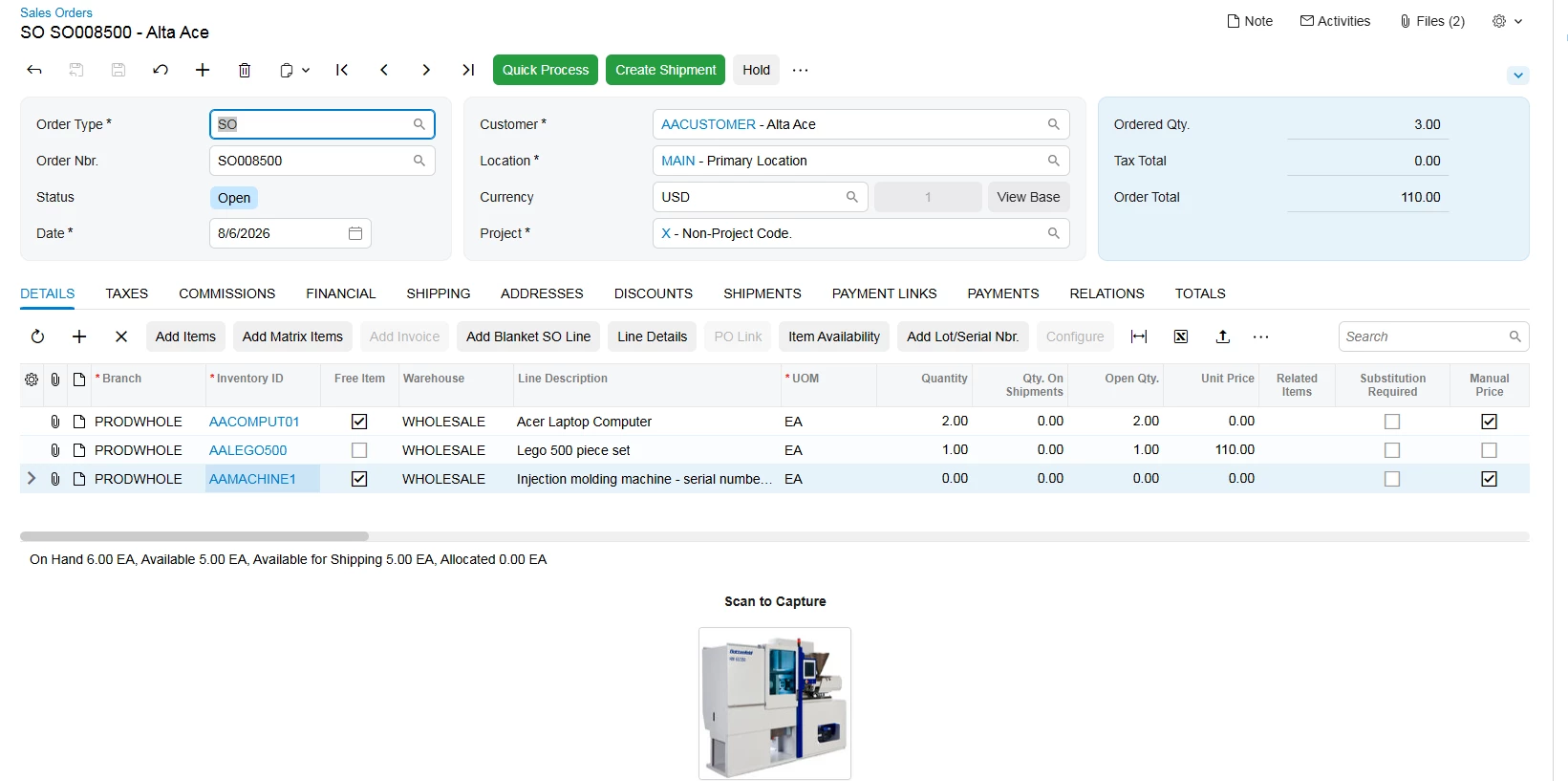
I was able to get it working in Modern UI by using src.bind for the image source and accessing the Base64 value through the field's .value property.

            <img src.bind="'data:image/png;base64,' + Document.UsrQRCodeBase.value" if.bind="Document.UsrQRCodeBase.value"
alt="Sales Order QR Code"
style="width: 160px; height: 160px; border: 1px solid var(--qp-border-color, #e0e0e0); border-radius: 4px; background-color: #ffffff; box-shadow: 0 1px 3px rgba(0,0,0,0.05);" />

Result:


Forum|alt.badge.img+3
  • Author
  • Captain II
  • August 7, 2026

Hi,

Thank you for looking into this and sharing the suggestion.

I tried using:

<img src.bind="'data:image/png;base64,' + Document.UsrQRCodeBase.value"
     if.bind="Document.UsrQRCodeBase.value" />

However, I don't think this is an exact replica of my scenario. In my case, the QR code is displayed on the Sales Order screen using a custom field (UsrQRCodeBase), and while it works correctly in the Classic UI, it does not render in the Modern UI.


arpine08
Jr Varsity I
Forum|alt.badge.img+2
  • Jr Varsity I
  • August 7, 2026

@FarhanaM60  - Thanks for your reply.

Is UsrQRCodeBase also added to the corresponding Modern UI TypeScript extension?

In my test, I added UsrQRCodeBase to the TypeScript extension, and

the Base64 string was stored in the custom UsrQRCodeBase field on the Sales Order.

TS:

import {
PXFieldState,
} from "client-controls";

import {
SOOrderHeader
} from "src/screens/SO/SO301000/SO301000";

export interface SOOrderHeader_Ext extends SOOrderHeader { }
export class SOOrderHeader_Ext {
UsrQRCodeBase: PXFieldState;
}

HTML (based on your original HTML)

<template modify="#form-Order">
<field name="UsrQRCodeBase" unbound="" replace-content="">
<div class="v-stack col-12" style="align-items: center; justify-content: center; padding: 10px 0;">
<!-- Clean label element matching modern framework styling -->
<qp-label caption="Scan to Capture" style="font-weight: 600; margin-bottom: 8px;"></qp-label>

<!-- Standard HTML layout image container that natively decodes the Base64 variable -->
<img src.bind="'data:image/png;base64,' + Document.UsrQRCodeBase.value" if.bind="Document.UsrQRCodeBase.value"
alt="Sales Order QR Code"
style="width: 160px; height: 160px; border: 1px solid var(--qp-border-color, #e0e0e0); border-radius: 4px; background-color: #ffffff; box-shadow: 0 1px 3px rgba(0,0,0,0.05);" />
</div>
</field>

</template>

As an initial test, I replaced {{Document.UsrQRCodeBase}} in your original src attribute with a hardcoded Base64 image, and it rendered correctly in Modern UI. This confirmed that the <img> element itself was working.