Answer

How to add custom fields in mobile app

  • September 25, 2024
  • 4 replies
  • 140 views

Forum|alt.badge.img

For Appointment screen (Screen ID: FS300200) we added two fields in details tab.
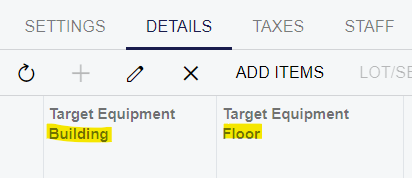
This is working fine on web.

I wants to add it it in mobile app (next to Target Equipment ID).
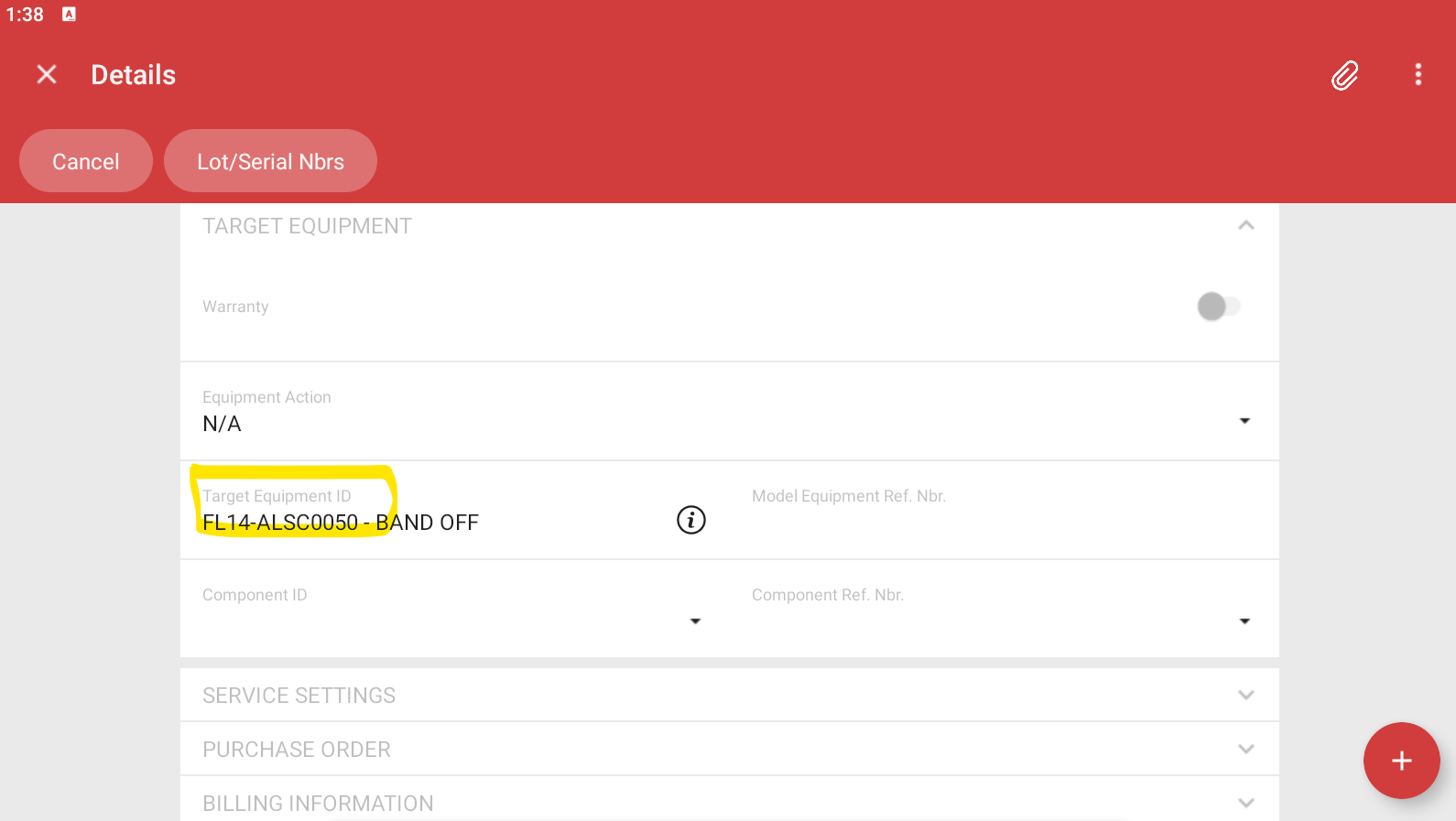
I tried various code but none of this working (no error - new field not visible)

update screen FS300200 {
update container "Details"{
update group "TargetEquipmentGroup"{
update layout "EquipmentLine" {
add field "UsrBuilding" {
displayName = "Target Equipment Building"
placeAfter field "TargetEquipmentID"
}
add field "UsrFloor" {
displayName = "Target Equipment Floor"
placeAfter field "TargetEquipmentID"
}
}
}
}
}

and

update screen FS300200 {
update container "Details"{
update group "TargetEquipmentGroup"{
add layout "EquipmentDetails" {
displayName = "EquipmentDetails"
layout = "Inline"
add field "UsrBuilding" {
displayName = "Target Equipment Building"
}
add field "UsrFloor" {
displayName = "Target Equipment Floor"
}
}
}
}
}

FSAppointmentDet DAC extend for UsrBuilding and UsrFloor field.

String field with no special attributes.

Can anyone have idea how to add custom fields in mobile app?

Best answer by dcomerford

@bjani23 Its the Display name that you should be using in the mobile app. not the field name. Hard to tell if you have called it Building or Target Equipment Building.

If it is Target Equipment Building then   


update screen FS300200 {

update container "Details" {

     add field "TargetEquipmentBuilding" {

     displayName = "Target Equipment Building"

     placeAfter field "TargetEquipmentID"

     }

    add field "TargetEquipmentFloor" {

    displayName = "Target Equipment Floor"

   placeAfter field "TargetEquipmentID"

 }

 }

}

Best way is to use the Tools>Web Service> Service Description on the screen to see what the name is.

4 replies

DipakNilkanth
Pro III
Forum|alt.badge.img+13

Hi @bjani23,

Could you please try below code snippet and confirm is the new fields are visible or not to the mobile app?

update screen FS300200 
{
update container "Details"
{
add field "UsrBuilding"
{
displayName = "Target Equipment Building"
placeAfter field "TargetEquipmentID"
}
add field "UsrFloor"
{
displayName = "Target Equipment Floor"
placeAfter field "TargetEquipmentID"
}
}
}

Hope, it helps!


Forum|alt.badge.img
  • Author
  • Jr Varsity III
  • September 25, 2024

Hi @bjani23,

Could you please try below code snippet and confirm is the new fields are visible or not to the mobile app?

update screen FS300200 
{
update container "Details"
{
add field "UsrBuilding"
{
displayName = "Target Equipment Building"
placeAfter field "TargetEquipmentID"
}
add field "UsrFloor"
{
displayName = "Target Equipment Floor"
placeAfter field "TargetEquipmentID"
}
}
}

Hop, it helps!


I tried but not visible anywhere.


DipakNilkanth
Pro III
Forum|alt.badge.img+13

Hi @bjani23,

Have you checked fields name in the Service description of WSDL schema?


dcomerford
Captain II
Forum|alt.badge.img+15
  • Captain II
  • Answer
  • September 25, 2024

@bjani23 Its the Display name that you should be using in the mobile app. not the field name. Hard to tell if you have called it Building or Target Equipment Building.

If it is Target Equipment Building then   


update screen FS300200 {

update container "Details" {

     add field "TargetEquipmentBuilding" {

     displayName = "Target Equipment Building"

     placeAfter field "TargetEquipmentID"

     }

    add field "TargetEquipmentFloor" {

    displayName = "Target Equipment Floor"

   placeAfter field "TargetEquipmentID"

 }

 }

}

Best way is to use the Tools>Web Service> Service Description on the screen to see what the name is.