Solved

How I can add JavaScript in window onload for Acumatica customization screen.

  • January 30, 2026
  • 7 replies
  • 141 views

    I have below script that I can be able to add at my screen. But Same script I am not able to add in Existing screen as customization.

I want to add this script on page load of Custom screen. I have try with Acumatica customization editor but when I have added this script inside asp control ...while generate script it has gone….please help

<script type="text/javascript">
    window.onload = function () {
    setTimeout(function () {
        const el = document.querySelector(
            "#ctl00_phG_tab_t18_EWQCCstPXTab35_t3_QCAttributesDetailsGrid_at_tlb_ul li:first-child"
        );

        if (el) {
            el.addEventListener("click", function (e) {
                e.preventDefault(); // optional
                console.log("First li clicked");
                var ds = px_alls['ds'];
                ds.executeCallback('EWQCRefreshAnnotations');
            });
        }
    }, 500);
     };
 </script>
Best answer by Marat43

Hi ​@bpatidar72,

As I understand, your JS script replaces the behavior of the first button in the toolbar of the QCAttributesDetailsGrid and instead calls your action EWQCRefreshAnnotations.

I decided to try the same approach on my side, and it worked! If you follow these steps, it should work for you as well.

In my example, I wanted to change the logic of the first button in the toolbar of the Transactions grid in the Details tab in Sales Order screen.

Step 1: Create the action in the graph

public class SOOrderEntryExt : PXGraphExtension<SOOrderEntry>
{
public PXAction<SOOrder> EWQCRefreshAnnotations;

[PXButton(CommitChanges = true)]
[PXUIField(DisplayName = "EWQCRefreshAnnotations", Enabled = true)]
protected virtual IEnumerable eWQCRefreshAnnotations(PXAdapter adapter)
{
PXTrace.WriteInformation("EWQCRefreshAnnotations action called");
return adapter.Get();
}}


Step 2: Prepare the JS

function customizeTransactionsGrid() {
window.onload = function() {
setTimeout(function() {
const el = document.querySelector("#ctl00_phG_tab_t0_grid_at_tlb_ul li:first-child");

if (el) {
el.addEventListener("click", function(e) {
e.preventDefault();
console.log("Transactions + button clicked");

var ds = px_alls['ds'];
ds.executeCallback('EWQCRefreshAnnotations');
});}}, 500);};}

customizeTransactionsGrid();


Important: Make sure that the grid ID and toolbar elements in the querySelector match your grid. You can check this using F12 Developer Tools in the browser.

Step 3: Insert JS in the screen

Go to your Customization Project

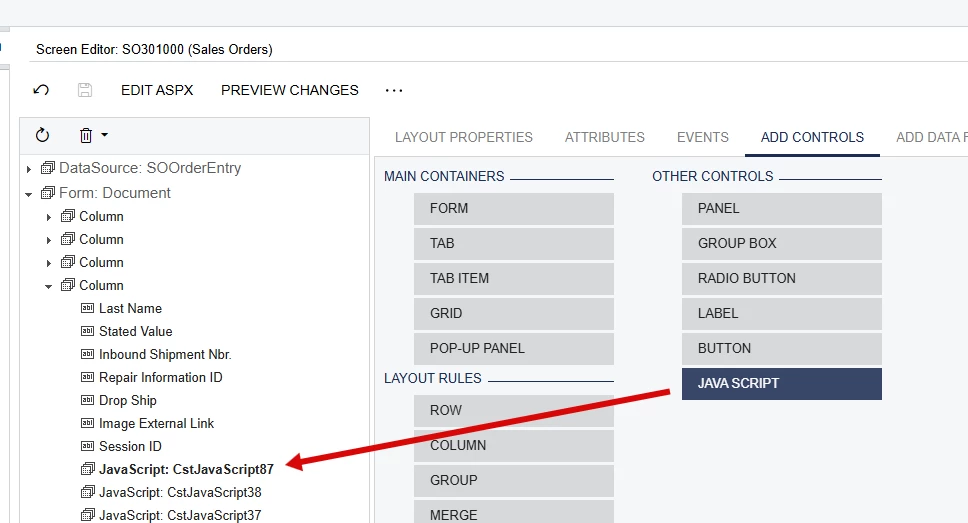
Add a JavaScript control

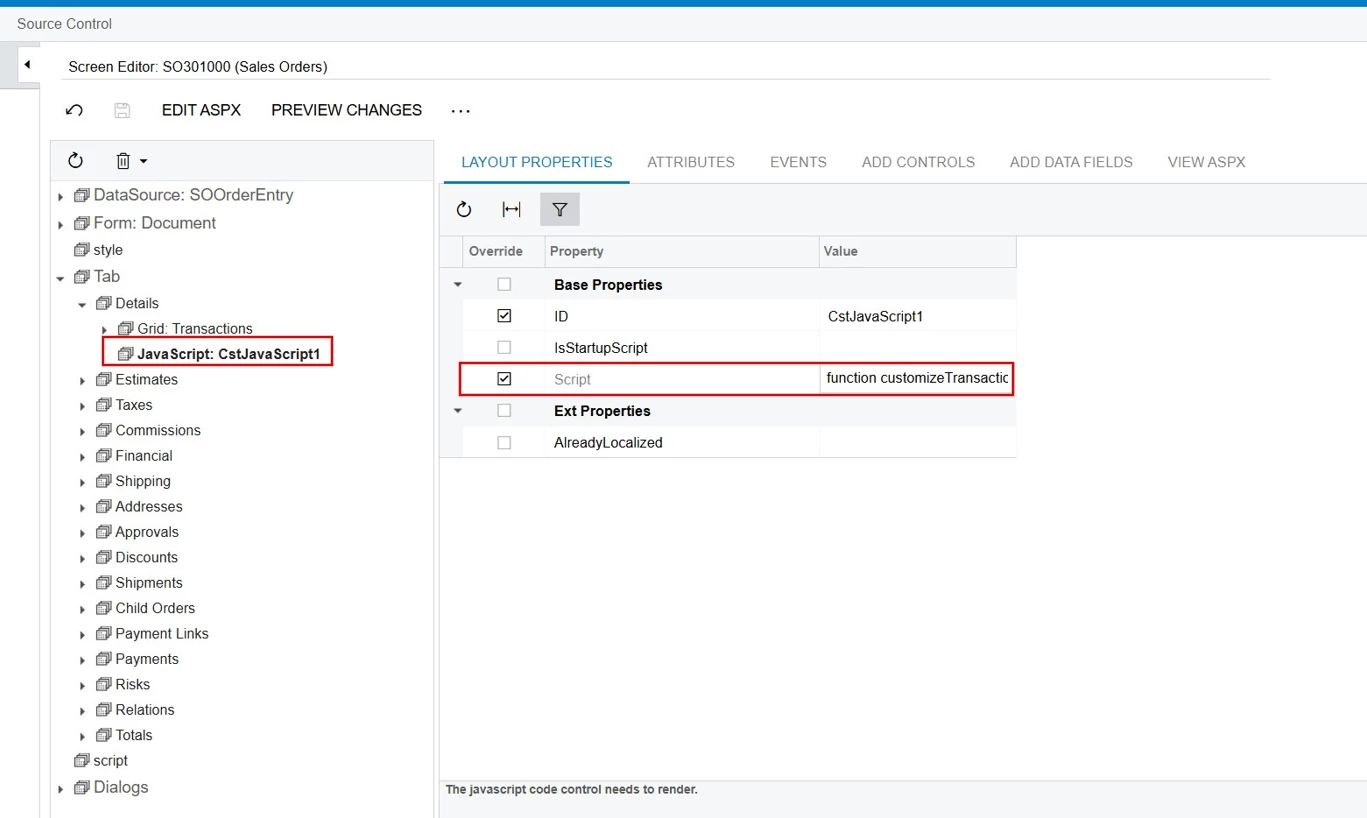
Paste the script inside


Step 4: Save and publish

After doing this, the first button in the Transactions grid toolbar now calls my EWQCRefreshAnnotations action instead of its default behavior.

Hope this helps!

7 replies

harutyungevorgyan
Jr Varsity I
Forum|alt.badge.img+4

Hello ​@bpatidar72 ,
 

To prevent your script from disappearing when you save in the Customization Editor, use the PXJavaScript control. This is the standard way to handle scripts in the Acumatica Classic UI.

Also, keep in mind that using hardcoded ASP.NET IDs (like ctl00_phG_tab..) can be risky as they may change. You might want to use ControlD properties or CSS classes to find your elements more reliably. Check out this ​@Yuriy Zaletskyy ‘s blog post for more details: Using PXJavaScript in Acumatica.


shushanna34
Freshman II
Forum|alt.badge.img
  • Freshman II
  • January 30, 2026

Hi ​@bpatidar72 for adding the JS in you customization please do the following steps.

  • Go to the Customization Package, open the screen where you want the JS to work
  • Add Control Jasa Script 
  • Put you code in Function something like this 
     

    function test() {
        window.onload = function() {
            setTimeout(function() {
                const el = document.querySelector(
                    "#ctl00_phG_tab_t18_EWQCCstPXTab35_t3_QCAttributesDetailsGrid_at_tlb_ul li:first-child"
                );

                if (el) {
                    el.addEventListener("click", function(e) {
                        e.preventDefault(); // optional
                        console.log("First li clicked");
                        var ds = px_alls['ds'];
                        ds.executeCallback('EWQCRefreshAnnotations');
                    });
                }
            }, 500);
        };
    }


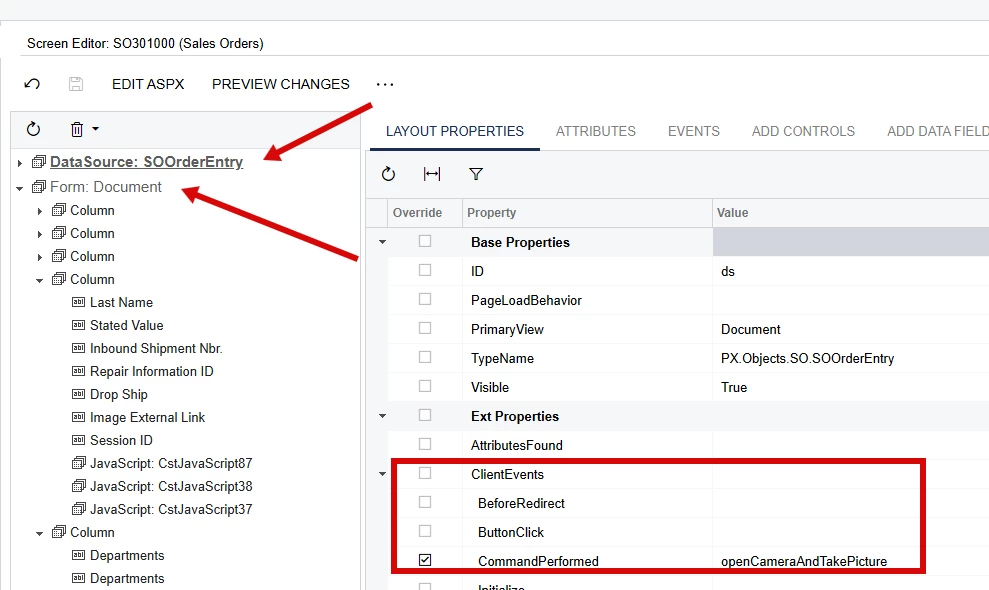
  • and then call test() function in Screen’s forms Client Event, either Data Source’s Client Events, or Form’s it depends on working requirements.

This should work, in case of anything ready to help. :) 


Regards,
Shushanna


zherring
Freshman I
Forum|alt.badge.img
  • Freshman I
  • January 30, 2026

Someone correct me if I am wrong but I believe you can also put this code into the Page_Load method within the aspx.cs file although you might have to refactor the script some to fit into the .cs style of file.


  • Author
  • Freshman I
  • January 31, 2026

@shushanna34, Thanks for reply...I have try same way using PXJavaScript  control ….I have added PXJavaScript  control and added my custom script in script property and published my custom page ,,,but its not working ….Inline script also not working in custom screen.


Forum|alt.badge.img
  • Jr Varsity I
  • Answer
  • January 31, 2026

Hi ​@bpatidar72,

As I understand, your JS script replaces the behavior of the first button in the toolbar of the QCAttributesDetailsGrid and instead calls your action EWQCRefreshAnnotations.

I decided to try the same approach on my side, and it worked! If you follow these steps, it should work for you as well.

In my example, I wanted to change the logic of the first button in the toolbar of the Transactions grid in the Details tab in Sales Order screen.

Step 1: Create the action in the graph

public class SOOrderEntryExt : PXGraphExtension<SOOrderEntry>
{
public PXAction<SOOrder> EWQCRefreshAnnotations;

[PXButton(CommitChanges = true)]
[PXUIField(DisplayName = "EWQCRefreshAnnotations", Enabled = true)]
protected virtual IEnumerable eWQCRefreshAnnotations(PXAdapter adapter)
{
PXTrace.WriteInformation("EWQCRefreshAnnotations action called");
return adapter.Get();
}}


Step 2: Prepare the JS

function customizeTransactionsGrid() {
window.onload = function() {
setTimeout(function() {
const el = document.querySelector("#ctl00_phG_tab_t0_grid_at_tlb_ul li:first-child");

if (el) {
el.addEventListener("click", function(e) {
e.preventDefault();
console.log("Transactions + button clicked");

var ds = px_alls['ds'];
ds.executeCallback('EWQCRefreshAnnotations');
});}}, 500);};}

customizeTransactionsGrid();


Important: Make sure that the grid ID and toolbar elements in the querySelector match your grid. You can check this using F12 Developer Tools in the browser.

Step 3: Insert JS in the screen

Go to your Customization Project

Add a JavaScript control

Paste the script inside


Step 4: Save and publish

After doing this, the first button in the Transactions grid toolbar now calls my EWQCRefreshAnnotations action instead of its default behavior.

Hope this helps!


  • Author
  • Freshman I
  • February 2, 2026

Hi ​@bpatidar72,

As I understand, your JS script replaces the behavior of the first button in the toolbar of the QCAttributesDetailsGrid and instead calls your action EWQCRefreshAnnotations.

I decided to try the same approach on my side, and it worked! If you follow these steps, it should work for you as well.

In my example, I wanted to change the logic of the first button in the toolbar of the Transactions grid in the Details tab in Sales Order screen.

Step 1: Create the action in the graph

public class SOOrderEntryExt : PXGraphExtension<SOOrderEntry>
{
public PXAction<SOOrder> EWQCRefreshAnnotations;

[PXButton(CommitChanges = true)]
[PXUIField(DisplayName = "EWQCRefreshAnnotations", Enabled = true)]
protected virtual IEnumerable eWQCRefreshAnnotations(PXAdapter adapter)
{
PXTrace.WriteInformation("EWQCRefreshAnnotations action called");
return adapter.Get();
}}


Step 2: Prepare the JS

function customizeTransactionsGrid() {
window.onload = function() {
setTimeout(function() {
const el = document.querySelector("#ctl00_phG_tab_t0_grid_at_tlb_ul li:first-child");

if (el) {
el.addEventListener("click", function(e) {
e.preventDefault();
console.log("Transactions + button clicked");

var ds = px_alls['ds'];
ds.executeCallback('EWQCRefreshAnnotations');
});}}, 500);};}

customizeTransactionsGrid();


Important: Make sure that the grid ID and toolbar elements in the querySelector match your grid. You can check this using F12 Developer Tools in the browser.

Step 3: Insert JS in the screen

Go to your Customization Project

Add a JavaScript control

Paste the script inside


Step 4: Save and publish

After doing this, the first button in the Transactions grid toolbar now calls my EWQCRefreshAnnotations action instead of its default behavior.

Hope this helps!


It’s Working…. Thank you...


Forum|alt.badge.img
  • Jr Varsity I
  • February 2, 2026

Glad it worked ​@bpatidar72