Answer

Edit label of CheckBox control

  • March 5, 2025
  • 5 replies
  • 105 views

Forum|alt.badge.img

All,

I was tasked to modify a customization package created by my predecessor. I’ve made most of the changes easily, but one last seemingly simple detail is hanging me up.

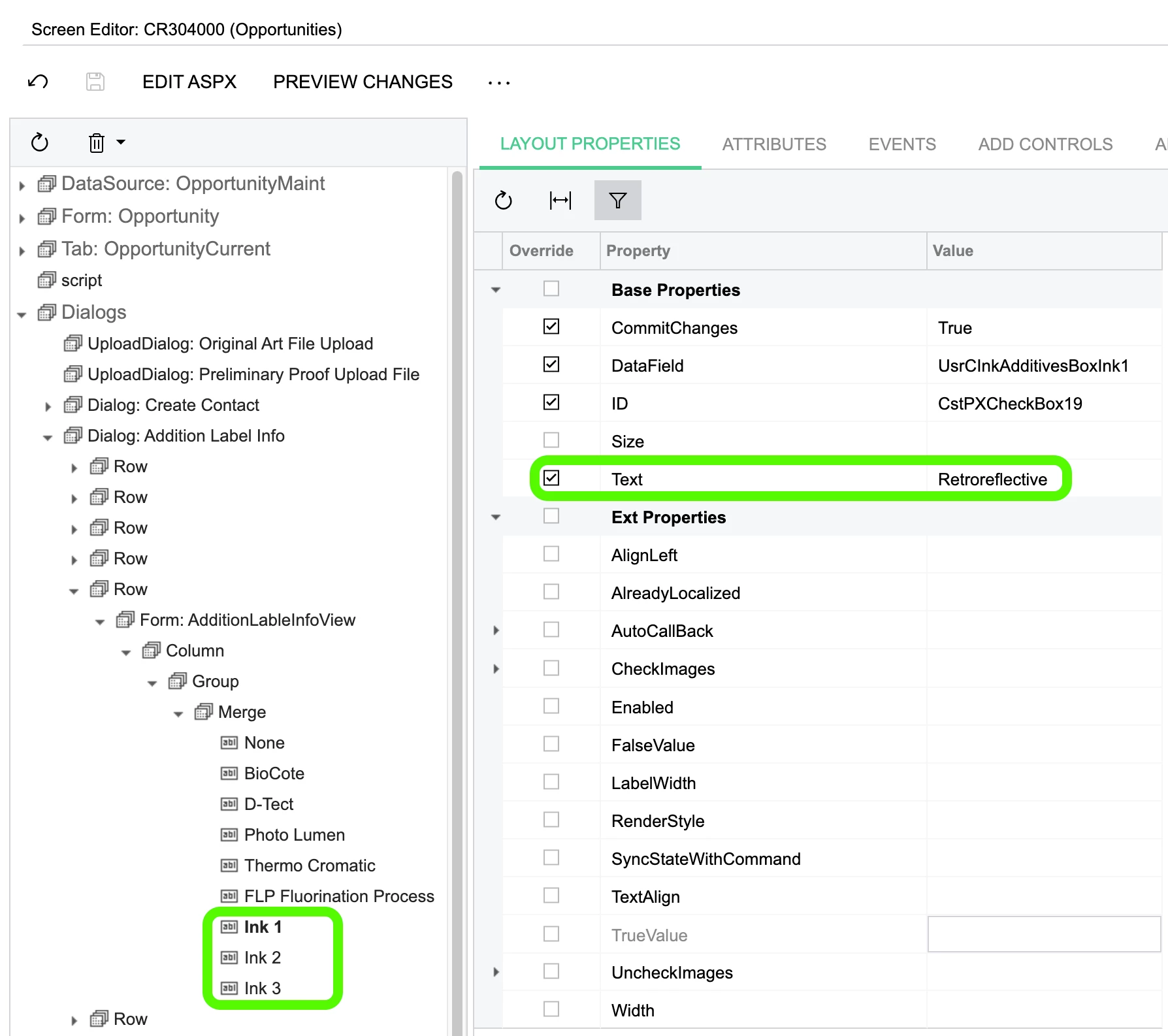
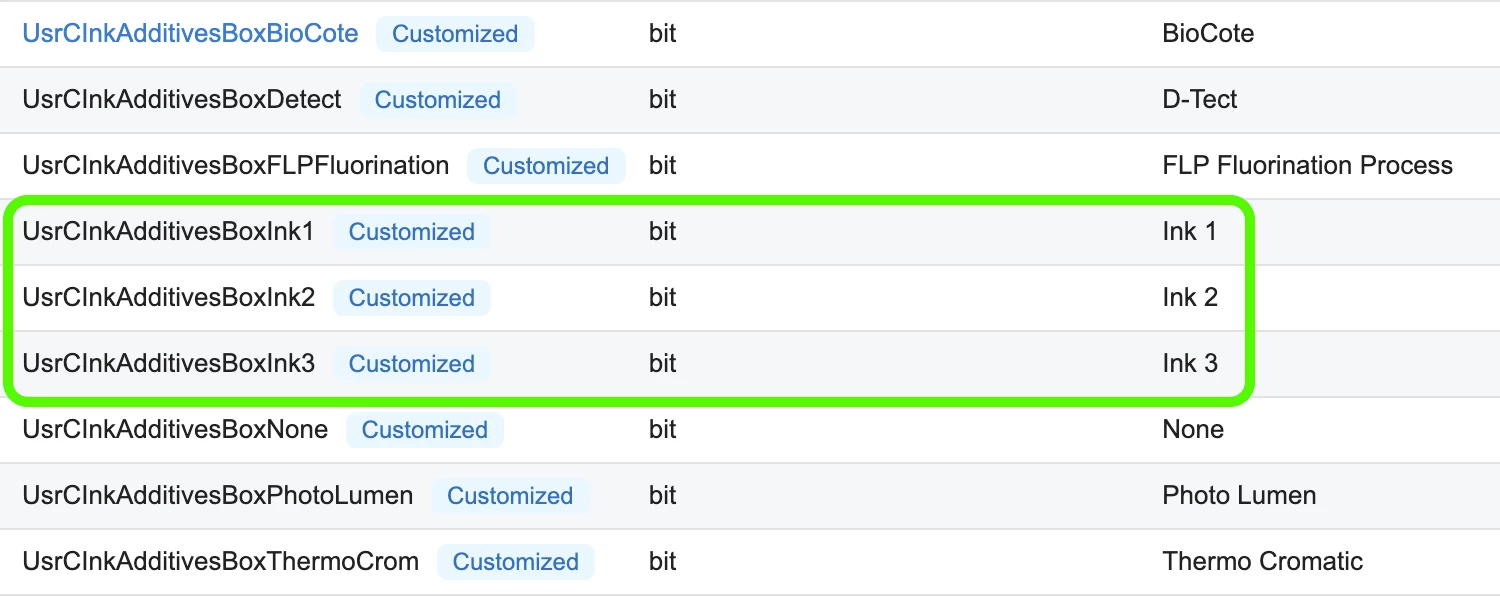
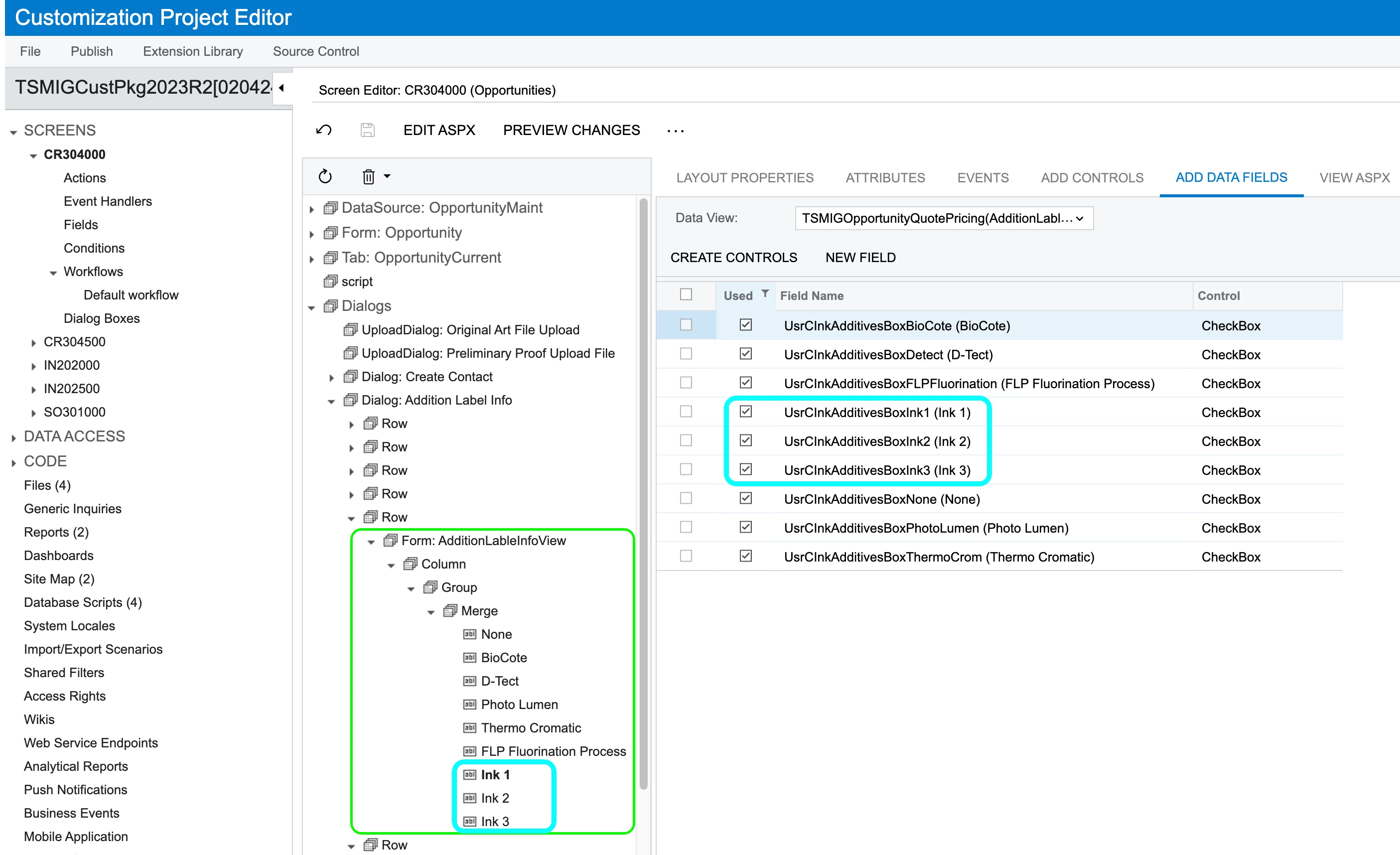
We have a custom dialog with checkboxes, and I discovered it was coded with three additional generic checkboxes for future use. These controls are currently labeled Ink 1, Ink 2, Ink 3.

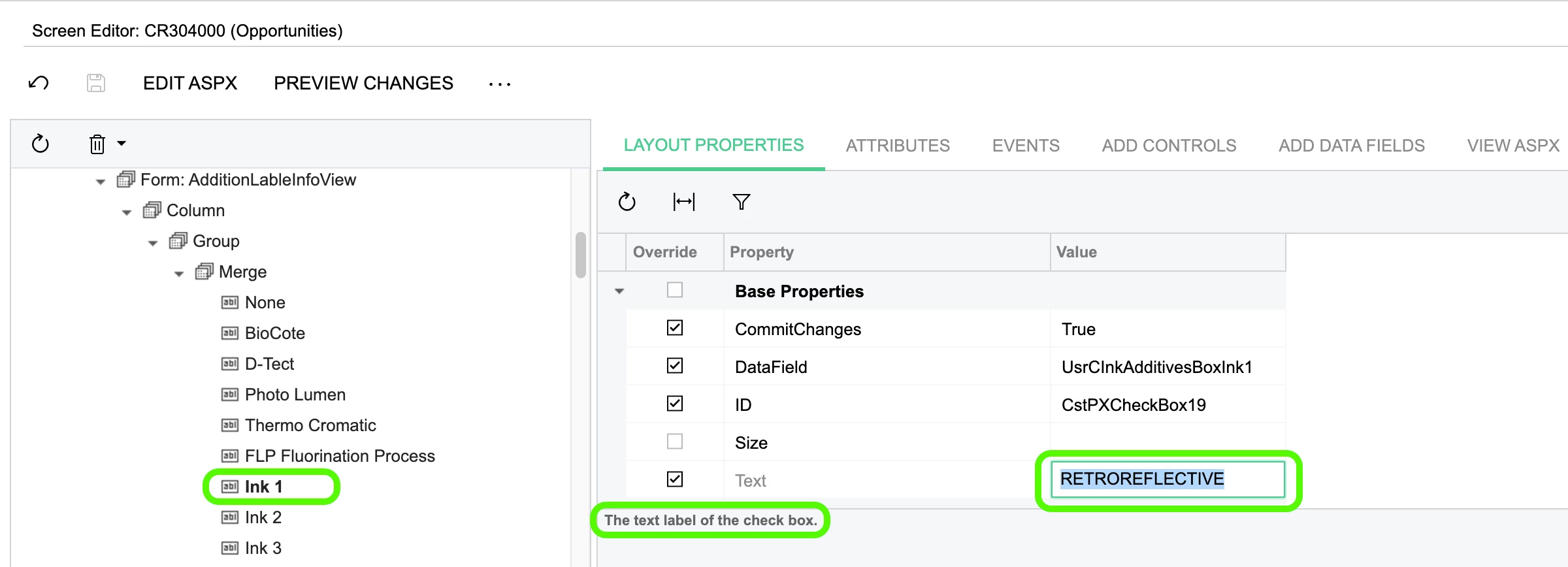
We would like to change these to more specific names, but I’ve found no way to edit them. Am I blind or stupid? Maybe both? Screenshots below. :) (the third screenshot is where I tried to override the label text). 24R2.

 

Best answer by DipakNilkanth

Hi ​@swartzfeger,

You can change the display name from the Customization Editor using low-code/no-code customization.

Here’s how:

  1. Add your screen (e.g., Opportunities) to the Screens section.
  2. Add your custom fields in the Fields section.
  3. Change the Display Name to what you want it to show.
  4. Publish the Customization Project.


Hope, it helps!

5 replies

Forum|alt.badge.img+7
  • Captain II
  • March 5, 2025

Typically you’ll change the description in the DAC for each field declaration. After that, you might consider a PXCacheExtension which allows you to change the caption on a per screen basis (among other things)


Forum|alt.badge.img
  • Author
  • Jr Varsity II
  • March 5, 2025

Typically you’ll change the description in the DAC for each field declaration. After that, you might consider a PXCacheExtension which allows you to change the caption on a per screen basis (among other things)

Thanks Django, I vaguely thought that may be the case.

I visited our DAC browser and see those labels -- Ink 1, Ink 2, Ink 3 -- so I’m thinking those DAC changes are already baked into the customization package I’m modifying. So I’m hoping it’s trivial to change this.

Where would those new DAC descriptions reside in the customization package? I see a sub header named Database Scripts on the left hand side, but I see no way to edit those scripts.

Thanks!


Forum|alt.badge.img
  • Author
  • Jr Varsity II
  • March 6, 2025

Typically you’ll change the description in the DAC for each field declaration. After that, you might consider a PXCacheExtension which allows you to change the caption on a per screen basis (among other things)

Also, what’s bugging me is that the Layout Properties seems to imply that the checkbox label can be changed (override column) without involving the DAC:

“The text label of the check box.”


DipakNilkanth
Pro III
Forum|alt.badge.img+13
  • Pro III
  • Answer
  • March 6, 2025

Hi ​@swartzfeger,

You can change the display name from the Customization Editor using low-code/no-code customization.

Here’s how:

  1. Add your screen (e.g., Opportunities) to the Screens section.
  2. Add your custom fields in the Fields section.
  3. Change the Display Name to what you want it to show.
  4. Publish the Customization Project.


Hope, it helps!


Forum|alt.badge.img
  • Author
  • Jr Varsity II
  • March 6, 2025

Hi ​@swartzfeger,

You can change the display name from the Customization Editor using low-code/no-code customization.

Here’s how:

  1. Add your screen (e.g., Opportunities) to the Screens section.
  2. Add your custom fields in the Fields section.
  3. Change the Display Name to what you want it to show.
  4. Publish the Customization Project.


Hope, it helps!

Thanks Dipak, it was perfect!