Answer

Edit Attention without Override

  • February 4, 2025
  • 2 replies
  • 81 views

Forum|alt.badge.img

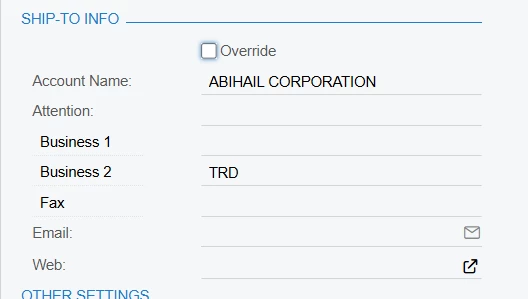
How will i edit this info Attention without overiding?

Best answer by DipakNilkanth

Hi ​@jhoncandare04,

You can do customization to achieve the same.
Use RowSelected event and make the Attention field enable as below:
 

   protected void Contact_RowSelected(PXCache cache, PXRowSelectedEventArgs e)
{

var row = (Contact)e.Row;
if (row == null) return;

// Enabling the Attention field
PXUIFieldAttribute.SetEnabled<Contact.attention>(cache, row, true);

}

Hope, it helps!

2 replies

DipakNilkanth
Pro III
Forum|alt.badge.img+13
  • Pro III
  • Answer
  • February 4, 2025

Hi ​@jhoncandare04,

You can do customization to achieve the same.
Use RowSelected event and make the Attention field enable as below:
 

   protected void Contact_RowSelected(PXCache cache, PXRowSelectedEventArgs e)
{

var row = (Contact)e.Row;
if (row == null) return;

// Enabling the Attention field
PXUIFieldAttribute.SetEnabled<Contact.attention>(cache, row, true);

}

Hope, it helps!


Forum|alt.badge.img+1
  • Jr Varsity I
  • February 4, 2025

Hi ​@jhoncandare04 
Not sure that it’s possible. When business account is created system also creates main (default) location and default contact. This default contact data cannot be modified.
If you have contact and then press button Create Account your contact details will become default.
So you can modify Attention only before business account is created. After creation you can just “Override” default.
But if you still need to change default Attention I suppose you need to find default contact of your account (BAccount.DefContactID) and update his Attention through the code

upd. Sorry, have missed answer above. It should works as expected)