Question

Customization How To add User Defined Field to Column on Header

  • November 12, 2025
  • 4 replies
  • 39 views

Forum|alt.badge.img

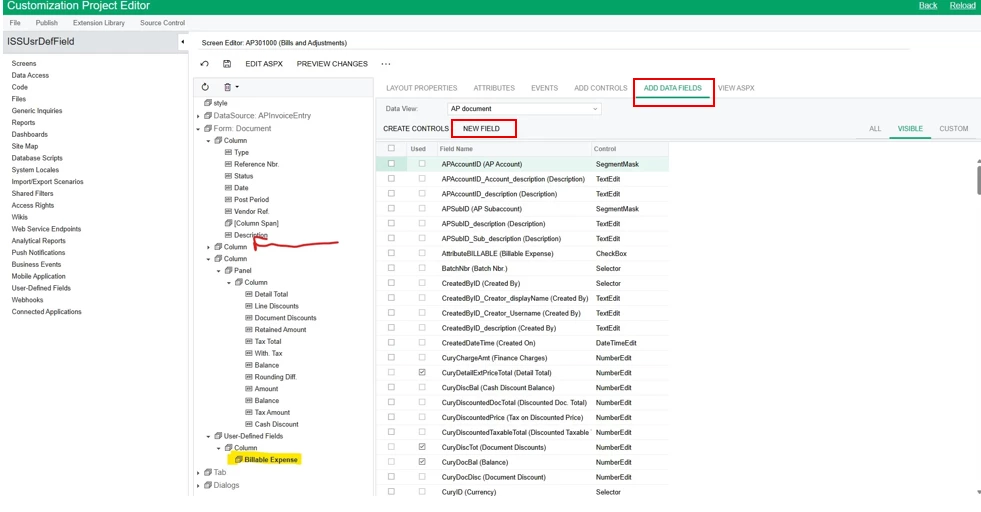
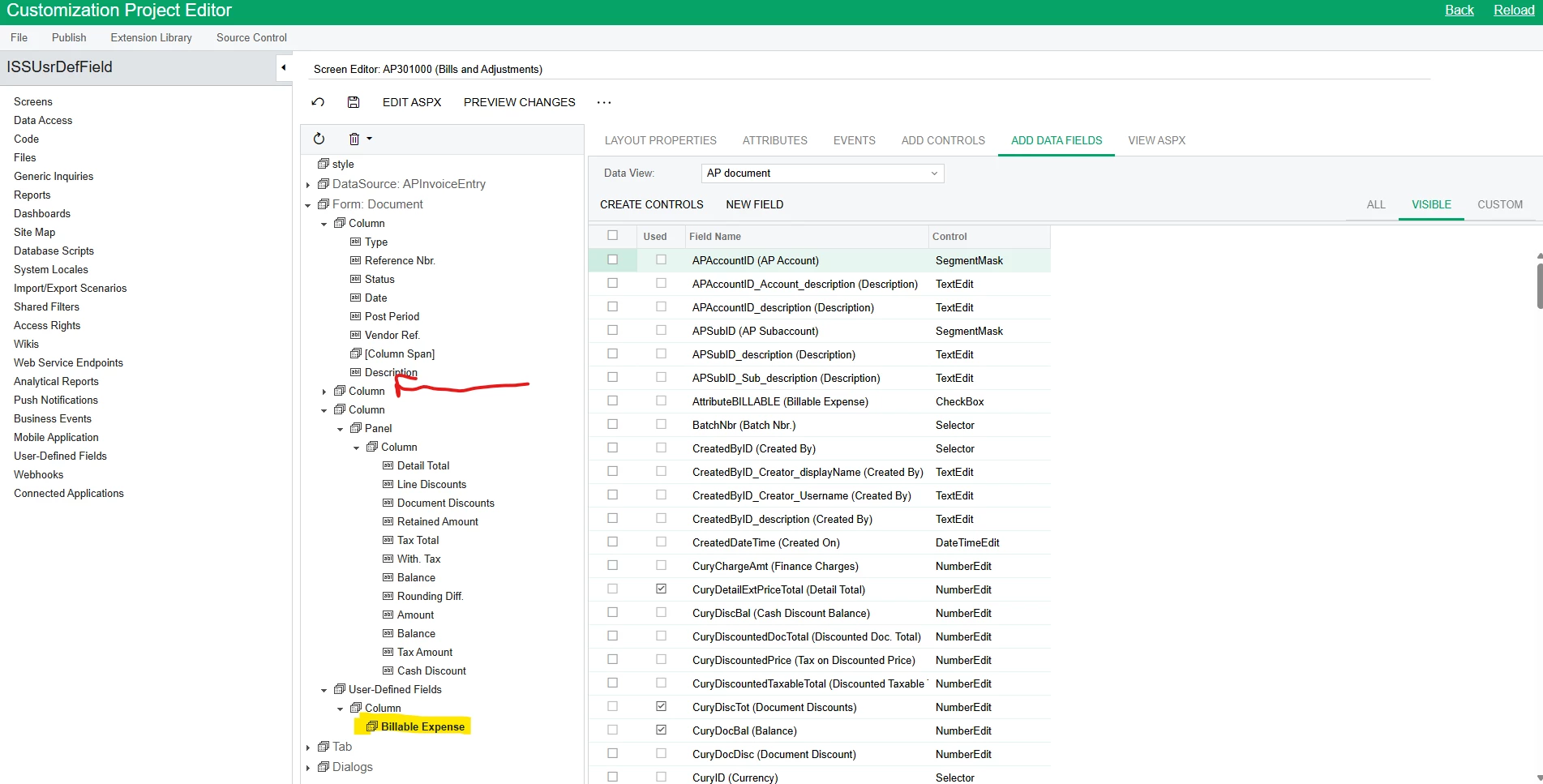
I want to move the User Defined Field ‘Billable Expense’ from the User Defined Field tab to the first column of the Document tab.  Is there an easy way to do this?
 

4 replies

nickcerri32
Jr Varsity III
Forum|alt.badge.img+1
  • Jr Varsity III
  • November 12, 2025

@sspencer - you should be able to left click + drag the Billable Expense field underneath that field in that column.  


i tried the left click and drag,   It appears as though its going to move, but it doesnt,  I can drag around other fields, but for some reason i can not drag the User Defined Field.  I get the same result in a different environment.


nickcerri32
Jr Varsity III
Forum|alt.badge.img+1
  • Jr Varsity III
  • November 12, 2025

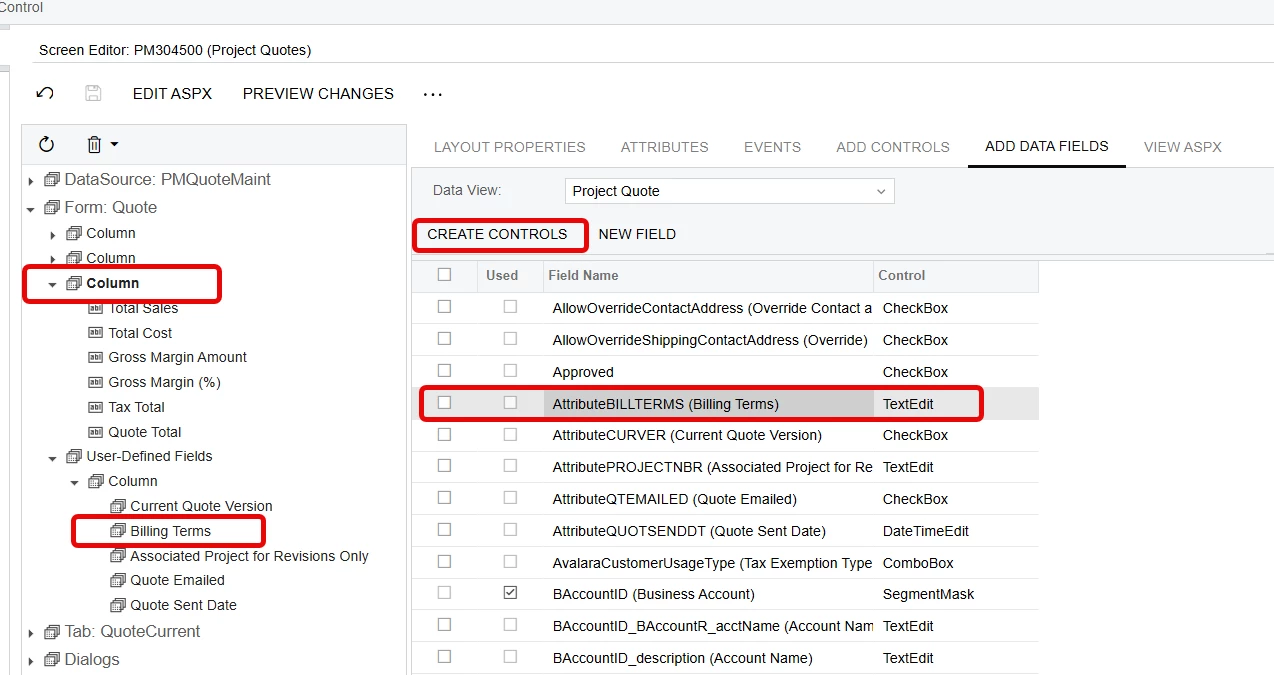
@scottspencer38 - OK, if that doesn’t work, you can expose the attribute/UDF in the column.  In the below example, if I create the controls for Billing terms and then expose, it should show up in the column in the location that I drag it to.  See if that works.


Forum|alt.badge.img+2

Hello ​@sspencer :

  1.  Remove UDF from editor then
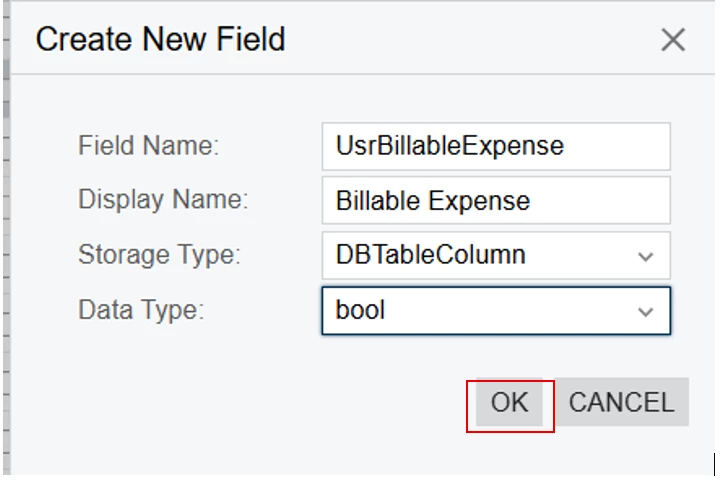
  2.  Click on Description field and Go to Add Data Fields & then New Field (as shown in your screenshot)
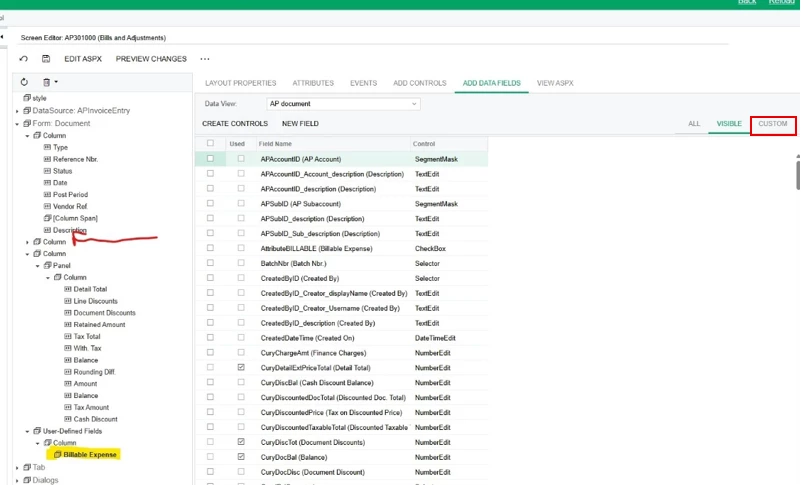
  1. Click OK & then Publish package & then again click on Description field and Go to Add Data Fields - > Custom option 
    1. You will able see your field just add it below the Description ( make sure you clicked on Description field) and Publish package again.

I hope it helps!