Answer

Add Customer Address field to Select - Customer ID windows

  • August 14, 2025
  • 2 replies
  • 46 views

Forum|alt.badge.img

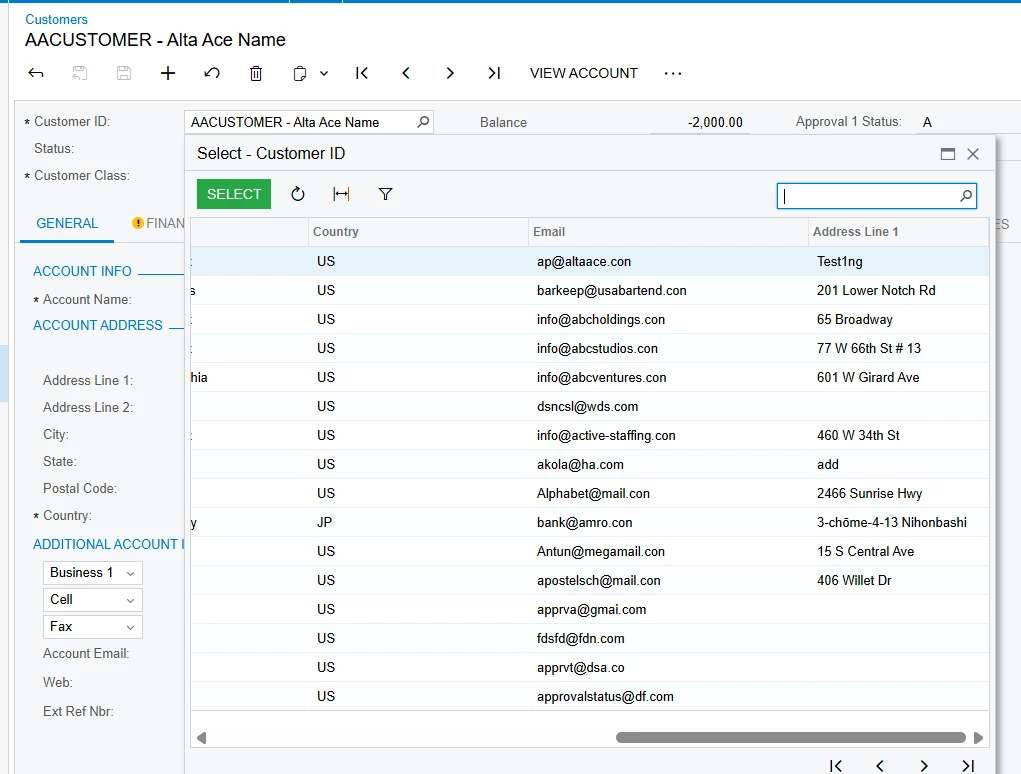
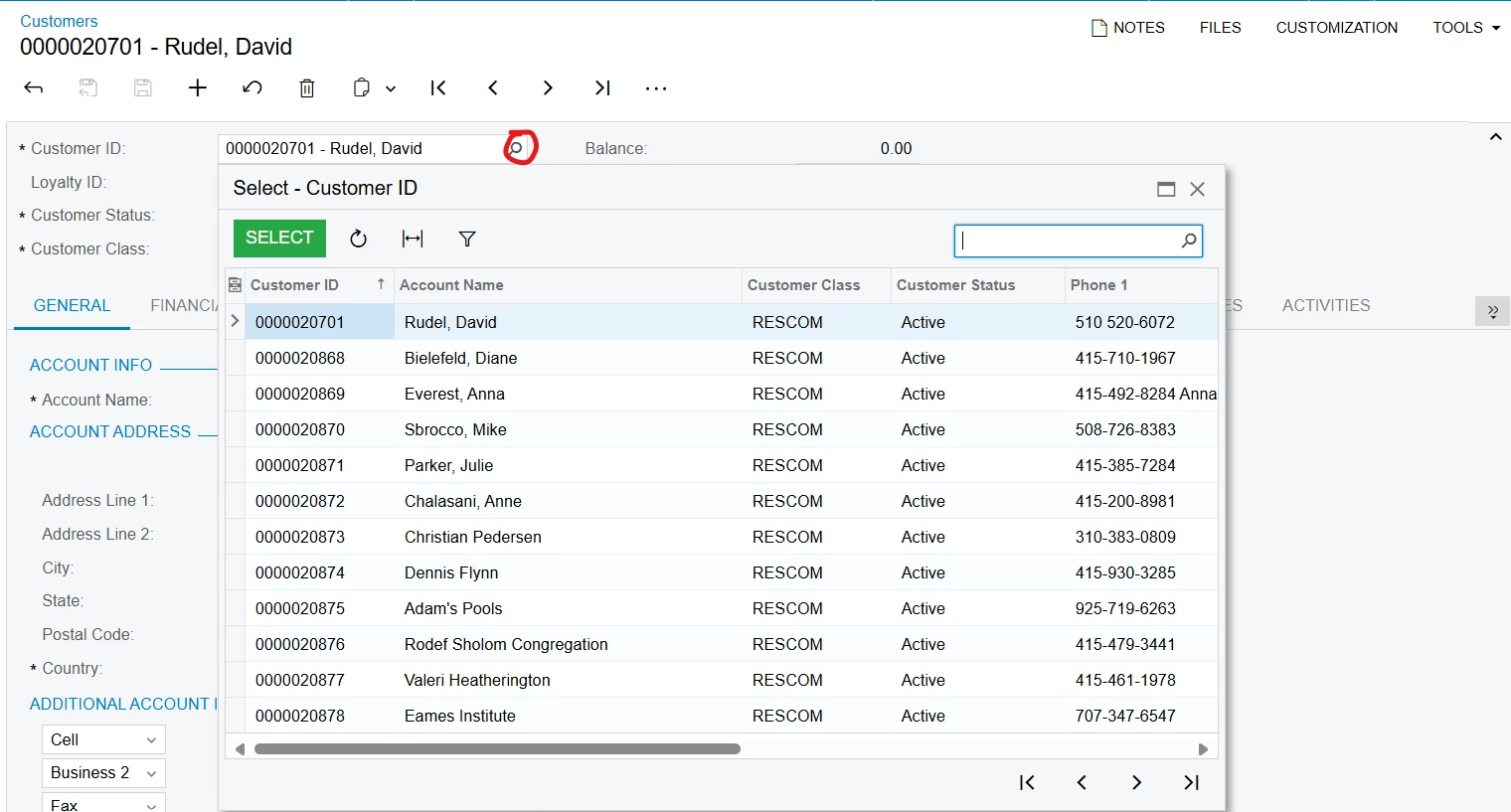
Would like to add the ability to search for a Customer by address when selecting the search icon in the Customer ID Field. When selecting the search icon a new window pops up to search for a customer. The customer address is not available in this window. How do I add it as a searchable column?
 

Best answer by svwk05

@bobbytherbs 

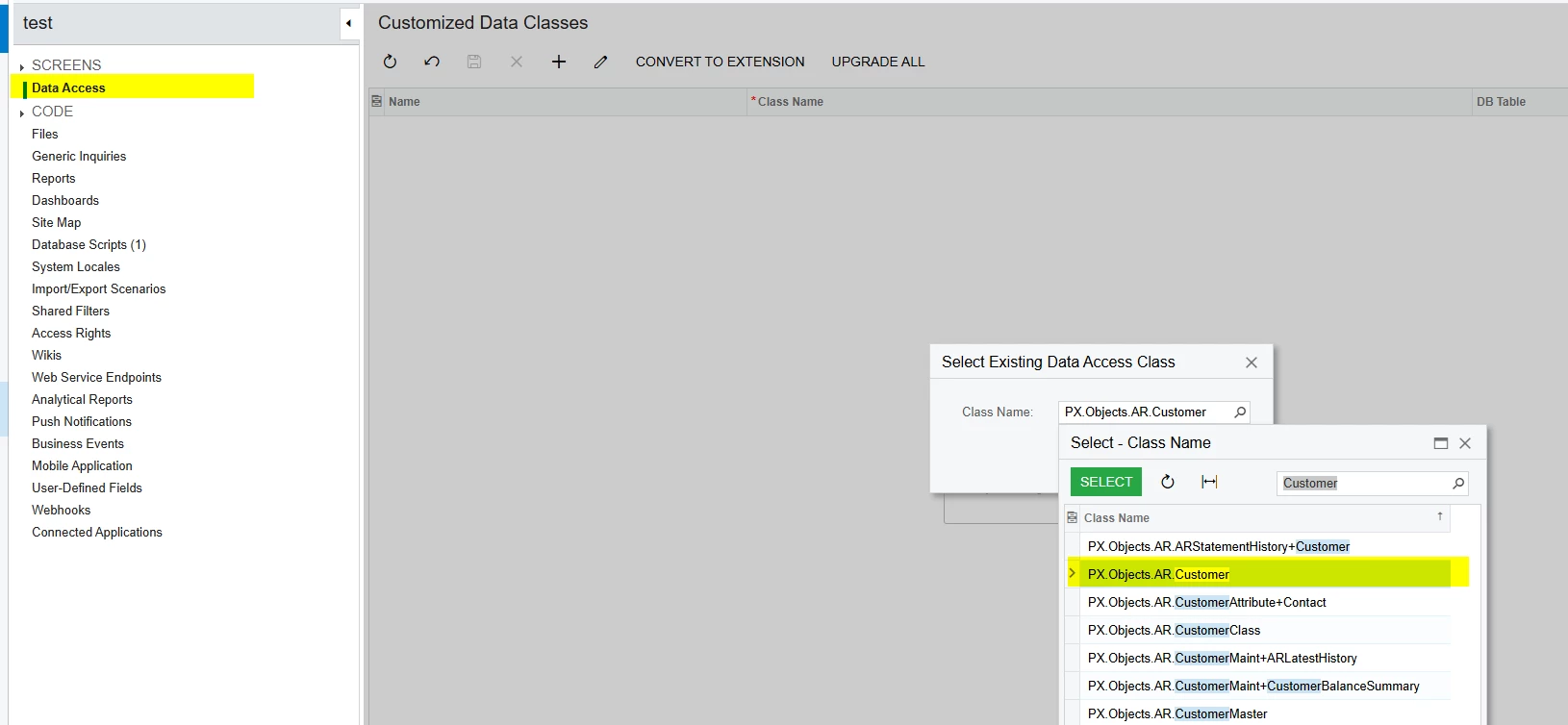
You can achieve this through a customization project:

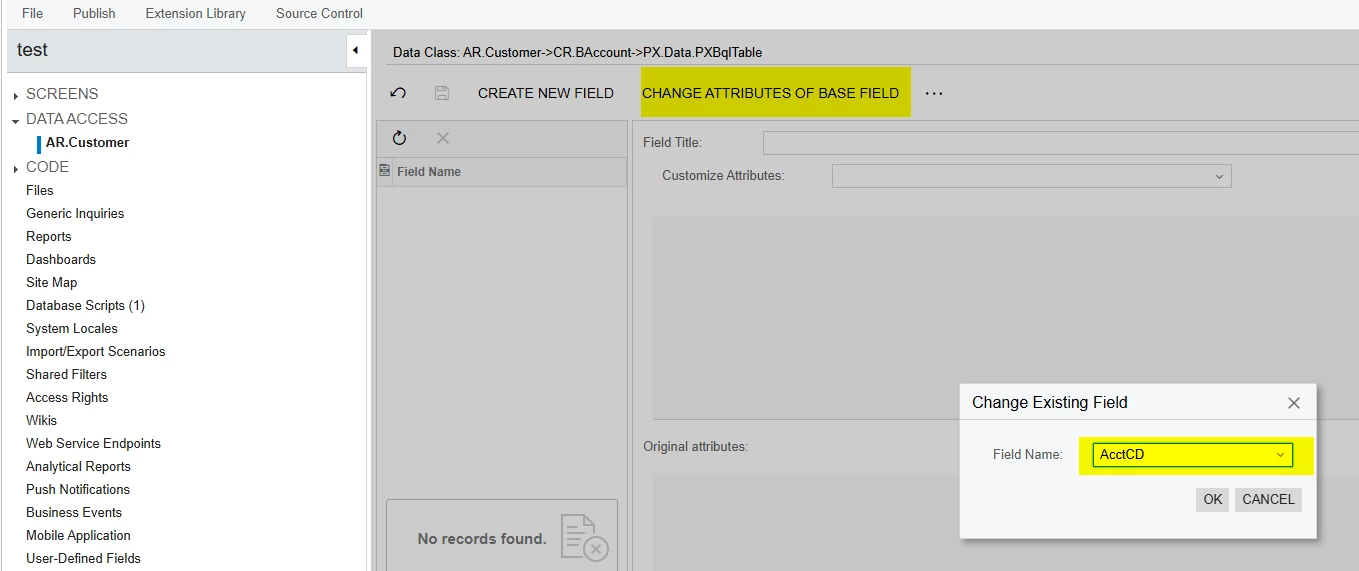
  1. In the Data Access section, click the “+” icon and search for the Customer DAC selector.

2.Click Change Attribute for the base field, and select AcctCD.

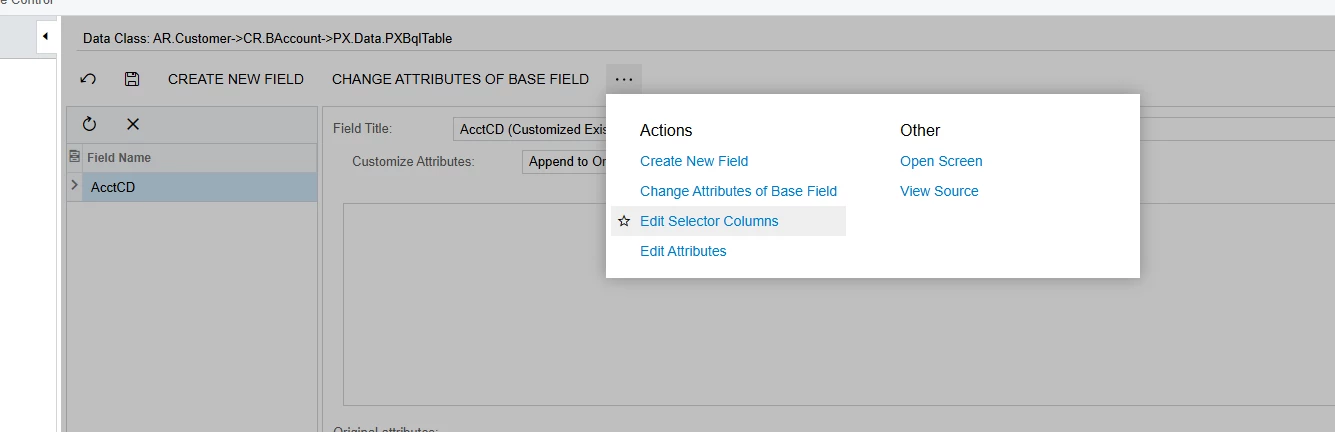
3.Click Edit Selector Columns.

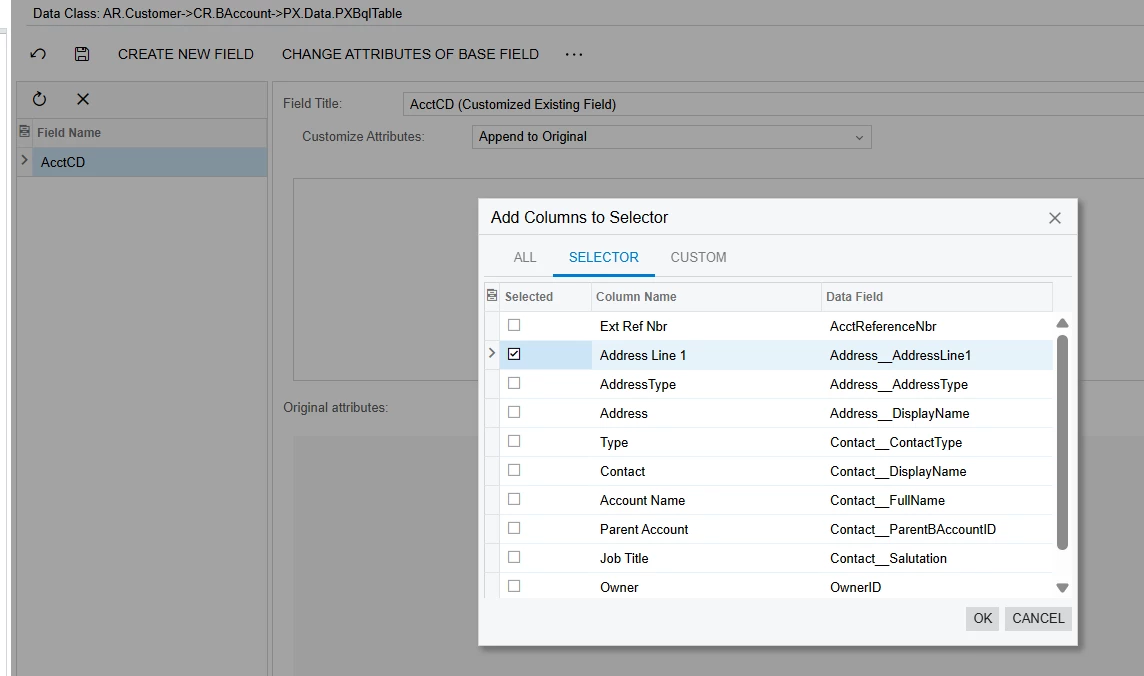
4.Add the AddressLine1 column, then publish the changes and verify.

Thanks 

Saikrishna!

2 replies

dgodsill97
Varsity I
Forum|alt.badge.img+3
  • Varsity I
  • August 14, 2025

Review the video it shows David Gross doing that for vendor lookup.  Basically checking a box for search all fields.


https://community.acumatica.com/community%2Dsite%2Ddiscussions%2D150/acumatica%2Dcommunity%2Dwebinar%2Ddemystifying%2Dno%2Dcode%2Dcustomizations%2Dthu%2Djune%2D27%2D2024%2Drecording%2D24873


About 16:30 is where he enables searching for all fields of the selector.


Forum|alt.badge.img+1
  • Semi-Pro III
  • Answer
  • August 15, 2025

@bobbytherbs 

You can achieve this through a customization project:

  1. In the Data Access section, click the “+” icon and search for the Customer DAC selector.

2.Click Change Attribute for the base field, and select AcctCD.

3.Click Edit Selector Columns.

4.Add the AddressLine1 column, then publish the changes and verify.

Thanks 

Saikrishna!