Answer

Add Custom Column in Appointment for Inventory ID field.

  • June 3, 2025
  • 4 replies
  • 89 views

Forum|alt.badge.img

We add one custom column call “Brand” in stock and non stock item.
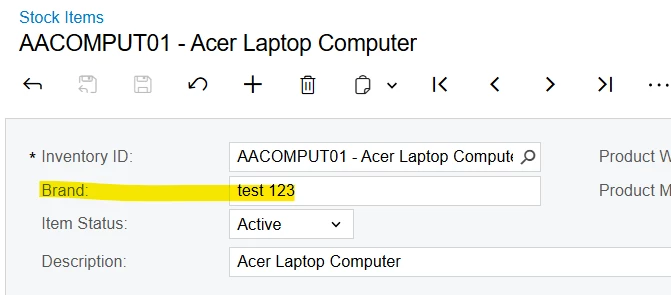
InventoryItemExt.UsrBrand is the extended DAC (free text field).


In Details tab of Appointment screen (Screen ID: FS300200)  we have a selector for Inventory Item.
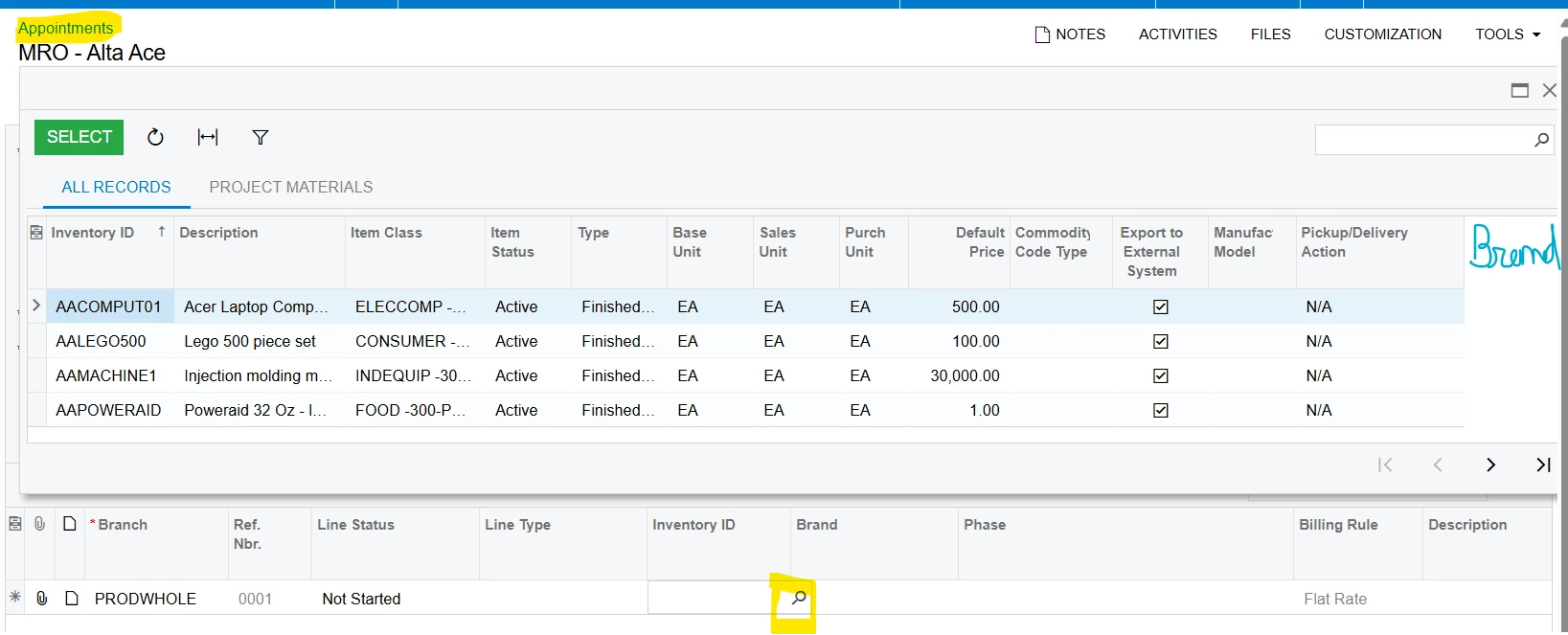
I wants to add Brand column in above popup box.

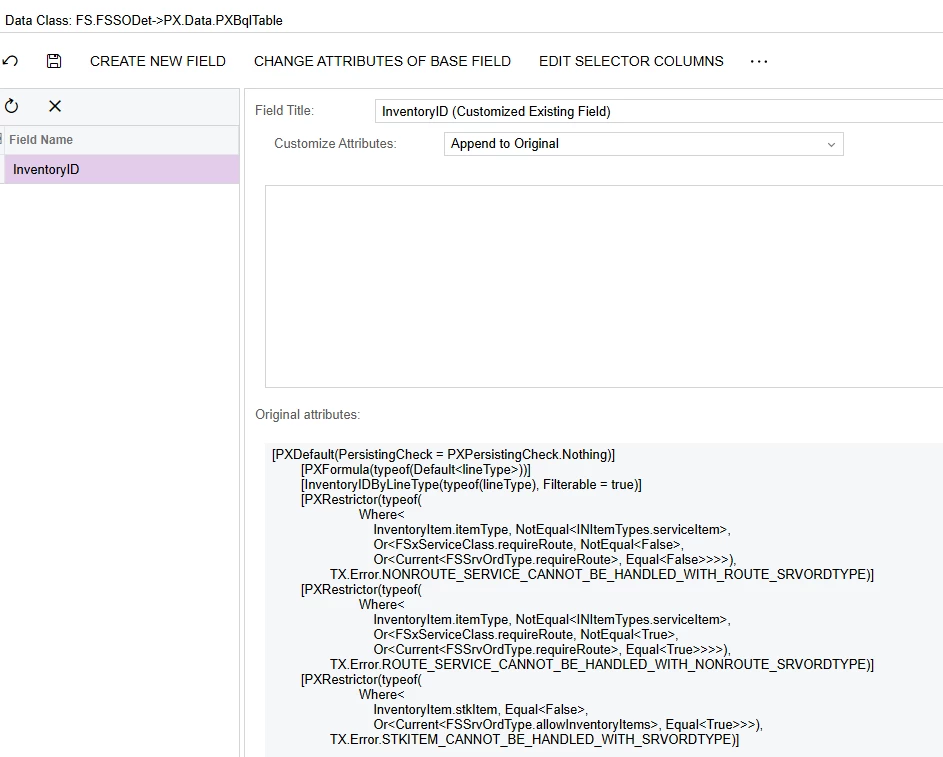
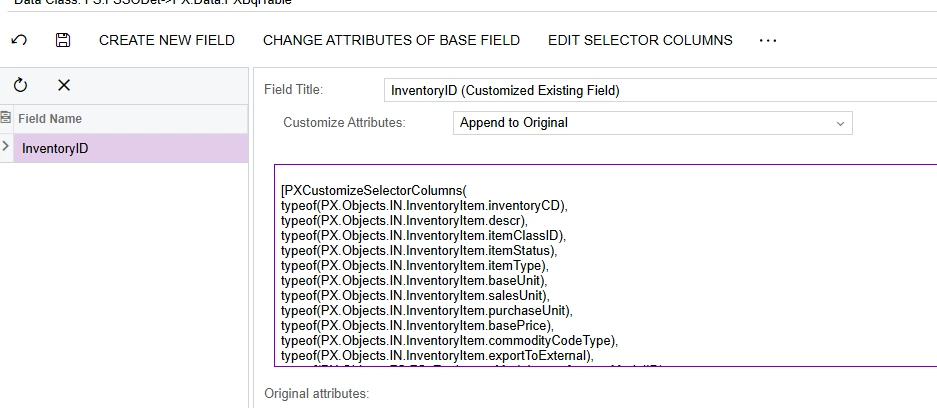
I try with “PXCustomizeSelectorColumns” and “PXSelector” but it replace all column.

I wants to keep all columns as it is and append one more column as brand.

I check code and found that “InventoryIDByLineType” attribute is used. But I cannot get how can we add one more column in it. And I cannot get original logic for all above columns otherwise I can copy paste and change.
 

Best answer by darylbowman

...I cannot get how can we add one more column in it. And I cannot get original logic for all above columns otherwise I can copy paste and change.

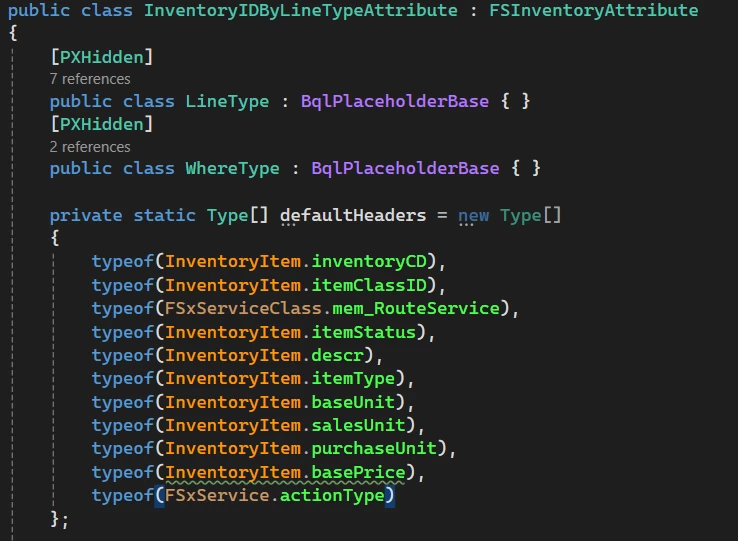
The original columns can be found in the InventoryIDByLineTypeAttribute class:


They are:

typeof(InventoryItem.inventoryCD),
typeof(InventoryItem.itemClassID),
typeof(FSxServiceClass.mem_RouteService),
typeof(InventoryItem.itemStatus),
typeof(InventoryItem.descr),
typeof(InventoryItem.itemType),
typeof(InventoryItem.baseUnit),
typeof(InventoryItem.salesUnit),
typeof(InventoryItem.purchaseUnit),
typeof(InventoryItem.basePrice),
typeof(FSxService.actionType)


4 replies

Forum|alt.badge.img+5

Hi ​@bjani23 
Which option are you selecting while customizing the attribute — Append to original or Replace original?
I believe you need to select Append to original.


Hope, it helps!


DrewNisley
Pro I
Forum|alt.badge.img+3
  • Pro I
  • June 3, 2025

You should be able to add the field using the customization project editor. Click the Edit Selector Columns under the Inventory ID field like shown below, then click Add Columns, and go to custom and select your custom field. That will only work if your custom field is from an extension of the InventoryItem class, but I assume it is. It will then create a PXCustomizeSelector Columns with all the original columns as well as your custom columns.


darylbowman
Captain II
Forum|alt.badge.img+15
  • Answer
  • June 3, 2025

...I cannot get how can we add one more column in it. And I cannot get original logic for all above columns otherwise I can copy paste and change.

The original columns can be found in the InventoryIDByLineTypeAttribute class:


They are:

typeof(InventoryItem.inventoryCD),
typeof(InventoryItem.itemClassID),
typeof(FSxServiceClass.mem_RouteService),
typeof(InventoryItem.itemStatus),
typeof(InventoryItem.descr),
typeof(InventoryItem.itemType),
typeof(InventoryItem.baseUnit),
typeof(InventoryItem.salesUnit),
typeof(InventoryItem.purchaseUnit),
typeof(InventoryItem.basePrice),
typeof(FSxService.actionType)


Forum|alt.badge.img
  • Author
  • Jr Varsity III
  • June 4, 2025

[PXMergeAttributes(Method = MergeMethod.Merge)]

[InventoryIDByLineType(typeof(FSAppointmentDet.lineType), new Type[] {
            typeof(InventoryItem.inventoryCD),
            typeof(InventoryItem.itemClassID),
            typeof(InventoryItemExt.usrMANUFAC),
            typeof(FSxServiceClass.mem_RouteService),
            typeof(InventoryItem.itemStatus),
            typeof(InventoryItem.descr),
            typeof(InventoryItem.itemType),
            typeof(InventoryItem.baseUnit),
            typeof(InventoryItem.salesUnit),
            typeof(InventoryItem.purchaseUnit),
            typeof(InventoryItem.basePrice),
            typeof(FSxService.actionType)
            }, Filterable = true)]


Above like works fine.